
To protect your forms from spam and bots, you can easily integrate Google reCAPTCHA V2 with the HT Contact Form plugin. Follow these steps to complete the setup:
Step 1: Register Your Site on Google reCAPTCHA
- First, visit this URL: https://www.google.com/recaptcha/admin/create
- n the Label field, enter a recognizable name like
HT Contact Form. - Under reCAPTCHA type, select:
- Challenge (v2) → then choose “I’m not a robot” Checkbox.
- Under Domains, add your domain (e.g.,
yourdomain.com) — withouthttps://. - Google Cloud Platform section will auto-fill your project name.
- Click the SUBMIT button.
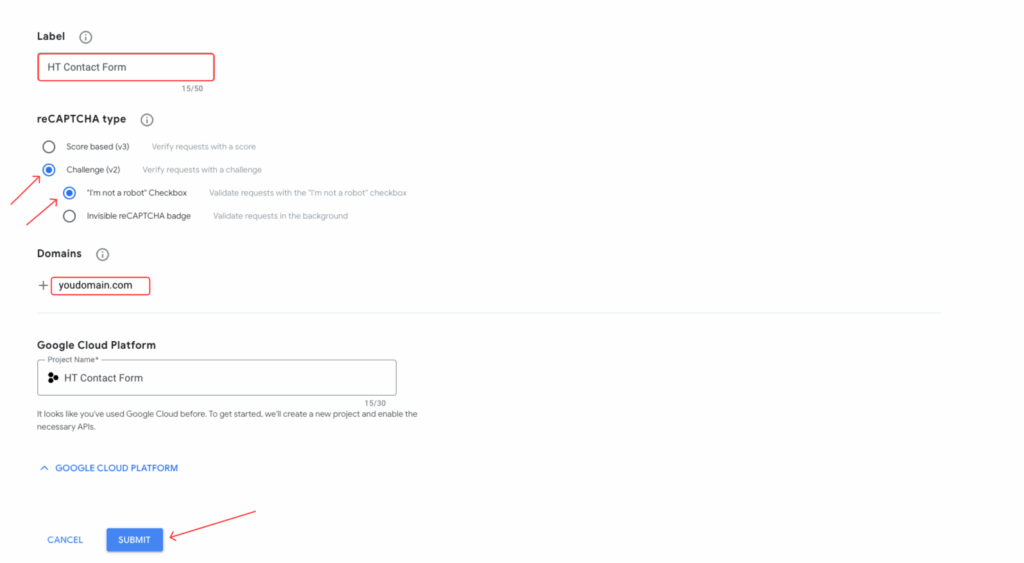
🔹 After registration, Google will provide you with a Site Key and a Secret Key.
🔹 Copy and save them—you’ll need these keys in the next step.
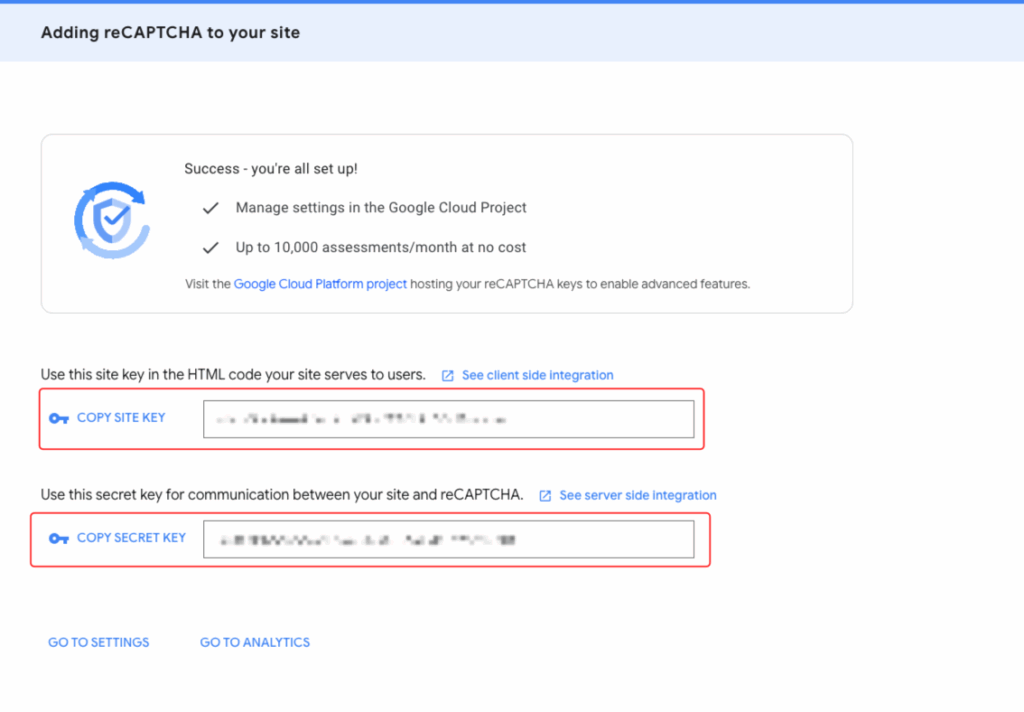
Step 2: Configure reCAPTCHA V2 in HT Contact Forms
- Login to your WordPress dashboard.
- Navigate to: HT Contact Form → Global Settings → Captcha tab.
- Select Google reCAPTCHA v2.
- Paste the Site Key and Secret Key you got from Google.
- Click Save Settings.
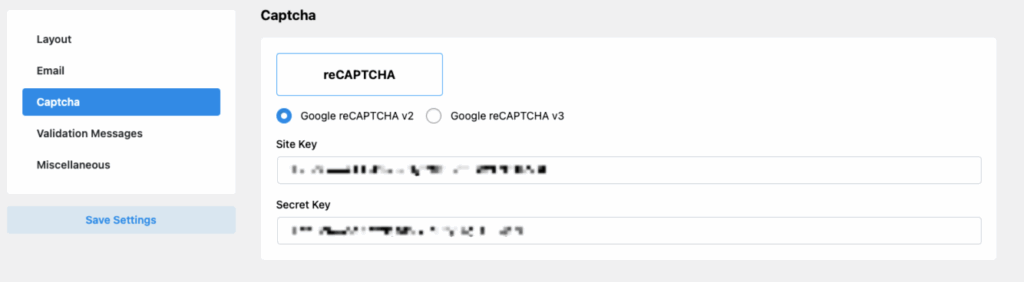
Step 3: Add reCAPTCHA to Your Form
- Edit or create a new contact form using HT Contact Form.
- Drag the reCAPTCHA field into your form from the left field panel.
- Save your form.
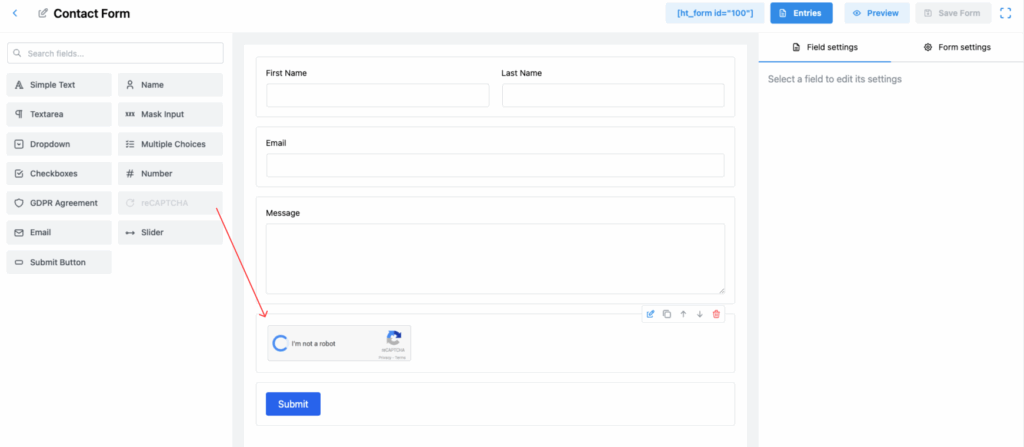
Now, the reCAPTCHA checkbox will appear on your form, and your site is protected from spam submissions. ✅
Note:
If you are using reCAPTCHA v3, it will appear as a small badge on the bottom right of your website.
If you are using reCAPTCHA v2, users will see the checkbox saying “I’m not a robot”.
Important Notes:
- If the Captcha option is not showing after adding, ensure that the Site Key and Secret Key are properly set up in Global Settings.
- Make sure you are using the correct version (v2 or v3) depending on the form design and your preference.
Last updated on March 10, 2026
Was this article helpful?
Powered by Support Genix