
The HT Contact Form plugin allows you to connect your forms with iContact, a robust email marketing platform with a focus on deliverability and customer support. Automatically add form respondents as contacts and subscribe them to specific mailing lists for targeted email campaigns.
Key Features
- Automatic Contact Creation: Add new contacts directly from form submissions
- List Subscription: Subscribe contacts to specific iContact lists
- Field Mapping: Map all standard and custom contact fields
- Custom Fields Support: Use iContact custom fields for extended data
- Rate Limit Handling: Automatic retry on API rate limits
- Duplicate Prevention: Existing contacts are updated, not duplicated
Prerequisites
Before using the iContact integration, make sure you have an active iContact account, your API credentials (App ID, Username, API Password, Account ID, Client Folder ID), and at least one contact list created in iContact.
Getting Your API Credentials
iContact requires five credentials for API access:
- Log in to your iContact account
- Navigate to User → Settings and Billing → iContact Integrations → Custom API Integrations → Create (or click here to go directly to the integrations page)
- Create an API application if you don’t have one
- Note down these five values:
- App ID: Your unique application identifier
- Username: Your iContact login email
- API Password: Your API password (may differ from your login password)
- Account ID: Found in your account URL
- Client Folder ID: Found in advanced API settings or first folder response
Important: The API password is often different from your login password. Check your API settings for the correct password. Keep all credentials secure and don’t share them publicly.
Step 1: Configure Global Settings
First, you need to configure the iContact API credentials in the global settings.
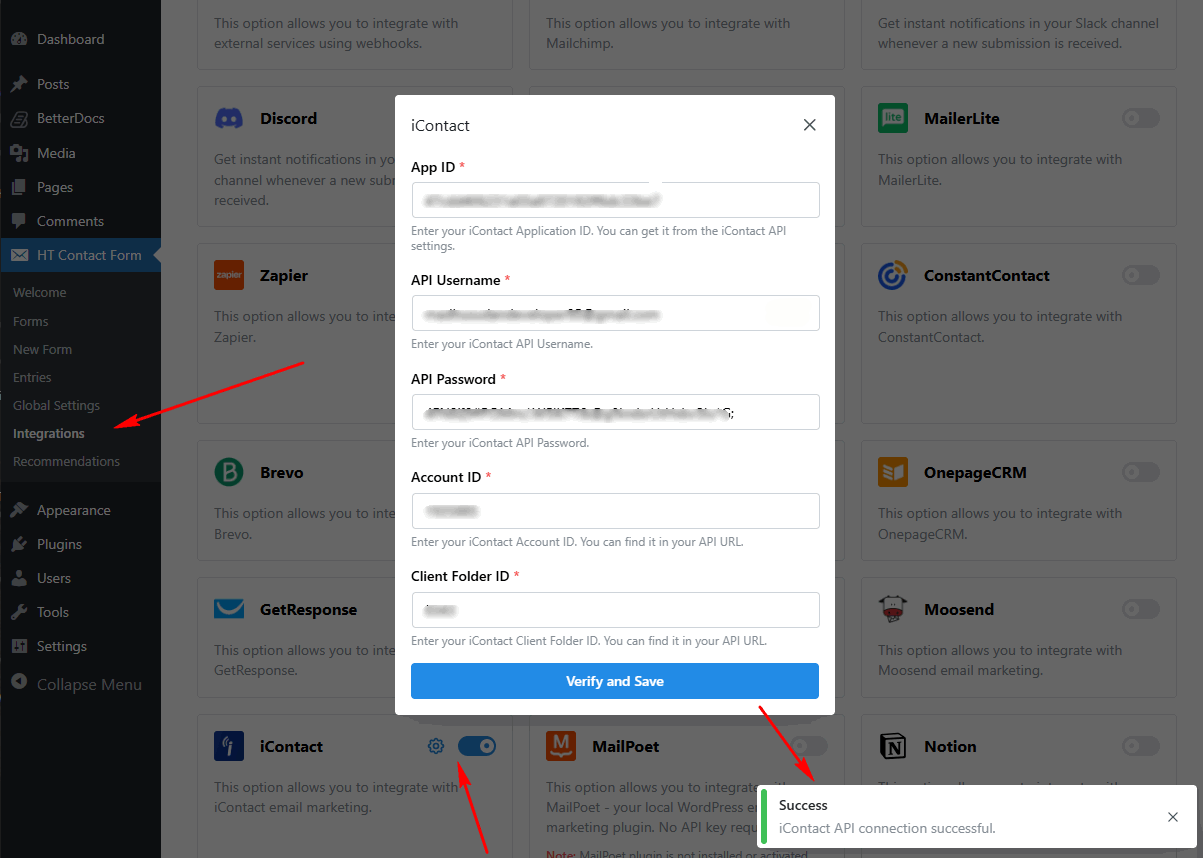
- Go to HT Contact Form → Settings → Integrations
- Find iContact and click Configure
- Enter all five required credentials:
- App ID
- Username (email)
- API Password
- Account ID
- Client Folder ID
- Click Verify and Save to test the connection
Step 2: Add iContact Integration to Your Form
Once the global settings are configured, you can add the iContact integration to any form.
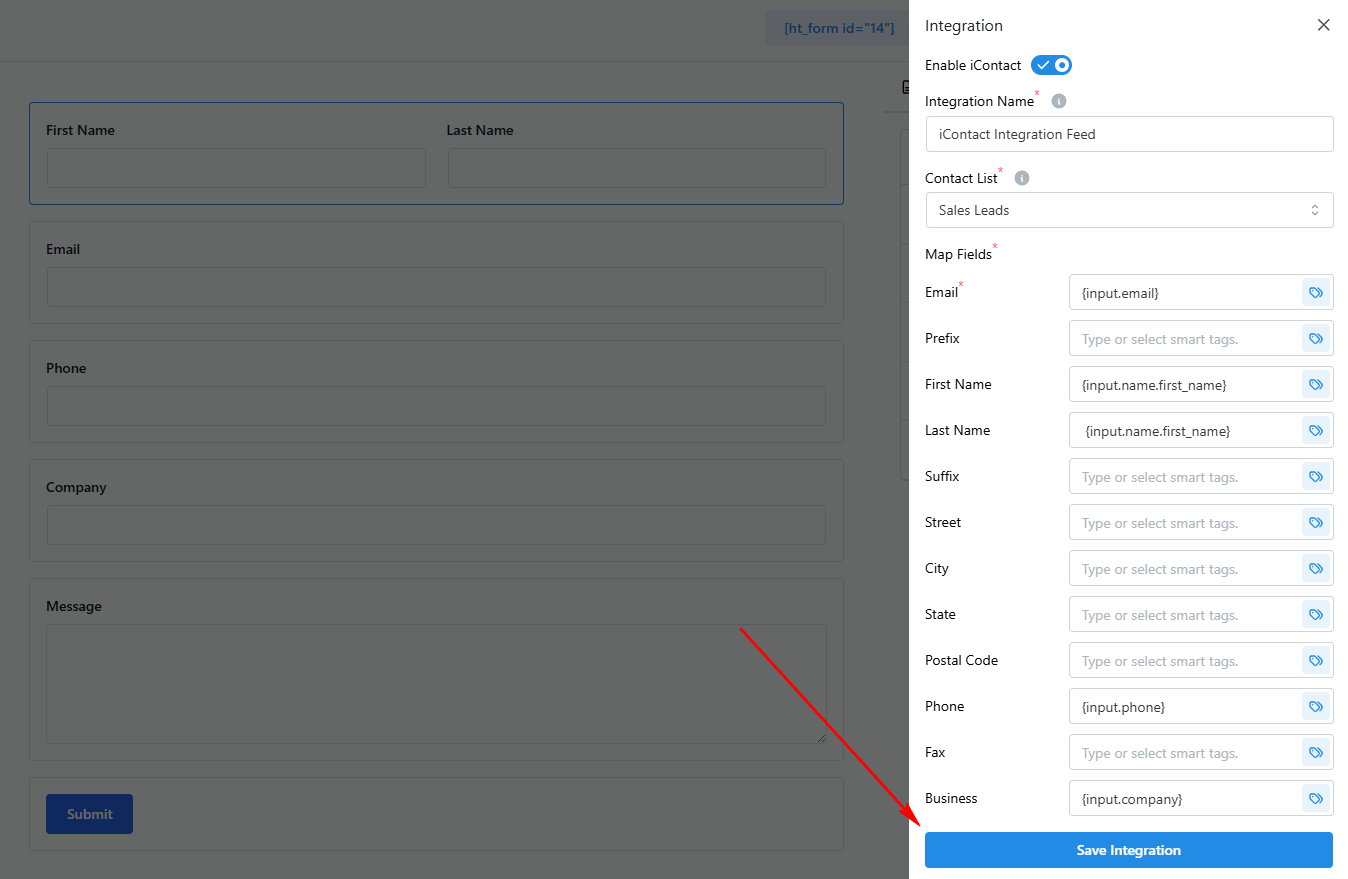
- Edit your form
- Go to the Integrations tab
- Click Add New → iContact
- Select a Contact List
- Map form fields to iContact fields
- Click Save Integration
Integration Settings Overview
| Setting | Required | Description |
|---|---|---|
| Contact List | Yes | The iContact list to subscribe contacts to |
| Field Mapping | Yes | Map form fields to iContact contact fields |
Standard Contact Fields
Map your form fields to these standard iContact contact fields:
| Field Key | Description | Example Value |
|---|---|---|
| Contact email (required) | john@example.com | |
| prefix | Name prefix | Mr., Mrs., Dr. |
| firstName | First name | John |
| lastName | Last name | Smith |
| suffix | Name suffix | Jr., Sr., III |
| street | Street address | 123 Main St |
| street2 | Address line 2 | Suite 100 |
| city | City | New York |
| state | State/Province | NY |
| postalCode | Postal/ZIP code | 10001 |
| phone | Phone number | +1-555-123-4567 |
| fax | Fax number | +1-555-123-4568 |
| business | Business/Company name | Acme Corp |
Custom Fields
Custom fields defined in your iContact account appear automatically. They’re identified by their privateName property.
Creating Custom Fields in iContact
- Go to Contacts → Custom Fields in iContact
- Click “Create a Custom Field”
- Define field name and type
- Use the field’s
privateNamein your mappings
Tip: When mapping custom fields, use the field’s privateName (not the display name). This ensures data is saved to the correct field in iContact.
Smart Tags Reference
Use {input.field_name} to include form values dynamically.
| Smart Tag | Description |
|---|---|
{input.email} | Email field value |
{input.first_name} | First name value |
{input.last_name} | Last name value |
{input.phone} | Phone number |
{input.company} | Company/Business name |
{input.any_field} | Any form field by admin label |
Complete Configuration Example: B2B Lead Generation
Here’s an example of setting up iContact integration for B2B lead capture with company information.
Form Fields: First Name, Last Name, Email, Phone, Company, Job Title (custom field)
Integration Configuration
Contact List: Sales Leads
Field Mapping:
  email: {input.email}
  firstName: {input.first_name}
  lastName: {input.last_name}
  phone: {input.phone}
  business: {input.company}
  job_title: {input.job_title}
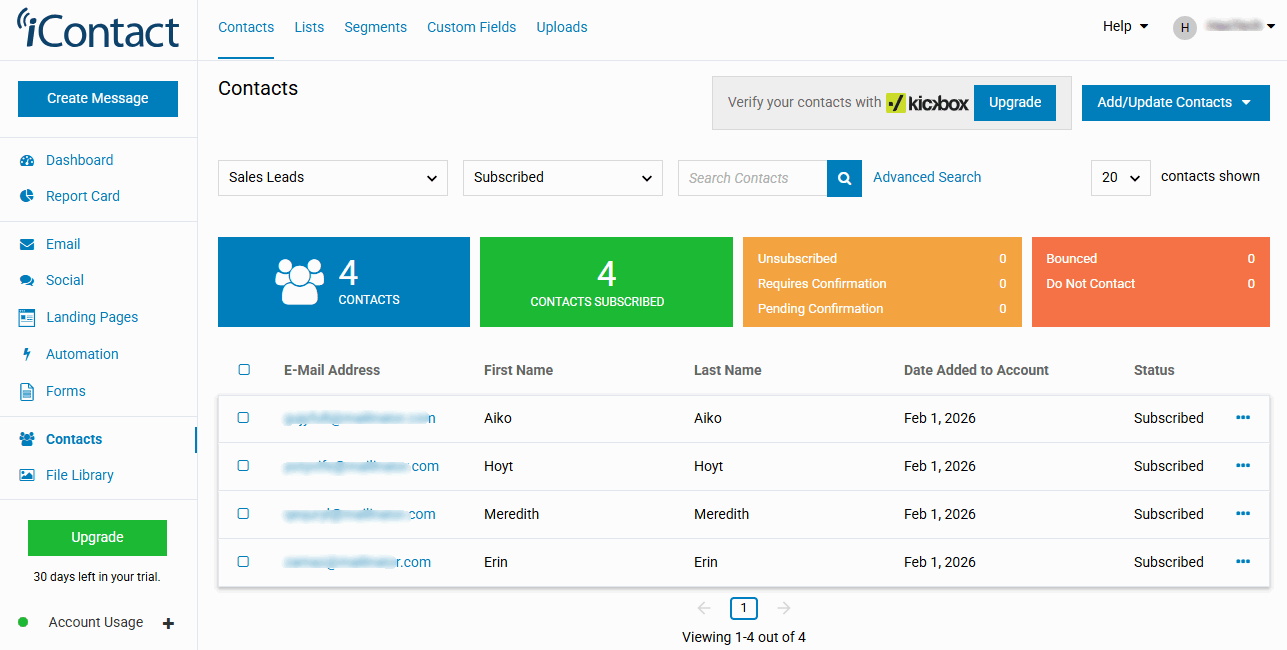
Result: Complete lead profiles added to your sales pipeline list with all business information for targeted follow-up.
Common Use Cases
- Newsletter Signup Forms: Create simple email capture forms that subscribe visitors to your newsletter list with first name personalization.
- Lead Generation with Segmentation: Collect leads and automatically segment them into different lists based on interest or source for targeted email campaigns.
- Event Registration Lists: Capture event registrations and add attendees to event-specific lists for follow-up communications and reminders.
- Customer Feedback Collection: Gather feedback and add respondents to a “Customers” list with their business information for future promotions.
- Free Resource Downloads: Gate ebook, whitepaper, or template downloads with an email form that adds subscribers to a nurture list.
- Webinar Registration: Collect webinar registrations and add attendees to a webinar-specific list for reminder emails and recordings.
How It Works
The iContact integration uses a two-step process to create contacts and subscribe them to lists:
Step 1: Create Contact
The contact record is created with all mapped fields using the iContact API. The contact ID is returned for the subscription step.
Step 2: Subscribe to List
The contact is subscribed to the selected list with a “normal” (active) subscription status.
Duplicate Handling
When an email already exists in iContact, the integration handles it seamlessly:
- Contact fields are updated with new values
- Contact is subscribed to the selected list if not already a member
- No duplicate contacts are created
- Existing list subscriptions are preserved
Troubleshooting
Authentication Errors
Problem: “Invalid credentials” error when verifying.
Solutions:
- Verify App ID is copied exactly (no extra spaces)
- Confirm username is your iContact login email
- Check API password (often different from login password)
- Verify Account ID from your account URL
- Confirm Client Folder ID from API settings
Contacts Not Appearing in List
Problem: Form submissions don’t create contacts.
Solutions:
- Search for contact by email in iContact
- Check if contact exists but isn’t subscribed to the list
- Verify list selection in integration settings
- Check for errors in form submission logs
- Ensure email field is mapped correctly
Custom Fields Not Saving
Problem: Custom field data not appearing in iContact.
Solutions:
- Verify custom field exists in iContact
- Use the field’s
privateName(not display name) - Check smart tag syntax matches form field
- Ensure field type supports the data format
Rate Limit Errors
Problem: Getting HTTP 429 errors.
Solutions:
- The plugin automatically retries with backoff
- Space out form submissions if testing
- Check for duplicate integrations running
- Contact iContact for rate limit increase
Frequently Asked Questions
Q: Do I need a paid iContact account?
A: No, free trial accounts include API access. Verify API permissions in your account settings.
Q: What happens if a contact already exists?
A: The contact is updated with new field values and subscribed to the selected list if not already a member.
Q: Can I subscribe to multiple lists at once?
A: The current integration supports one list per form. Add multiple integrations for multiple lists.
Q: Why is my API password different from my login password?
A: iContact uses separate API credentials for security. Check Settings → API Settings for your API password.
Q: How do I find my Account ID and Folder ID?
A: Account ID is visible in your iContact URL. Folder ID can be found in API settings or by calling the folders endpoint.
Q: Does the integration handle unsubscribes?
A: No, unsubscribes should be managed directly in iContact to maintain compliance with email regulations.
Q: Can I use iContact automations with form submissions?
A: Yes! Create automation workflows in iContact that trigger when contacts join specific lists.
Best Practices
API Credentials
- Store securely – Credentials are encrypted in WordPress
- Use API password – May differ from login password
- Verify all five – Each credential must be exact
- Test connection – Always verify before using
Field Mapping
- Map email first – Required for contact creation
- Include names – firstName, lastName for personalization
- Use custom fields – Extend data capture beyond standard fields
- Match types – Ensure form data matches field type
List Management
- Create specific lists – One list per form/campaign
- Name clearly – Use descriptive list names
- Clean regularly – Remove inactive contacts
- Segment appropriately – Group by interest or source
That’s it! Thank you for choosing HT Contact Form to enhance your email marketing workflow. If you need additional assistance, feel free to contact our support team. Our dedicated support team would be more than happy to assist you.