
The HT Contact Form plugin allows you to connect your forms with MailPoet, the WordPress-native email marketing plugin. Unlike external email services, MailPoet runs on your own WordPress site — no external API keys required. Subscribe form respondents directly to your email lists with double opt-in support and custom field mapping.
Key Features
- No API Key Required: Works directly with your WordPress installation
- Multiple List Subscription: Subscribe users to multiple lists at once
- Double Opt-In Support: GDPR-compliant confirmation emails
- Custom Fields: Map to MailPoet custom subscriber fields
- Local Data Storage: All subscriber data stays on your server
- Duplicate Prevention: Existing subscribers are updated, not duplicated
- Deep WordPress Integration: Works with user roles and WooCommerce
Prerequisites
Before using the MailPoet integration, make sure you have the MailPoet plugin installed and activated on your WordPress site, and at least one list created in MailPoet. No external API keys or credentials are needed.
Installing MailPoet
If MailPoet isn’t already installed on your site:
- Go to Plugins → Add New in WordPress admin
- Search for “MailPoet”
- Click Install Now on “MailPoet – Newsletters, Email Marketing, and Automation”
- Click Activate
- Complete the MailPoet setup wizard
Creating a MailPoet List
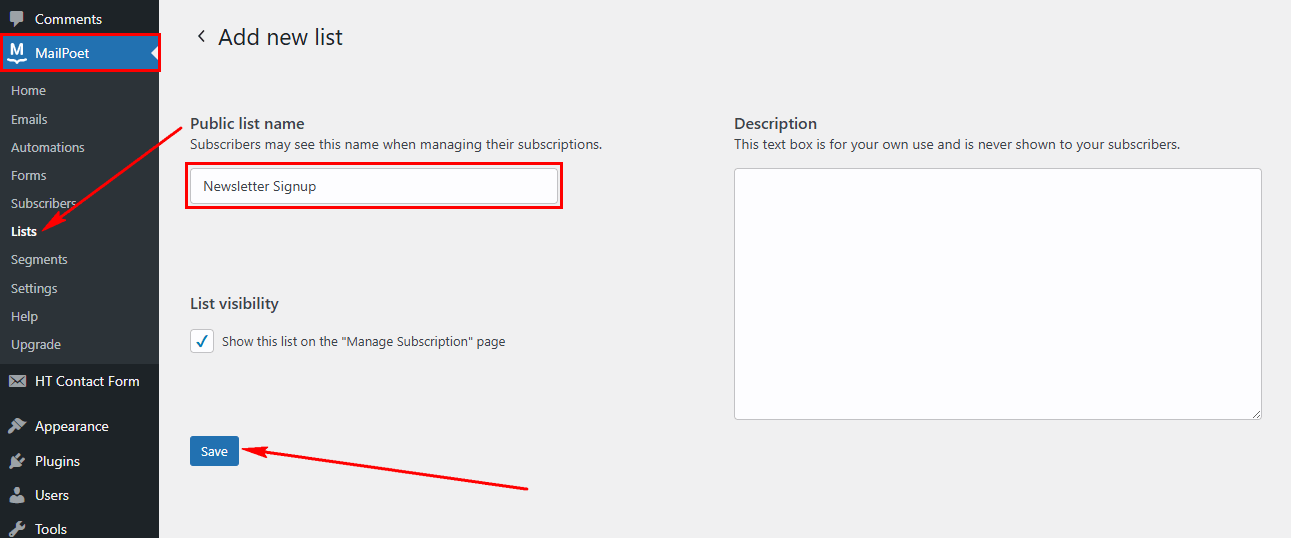
- Go to MailPoet → Lists
- Click New List
- Enter a name and description
- Click Save
Note: MailPoet is a free WordPress plugin with a generous free tier (up to 1,000 subscribers). No external account or API key is needed — the integration works directly with your WordPress database.
Step 1: Verify MailPoet is Active
First, confirm the MailPoet plugin is active and detected by HT Contact Form.
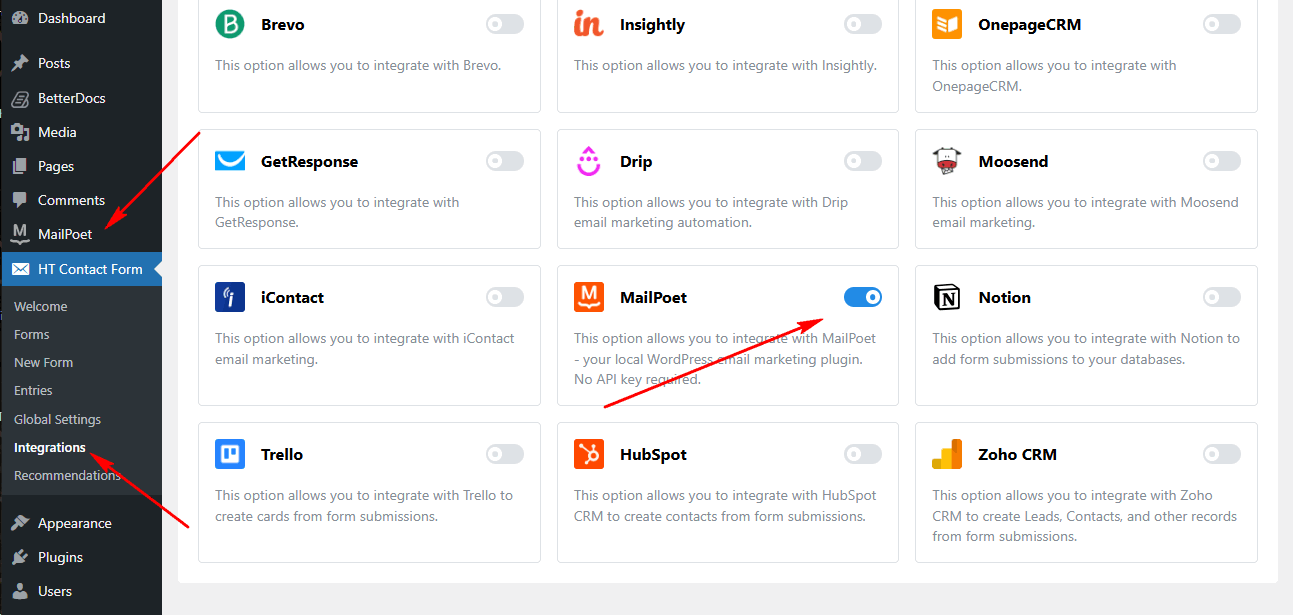
- Go to HT Contact Form → Settings → Integrations
- Find MailPoet in the integrations list
- Status should show as “Active” (green indicator)
- If “Disabled”, install and activate the MailPoet plugin
Step 2: Add MailPoet Integration to Your Form
Once MailPoet is active, you can add the integration to any form.
- Edit your form
- Go to the Integrations tab
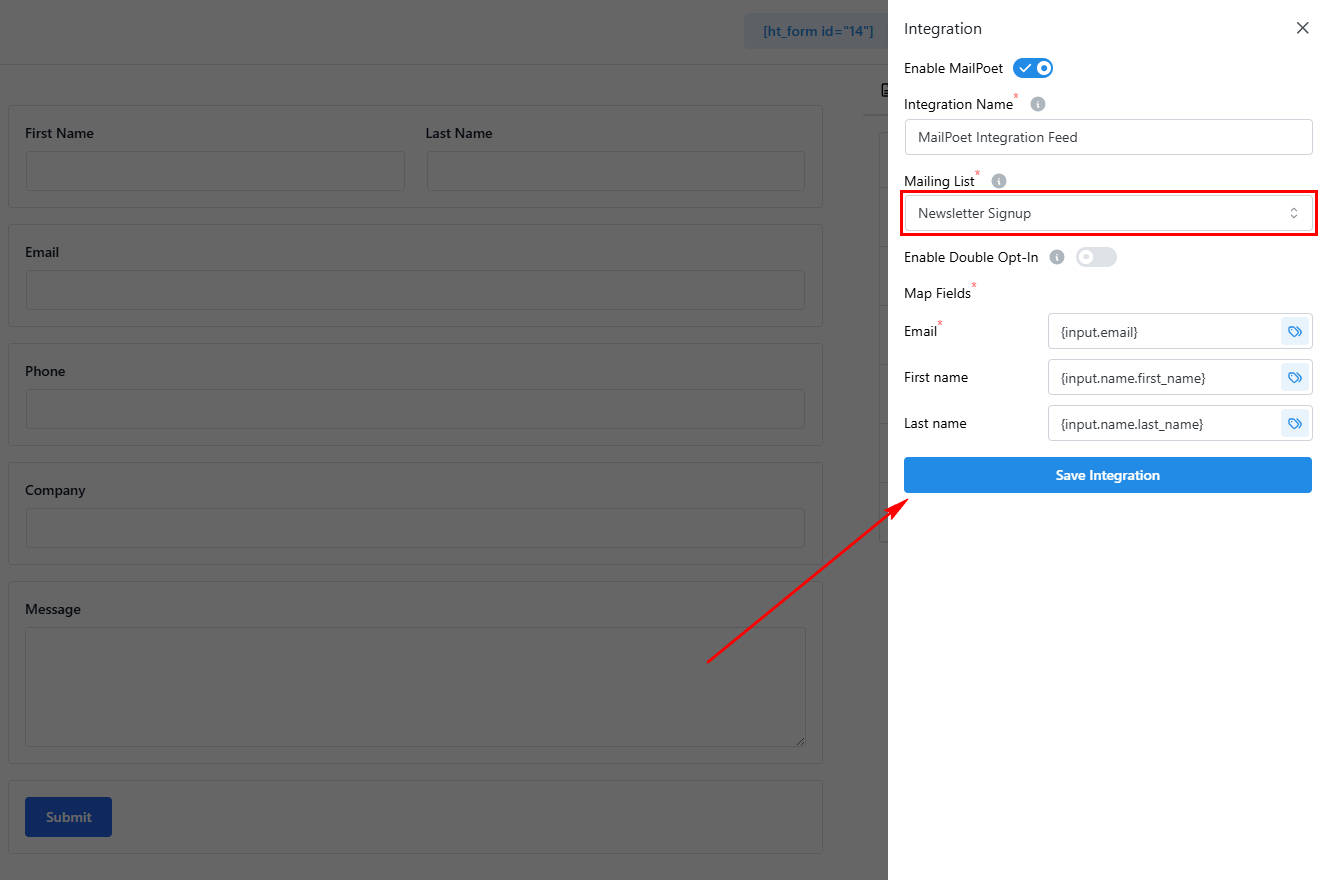
- Click Add New → MailPoet
- Select one or more lists
- Configure field mappings
- Optionally enable Double Opt-In
- Click Save Integration
Integration Settings Overview
| Setting | Required | Description |
|---|---|---|
| Lists | Yes | Select MailPoet lists (multiple allowed) |
| Field Mapping | Yes | Map form fields to MailPoet subscriber fields |
| Double Opt-In | No | Send confirmation email before subscribing |
Standard Subscriber Fields
Map your form fields to these standard MailPoet subscriber fields:
| Field Key | Description | Example Value |
|---|---|---|
| Subscriber email (required) | john@example.com | |
| first_name | First name | John |
| last_name | Last name | Smith |
Custom Fields
Custom subscriber fields defined in MailPoet appear automatically in the mapping options.
Creating Custom Fields in MailPoet
- Go to MailPoet → Settings → Advanced
- Scroll to Custom Fields
- Click Add New Custom Field
- Define field name, type, and settings
- The field will appear in integration mappings
Supported Custom Field Types
- Text
- Textarea
- Radio buttons
- Checkbox
- Select dropdown
- Date
Tip: Custom fields you create in MailPoet will automatically show up in the field mapping dropdown when configuring the integration. No extra setup needed.
Double Opt-In
Control whether subscribers must confirm their email before being added to lists.
When Enabled (Recommended)
- MailPoet sends a confirmation email with verification link
- Subscriber status is “Unconfirmed” until they click
- Better for GDPR/CCPA compliance
- Improves deliverability (no invalid emails)
- Higher engagement rates (confirmed interest)
When Disabled
- Subscriber is immediately “Subscribed”
- No confirmation email sent
- Faster access to content/resources
- Use only when consent is clearly given
- May result in lower engagement
Best Practice: Enable double opt-in unless you have a specific reason not to (like immediate content delivery or existing customer relationships).
Smart Tags Reference
Use {input.field_name} to include form values dynamically.
| Smart Tag | Description |
|---|---|
{input.email} | Email field value |
{input.first_name} | First name value |
{input.last_name} | Last name value |
{input.any_field} | Any form field by admin label |
Complete Configuration Example: Newsletter with Double Opt-In
Here’s an example of setting up MailPoet integration for a blog newsletter with double opt-in enabled.
Form Fields: Email, First Name, Last Name
Integration Configuration
Lists: Newsletter Subscribers
Double Opt-In: Enabled
Field Mapping:
  email: {input.email}
  first_name: {input.first_name}
  last_name: {input.last_name}
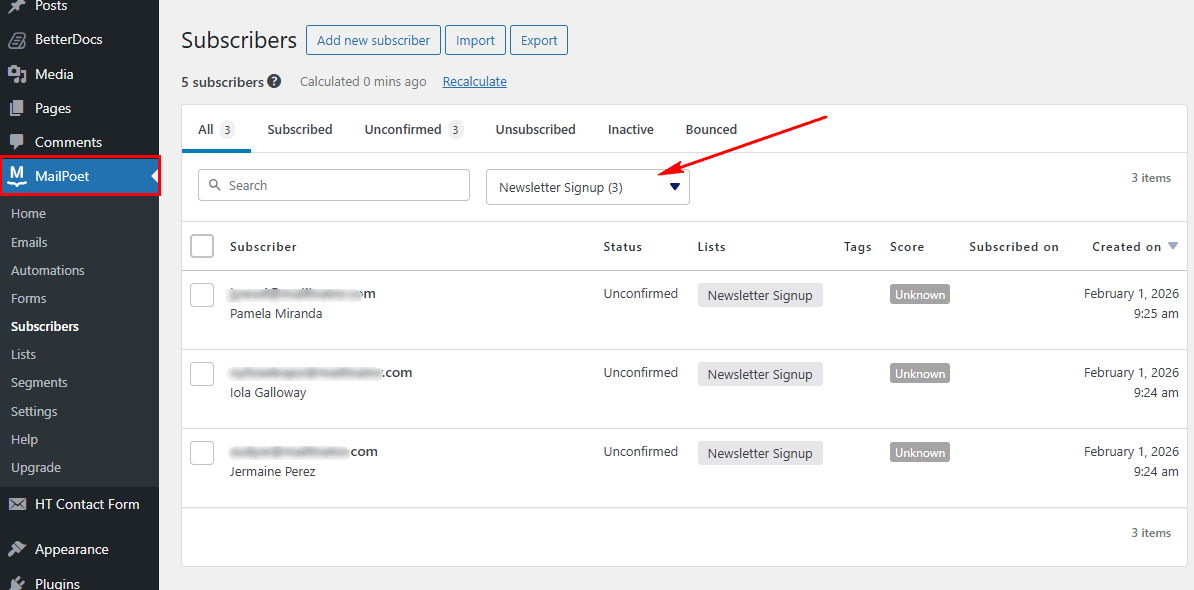
Result: Subscribers receive a confirmation email first. After clicking the verification link, they are added to the newsletter list and receive the welcome email.
Common Use Cases
- Blog Newsletter Subscription: Add a simple newsletter signup form to your blog that subscribes readers to your content updates list.
- WooCommerce Customer Lists: Capture customers during checkout and add them to product announcement or promotional lists.
- Multiple Interest Segmentation: Let subscribers choose topics they’re interested in and add them to corresponding lists automatically.
- Gated Content Access: Require email subscription before allowing access to premium content, PDFs, or video courses.
- Event Notifications: Collect emails for event attendees and add them to event-specific lists for reminders and follow-ups.
- Welcome Series Enrollment: Subscribe new members to a welcome email sequence that nurtures them through your onboarding process.
Benefits Over External Services
MailPoet offers unique advantages compared to external email services like Mailchimp or Sendinblue:
| Benefit | Description |
|---|---|
| No API key | Works directly with WordPress, no credentials needed |
| Data stays local | All subscriber data stored in your database |
| GDPR-friendly | Full control over data location and retention |
| Free tier generous | 1,000 subscribers free with MailPoet Sending Service |
| No external dependency | Works even if external service is down |
| WordPress integration | Works with user roles, WooCommerce, membership plugins |
Duplicate Handling
When a subscriber with the same email already exists, the integration handles it seamlessly:
- No duplicate created — Email is the unique identifier
- Field values updated — Custom fields get new values
- Lists added — Subscribed to any new lists
- Existing lists preserved — Previous subscriptions remain unchanged
Troubleshooting
Integration Shows as Disabled
Problem: MailPoet integration appears disabled in settings.
Solutions:
- Verify MailPoet plugin is installed (check Plugins page)
- Ensure MailPoet is activated, not just installed
- Refresh the integrations page
- Check for plugin conflicts with MailPoet
Subscribers Not Appearing
Problem: Form submissions don’t create subscribers.
Solutions:
- Check list selection in integration settings
- If double opt-in is enabled, check email inbox for confirmation
- Search for the email in MailPoet → Subscribers
- Check “Unconfirmed” status filter in MailPoet
- Verify email field mapping is correct
Custom Fields Not Saving
Problem: Custom field data doesn’t appear in MailPoet.
Solutions:
- Verify field is created in MailPoet → Settings → Advanced
- Check smart tag syntax matches form field admin label
- Ensure field type supports the data being sent
- Test with a text field first to isolate the issue
Confirmation Emails Not Sending
Problem: Double opt-in enabled but no confirmation email received.
Solutions:
- Check spam/junk folder
- Verify MailPoet sending is configured (MailPoet → Settings)
- Test MailPoet’s sending with a test email
- Check MailPoet logs for sending errors
Frequently Asked Questions
Q: Do I need to pay for MailPoet to use this integration?
A: No, MailPoet has a free plan that works with this integration. The free plan includes up to 1,000 subscribers with their sending service.
Q: Can I subscribe users to multiple lists at once?
A: Yes! Select multiple lists in the integration settings, and subscribers will be added to all selected lists.
Q: What happens if someone submits the form twice?
A: The existing subscriber is updated with new field values and added to any new lists. No duplicate is created.
Q: Does the integration trigger MailPoet automations?
A: Yes! MailPoet automations that trigger on “Subscriber joins list” will fire when the integration adds subscribers.
Q: Can I use this with WooCommerce?
A: Yes, MailPoet integrates deeply with WooCommerce. Your forms can add customers to lists that sync with WooCommerce customer data.
Q: How do I customize the double opt-in confirmation email?
A: Go to MailPoet → Settings → Sign-up Confirmation to edit the confirmation email template.
Q: What if I switch from another email service to MailPoet?
A: Import your subscribers to MailPoet first, then switch your form integrations. The integration handles both new and existing subscribers.
Best Practices
List Management
- Create specific lists – Separate lists for different forms/purposes
- Name clearly – Use descriptive names (e.g., “Blog Newsletter – 2026”)
- Clean regularly – Remove bounced and inactive subscribers
- Segment thoughtfully – Use lists to group by interest or behavior
Double Opt-In
- Enable by default – Better deliverability and compliance
- Disable carefully – Only for existing customers or immediate delivery needs
- Customize confirmation – Edit confirmation email in MailPoet settings
Field Mapping
- Always map email – Required for subscriber creation
- Collect names – Enables personalization in emails
- Use custom fields – Store additional context (source, interests, etc.)
Welcome Emails
- Set up in MailPoet – Create welcome email sequences
- Match expectations – Deliver what you promised in the form
- Start the relationship – First email sets the tone
That’s it! Thank you for choosing HT Contact Form to enhance your email marketing workflow. If you need additional assistance, feel free to contact our support team. Our dedicated support team would be more than happy to assist you.