
The HT Contact Form plugin allows you to connect your forms with Moosend, an affordable and powerful email marketing platform. With support for mailing lists, custom fields, and double opt-in, you can build your subscriber base while maintaining email deliverability best practices.
Key Features
- Mailing List Selection: Choose which Moosend list to add subscribers to
- Custom Field Mapping: Map form fields to Moosend subscriber properties
- Double Opt-In: Built-in support for email confirmation
- Rate Limit Handling: Automatic retry for API rate limits
- Simple Setup: Straightforward API key authentication
Prerequisites
Before using the Moosend integration, make sure you have a Moosend account, your API Key, and at least one mailing list created in Moosend.
Getting Your API Key
- Log in to your Moosend account
- Go to Settings → API Key
- Copy your API key (or generate a new one)
Note: Keep your API key secure and don’t share it publicly. This key grants access to your Moosend account and mailing lists.
Step 1: Configure Global Settings
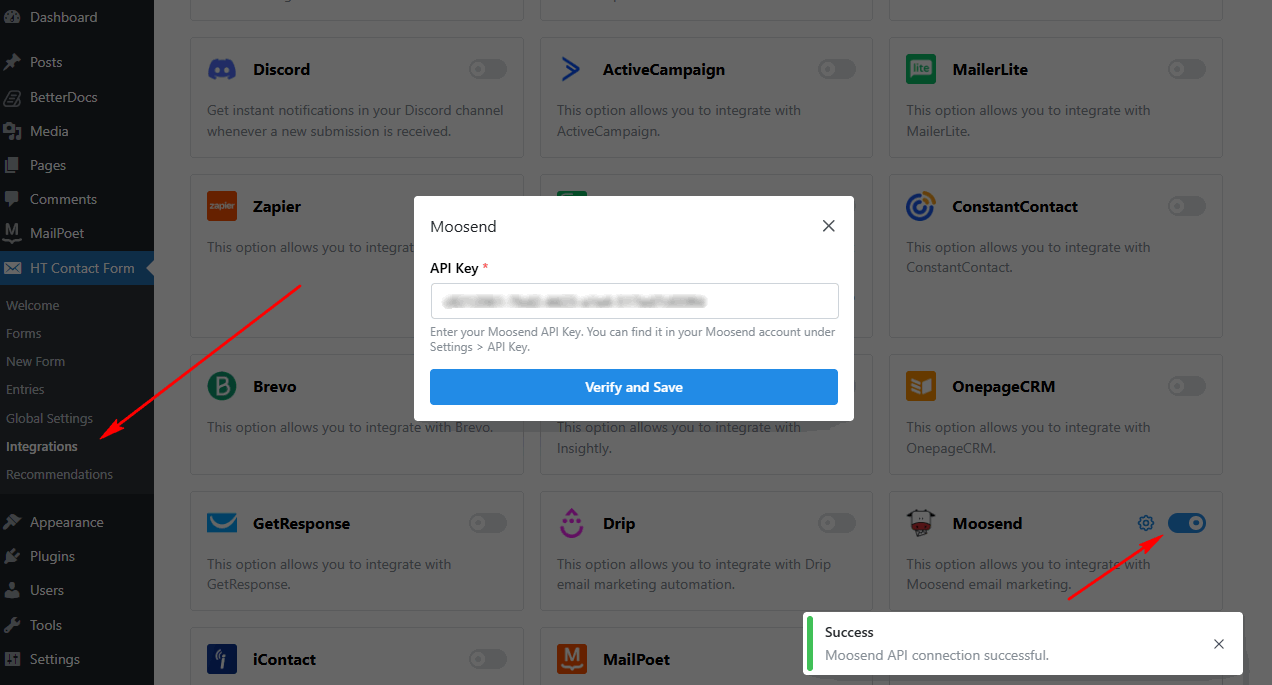
First, you need to configure the Moosend API Key in the global settings.
- Go to HT Contact Form → Settings → Integrations
- Find Moosend and click Configure
- Enter your API Key
- Click Verify and Save to test the connection
Step 2: Add Moosend Integration to Your Form
Once the global settings are configured, you can add the Moosend integration to any form.
- Edit your form
- Go to the Integrations tab
- Click Add New → Moosend
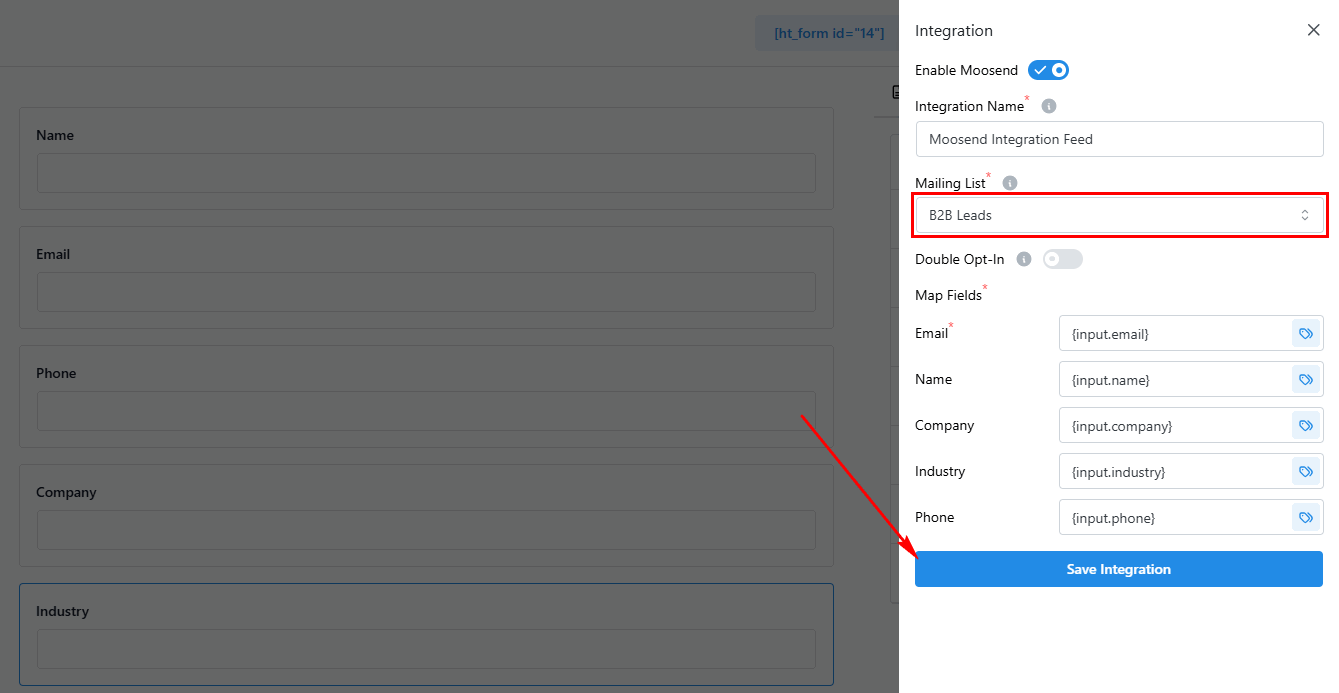
- Select your mailing list
- Configure field mappings
- Optionally enable Double Opt-In
- Click Save Integration
Integration Settings Overview
| Setting | Required | Description |
|---|---|---|
| Mailing List | Yes | Select the Moosend list to subscribe contacts to |
| Field Mapping | Yes | Map form fields to Moosend subscriber fields |
| Double Opt-In | No | Enable email confirmation for new subscribers |
Standard Subscriber Fields
Map your form fields to these standard Moosend subscriber fields:
| Field | Description |
|---|---|
| Subscriber email (required) | |
| name | Subscriber name |
Custom fields defined in your Moosend list are loaded automatically and can be mapped using smart tags.
Double Opt-In Configuration
Control whether subscribers must confirm their email before being added to your list.
When Enabled (Recommended)
- Moosend sends a confirmation email
- Subscriber must click to confirm
- Better for GDPR compliance
- Higher quality list
- Improved deliverability
When Disabled
- Subscriber is immediately active
- No confirmation email sent
- Use only with explicit consent
- Faster subscriber activation
Best Practice: Enable double opt-in for newsletter and marketing lists. Disable only for transactional or lead magnet forms where immediate action is needed.
Smart Tags Reference
Use {input.field_name} to include form values dynamically.
| Smart Tag | Description |
|---|---|
{input.email} | Email field value |
{input.name} | Name field value |
{input.first_name} | First name value |
{input.last_name} | Last name value |
{input.any_field} | Any custom form field |
Tip: You can combine multiple smart tags for the name field, e.g., {input.first_name} {input.last_name} to create a full name from separate fields.
Complete Configuration Example: B2B Lead Generation
Here’s an example of setting up Moosend integration for B2B lead capture with custom fields.
Form Fields: First Name, Last Name, Email, Company, Phone, Industry (dropdown)
Integration Configuration
Mailing List: B2B Leads
Field Mapping:
  email: {input.email}
  name: {input.first_name} {input.last_name}
  company: {input.company}
  phone: {input.phone}
  industry: {input.industry}
Double Opt-In: No
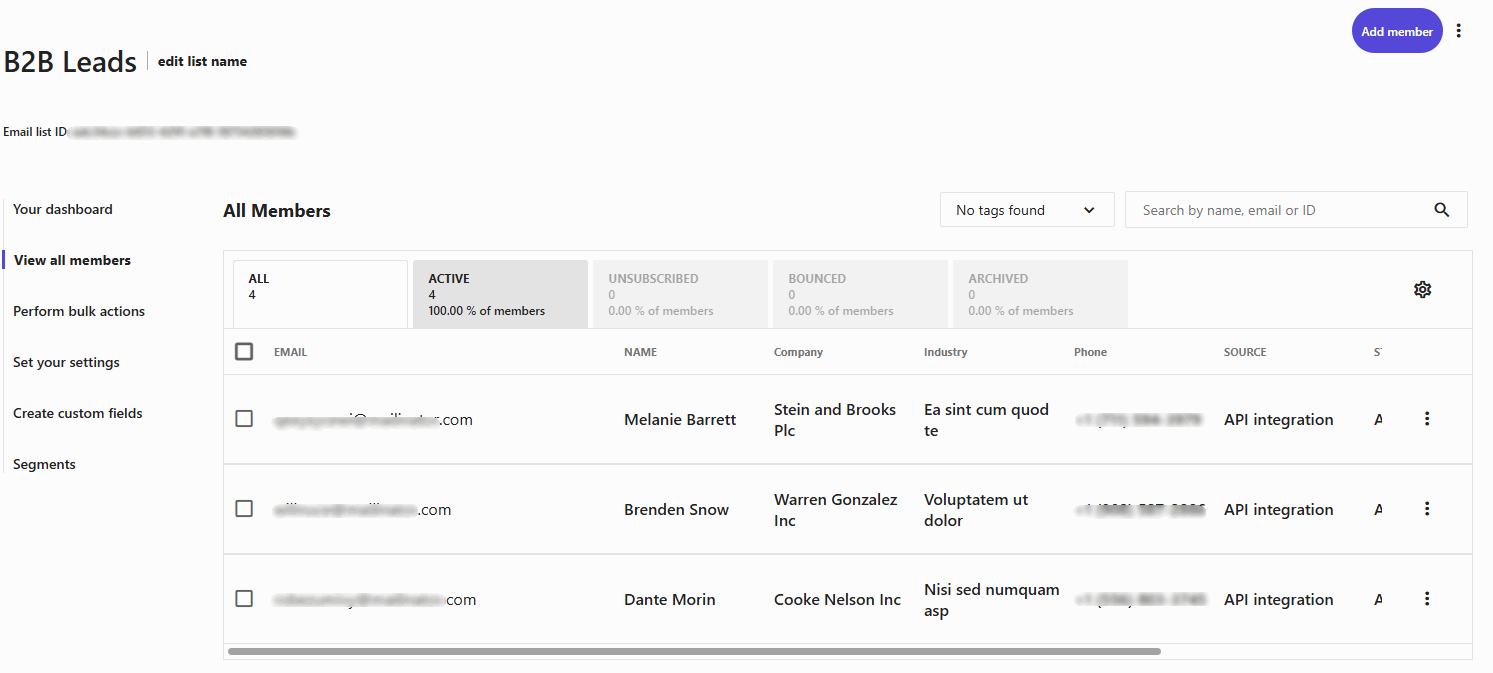
Result: Leads are immediately added to the B2B Leads list with all business information for targeted sales follow-up.
Common Use Cases
- Newsletter Subscriptions: Build your email list with a simple subscription form that adds subscribers to your main newsletter.
- Lead Generation: Capture leads and collect additional information through custom fields for better segmentation.
- Marketing Campaigns: Add contest entrants, webinar registrants, or promo subscribers to specific mailing lists.
- GDPR-Compliant Signups: Use double opt-in to ensure proper consent documentation for EU subscribers.
- Content Upgrades: Deliver lead magnets while building your subscriber list with targeted segmentation.
- Event Registrations: Collect registrations and automatically add attendees to event-specific mailing lists.
Duplicate Handling
When a subscriber with the same email already exists in the list, the integration handles it seamlessly:
- Custom field data is updated with new values
- No duplicate subscriber is created
- Existing subscription status is preserved
Troubleshooting
Subscribers Not Appearing
Problem: Form submits but subscriber doesn’t appear in Moosend.
Solutions:
- Check API key is valid and not expired
- Verify list selection in integration settings
- If double opt-in is enabled, check subscriber’s inbox for confirmation
- Look for bounce/spam issues in Moosend
Custom Fields Not Saving
Problem: Custom field data not appearing in Moosend.
Solutions:
- Ensure custom fields exist in your Moosend list
- Check smart tag syntax matches form field names
- Verify field names match exactly (case-sensitive)
Double Opt-In Not Working
Problem: Confirmation emails not being sent.
Solutions:
- Confirm the setting is enabled in integration configuration
- Check Moosend list settings for confirmation email setup
- Verify subscriber email is valid
- Check spam/junk folders
Rate Limit Errors
Problem: Getting HTTP 429 errors.
Solutions:
- The plugin automatically retries with backoff
- Space out form submissions if testing
- Contact Moosend support for rate limit increases
Frequently Asked Questions
Q: Can I add subscribers to multiple lists?
A: Each integration adds to one list. Create multiple integrations on the same form for multiple lists.
Q: What happens if a subscriber already exists?
A: Their custom field data is updated. No duplicate is created.
Q: Can I customize the confirmation email?
A: Yes, configure confirmation email templates in your Moosend account settings.
Q: Is Moosend GDPR compliant?
A: Yes, Moosend is GDPR compliant. Use double opt-in for EU subscribers to ensure proper consent.
Q: How quickly are subscribers added?
A: Immediately upon form submission (or after confirmation if double opt-in is enabled).
Q: Can I use Moosend automations with this integration?
A: Yes, subscribers added through the integration will trigger any automations configured in your Moosend account.
Best Practices
List Management
- Create specific lists – Separate lists for different purposes
- Name clearly – Use descriptive list names
- Clean regularly – Remove inactive subscribers
- Segment wisely – Use custom fields for segmentation
Double Opt-In
- Enable for newsletters – Better deliverability
- Disable for transactions – When immediate action is needed
- Customize confirmation – Set up in Moosend settings
- Monitor confirmation rates – Track who confirms
Field Mapping
- Map useful data – Only collect what you’ll use
- Use custom fields – For better segmentation
- Test thoroughly – Verify data appears correctly in Moosend
That’s it! Thank you for choosing HT Contact Form to enhance your email marketing workflow. If you need additional assistance, feel free to contact our support team. Our dedicated support team would be more than happy to assist you.