
WPML is a popular WordPress plugin that allows you to create a multilingual website. You can use WPML to translate your HashBar notification messages and display them in different languages based on your site visitors’ preferences.
General Translation Information
For comprehensive guidance on translation using WPML, we highly recommend referring to the official guide available at the WPML Official Getting Started Guide. When first activating WPML, you’ll complete a short setup wizard.
The main place to translate any kind of content, including plugin texts, is the WPML Translation Dashboard. You can find more details and instructions in the Translation Dashboard guide.
Translating HashBar Notification Posts with WPML
To translate your HashBar notification posts into multiple languages using WPML, follow these steps:
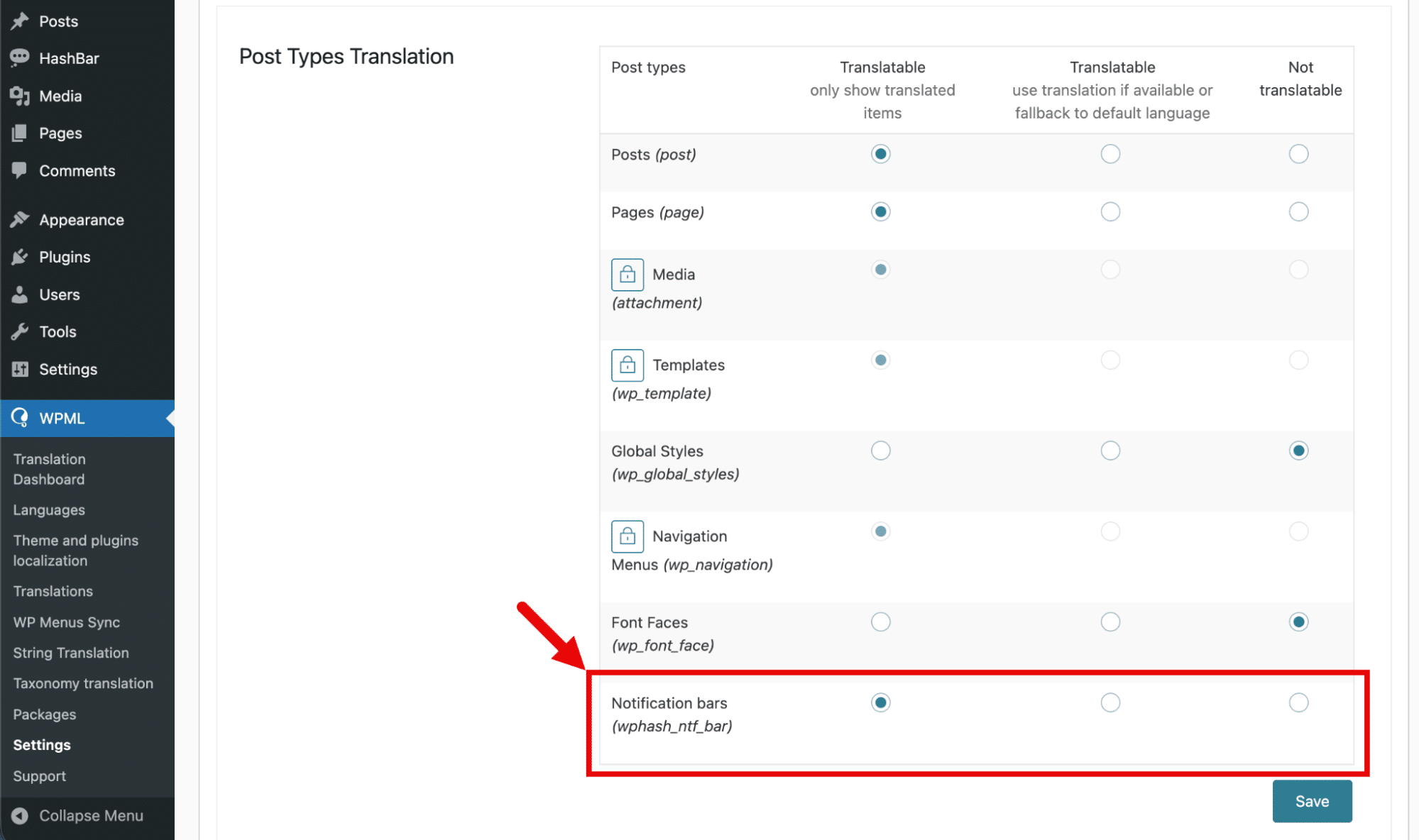
1. Go to WPML > Settings from the dashboard, scroll down to the Post Types Translation section, check “Notification Bars (wphash_ntf_bar)” as Translatable, and click Save.
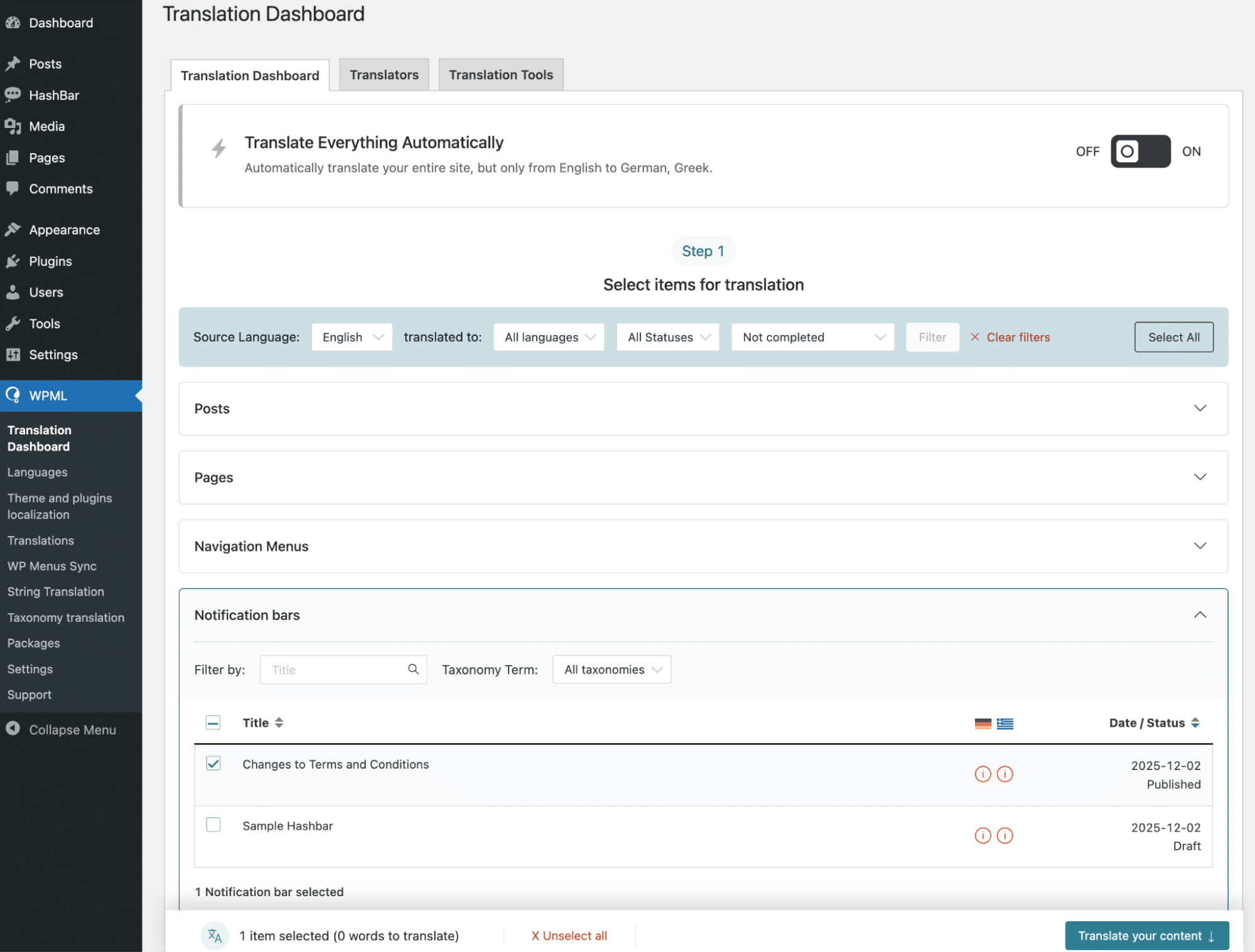
2. Go to WPML > Translation Dashboard and expand the Notification bars section. Select the notifications you want to translate and click Translate your content.
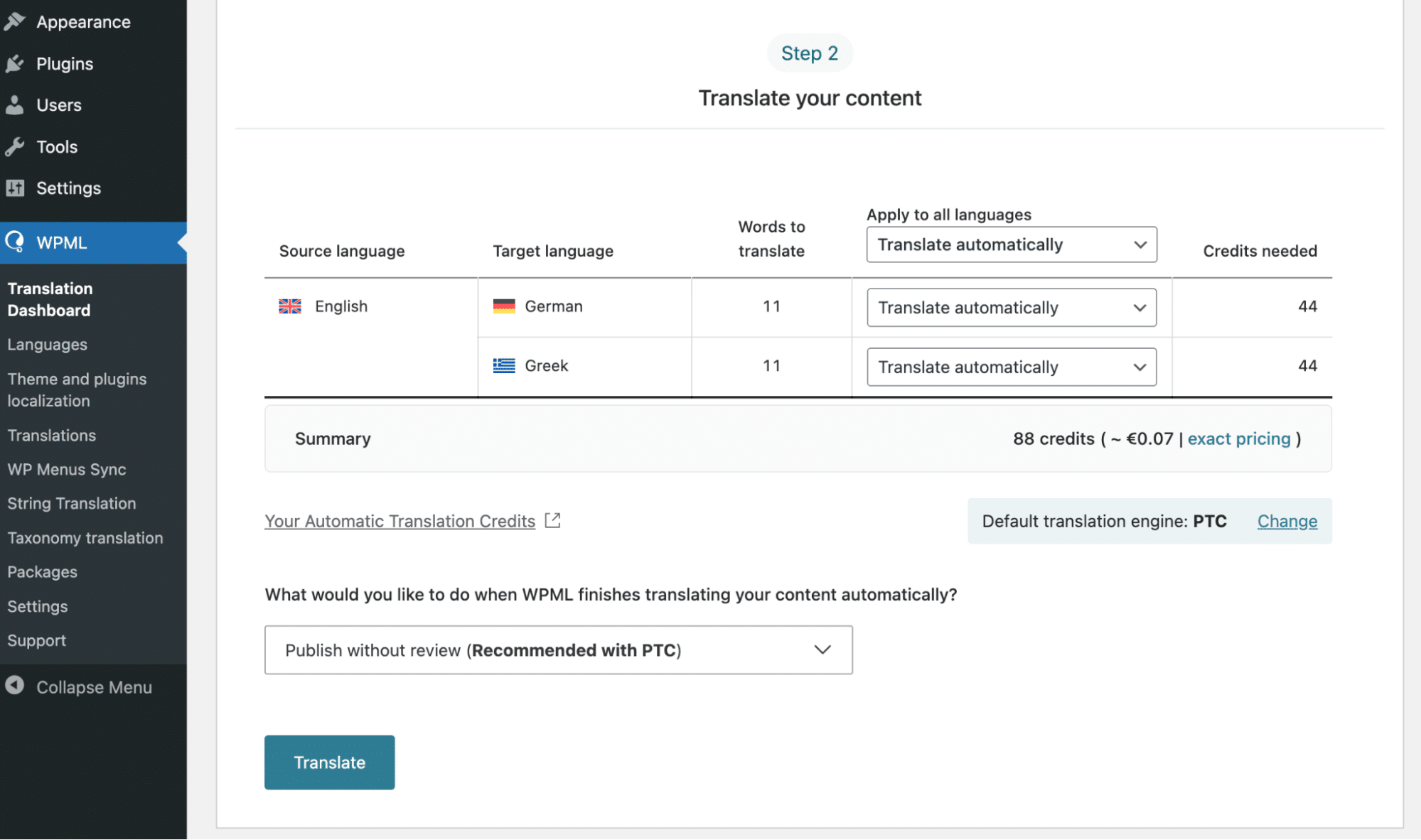
3. At Step 2, choose your translation method: Manual or Automatic. WPML recommends their proprietary AI, Private Translation Cloud (PTC), for the best results.
The Translation Dashboard shows you how much it’ll cost to translate your content. PTC comes with a quality guarantee, so you can get a refund for this amount if you’re not satisfied.
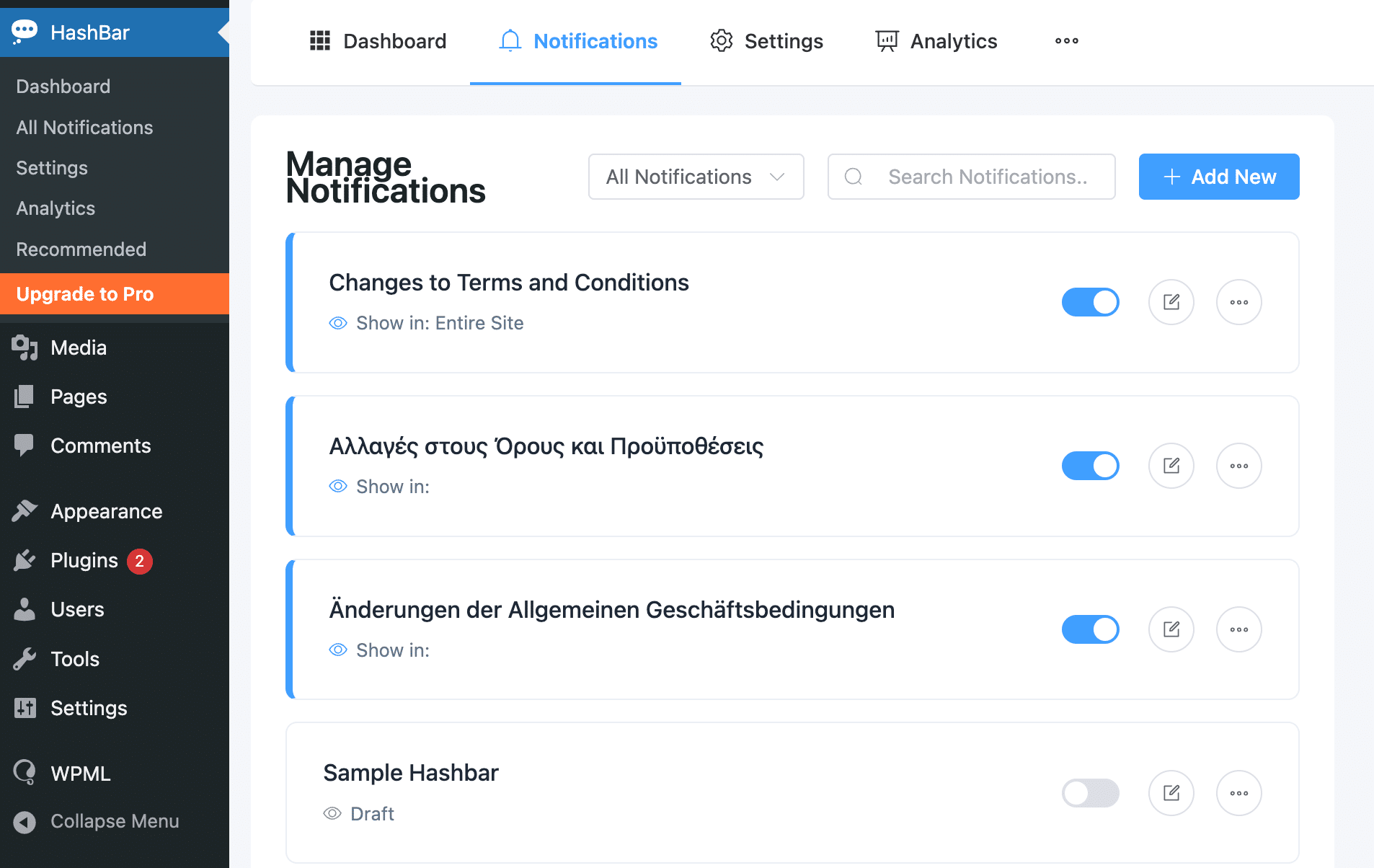
The translated notification bars will show under Hashbar > All Notifications. You can see below our example bar, “Changes to Terms and Conditions,” has been translated into two other languages. Edit them to apply the same designs as the default language.
4. Using the same process from the Translation Dashboard, translate content on your site where you want the notification bar to be displayed.
For example, if you’ve set your notification bar to show on your entire site, the German version of this bar will only show on pages that have a German translation.
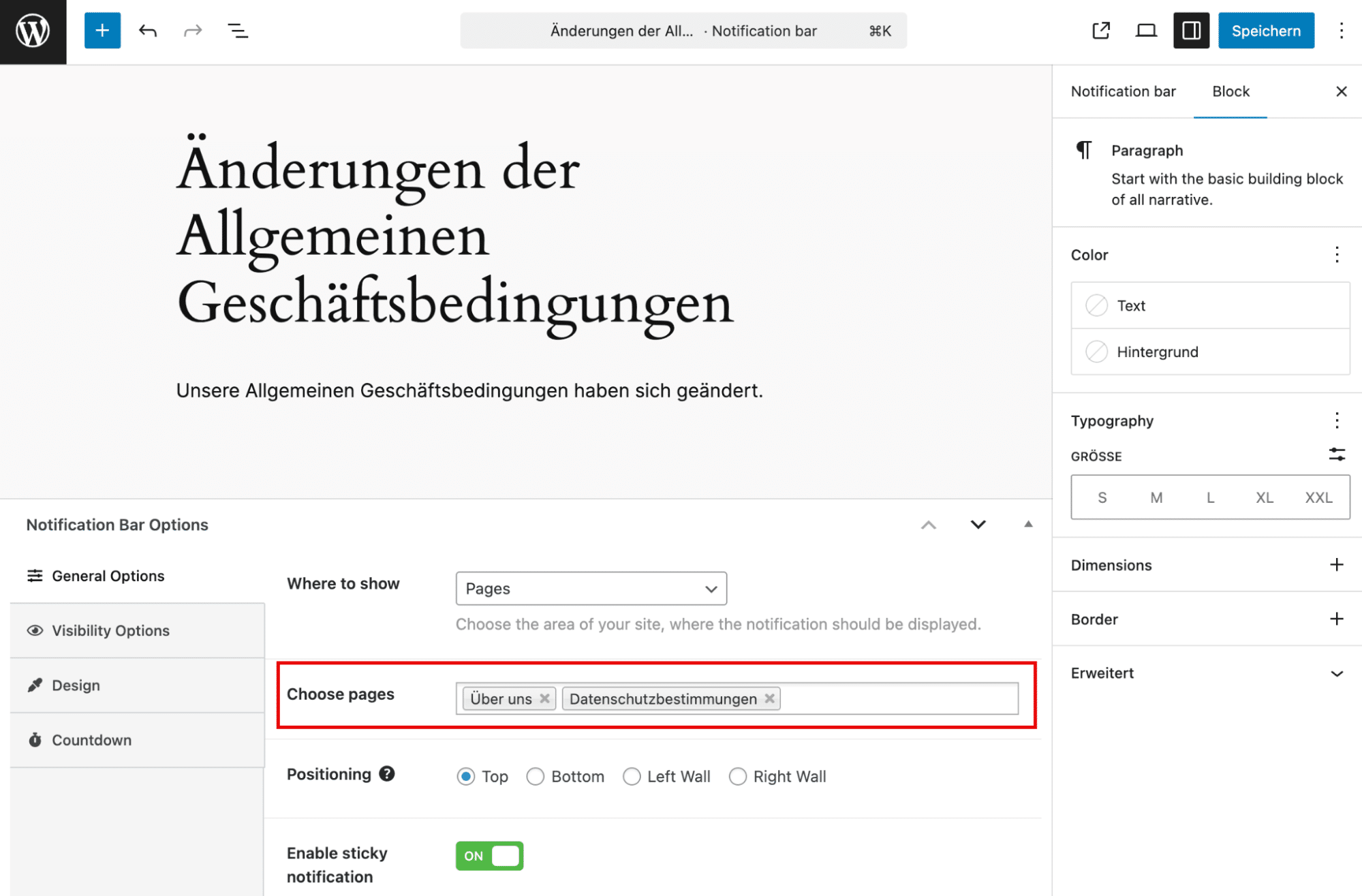
5. (Optional) If you want a translated notification bar to be displayed on specific posts and pages, simply click to edit the translated version under Hashbar > All Notifications.
In Notification Bar Options, choose “Where to show”, and then choose specific content. In our example, we’re editing the German notification bar, so we only see pages that have been translated in German.
Final Outcome: Translating to German
In this section, we will walk you through the ultimate result of successfully translating your HashBar content into the German language using WPML. You’ll witness the tangible outcomes of your multilingual efforts, ensuring that your content resonates with a German-speaking audience.
By following the translation process outlined in our documentation, you’ll achieve a polished and seamless multilingual experience on your WordPress website. Whether it’s for enhancing user engagement, expanding your reach, or serving a diverse audience, the final outcome demonstrates the value of effective translation with HashBar and WPML.

If you have further questions or need additional assistance, don’t hesitate to ask!