
Overview
The hCaptcha Field helps protect your contact forms from spam and automated submissions by verifying real human users.
It is a privacy-friendly alternative to Google reCAPTCHA and fully compatible with GDPR-focused websites.
Use hCaptcha to secure forms without tracking users across the web.
Why Use hCaptcha
- Strong protection against bots and spam
- Privacy-first and GDPR-compliant
- No Google tracking
- Accessible and mobile-friendly
- Easy to configure and use
Prerequisites
Before adding the hCaptcha field to a form, you must configure hCaptcha keys globally.
Get hCaptcha API Keys
- Visit the hCaptcha Dashboard
- Create a free account
- Add your website domain
- Copy:
- Site Key
- Secret Key
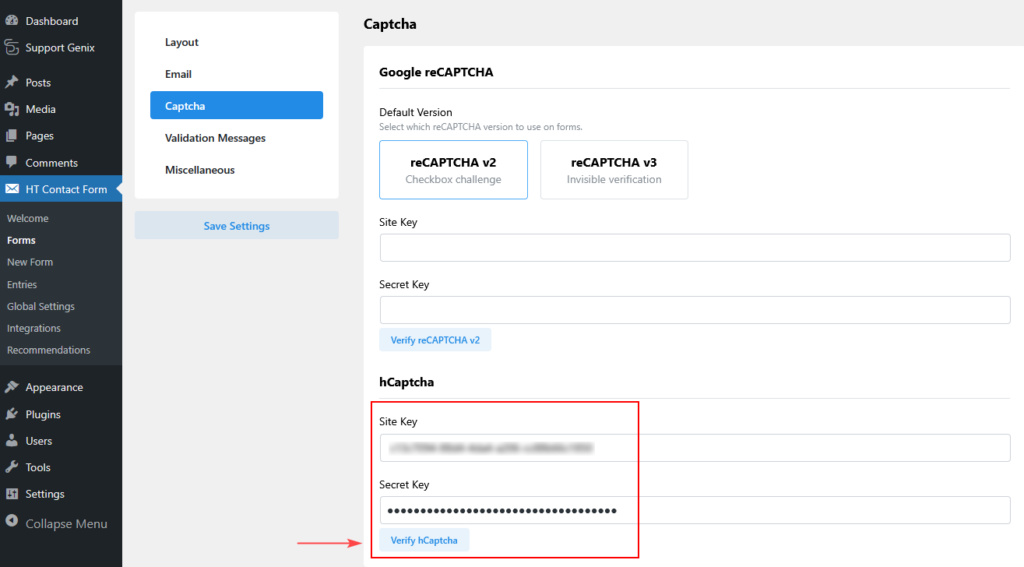
Configure hCaptcha Settings
Navigate to:
HT Contact Form → Global Settings → Captcha
hCaptcha Settings
| Setting | Description |
|---|---|
| Site Key | Public key provided by hCaptcha |
| Secret Key | Private key used for server verification |
| Verify hCaptcha | Confirms keys are valid |
After entering the keys, click Verify hCaptcha, then Save Settings.
Add hCaptcha Field to a Form
- Go to HT Contact Form → Forms
- Edit an existing form or create a new one
- Drag hCaptcha from the field panel into your form
- Place it just before the Submit button
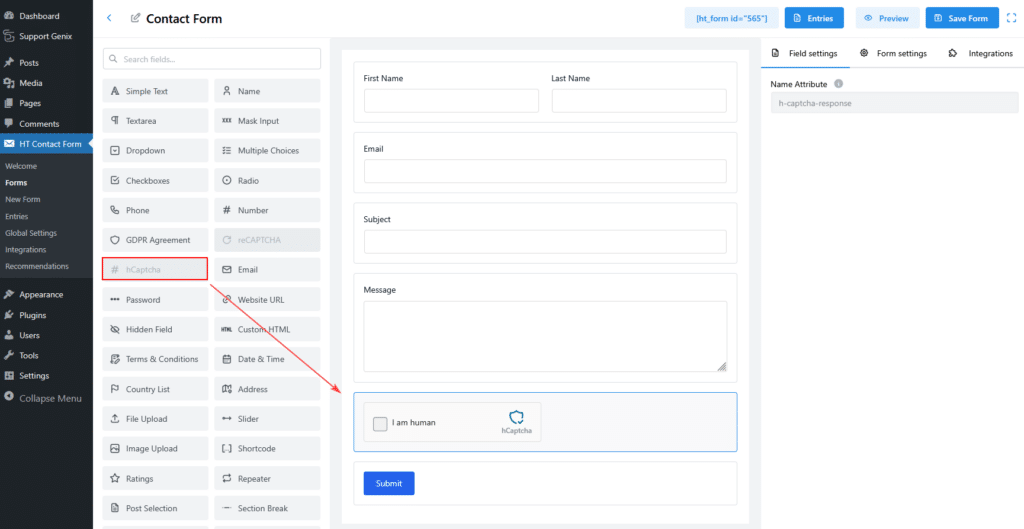
Recommended layout:
Form Fields
hCaptcha
Submit Button
How hCaptcha Works
- User sees the “I am human” checkbox
- User clicks the checkbox
- hCaptcha validates the interaction
- If needed, a challenge appears
- After verification, form submission is allowed
If verification fails, the form will not submit.
Field Behavior
- The hCaptcha field is always required
- Users must complete it to submit the form
- Cannot be bypassed or pre-validated
- Only one captcha field should be used per form
Validation & Error Messages
Common messages users may see:
| Message | Meaning |
|---|---|
| Please complete hCaptcha | User skipped verification |
| hCaptcha verification failed | Invalid or expired token |
| hCaptcha not configured | API keys missing |
Accessibility Support
hCaptcha includes built-in accessibility features:
- Keyboard navigation
- Screen reader support
- Audio challenge option
- Mobile-friendly interaction
Save & Resume Compatibility
The hCaptcha field does not support Save & Resume.
Reason:
- hCaptcha tokens expire quickly
- Users must re-verify when resuming a saved form
This is expected and required for security.
Best Practices
- Always place hCaptcha before the submit button
- Use only one captcha per form
- Verify keys after domain changes
- Test the form in incognito mode
- Keep the plugin updated for security improvements
Troubleshooting
hCaptcha Not Showing
- Keys not configured
- JavaScript conflict
- Ad blocker blocking the widget
Verification Always Fails
- Incorrect Secret Key
- Domain not added in hCaptcha dashboard
- Server firewall blocking requests
Frequently Asked Questions
Is hCaptcha free?
Yes. hCaptcha offers a generous free plan.
Is it GDPR-compliant?
Yes. hCaptcha is privacy-focused and GDPR-friendly.
Can I use both reCAPTCHA and hCaptcha together?
No. Use only one captcha type per form.
Summary
The hCaptcha Field is a secure, privacy-first solution for preventing spam submissions in HT Contact Form.
It’s easy to configure, reliable, and ideal for websites that prioritize user privacy and data protection.