Adding fields to your forms using HT Contact Form is very easy and flexible. You can design the perfect form for your website in just a few clicks without any coding knowledge.
Access the Form Builder
First, go to your WordPress dashboard. From the left-hand menu, navigate to HT Contact Form → New Form. This will open the form builder where you can create and customize your form 🎯.
Choose and Add Fields
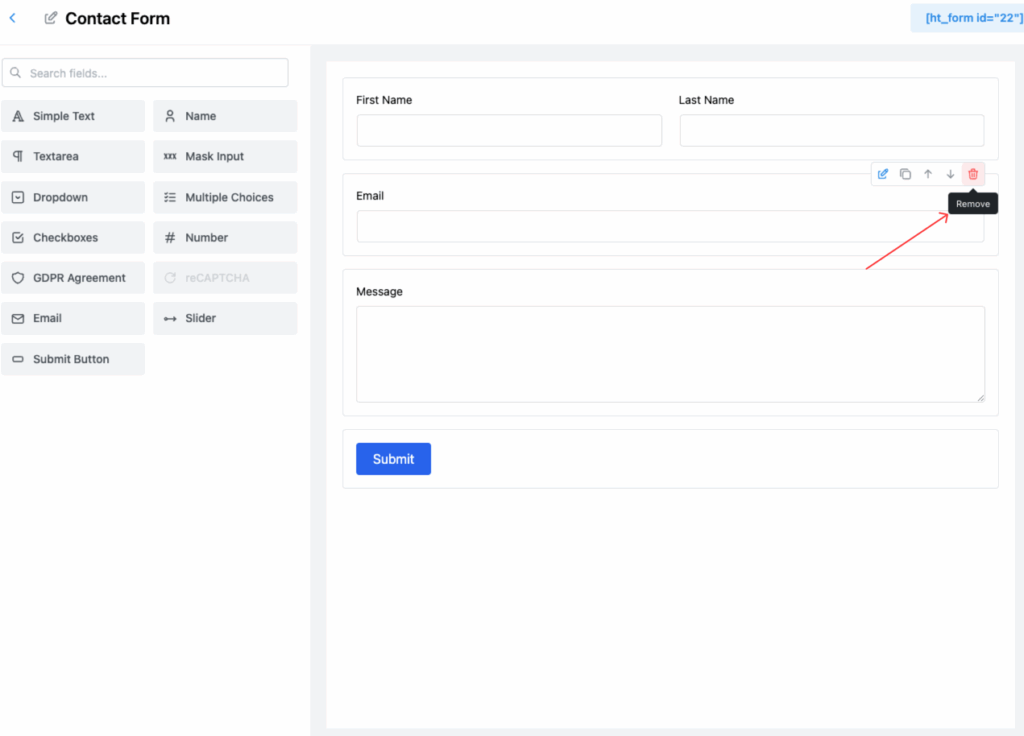
On the left side of the form builder, you’ll see a list of available fields like Simple Text, Name, Email, Dropdown, Checkboxes, GDPR Agreement, and more.
You can simply click on a field to add it to your form, or you can drag and drop it into the editor area ✨. If you want to quickly find a specific field, use the Search Fields option to search and add it easily.
Rearranging Fields
You can organize your form layout just the way you want. Simply drag any field up or down in the editor to change its position 🚀. This makes it very convenient to create forms that match your design and flow needs.
Removing Fields
If you need to delete a field, hover over the field you want to remove. A small Delete icon (🗑) will appear. Click the icon, and the field will be instantly removed from your form without any hassle.