
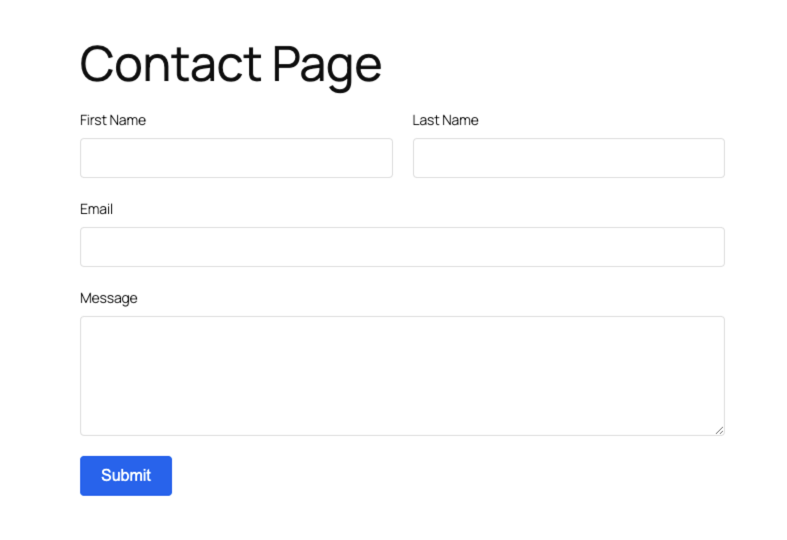
With HT Contact Form, building a custom contact form for your WordPress website is fast, easy, and code-free. Whether you need a simple contact form, feedback form, or lead generation form, you can design it in just a few clicks using the built-in drag-and-drop builder.
Follow the steps below to create your first form:
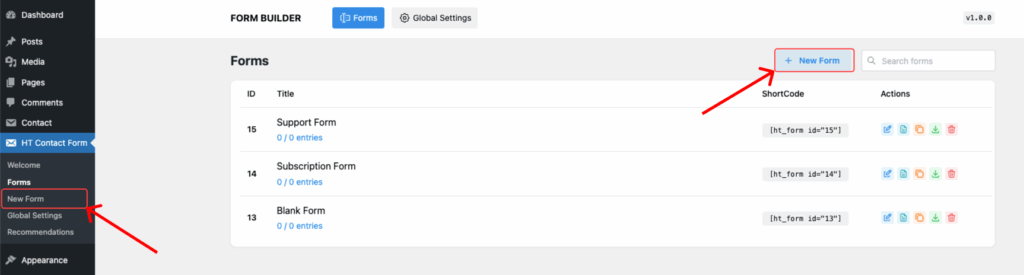
Step 1: Open the Form Builder
- In your WordPress dashboard, go to HT Contact Form → New Form.
- The drag-and-drop form builder will open with an empty layout.
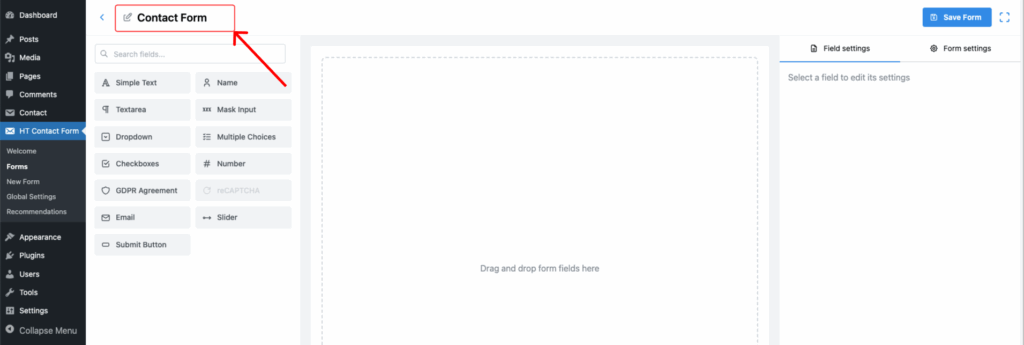
Step 2: Rename Your Form
- At the top, change the form title to something meaningful. (Example: “Contact Us” or “Support Request”)
- Giving each form a name helps you identify it later from the list.
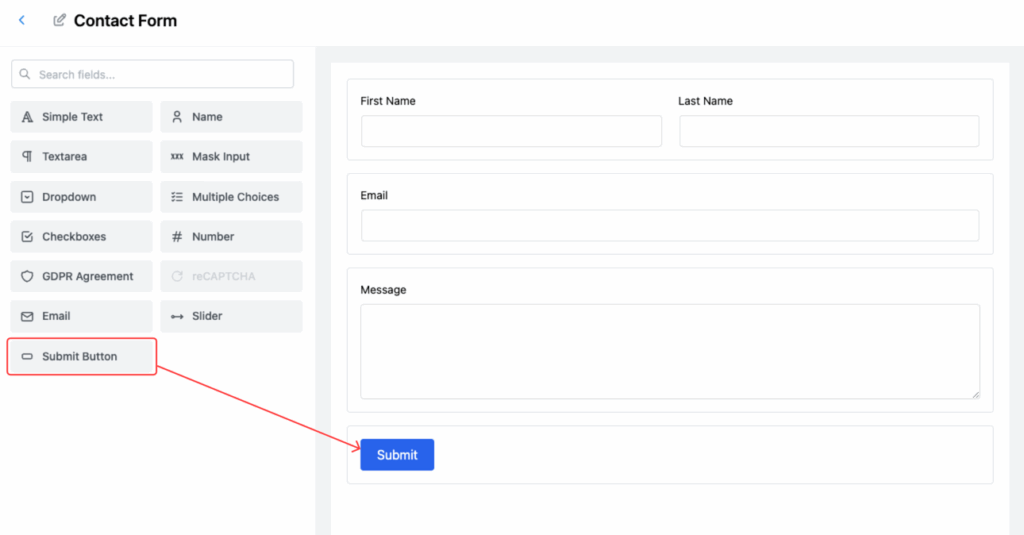
Step 3: Add Fields to Your Form
- Use the left sidebar to choose the input fields you need:
- Text, Email, Number, Dropdown, Checkbox, etc.
- You can either:
- Click the field to add it, or
- Drag and drop it into the builder area.
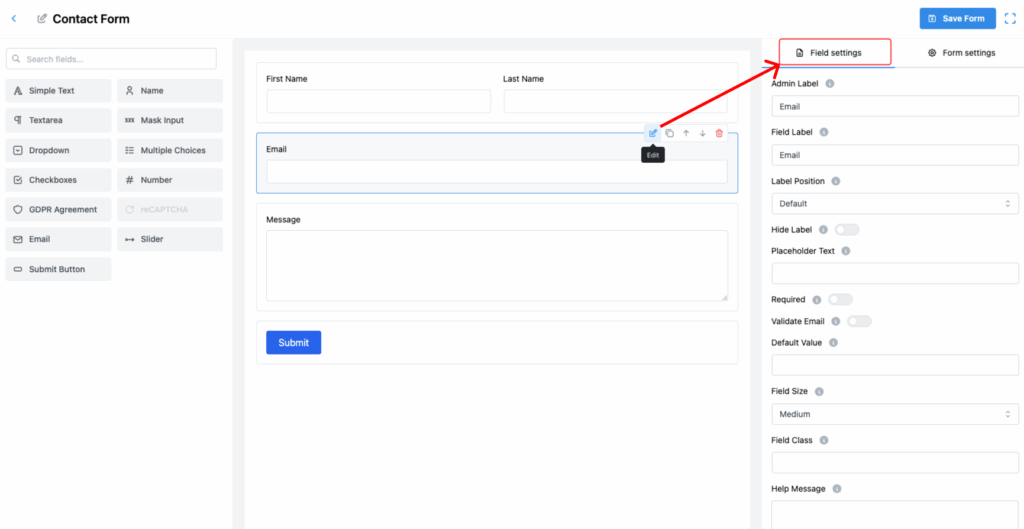
Step 4: Customize Each Field
- Hover over any field and click the Edit icon to change:
- Field Label
- Placeholder text
- Required/Optional toggle
- Much more
Step 5: Configure Form Settings (Optional)
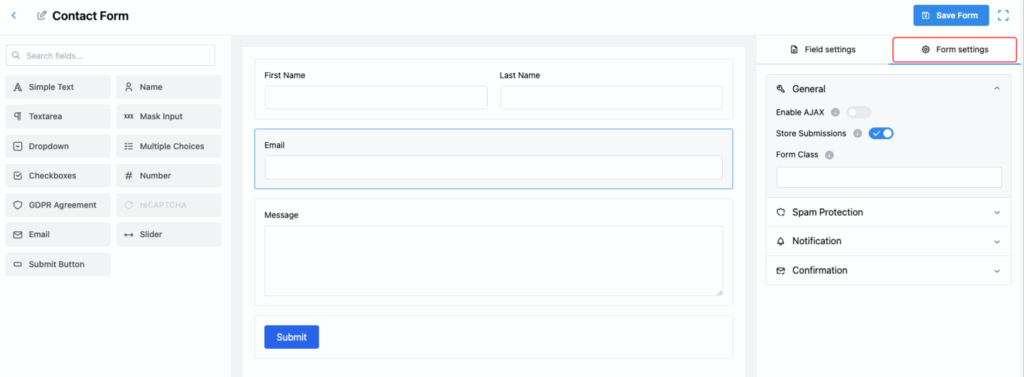
- Click on the Form Settings tab (right sidebar) to control:
- General
- Spam Protection
- Notification
- Confirmation
Step 6: Save Your Form
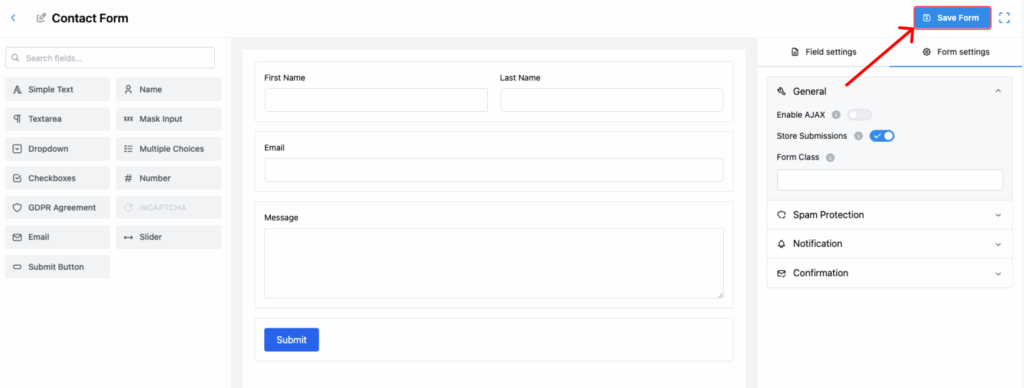
- Once you’ve added and customized your fields, click Save Form (top right corner).
Step 7: Use the Shortcode
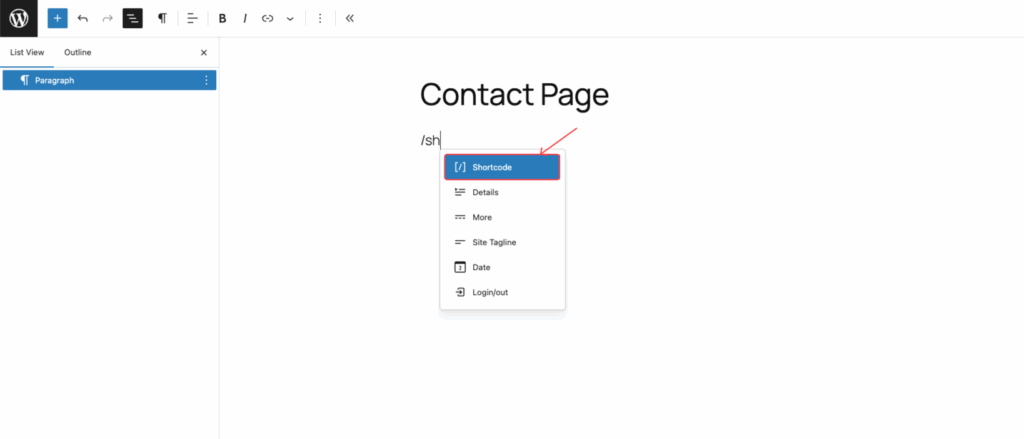
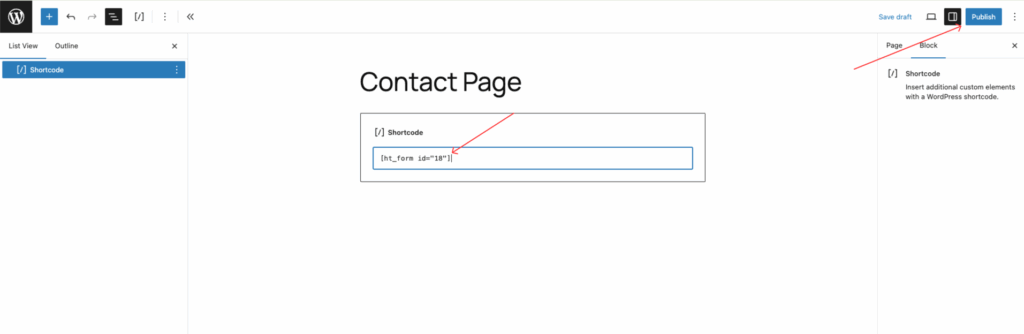
- After saving, you’ll see a shortcode generated for your form.
- Copy and paste this shortcode into any Page, Post, or Widget where you want the form to appear.
Congratulations!
You’ve just created a fully functional form using HT Contact Form. It’s that simple!
Last updated on March 10, 2026
Was this article helpful?
Powered by Support Genix