
The Repeater field in HT Contact Form allows you to collect repeatable sets of information from users. It’s perfect for forms where users might need to submit multiple entries for the same group of fields—like adding multiple team members, phone numbers, or skills.
Key Benefits
- Collect multiple grouped entries in one form submission
- Add as many sub-fields as needed inside the repeater
- Supports all standard field types as sub-fields
- Compatible with conditional logic for advanced form behavior
How to Add a Repeater Field
- Go to your WordPress Dashboard and navigate to:
HT Contact Form > Forms. - Open an existing form or create a new one.
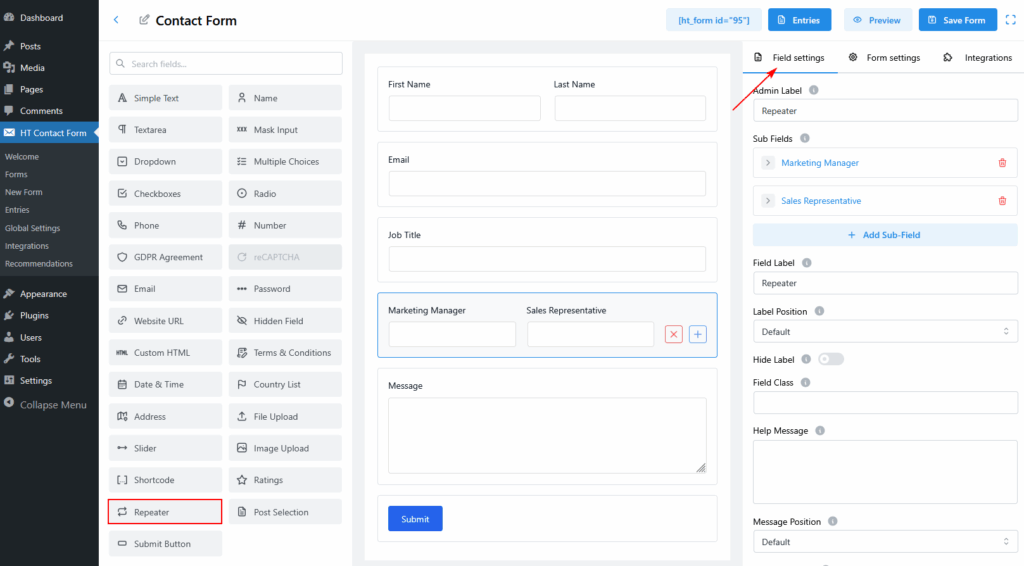
- From the Fields panel on the left, drag and drop the Repeater into your form layout.
- Click on the field to open its Field Settings tab on the right.
Add Sub-Fields to Repeater
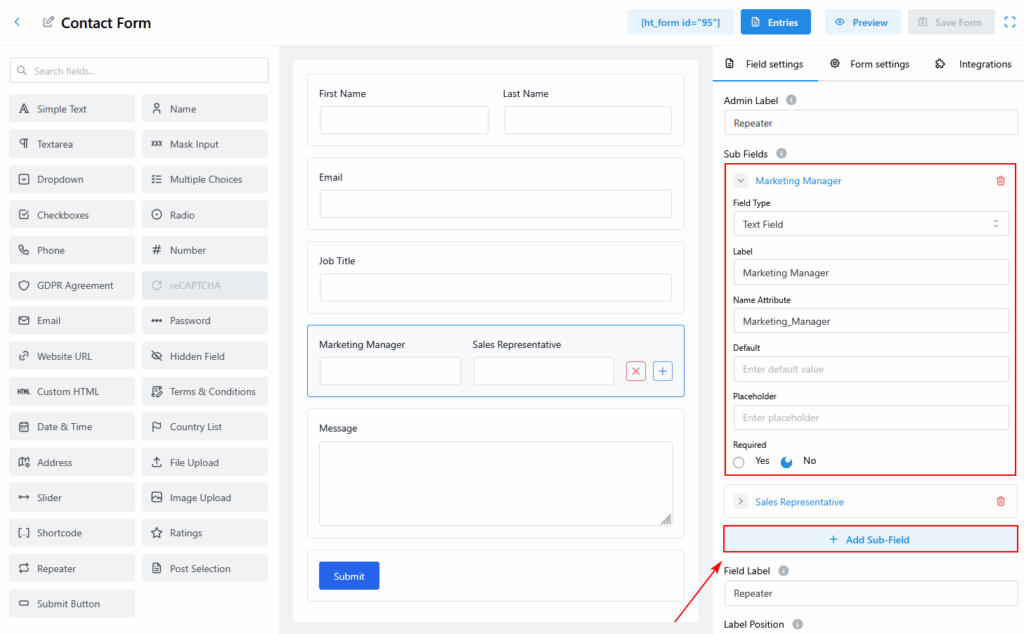
- Click the “Add Sub-Field” button under the repeater settings.
- Choose the desired Field Type (e.g., Text, Dropdown).
- Set the following options for each sub-field:
- Label – Visible title above the input (e.g., Column 1, Column 2)
- Name Attribute – Used as the input field’s name
- Default Value – (Optional) Pre-filled input value
- Placeholder – Light grey text inside the input field
- Required – Set whether this field must be filled
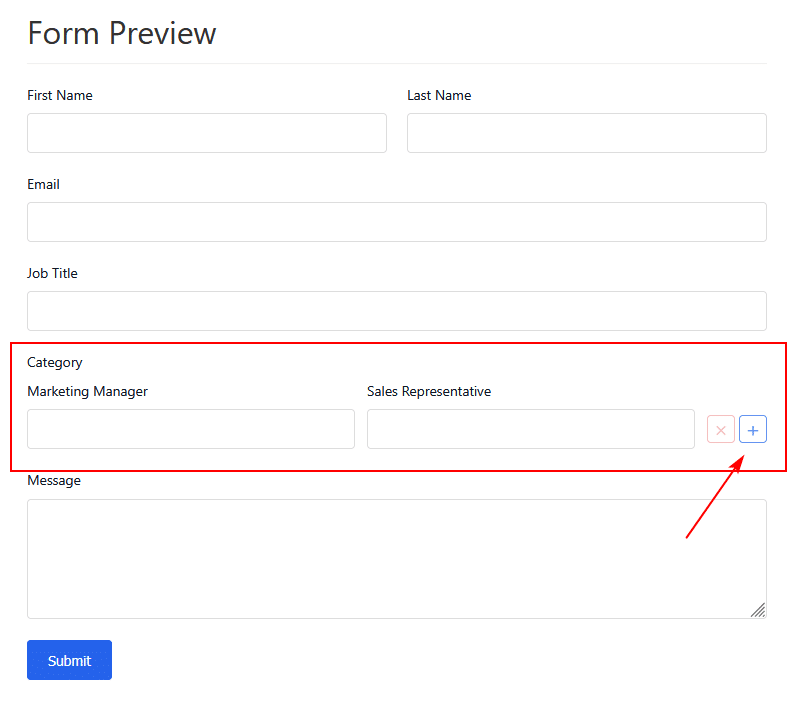
🔄 Users can add or remove repeater rows dynamically using the + and x buttons inside the form.
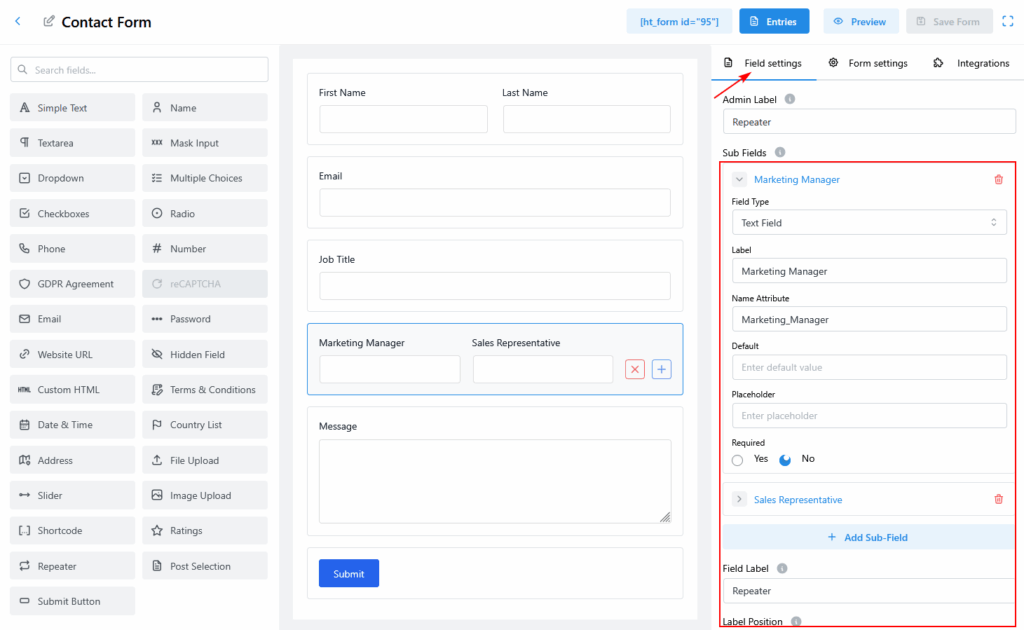
Main Repeater Field Settings
| Setting | Description |
|---|---|
| Field Label | Label for the entire repeater group |
| Label Position | Choose label alignment (Default, Top, Left) |
| Hide Label | Toggle to hide the label from the frontend |
| Field Class | Add custom CSS classes |
| Help Message | Add a helper tooltip or description |
| Message Position | Set the position of error/help message |
| Name Attribute | The unique identifier for this repeater group |
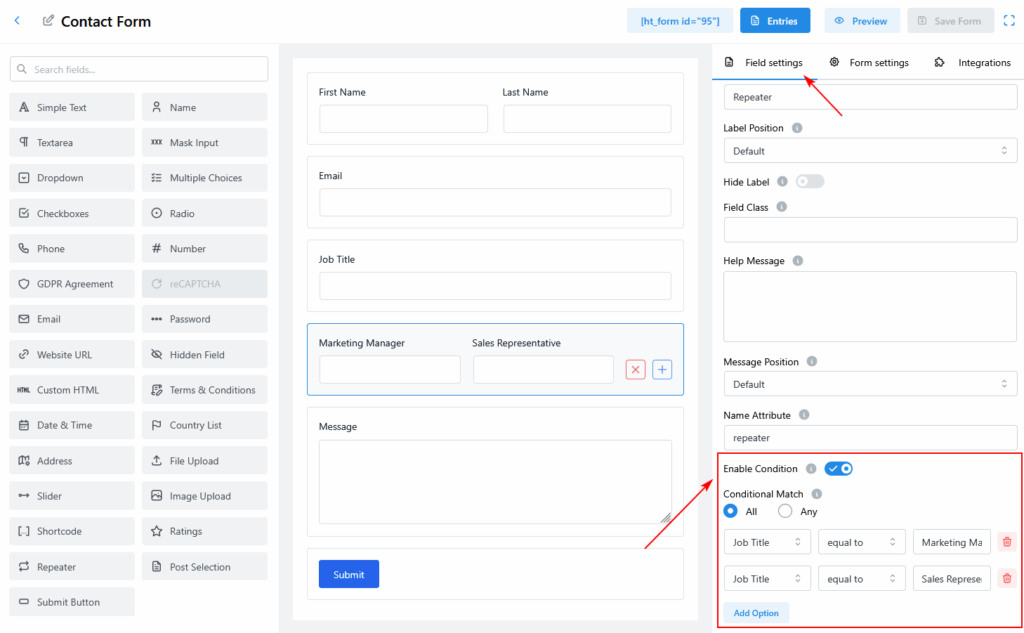
Enable Conditional Logic
You can show or hide the repeater field based on other field values.
Steps:
- Toggle Enable Condition to ON.
- Choose All (AND) or Any (OR) condition logic.
- Add one or more rules:
- Select a field (e.g., Job Title)
- Choose a condition (e.g., equal to)
- Enter a value (e.g., Marketing Manager)
Example:
Show the repeater only if:
Job TitleequalsMarketing Manager- OR
Job TitleequalsSales Representative
Example Use Cases
- Add multiple product entries
- Collect multiple team members with name/email
- List multiple services with descriptions
- Capture repeated contact numbers or links
Tips
- Use clear labels like “Team Member Name” or “Phone Number” to avoid confusion.
- Combine repeater with dropdowns, text fields, or even conditional logic for powerful form structures.
- Make sure Name Attribute is unique to prevent conflicts.
Last updated on March 10, 2026
Was this article helpful?
Powered by Support Genix