
The HT Contact Form plugin allows you to connect your forms with HubSpot CRM, automatically creating and managing contacts from form submissions. With support for contact properties, static lists, and automatic deduplication, this integration streamlines your lead capture and customer relationship management.
Key Features
- Automatic Contact Creation: Create HubSpot contacts from form submissions
- Contact Deduplication: Existing contacts are updated, not duplicated
- Property Mapping: Map form fields to any HubSpot contact property
- Custom Properties: Support for your custom contact properties
- List Assignment: Add contacts to HubSpot static lists
- Rate Limit Handling: Automatic handling of HubSpot API limits
Prerequisites
Before using the HubSpot integration, make sure you have a HubSpot Account (Free CRM or paid plan), a Private App Access Token created in HubSpot settings, and the required scopes enabled for contacts and lists.
Creating a Private App
- Log in to your HubSpot account
- Go to Settings (gear icon)
- Navigate to Integrations → Private Apps
- Click Create a private app
- Enter app details: Name: HT Contact Form, Description: Contact form submissions
- Go to the Scopes tab
- Select the required scopes:
crm.objects.contacts.read– Read contactscrm.objects.contacts.write– Create/update contactscrm.lists.read– Read listscrm.lists.write– Add contacts to lists
- Click Create app
- Copy the Access Token
Important: Store the token securely and don’t share it publicly. You’ll need it to configure the integration.
Step 1: Configure Global Settings
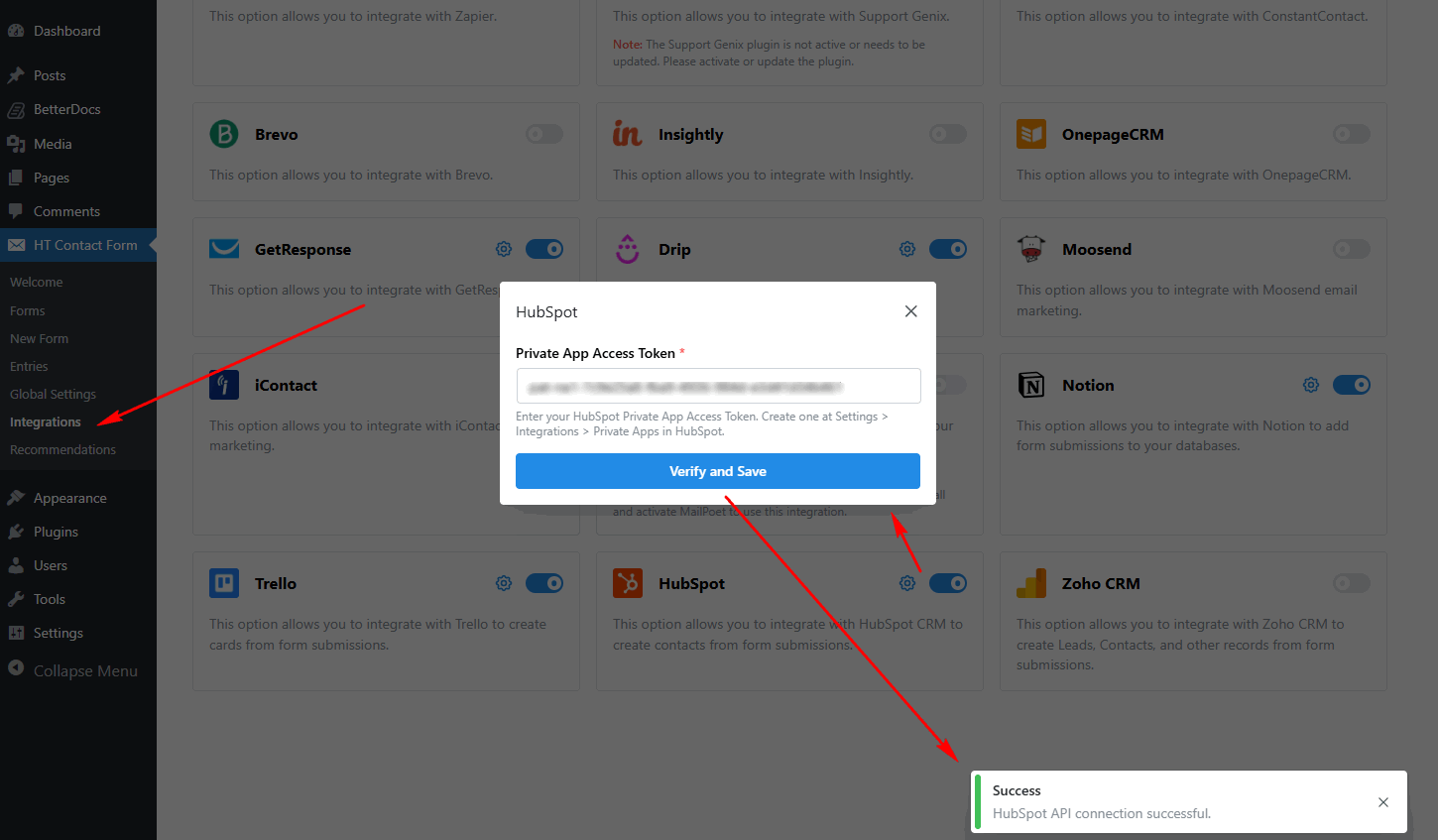
First, you need to configure the HubSpot Private App Access Token in the global settings.
- Go to HT Contact Form → Settings → Integrations
- Find HubSpot and click Configure
- Enter your Private App Access Token
- Click Verify and Save to test the connection
Step 2: Add HubSpot Integration to Your Form
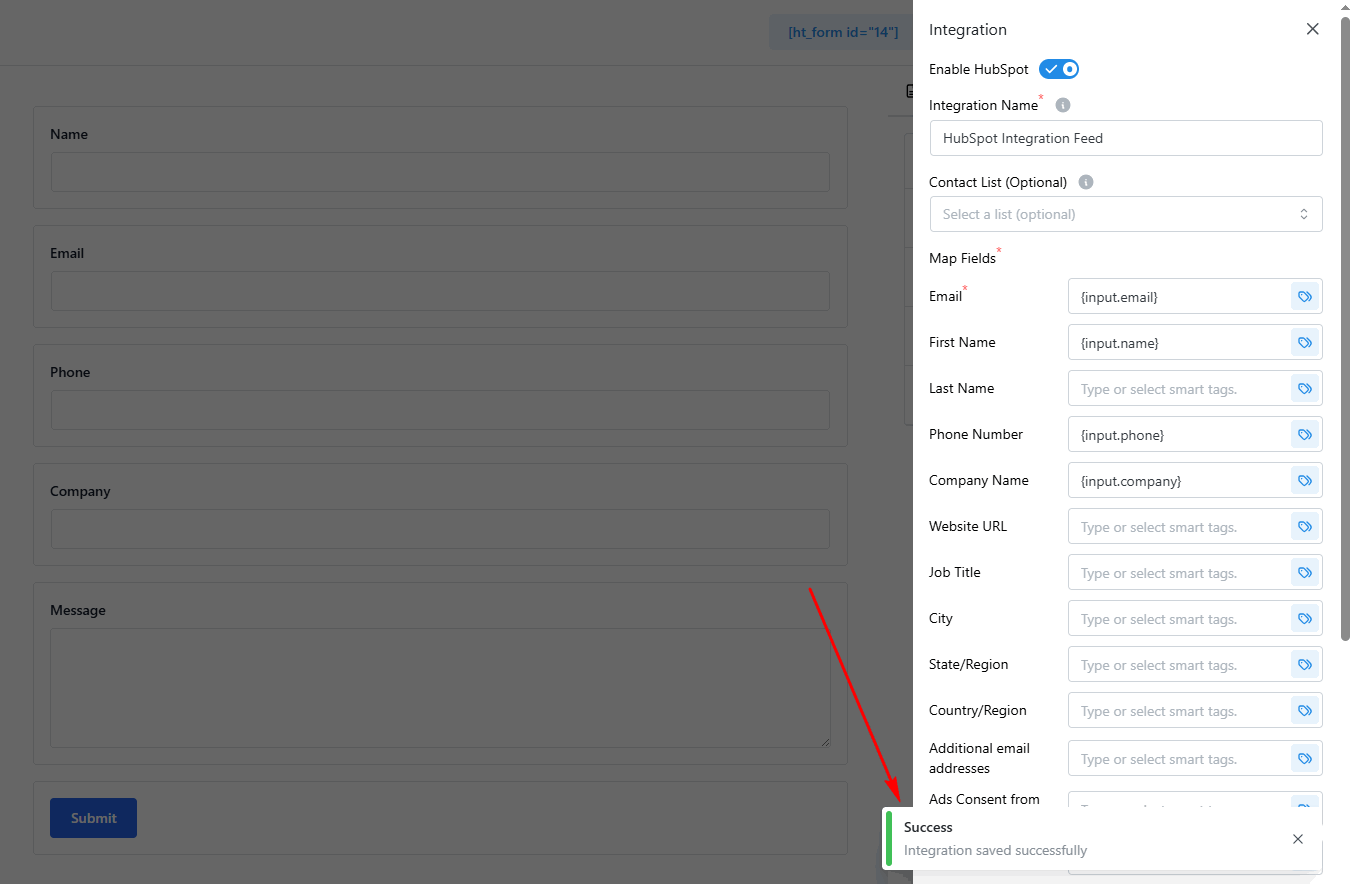
Once the global settings are configured, you can add the HubSpot integration to any form.
- Edit your form
- Go to the Integrations tab
- Click Add New → HubSpot
- Map form fields to contact properties
- Optionally select a List
- Click Save Integration
Integration Settings Overview
| Setting | Required | Description |
|---|---|---|
| Property Mapping | Yes | Map form fields to HubSpot contact properties |
| List | No | Optionally add contacts to a static list |
Common Contact Properties
The integration displays the most commonly used HubSpot contact properties for mapping:
| Property | API Name | Description |
|---|---|---|
| Contact email (primary identifier) | ||
| First Name | firstname | First name |
| Last Name | lastname | Last name |
| Phone | phone | Phone number |
| Company | company | Company name |
| Website | website | Website URL |
| Job Title | jobtitle | Job title |
| City | city | City |
| State/Region | state | State or region |
| Country | country | Country |
| Address | address | Street address |
| Zip Code | zip | Postal/ZIP code |
| Lifecycle Stage | lifecyclestage | Contact lifecycle stage |
| Lead Status | hs_lead_status | Lead status |
All editable contact properties from your HubSpot account are available for mapping. Custom properties appear after the common properties in the dropdown.
List Assignment
Optionally add contacts to a HubSpot static list after creation:
- Select a list from the dropdown
- Only Manual and Snapshot lists are shown (not dynamic lists)
- Contact is added to the list after creation/update
List Types
| Type | Can Be Used | Description |
|---|---|---|
| Manual (Static) | Yes | Manually managed, contacts added directly |
| Snapshot | Yes | Point-in-time snapshots of contacts |
| Dynamic (Active) | No | Rule-based, auto-updating (cannot add manually) |
Note: Dynamic (Active) lists cannot be used because HubSpot manages their membership automatically based on filter rules.
Property Types
HubSpot properties have various types. The integration sends values as strings, and HubSpot handles type conversion:
| Type | Example Value | Notes |
|---|---|---|
| string | “John Smith” | Standard text |
| number | “42” | Converted to number by HubSpot |
| date | “2024-01-15” | YYYY-MM-DD format |
| datetime | “2024-01-15T14:30:00Z” | ISO 8601 format |
| enumeration | “option_value” | Use internal value, not label |
| bool | “true” or “false” | String booleans |
Enumeration Properties
For dropdown/select properties in HubSpot, use the internal value, not the display label:
HubSpot Property: Lead Status
Options:
  - Label: "New Lead" → Value: "new"
  - Label: "In Progress" → Value: "in_progress"

Use: hs_lead_status: new (not "New Lead")
Smart Tags Reference
Use {input.field_name} to pull values from form fields.
| Smart Tag | Description |
|---|---|
{input.email} | Email field value |
{input.first_name} | First name value |
{input.last_name} | Last name value |
{input.phone} | Phone number |
{input.company} | Company name |
{input.field_name} | Any form field by admin label |
Complete Configuration Example: Lead Capture Form
Here’s an example of setting up HubSpot integration to capture leads from a contact page.
Form Fields: First Name, Last Name, Email, Phone, Company, Message
Integration Configuration
Property Mapping:
  email: {input.email}
  firstname: {input.first_name}
  lastname: {input.last_name}
  phone: {input.phone}
  company: {input.company}
  message: {input.message}
List: Website Leads
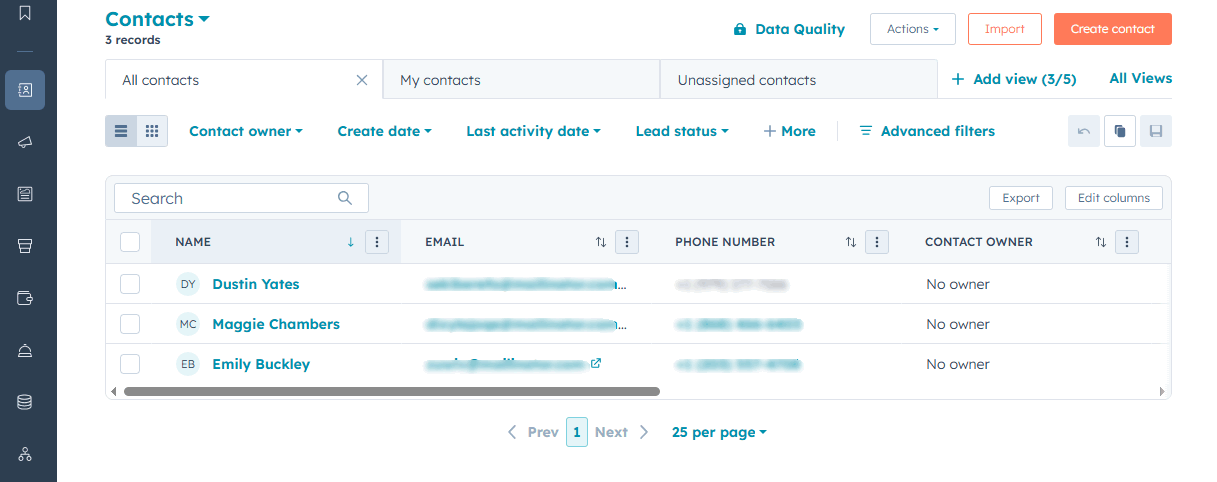
Result: New contact created (or existing updated) and added to “Website Leads” list.
Common Use Cases
- Lead Capture and Nurturing: Capture leads through contact forms and add them directly to HubSpot for automated nurturing sequences and sales follow-up.
- Newsletter Signups with CRM Tracking: Subscribe users to your newsletter and track them as contacts in HubSpot for personalized marketing campaigns.
- Event Registration Management: Collect event registrations and create HubSpot contacts with event-specific properties for targeted follow-up communications.
- Customer Support Intake: Create or update contact records when customers submit support requests, maintaining a complete interaction history.
- Lead Source Segmentation: Capture leads from different website pages and tag them with source properties for marketing attribution analysis.
- Qualification and Scoring Setup: Collect qualification information via forms that populates HubSpot properties used in lead scoring and routing.
Contact Deduplication
HubSpot uses email as the primary identifier for deduplication:
- Email exists: Contact is updated with new property values
- Email is new: New contact is created
- No duplicate contacts: Same email always updates existing record
This prevents duplicates from form resubmissions or returning visitors.
Troubleshooting
Contacts Not Appearing
Problem: Form submissions don’t create contacts.
Solutions:
- Verify access token is valid (not expired)
- Check that required scopes are enabled
- Search for contact by email in HubSpot
- Check for errors in form submission logs
- Ensure email field is mapped (required)
Properties Not Updating
Problem: Contact exists but properties don’t change.
Solutions:
- Verify property exists in HubSpot
- Check property is editable (not read-only)
- Confirm smart tag syntax matches form field
- For enumerations, use internal value, not label
List Assignment Failing
Problem: Contact created but not added to list.
Solutions:
- Confirm list is Manual or Snapshot type
- Verify list still exists in HubSpot
- Check list write permissions in Private App scopes
- Test with a different list
Invalid Token Errors
Problem: “Invalid access token” after working previously.
Solutions:
- Check if Private App was deleted in HubSpot
- Verify token hasn’t been regenerated
- Create a new Private App if needed
- Re-enter the new token in settings
Frequently Asked Questions
Q: Do I need a paid HubSpot account?
A: No, HubSpot’s free CRM includes API access. Paid plans add features but aren’t required for this integration.
Q: What happens if someone submits the form twice?
A: HubSpot uses email for deduplication. The existing contact is updated with new values; no duplicate is created.
Q: Can I add contacts to multiple lists at once?
A: Add multiple HubSpot integrations to the same form, each targeting a different list.
Q: Can I trigger HubSpot workflows from form submissions?
A: Yes! Create workflows that trigger on “Contact joins list” or “Contact property change” events.
Q: How do I map to custom properties?
A: Custom properties appear in the mapping dropdown after the common properties. Use the property’s internal name.
Q: Why don’t I see dynamic lists in the dropdown?
A: Dynamic (Active) lists are rule-based and don’t allow manual additions. Use Manual or Snapshot lists instead.
Q: Can I update contacts without adding to a list?
A: Yes, the list selection is optional. Leave it empty to just create/update contacts.
Best Practices
Property Mapping
- Always map email – Required for contact identification and deduplication
- Include names – firstname, lastname for personalization
- Map company data – company, jobtitle for B2B context
- Use appropriate properties – Match form data to relevant HubSpot properties
List Management
- Create specific lists – One list per form or campaign
- Use clear names – “Website Leads – Contact Page” not just “Leads”
- Avoid dynamic lists – Use static lists for form submissions
- Set up list-based automation – Trigger workflows when contacts join lists
Data Quality
- Validate email format – Use email field validation in forms
- Standardize data – Use dropdowns for enumeration properties
- Map consistently – Use same mappings across similar forms
- Test thoroughly – Submit test entries and verify in HubSpot
HubSpot Workflows
- Trigger on list add – Create workflows that trigger when contacts join lists
- Use property changes – Trigger workflows when mapped properties change
- Set up lead scoring – Use mapped properties in scoring criteria
- Notify sales – Alert team when high-value leads come through
That’s it! Thank you for choosing HT Contact Form to enhance your CRM workflow. If you need additional assistance, feel free to contact our support team. Our dedicated support team would be more than happy to assist you.