
Overview
The Net Promoter Score (NPS) Field allows you to measure customer satisfaction by asking users how likely they are to recommend your product or service. It uses the standard 0–10 rating scale, making it ideal for feedback, surveys, and customer experience tracking.
This field visually displays scores and automatically supports Detractor, Passive, and Promoter responses.
Key Features
- Standard 0–10 NPS scale
- Optional color-coded ratings
- Custom low and high labels
- Conditional logic support
- Fully compatible with Save & Resume
- Clean and user-friendly interface
How the NPS Scale Works
| Score Range | Category |
|---|---|
| 0–6 | Detractors |
| 7–8 | Passives |
| 9–10 | Promoters |
This structure follows the globally accepted Net Promoter Score methodology.
Adding the NPS Field
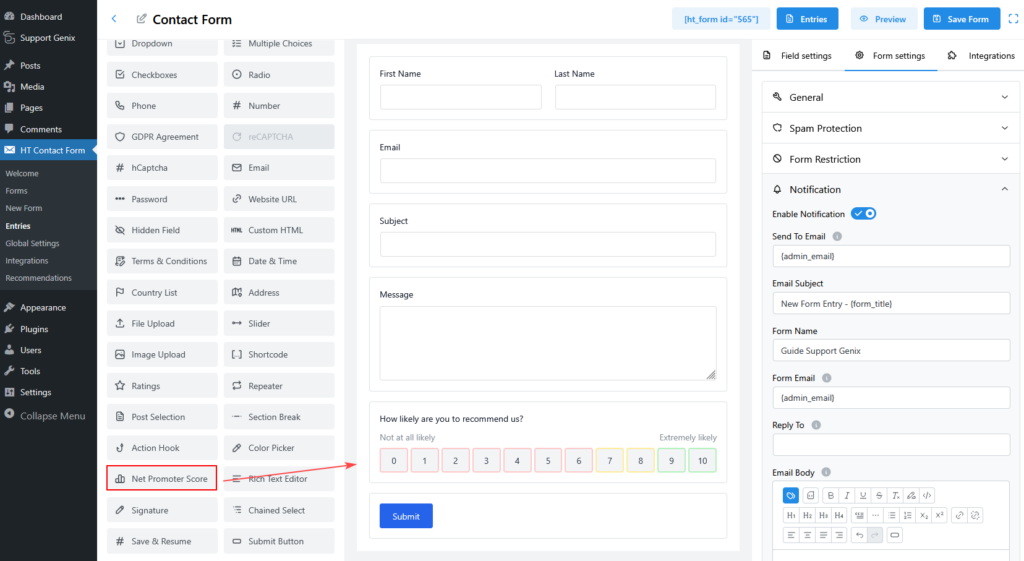
- Go to HT Contact Form → Forms
- Create or edit a form
- Drag Net Promoter Score from the field list
- Drop it where you want to collect feedback
Field Settings Explained
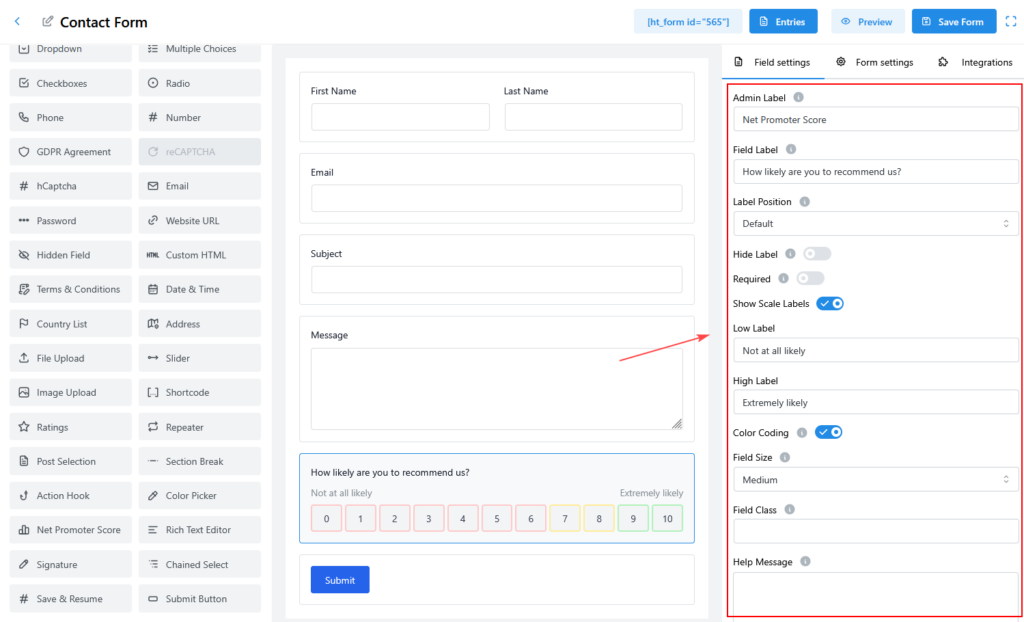
Admin Label
Used internally to identify the field in entries and notifications.
Example: Net Promoter Score
Field Label
The question shown to users.
Example:
How likely are you to recommend us?
Hide Label
Enable this option if you want to hide the label on the frontend.
Required
Make the NPS field mandatory before form submission.
Show Scale Labels
When enabled, shows descriptive text on both ends of the scale.
- Low Label:
Example:Not at all likely - High Label:
Example:Extremely likely
Color Coding
When enabled, scores are visually grouped:
- Red for 0–6
- Yellow for 7–8
- Green for 9–10
This helps users instantly understand their selection.
Field Size
Controls the visual size of the rating buttons.
Options: Small, Medium, Large
Field Class
Add a custom CSS class for styling purposes.
Help Message
Displays helpful guidance below the field.
Example:
Your feedback helps us improve our service.
Message Position
Controls where the help message appears relative to the field.
Name Attribute
The key used to store the NPS value.
Example:
nps_score
This is useful for integrations and data processing.
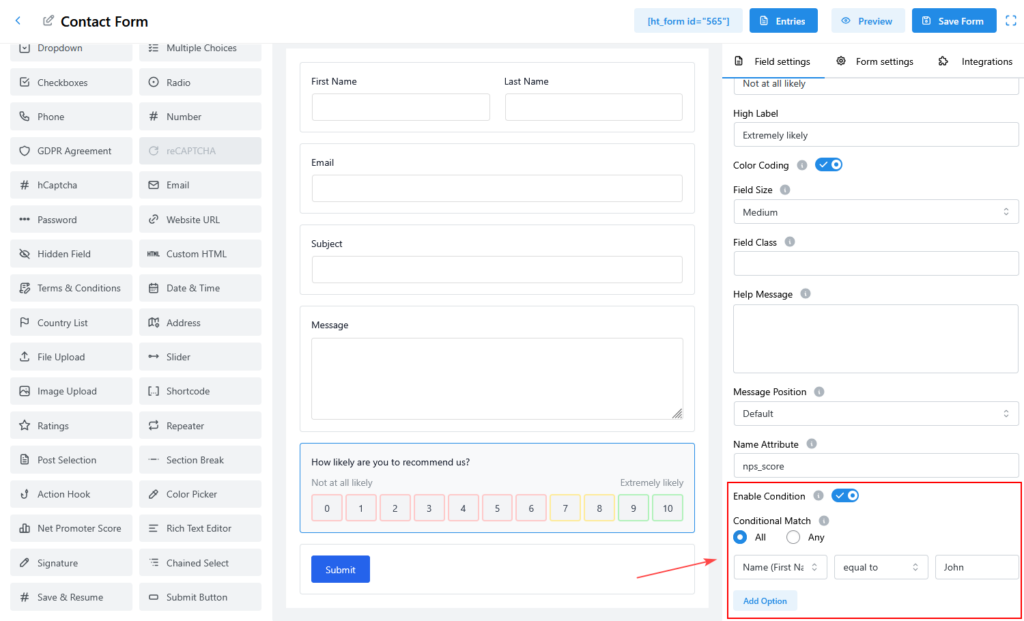
Conditional Logic Support
The NPS field supports conditional logic.
Enable Condition
Turn this on to show or hide the field based on user input.
Conditional Match
Choose how conditions are evaluated:
- All – All conditions must match
- Any – Any one condition must match
Example Condition:
- Show this field if
Name (First Name) equals John
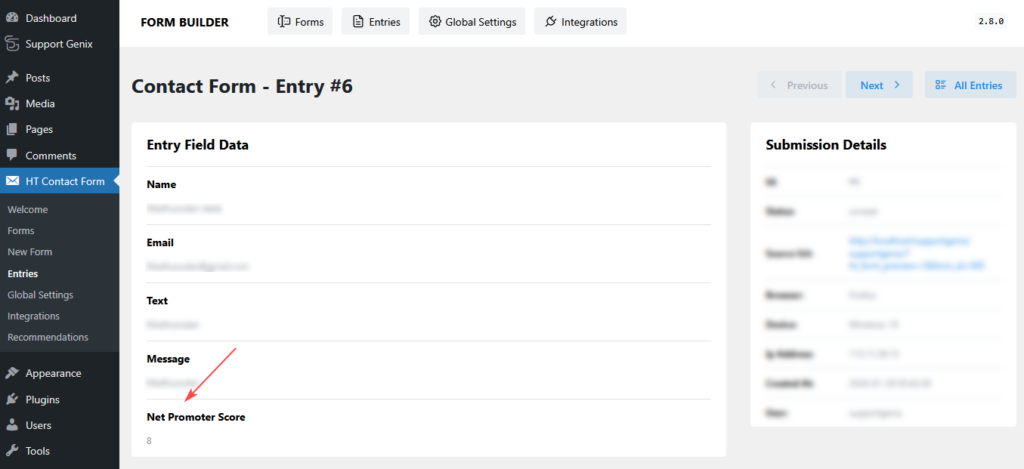
Viewing NPS Submissions
In Entries
- Displays the selected score (0–10)
- Easy to identify promoters and detractors
In Email Notifications
You can use the field value like:
NPS Score: {nps_score}
Save & Resume Support
If Save & Resume is enabled:
- The selected NPS score is saved
- Users will see their previous selection when resuming
Best Practices
- Place the NPS field near the end of your form
- Always add a follow-up question using conditional logic
- Keep labels clear and neutral
- Use color coding for better visual clarity
Common Use Cases
- Customer satisfaction surveys
- Post-purchase feedback
- Product experience evaluation
- Service quality measurement
- Event or onboarding feedback
Summary
The NPS Field is a powerful yet simple way to measure customer loyalty and satisfaction. With customizable labels, visual color coding, and conditional logic support, it fits perfectly into feedback-driven forms without adding complexity.