
The HT Contact Form plugin allows you to connect your forms with Notion databases, automatically creating new pages (entries) from form submissions. This transforms your Notion workspace into a powerful data collection system with automatic field mapping based on database properties.
Key Features
- Automatic Page Creation: Form submissions create new database pages
- Dynamic Property Mapping: Properties loaded from your Notion database
- Smart Type Conversion: Automatic data formatting for each property type
- Support for 10+ Property Types: Text, numbers, dates, selects, checkboxes, and more
- Multi-Select Support: Comma-separated values split automatically
- URL Encoding: URLs auto-formatted and encoded properly
Prerequisites
Before using the Notion integration, make sure you have a Notion Account (free or paid), a Notion Internal Integration created in your workspace, and at least one database shared with the integration.
Creating a Notion Integration
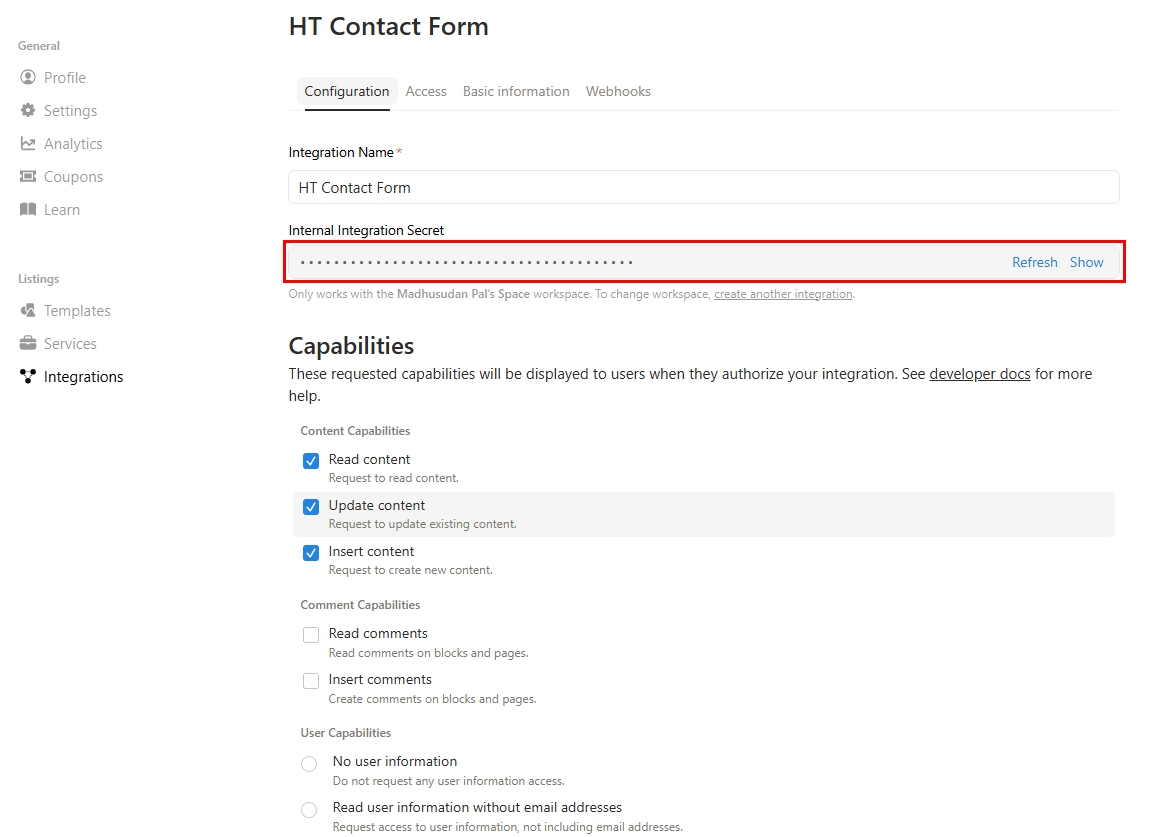
- Go to Notion Integrations
- Click New integration
- Name your integration (e.g., “HT Contact Form”)
- Select the workspace to connect
- Set appropriate capabilities (Read content, Update content, Insert content)
- Click Submit
- Copy the Internal Integration Token
Sharing a Database with Your Integration
Notion integrations can only access databases explicitly shared with them:
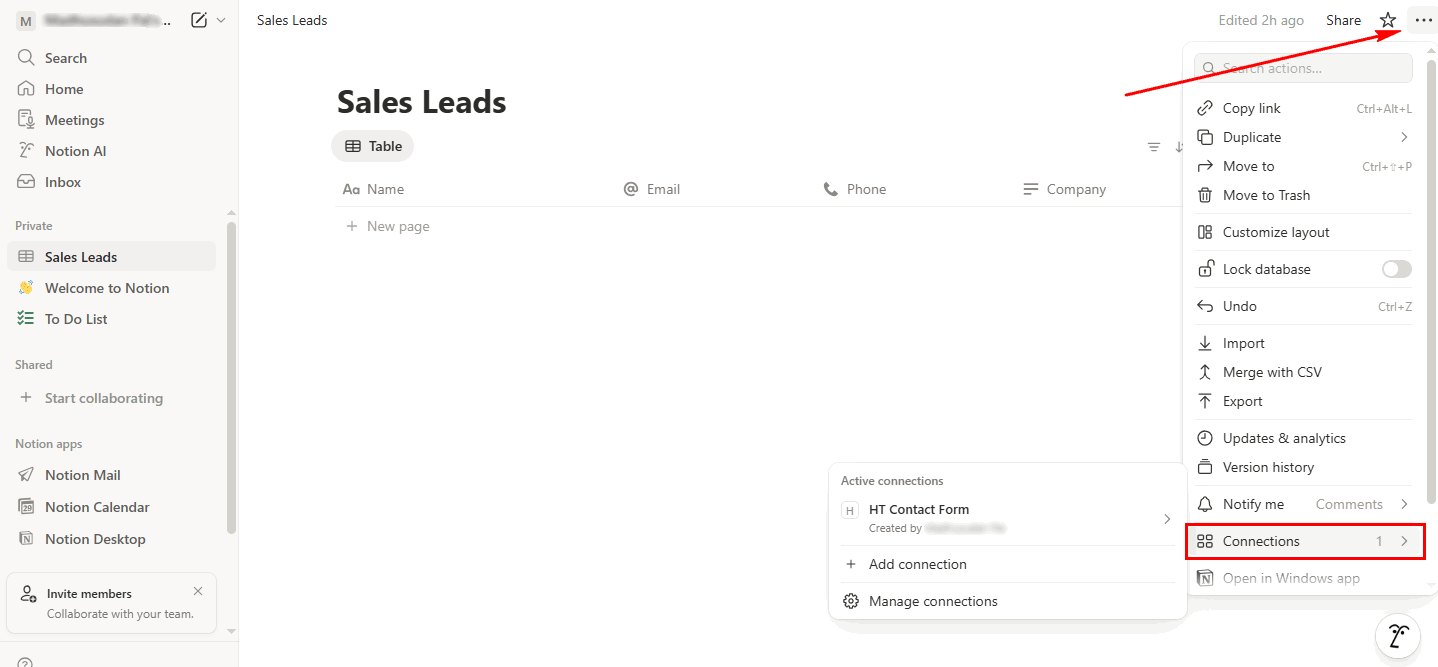
- Open your Notion database (full-page, not inline)
- Click Share (or ••• menu → Share)
- Click Connections
- Search for and select your integration name
- The database is now accessible via the API
Important: If you don’t share the database, it won’t appear in the integration settings.
Step 1: Configure Global Settings
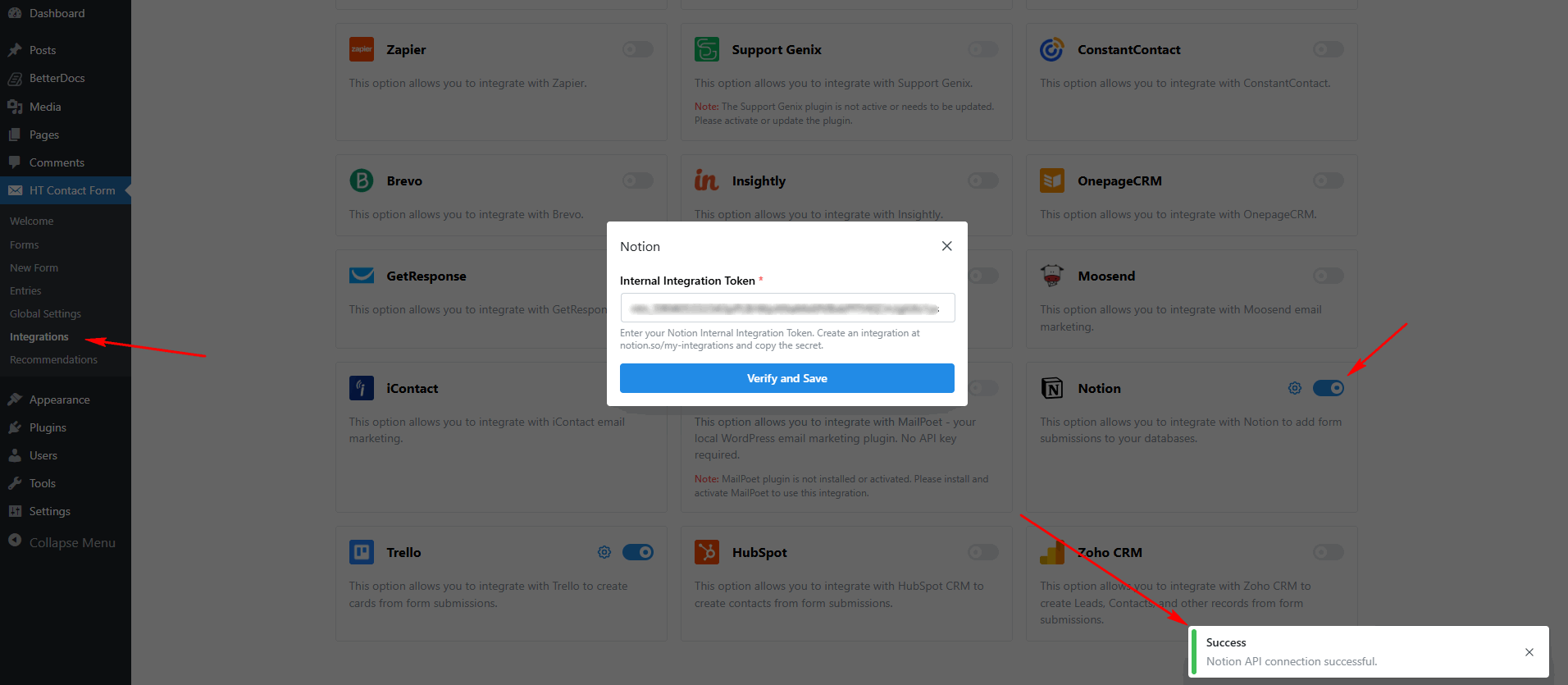
First, you need to configure the Notion Internal Integration Token in the global settings.
- Go to HT Contact Form → Settings → Integrations
- Find Notion and click Configure
- Enter your Internal Integration Token
- Click Verify and Save to test the connection
Step 2: Add Notion Integration to Your Form
Once the global settings are configured, you can add the Notion integration to any form.
- Edit your form
- Go to the Integrations tab
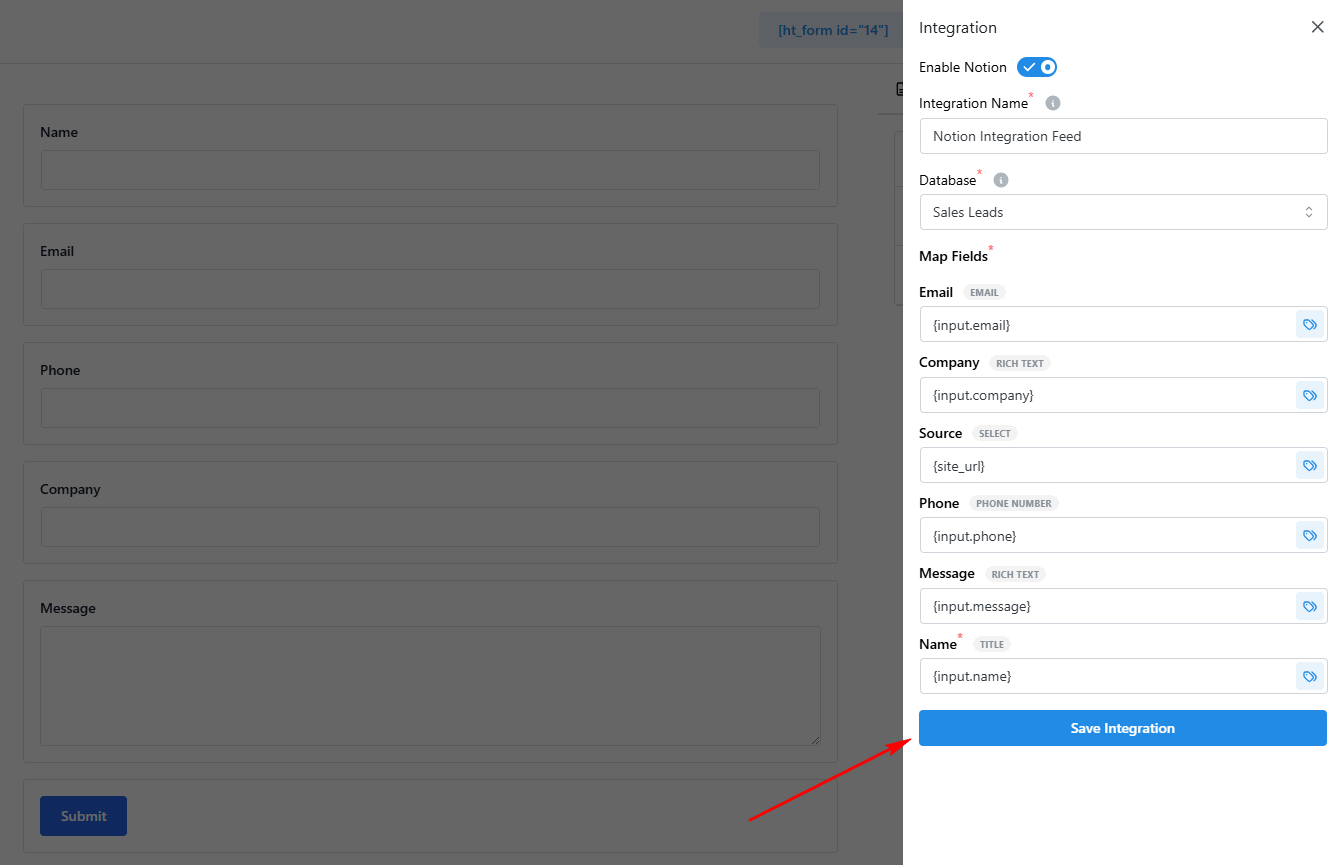
- Click Add New → Notion
- Select a Database from the dropdown
- Map form fields to database properties
- Click Save Integration
Integration Settings Overview
| Setting | Required | Description |
|---|---|---|
| Database | Yes | Select the Notion database for entries |
| Property Mapping | Yes | Map form fields to database properties |
Supported Property Types
Properties are loaded automatically from your selected database. The plugin formats data based on each property type:
| Type | Description | Input Format | Example |
|---|---|---|---|
| title | Page title (required) | Plain text | “John Smith” |
| rich_text | Text content | Plain text | “Hello world” |
| number | Numeric values | Number (auto-converted) | “42.5” → 42.5 |
| select | Single option | Option name | “High Priority” |
| multi_select | Multiple options | Comma-separated | “Red, Blue, Green” |
| date | Date value | YYYY-MM-DD | “2024-01-15” |
| checkbox | Boolean | true/false, 1/0, yes/no | “yes” → true |
| Email address | Valid email | “[email protected]” | |
| phone_number | Phone number | Any format | “+1-555-123-4567” |
| url | Web URL | Valid URL | “https://example.com” |
Unsupported Property Types (Skipped)
These types are read-only and cannot be set via the API:
rollup– Calculated from relationscreated_by– Auto-set by Notioncreated_time– Auto-set by Notionlast_edited_by– Auto-set by Notionlast_edited_time– Auto-set by Notionformula– Calculated values
Data Type Formatting
The plugin automatically formats data for each Notion property type:
Number Conversion
Form Input: "42.5"
Notion Property Type: number
Result: 42.5 (float)
Multi-Select Parsing
Form Input: "Option A, Option B, Option C"
Notion Property Type: multi_select
Result: ["Option A", "Option B", "Option C"]
Checkbox Conversion
Form Input: "yes", "true", "1", or true
Result: true

Form Input: "no", "false", "0", false, or empty
Result: false
Date Formatting
Form Input: "2024-01-15"
Notion Property Type: date
Result: { "start": "2024-01-15" }
Smart Tags Reference
Use {input.field_name} to pull values from form fields.
| Smart Tag | Description |
|---|---|
{input.email} | Email field value |
{input.full_name} | Full name value |
{input.message} | Message/textarea value |
{input.field_name} | Any form field by admin label |
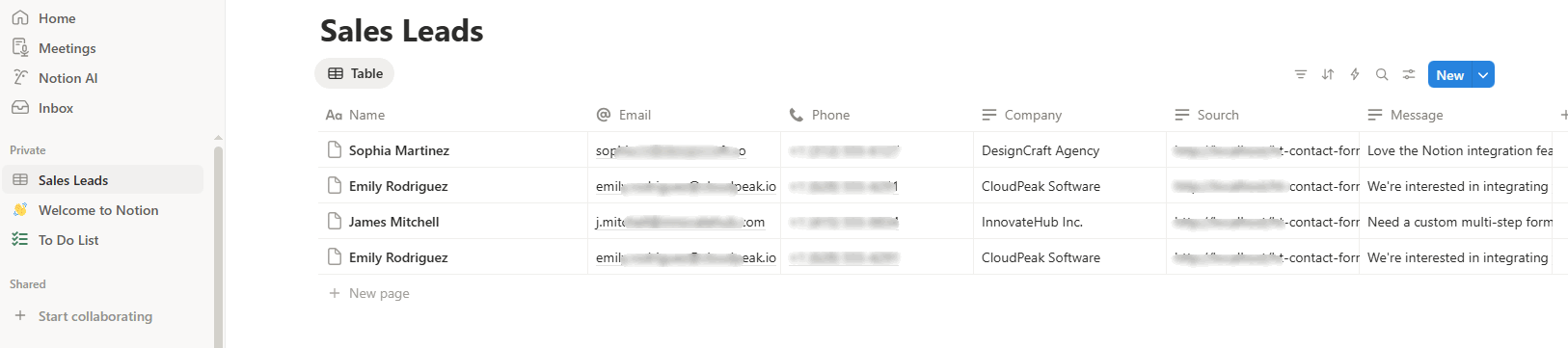
Complete Configuration Example: Lead Capture Database
Here’s an example of setting up Notion integration to capture sales leads from a contact form.
Form Fields: Full Name, Email, Phone, Company, Message
Notion Database Properties
- Name (title)
- Email (email)
- Phone (phone_number)
- Company (rich_text)
- Source (select)
- Message (rich_text)
Integration Configuration
Database: Sales Leads
Property Mapping:
  Name (title): {input.full_name}
  Email (email): {input.email}
  Phone (phone_number): {input.phone}
  Company (rich_text): {input.company}
  Source (select): Website Form
  Message (rich_text): {input.message}
Result: New page created in Leads database with all contact information.
Common Use Cases
- Lead Capture Database: Create a leads database in Notion and automatically populate it with form submissions including contact info, company, and inquiry details.
- Project Request Tracking: Collect project requests via a form and add them to a Notion project tracker with status, priority, and assignee properties.
- Event Registration Management: Capture event registrations and store them in a Notion database for attendee management, check-in, and follow-up.
- Customer Feedback Collection: Gather feedback through forms and organize responses in a Notion database with categories, sentiment tags, and follow-up status.
- Job Application Tracking: Accept job applications via a form and create entries in a Notion recruitment database with candidate details and status.
- Content Submission Portal: Allow users to submit content ideas, blog posts, or article pitches that populate a Notion editorial calendar.
Recommended Database Setup
Here’s a recommended setup for contact forms:
| Property | Type | Purpose |
|---|---|---|
| Name | title | Page title, primary identifier |
| Contact email (clickable) | ||
| Phone | phone_number | Phone (formatted) |
| Message | rich_text | Long-form content |
| Status | select | Workflow status (New, Contacted, Closed) |
| Source | select | Lead source (Website, Referral, etc.) |
| Submitted | date | Submission date |
Troubleshooting
No Databases Appearing
Problem: Database dropdown is empty.
Solutions:
- Verify integration token is correct (starts with
secret_) - Share databases with your integration (click Share → Invite)
- Refresh the database list
- Check integration has “Read content” capability
Properties Not Showing
Problem: Property mapping options are missing.
Solutions:
- Ensure database is selected first
- Verify property isn’t a read-only type (formula, rollup, etc.)
- Check database permissions
- Refresh after adding new properties in Notion
Data Not Saving Correctly
Problem: Values appear wrong or missing in Notion.
Solutions:
- Check property type matches data format
- For multi-select: Use comma-separated values
- For dates: Use YYYY-MM-DD format
- For checkboxes: Use “true”, “yes”, “1”, or actual boolean
- Verify smart tag field names match form fields
Page Not Created
Problem: Form submits but no new page appears.
Solutions:
- Check for errors in form submission logs
- Verify title property is mapped (required)
- Ensure integration token hasn’t expired
- Check Notion API status
- Verify database is still shared with integration
Frequently Asked Questions
Q: Do I need a paid Notion account?
A: No, Notion’s free plan includes API access. Paid plans offer more blocks and features but aren’t required for this integration.
Q: Can I create pages in inline databases?
A: Yes, both full-page and inline databases work, but the database must be shared with your integration.
Q: What happens if a property is deleted in Notion?
A: The integration will show an error for that mapping. Update your integration settings to remove the deleted property.
Q: Can I update existing pages instead of creating new ones?
A: Currently, the integration creates new pages. For updates, you’d need custom development or tools like Zapier.
Q: How do I map to a relation property?
A: Relation properties require the related page ID, which is complex to map from forms. Use select or multi-select as alternatives.
Q: Can I trigger Notion automations?
A: Yes! Notion automations that trigger on “Page added to database” will fire when the integration creates pages.
Q: What’s the maximum text length for rich_text?
A: Notion supports up to 2000 characters per rich_text block. Longer content may be truncated.
Best Practices
Database Setup
- Include a title property – Every Notion page requires a title
- Use appropriate types – Match property types to data (email for emails, etc.)
- Add status properties – Track workflow progress with select properties
- Keep it organized – Use consistent naming conventions
Integration Configuration
- Map all important fields – Don’t leave useful data unmapped
- Test with sample data – Submit a test entry to verify mapping
- Check property types – Ensure form data matches Notion property type
- Use static values – Set fixed values for selects like “Source: Website”
Workspace Management
- Keep databases shared – Don’t remove integration access
- Name databases clearly – Easy identification in dropdown
- Create views – Set up filtered views for different workflows
- Archive old entries – Keep database performant
That’s it! Thank you for choosing HT Contact Form to enhance your workflow. If you need additional assistance, feel free to contact our support team. Our dedicated support team would be more than happy to assist you.