
Overview
The Rich Text Editor Field allows users to enter formatted content directly inside a form using a user-friendly editor. It works like a basic word processor, enabling text styling, lists, headings, and links without requiring HTML knowledge.
This field is ideal when you need structured, detailed input instead of plain text.
Key Features
- WYSIWYG editor (What You See Is What You Get)
- Multiple toolbar options (Basic, Extended)
- Supports headings, lists, links, and text formatting
- Adjustable editor height
- Optional character limit
- Conditional logic support
- Save & Resume compatibility
How to Add the Rich Text Editor Field
- Go to HT Contact Form → Forms
- Create a new form or edit an existing one
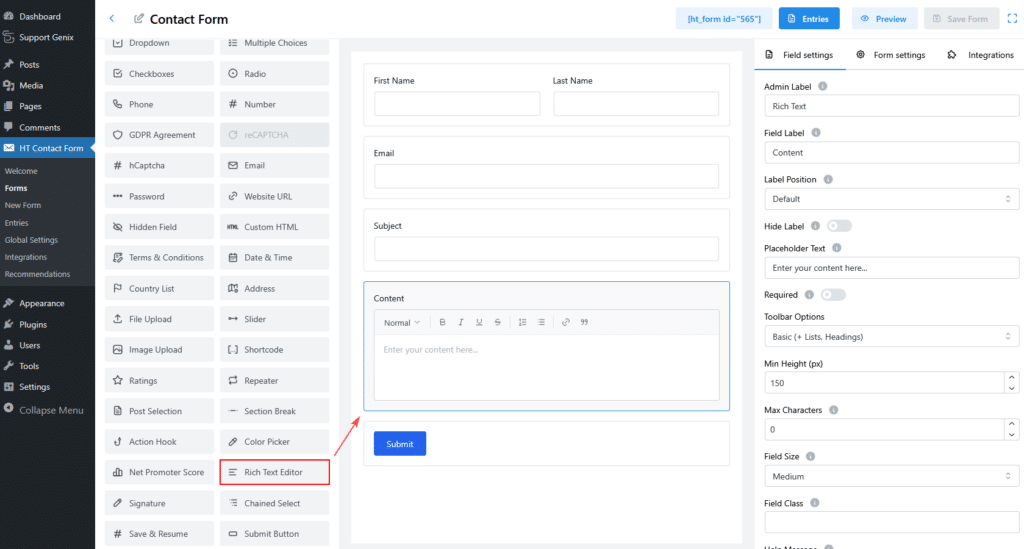
- From the Form Fields panel, drag Rich Text Editor
- Drop it into your form layout
Field Settings Explained
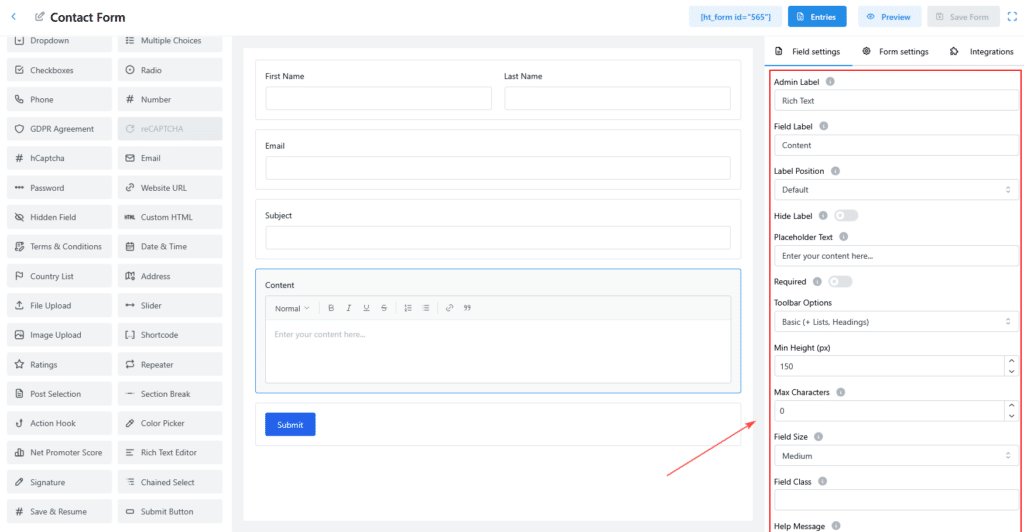
Admin Label
Used internally to identify the field in the admin panel and entries.
Example:Rich Text
Field Label
The label displayed above the editor on the frontend form.
Example:Content
Label Position
Controls where the label appears.
Available options:
- Default
- Top
- Left
- Right
- Hidden
Hide Label
Enable this option if you don’t want to show the label on the frontend.
Placeholder Text
Text shown inside the editor before users start typing.
Example:Enter your content here...
Required
When enabled, users must enter content before submitting the form.
Toolbar Options
Controls which formatting tools are available.
Available options:
- Basic – Bold, Italic, Underline, Lists, Headings, Links
- Basic (+ Lists, Headings) – Extended list and heading support
Choose a simpler toolbar to keep user input clean and consistent.
Minimum Height (px)
Defines the minimum visible height of the editor.
Default: 150px
Recommended for longer content areas.
Max Characters
Limits the number of characters a user can enter.
Leave empty for unlimited input.
Field Size
Controls the width of the editor.
Options:
- Small
- Medium
- Large
Field Class
Add a custom CSS class for styling purposes.
Example:custom-richtext-field
Help Message
Displays helper text below the field to guide users.
Example:You can format your text using the toolbar options above.
Message Position
Controls where the help message appears.
Options:
- Default
- Above Field
- Below Field
Name Attribute
Defines the field’s unique identifier used in form submissions.
Example:richtext_content
This value should be unique and should not contain spaces.
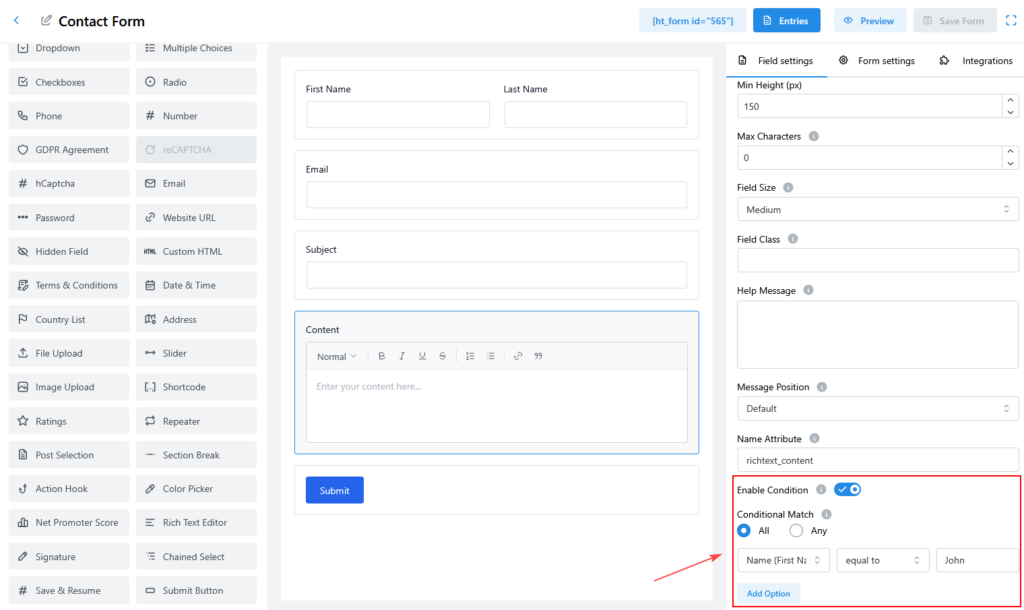
Conditional Logic
The Rich Text Editor supports conditional visibility.
Enable Condition
Turn this on to show or hide the field based on user input.
Conditional Match
Choose how conditions are evaluated:
- All – All conditions must match
- Any – Any one condition must match
Example Condition:
- Show this field if
Name (First Name) equals John
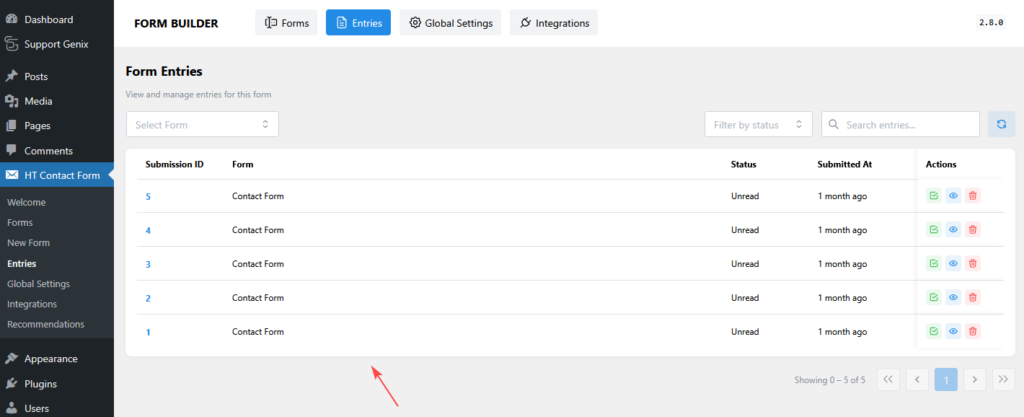
Viewing Submitted Content
In Form Entries
- Content is displayed with formatting preserved
- Lists, headings, and links remain intact
In Email Notifications
- Rich text is sent as formatted HTML
- Most email clients display the formatting correctly
Save & Resume Support
If the Save & Resume feature is enabled:
- User content is saved automatically
- Formatting remains unchanged
- The editor restores content when users resume the form
Common Use Cases
- Contact forms with detailed messages
- Support or issue descriptions
- Job application cover letters
- Feedback or review submissions
- Content or article submissions
Best Practices
- Use Basic toolbar for general forms
- Set a minimum height for better usability
- Apply character limits when needed
- Avoid hiding labels unless context is very clear
- Use conditional logic to show the editor only when needed
Conclusion
The Rich Text Editor Field is a powerful solution for collecting structured, well-formatted user input. With flexible toolbar options, layout control, and conditional logic, it fits perfectly into advanced contact forms without adding complexity for users.