
Overview
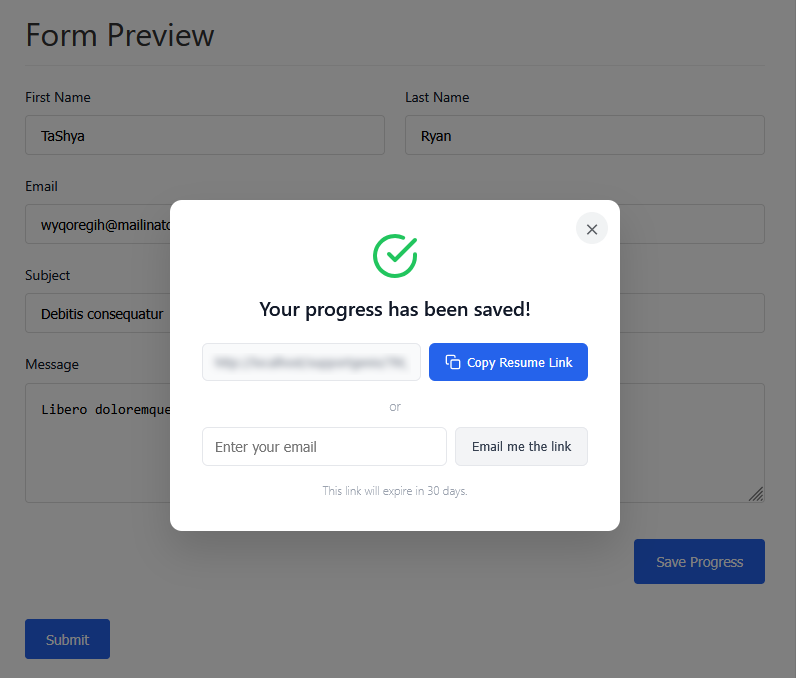
The Save & Resume Field allows users to save their form progress and continue later using a secure resume link. This feature is ideal for long or complex forms where users may need additional time to complete all fields.
Once saved, users can either copy the resume link or receive it via email, depending on the form configuration.
Key Features
- Save partially completed forms with one click
- Generate a unique resume link automatically
- Email resume link option for users
- Configurable draft expiration period
- Supports most form fields including uploads and rich content
- Secure draft storage in WordPress database
When to Use Save & Resume
The Save & Resume field is especially useful for:
- Long contact or application forms
- Job applications and onboarding forms
- Forms requiring document uploads
- Multi-section surveys
- Mobile users who may leave and return later
How to Add the Save & Resume Field
Step 1: Add the Field to Your Form
- Go to HT Contact Form → Forms
- Create a new form or edit an existing one
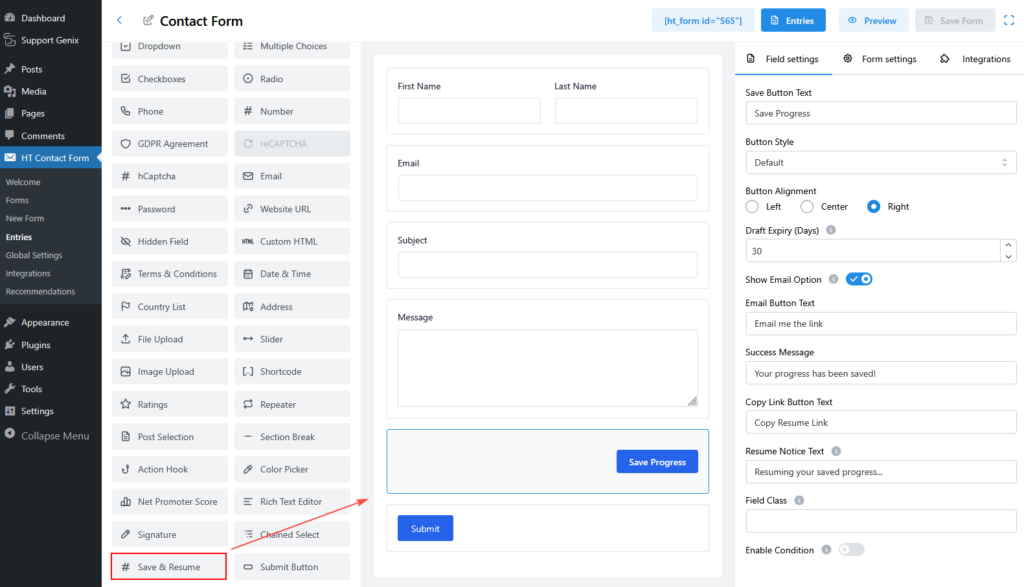
- Locate Save & Resume in the form elements panel
- Drag and drop it into your form
(Recommended placement: before the Submit button)
Save & Resume Field Settings
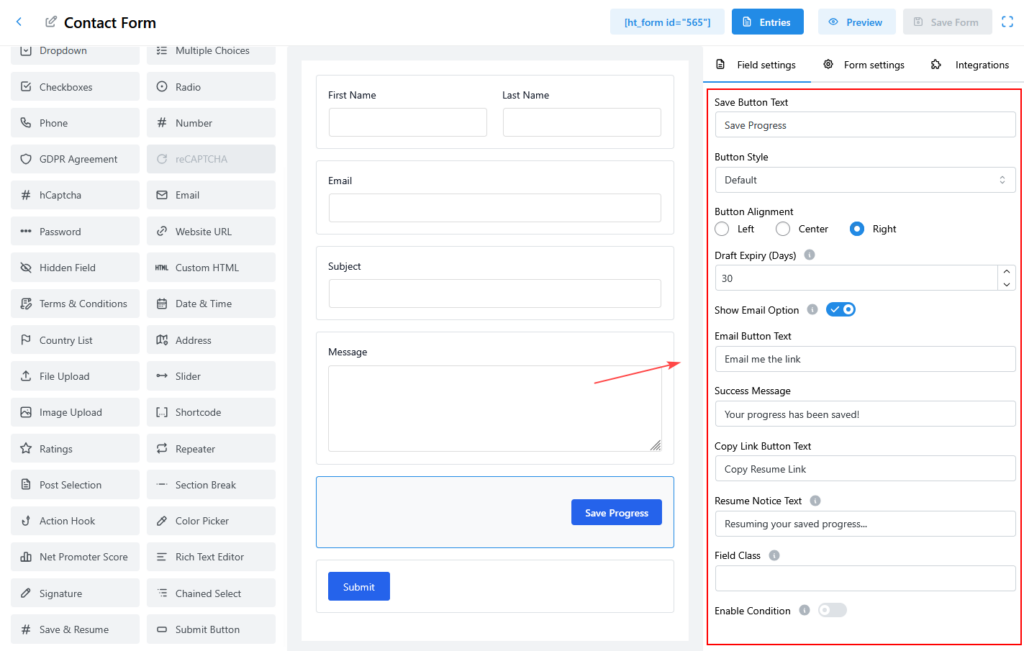
Save Button Text
- Defines the text displayed on the save button
- Default: Save Progress
- Example alternatives:
- Save for Later
- Save Draft
- Continue Later
Button Style
Choose how the Save button appears:
- Default – Standard primary button
- Outline – Border-only button
- Subtle – Minimal appearance
Button Alignment
Controls button position in the form:
- Left
- Center
- Right
Draft Expiry Settings
Draft Expiry (Days)
- Determines how long a saved draft remains accessible
- Default: 30 days
After the expiry period:
- Draft data is automatically deleted
- Resume link becomes invalid
- Users must start a new form submission
Email Resume Link Option
Show Email Option
- Enables users to receive the resume link via email
- When enabled, users will see an email option after saving
Email Button Text
- Customizes the email button label
- Default: Email me the link
Resume Experience for Users
Saving the Form
When a user clicks Save Progress:
- All entered form data is saved securely
- A unique resume link is generated
- A success message is shown
- Users can:
- Copy the resume link
- Email the resume link (if enabled)
Resuming the Form
When a user opens the resume link:
- The form reloads with previously saved data
- Users can continue editing
- On final submission:
- Draft data is removed
- A normal form entry is created
What Data Is Saved
The Save & Resume field stores:
- Text fields, email, number, textarea
- Dropdowns, radio buttons, checkboxes
- File uploads
- Rich Text Editor content
- Color Picker values
- NPS selections
- Chained Select values
Not Saved
For security reasons, the following are not saved:
- CAPTCHA fields
- Password fields
- Hidden fields containing security tokens
Conditional Logic
Enable Condition
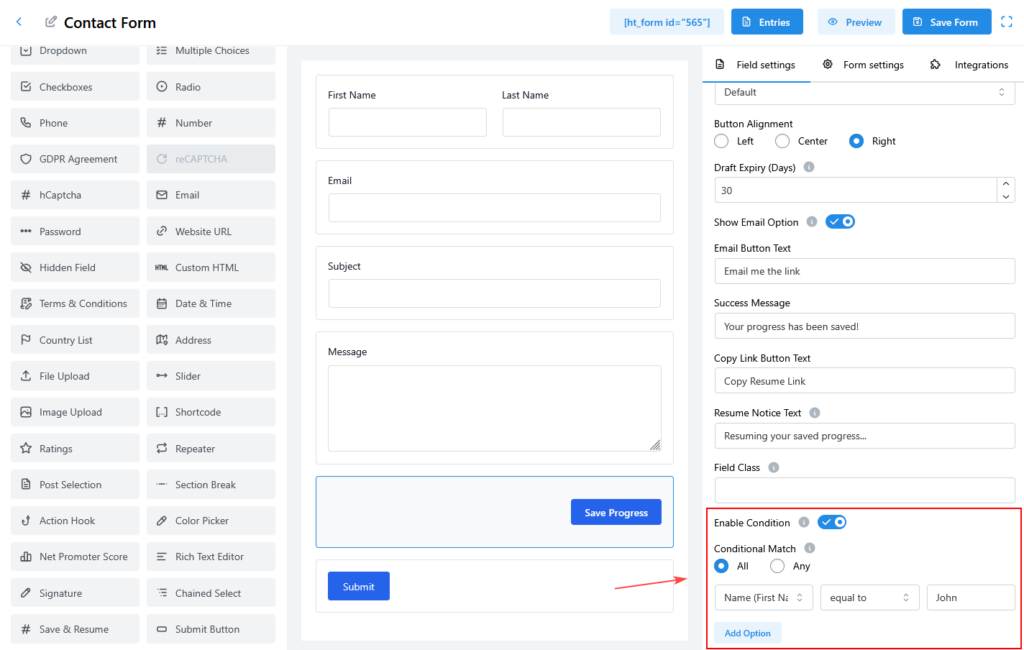
You can show or hide a section dynamically based on user input.
Steps:
- Enable Condition
- Choose All or Any
- Set conditions (example: Name equals John)
This allows entire sections to appear only when specific conditions are met.
Viewing Saved Submissions
- Saved drafts are not visible as form entries
- Only fully submitted forms appear in Entries
- Drafts are automatically cleaned up after expiry
Best Practices
- Place the Save & Resume button near the Submit button
- Clearly label the button so users understand its purpose
- Set a reasonable expiry period based on form sensitivity
- Enable email option for better user convenience
- Test resume links before publishing the form
Important Notes
- Save & Resume works independently of user login status
- Anyone with the resume link can access the saved draft
- Resume links should be treated as private
Troubleshooting Tips
Save button not working
- Check browser console for JavaScript errors
- Ensure REST API is enabled
- Confirm form is fully loaded
Resume link not restoring data
- Check if the draft has expired
- Ensure the form structure was not changed
- Verify the correct form page URL is used
Conclusion
The Save & Resume Field improves user experience by preventing data loss and allowing flexible form completion. It is a must-have feature for long or multi-section forms where users may need more time.