
Overview
The Section Break Field helps you organize long or complex forms by visually separating fields into clear sections. It allows you to add a heading, description, and divider line to improve form readability and user experience.
This field is purely visual and does not collect any user data.
When to Use the Section Break Field
- To group related fields together
- To divide long forms into logical sections
- To add instructions or explanations between form fields
- To improve form clarity and completion rates
- To conditionally show or hide entire sections
How to Add a Section Break Field
- Go to HT Contact Form → Forms
- Open an existing form or create a new one
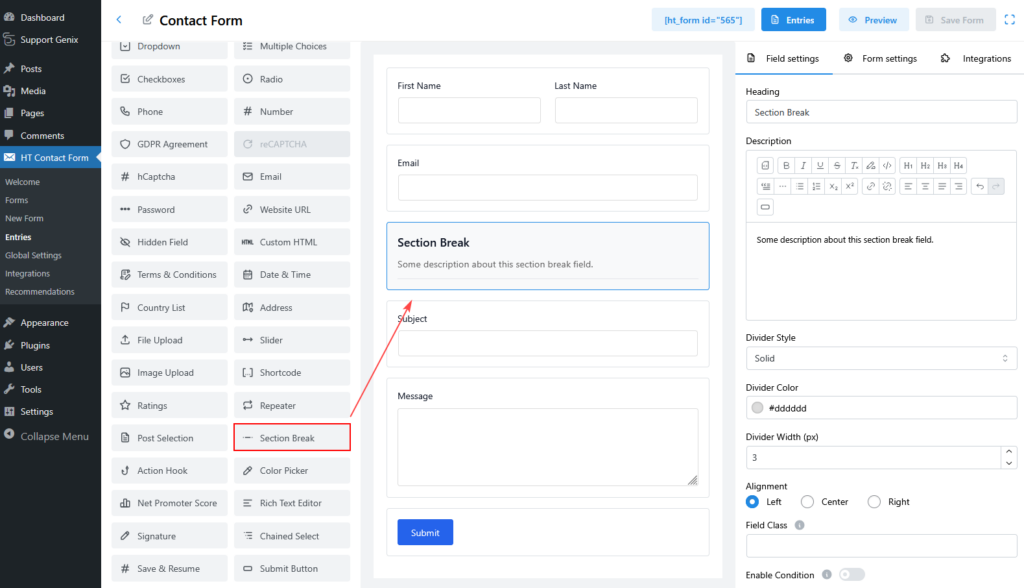
- From the form fields panel, drag Section Break
- Drop it where you want to divide the form
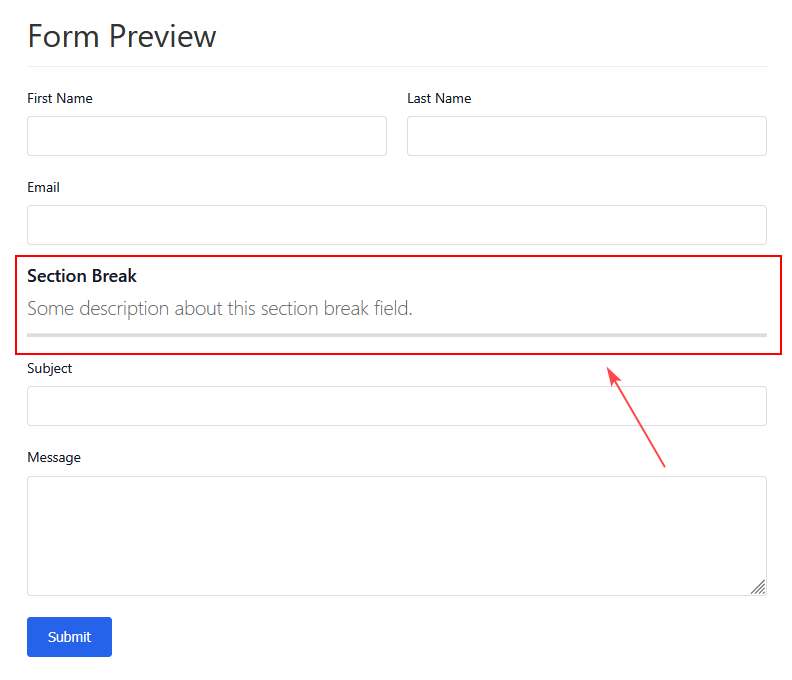
The section break will immediately appear in the form preview.
Section Break Field Settings
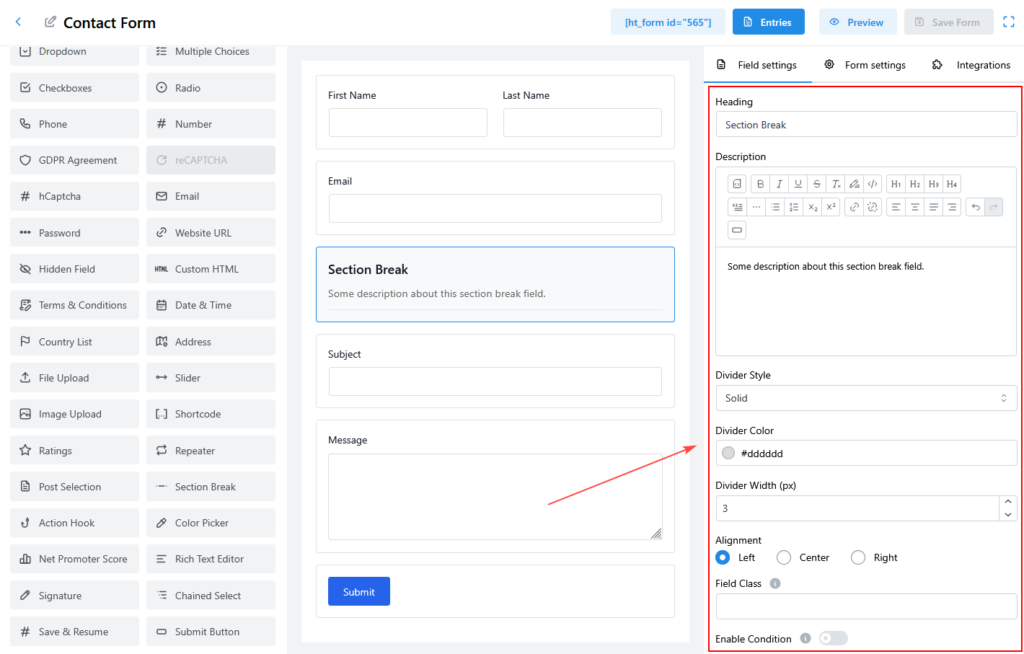
Heading
- Displays a title at the top of the section
- Default value: Section Break
- Example uses:
- Contact Information
- Personal Details
- Message Details
You can leave this empty if you only want a divider line.
Description
- Appears below the heading
- Supports rich text formatting
- Useful for instructions or guidance
Example:
Please fill out the following fields carefully.
You can format text using bold, lists, links, and headings.
Divider Customization
Divider Style
Choose how the divider line appears:
- None
- Solid
- Dashed
- Dotted
- Double
Use None if you want text only without a divider line.
Divider Color
- Select the color of the divider line
- Default color: #dddddd
- Useful for matching your brand or theme colors
Divider Width (px)
- Controls the thickness of the divider
- Default value: 3 px
- Recommended range: 1–5 px
Alignment
Controls the alignment of the section content:
- Left
- Center
- Right
This affects the heading, description, and divider alignment.
Field Class
- Add a custom CSS class
- Useful for advanced styling
- Example:
custom-section-style
Conditional Logic
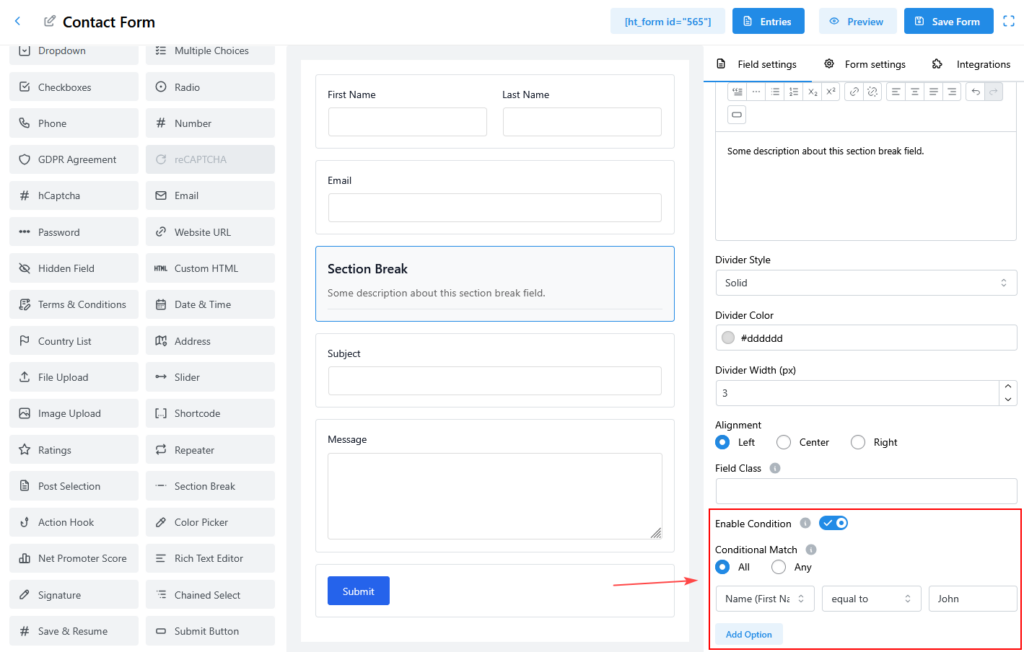
Enable Condition
You can show or hide a section dynamically based on user input.
Steps:
- Enable Condition
- Choose All or Any
- Set conditions (example: Name equals John)
This allows entire sections to appear only when specific conditions are met.
Example Use Case
Contact Form Structure
[First Name]
[Last Name]
[Email]

[Section Break]
Heading: Message Details
Description: Please describe your issue below.
Divider: Solid

[Subject]
[Message]
This makes the form easier to scan and understand.
Data Handling
- Section Break fields do not store data
- They do not appear in form entries or email notifications
- Used only for layout and visual structure
Best Practices
- Use clear, descriptive headings
- Avoid overusing section breaks in short forms
- Keep divider styles consistent across the form
- Use descriptions only when they add value
- Combine with conditional logic for dynamic forms
Summary
The Section Break Field is a powerful layout tool that helps you:
- Organize forms visually
- Improve user experience
- Add structure without collecting data
- Create cleaner, more professional forms
It’s ideal for long forms, surveys, and multi-section contact forms.