
When someone submits a form on your website, it’s important to show them a confirmation message to assure them their submission was successful. ✉️
With HT Contact Form, you can easily set up a custom confirmation message based on your preferences.
By default, HT Contact Form will show a simple “Thank you for your message” message. But you can customize it any way you want to create a better user experience.
Let’s see how you can configure the form confirmation settings.
Access the Confirmation Settings
To set up a confirmation message for your form:
- Go to your WordPress Dashboard.
- Navigate to HT Contact Form → Forms.
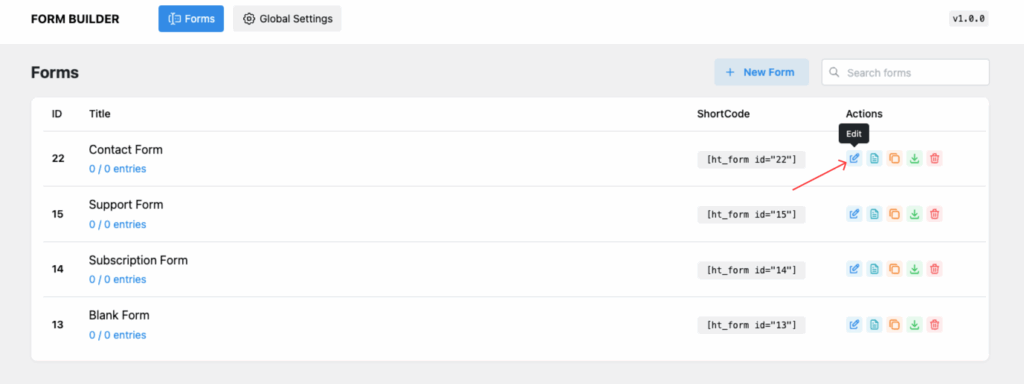
- Find the form you want to edit and click Edit.
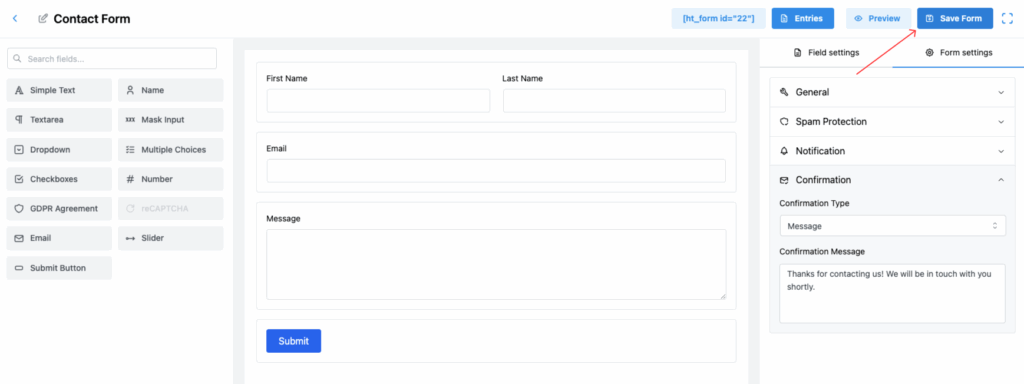
- In the form editor, click on the Form Settings tab on the right sidebar.
This will open various options related to form settings, including confirmation settings.
Available Confirmation Options
Inside the form settings, you’ll find different ways to show confirmation after a form is submitted. Let’s explore the options:
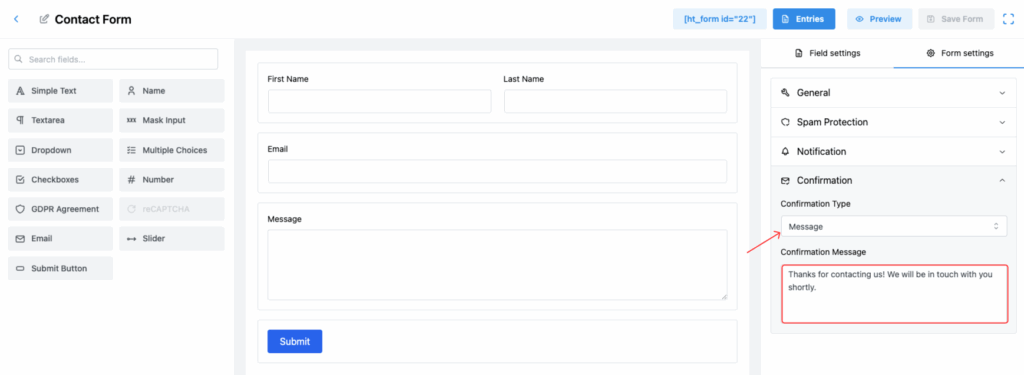
Show Message on the Same Page
By default, HT Contact Form displays a success message on the same page where the form is located.
You can customize this message by editing the Success Message field. 🎯
Example:
“Thank you for contacting us! We will get back to you shortly.”
This is the quickest and most common way to confirm the submission without redirecting the user to another page.
Redirect to a Specific Page
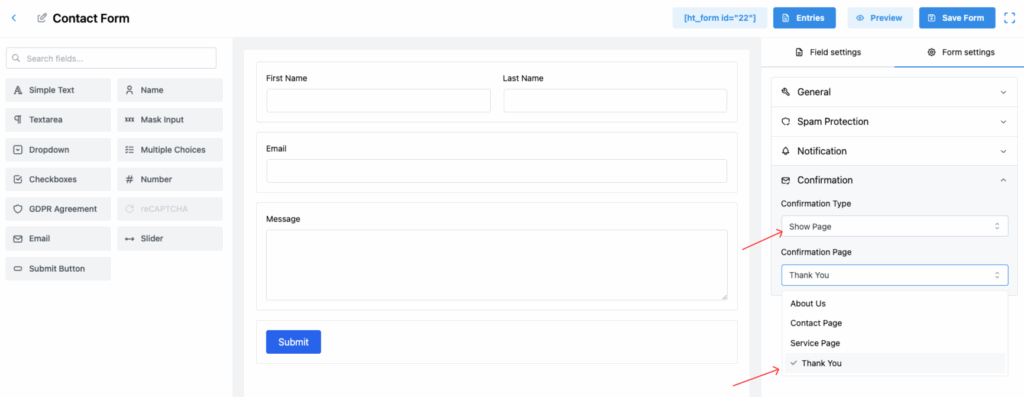
If you want, you can redirect users to another page after they submit the form. 🚀
For example, you might redirect them to a Thank You page or a Special Offer page.
To set up a page redirection:
- Select Redirect to Page as the confirmation type.
- Choose the page from your available pages where you want users to land after submitting the form.
This gives you more flexibility in designing a customized post-submission experience.
Redirect to a Custom URL
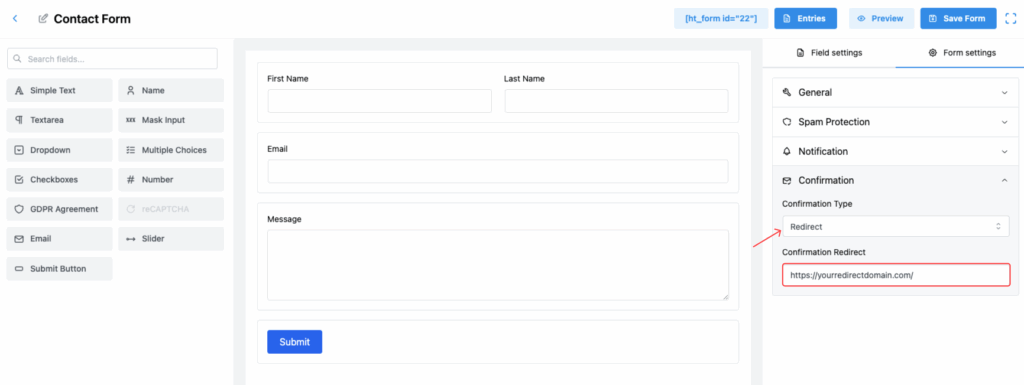
You can also redirect users to any custom URL after form submission, even outside of your website. 🌐
To set up a custom URL redirection:
- Select Redirect to URL as the confirmation type.
- Enter the full URL where you want users to be redirected.
This is useful if you are integrating external services, survey forms, or external landing pages.
Final Step: Save Your Changes
After setting up the confirmation message or redirection, make sure to click the Save Form button on the top-right corner ✅.
This will apply all your confirmation settings and ensure your form works exactly the way you want.
Conclusion
Setting up a form submission confirmation message in HT Contact Form helps you improve user experience and reassure your visitors that their message has been received successfully. Whether you want to show a thank-you message, redirect to a specific page, or use a custom URL — it’s all possible with a few simple settings. 🎉