
The Simple Text field in HT Contact Forms allows users to input short, single-line text information.
It comes with flexible settings to customize the appearance, behavior, and validation of the field.
Simple Text Field Settings:
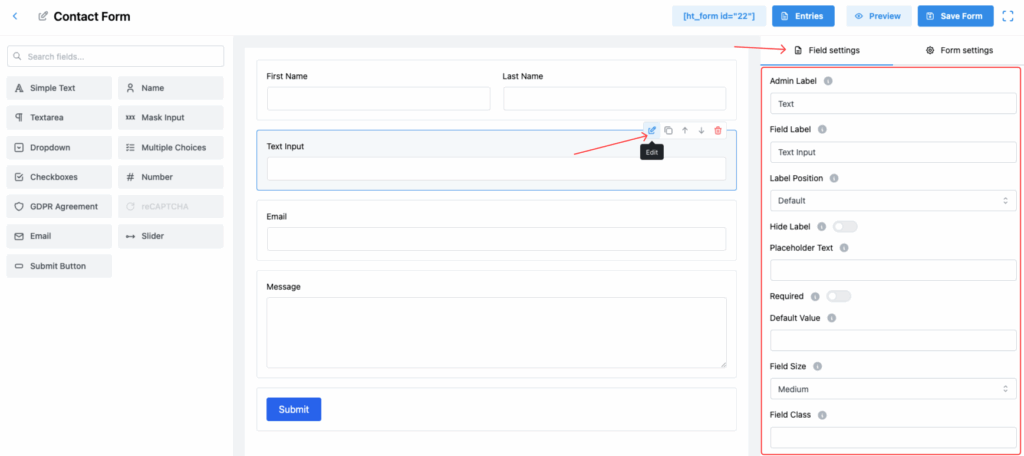
1. Admin Label
Set the label used internally in the form builder and admin dashboard.
✅ This helps you easily identify the field in entries and form settings.
2. Field Label
Set the label that users will see when filling out the form.
✅ It tells users what information they should enter.
3. Label Position
Control where the label appears relative to the input box. Options include:
- Default
- Top
- Right
- Bottom
- Left
4. Hide Label
Toggle this option to hide the field label from the front-end view.
✅ Useful for minimal or placeholder-based designs.
5. Placeholder Text
Add placeholder text that appears inside the input box when it’s empty.
✅ Guides users on what type of information to enter.
6. Required
Make the field mandatory for form submission.
✅ If enabled, users must fill out the field before submitting.
7. Default Value
Set a default value that will automatically appear in the field when the form loads.
8. Field Size
Choose the input field size to match your form design. Options:
- Large
- Small
- Medium (Default)
9. Field Class
Add a custom CSS class to the field for applying custom styles.
10. Help Message
Provide additional information or instructions for the field.
✅ It can appear as a tooltip or be displayed below the field.
11. Message Position
Decide where the Help Message appears:
- Below Input Element
- Default
- Next to Label as Tooltip
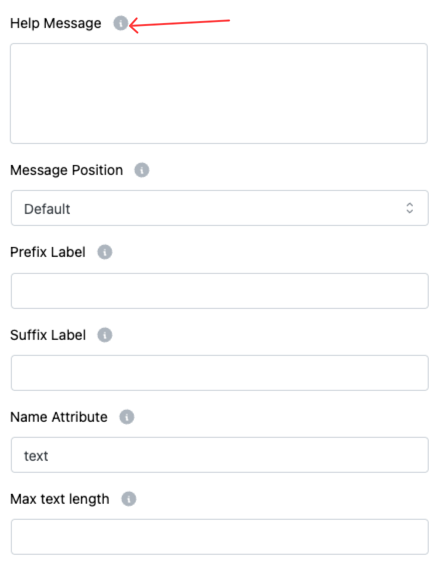
12. Prefix Label
Add text that appears before the input field (e.g., $ for price fields).
13. Suffix Label
Add text that appears after the input field (e.g., .com for a website URL field).
14. Name Attribute
Set a unique name attribute for the field, used during form submission for data storage and processing.
15. Max Text Length
Define the maximum number of characters a user can input into the field.
Tip:
Using features like Placeholder Text, Help Messages, and Max Text Length helps make your form more user-friendly and improves the quality of the data you collect! ✨