
With the Slack Integration feature in HT Contact Form, you can receive real-time form submission alerts directly into any Slack channel. This is perfect for support teams, lead notifications, or internal alerts.
Step-by-Step: How to Integrate Slack
1. Enable Slack from Integrations
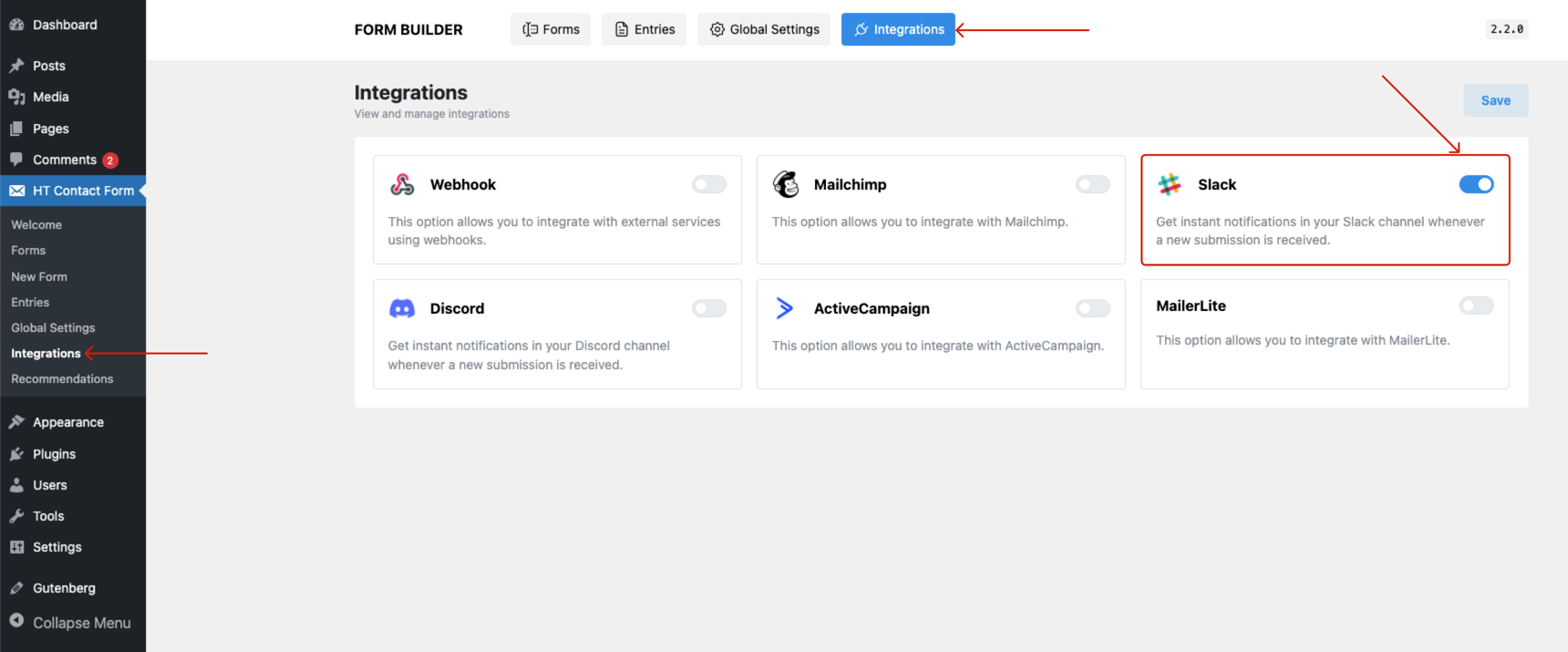
- Go to HT Contact Form → Integrations in your WordPress admin.
- Locate the Slack integration and toggle it ON.
- Click Save to confirm activation.
2. Create an Incoming Webhook in Slack
If you don’t already have a Slack webhook URL, follow these steps:
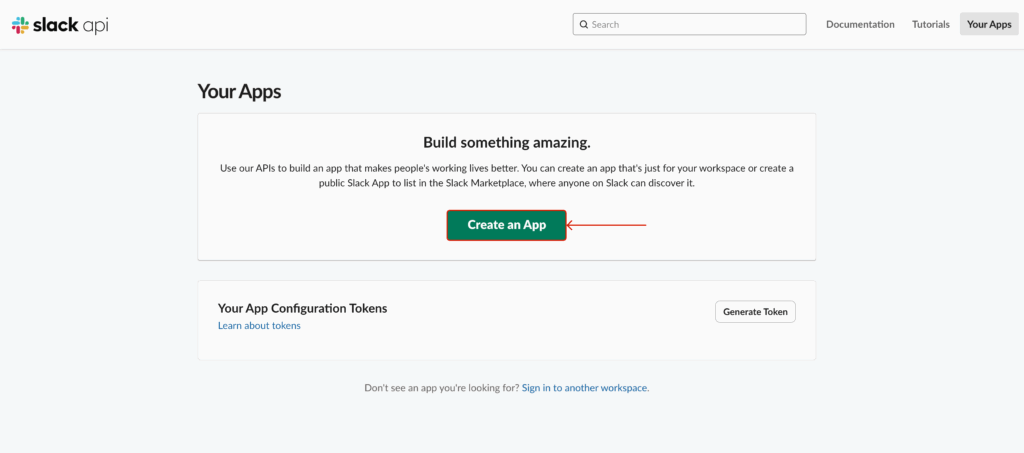
- Go to Slack API Apps Dashboard and click Create New App.
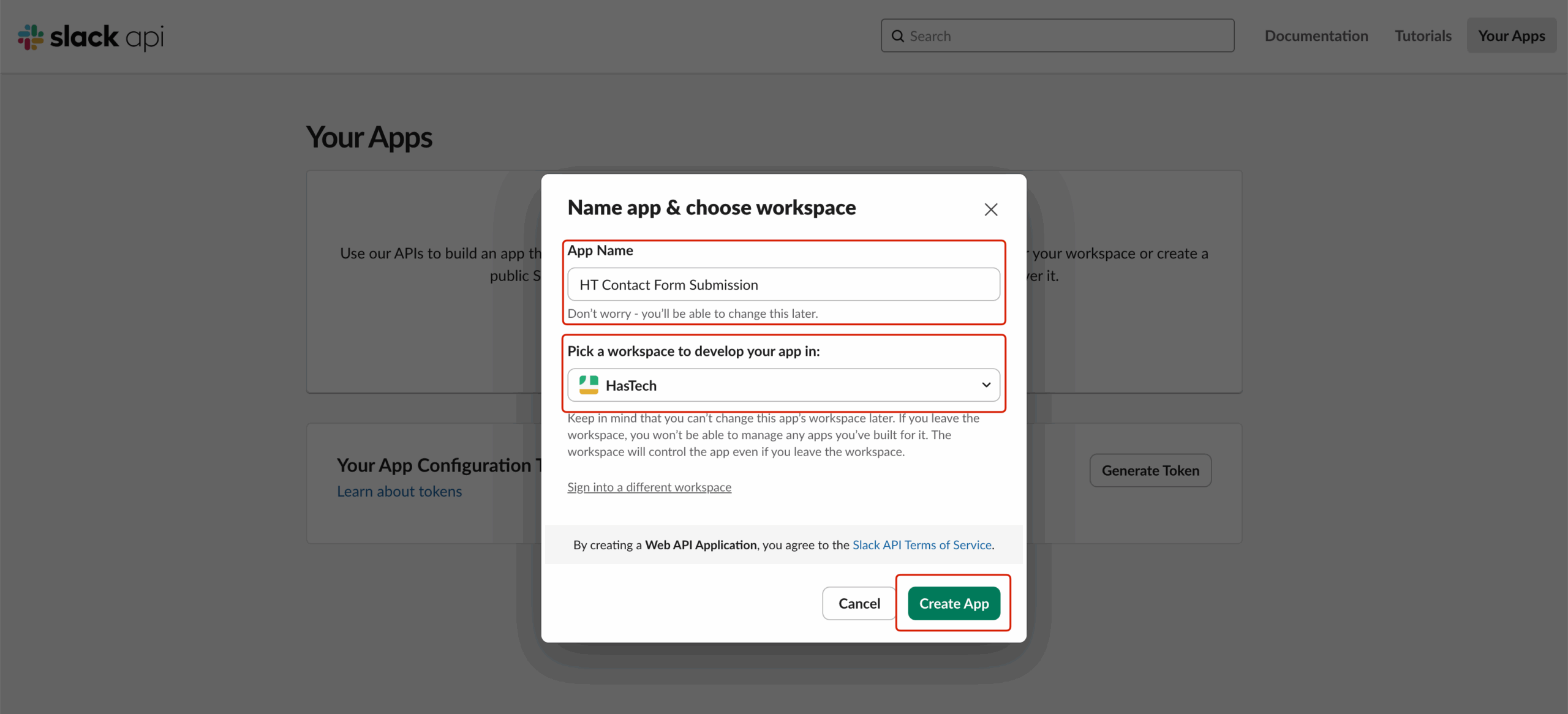
- Choose “From scratch”, give your app a name, and select the Slack workspace where you want to use it.
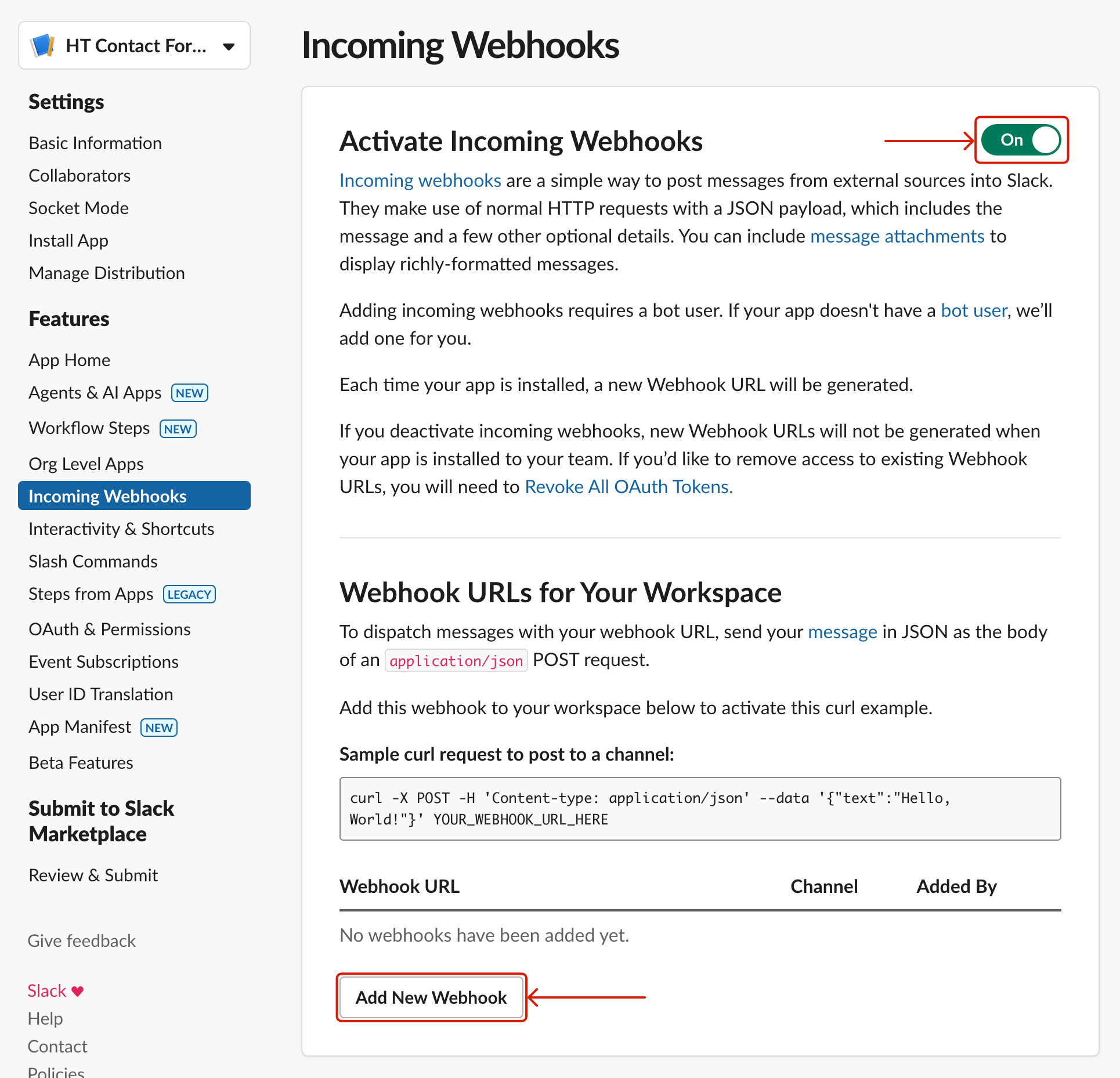
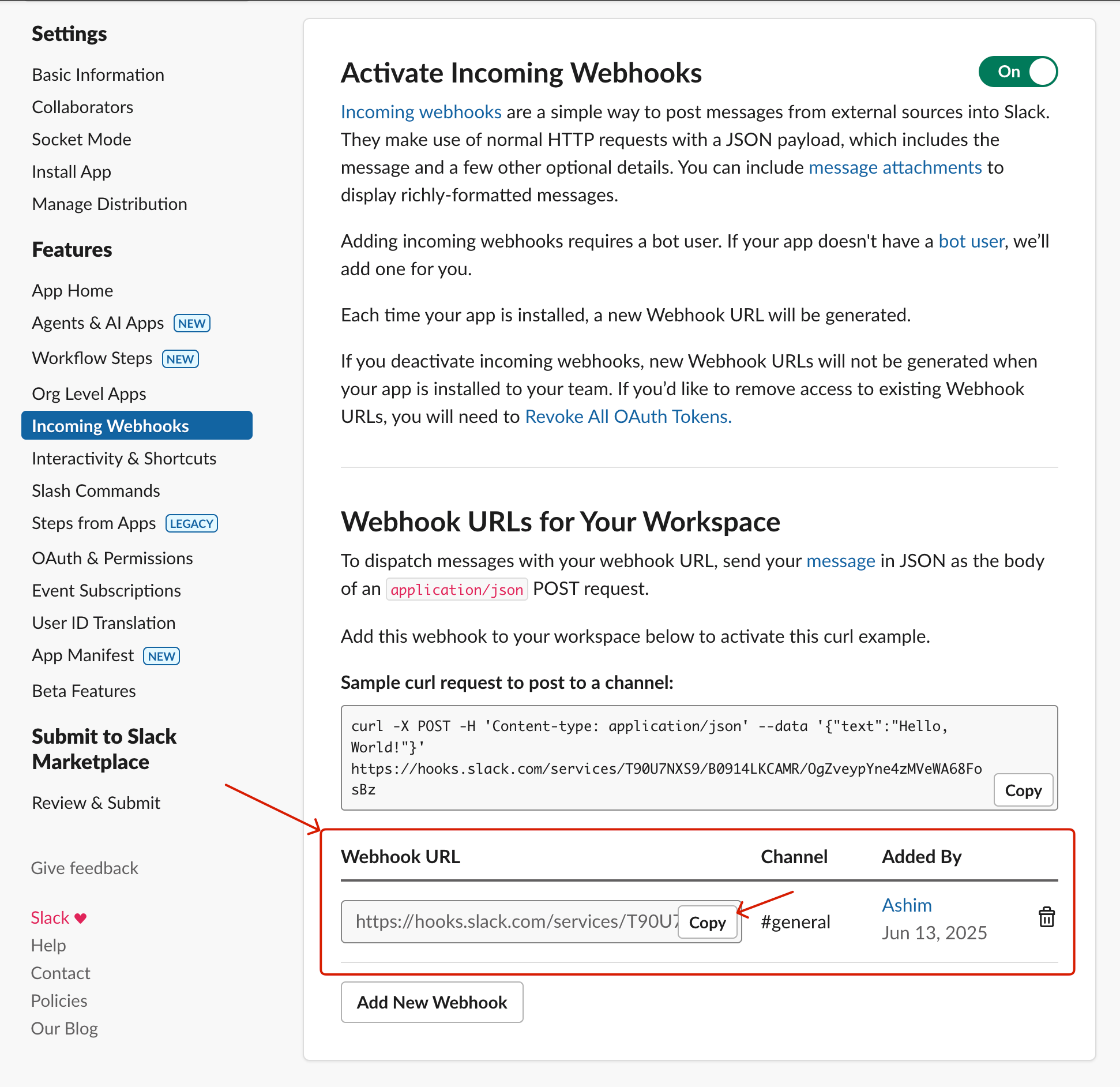
- From the sidebar, go to Incoming Webhooks and toggle it ON.
- Click Add New Webhook to Workspace, then select your target channel and authorize.
- Copy the Webhook URL that Slack provides — you’ll need this for the next step.
3. Set Up the Slack Integration for a Form
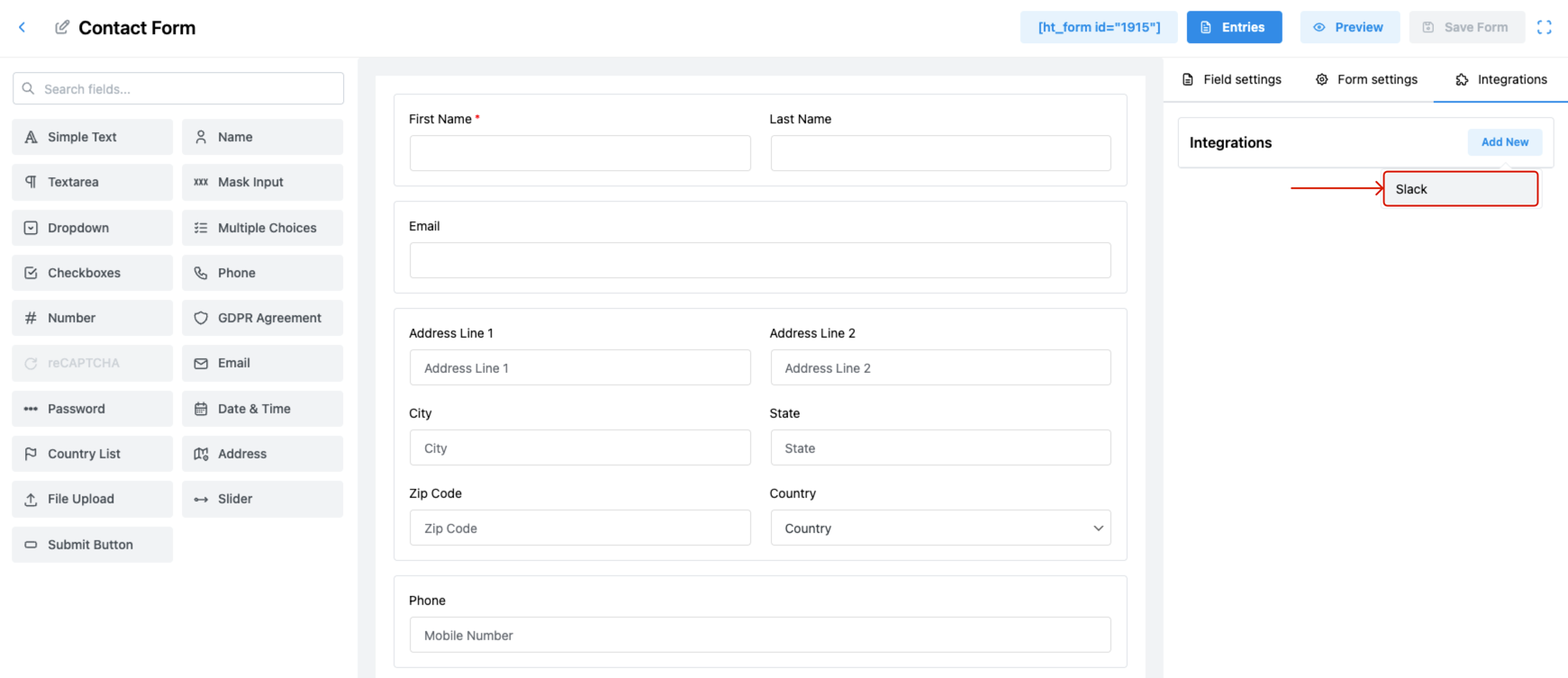
- Open your desired form from HT Contact Form → Forms.
- Click the Integrations tab.
- Click Add New and choose Slack from the dropdown.
4. Configure Slack Feed Settings
In the integration panel:
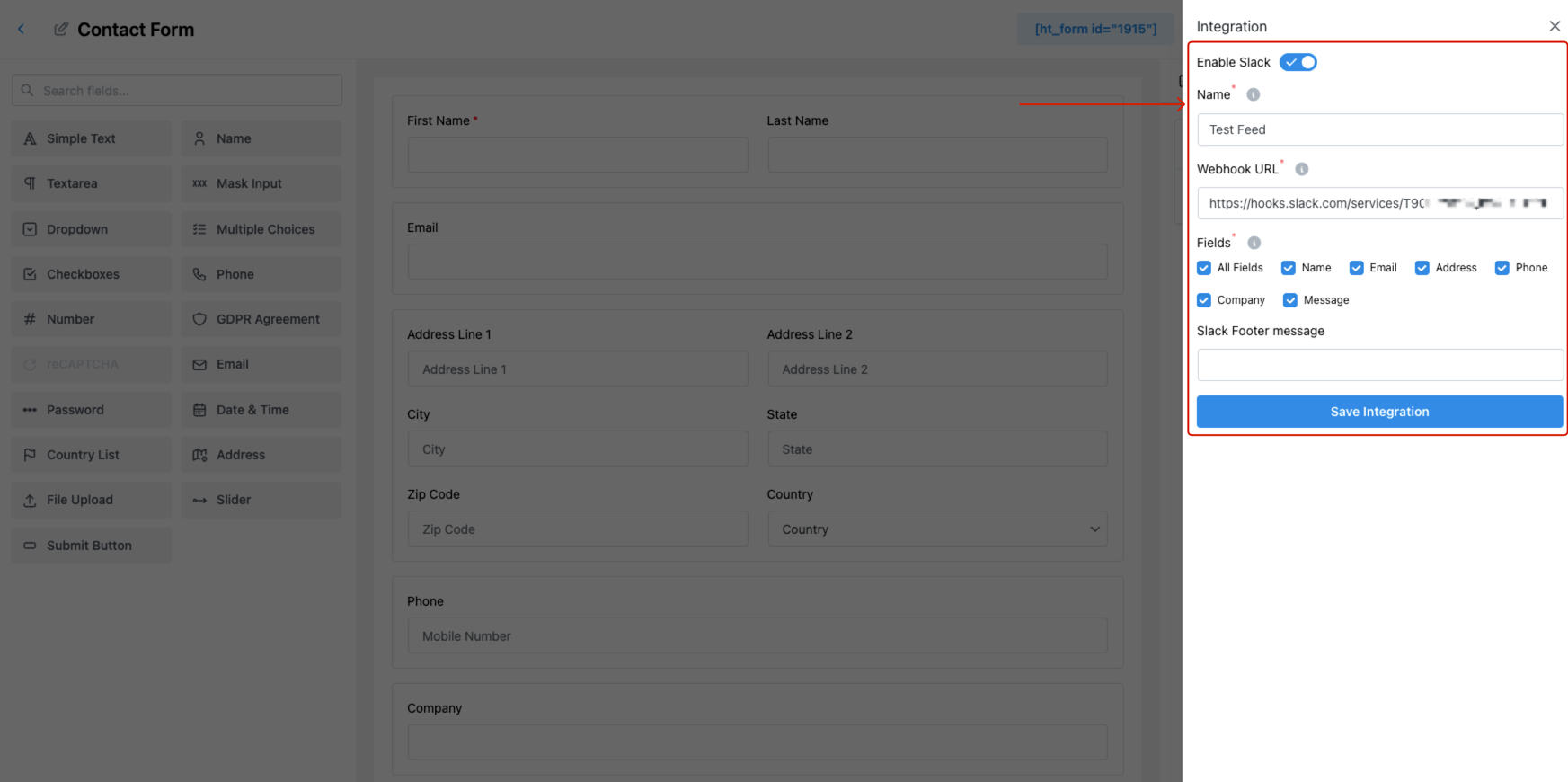
- Enable Slack – Turn this ON to activate the connection.
- Name – Give your feed a name (e.g., “Lead Alerts”).
- Webhook URL – Paste the URL copied from Slack.
- Fields – Choose what fields to include in the message:
- All Fields, or specific ones like Name, Email, Phone, Message, etc.
- Slack Footer Message – Add an optional custom note at the bottom of the message.
5. Save and Test the Integration
Click Save Integration to activate.
Submit a test form entry to make sure the data is successfully sent to your selected Slack channel.
Tips
- Use unique Slack channels for different forms or purposes.
- Customize field selection to keep messages concise.
- Combine with Conditional Logic (if available) for advanced control.
Last updated on March 10, 2026
Was this article helpful?
Powered by Support Genix