
The Textarea field in HT Contact Forms is designed to collect longer text input, such as messages, comments, or feedback.
It offers a range of customization options to control its appearance, behavior, and data structure.
Textarea Field Settings:
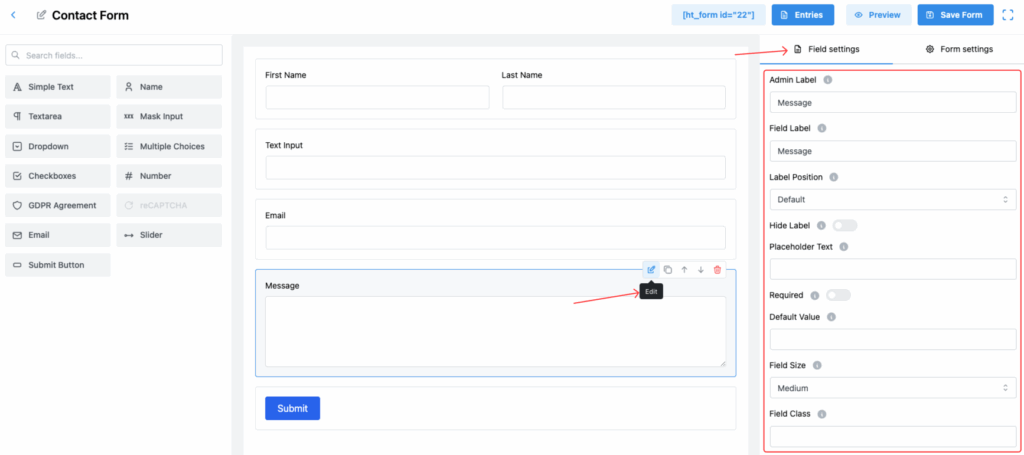
1. Admin Label
Set the internal name for the field, which will be used for admin reference and managing form entries.
2. Field Label
Set the label that users will see on the front-end form.
✅ It guides users on what kind of information they should provide.
3. Label Position
Choose where the label should be placed in relation to the textarea input. Options include:
- Default
- Top
- Right
- Bottom
- Left
This helps match the form layout with your website’s design.
4. Hide Label
Enable this option to hide the label from the front-end form for a cleaner look.
✅ Useful if you rely solely on placeholder text.
5. Placeholder Text
Set a placeholder text that appears inside the textarea field when it is empty, providing input guidance to users.
6. Required
Mark the field as mandatory.
✅ If enabled, users must fill in the field before submitting the form.
7. Default Value
Set a predefined text that will appear in the textarea when the form loads.
8. Field Size
Adjust the visual size of the textarea field. Available options:
- Small
- Medium (Default)
- Large
Pick the size that best fits your form’s design.
9. Field Class
Assign a custom CSS class for the field.
🎨 This allows you to apply custom styles through your stylesheet.
10. Help Message
Add additional instructions or tips for users.
✅ It can be shown next to the label as a tooltip or below the input box.
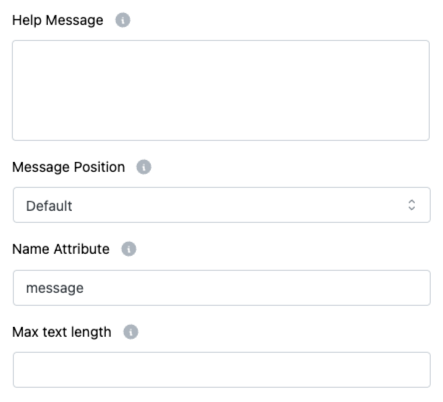
11. Message Position
Control where the Help Message appears:
- Default
- Next to Label as Tooltip
- Below Input Element
Customize it for better user experience.
12. Name Attribute
Assign a unique name attribute for this field.
👉 Important for form submission and backend data processing.
13. Max Text Length
Set a maximum number of characters users can enter in the textarea.
✅ Helps control the amount of content collected through the form.
Tip:
Adding a Placeholder, Help Message, and setting a Max Text Length can greatly improve form usability and reduce user confusion! 🌟