
The HT Contact Form plugin allows you to connect your forms with Trello boards, automatically creating cards from form submissions. Transform your forms into a powerful workflow management system by capturing leads, support tickets, project requests, and more directly into your Trello boards.
Key Features
- Automatic Card Creation: Form submissions create Trello cards instantly
- Board & List Selection: Choose exactly where cards appear
- Custom Card Names: Dynamic titles using smart tags
- Rich Descriptions: Full card descriptions with form data
- Due Date Support: Flexible date formats including relative dates
- Label Assignment: Categorize cards with board labels
- Position Control: Place cards at top or bottom of lists
Prerequisites
Before using the Trello integration, make sure you have a Trello Account (free or paid), your Trello API Credentials (API Key and Token), and at least one board with a list created.
Getting Your API Credentials
- Go to Trello Power-Up Admin
- Click New to create a new Power-Up
- Fill in basic details: Name: HT Contact Form, Description: Form submission integration, Website: Your website URL
- Click Create
- Go to the API Key tab
- Copy your API Key
- Click the Token link to generate a token
- Authorize the application when prompted
- Copy the generated Token
Note: The token grants access to your Trello account. Keep it secure and don’t share it publicly.
Step 1: Configure Global Settings
First, you need to configure the Trello API credentials in the global settings.
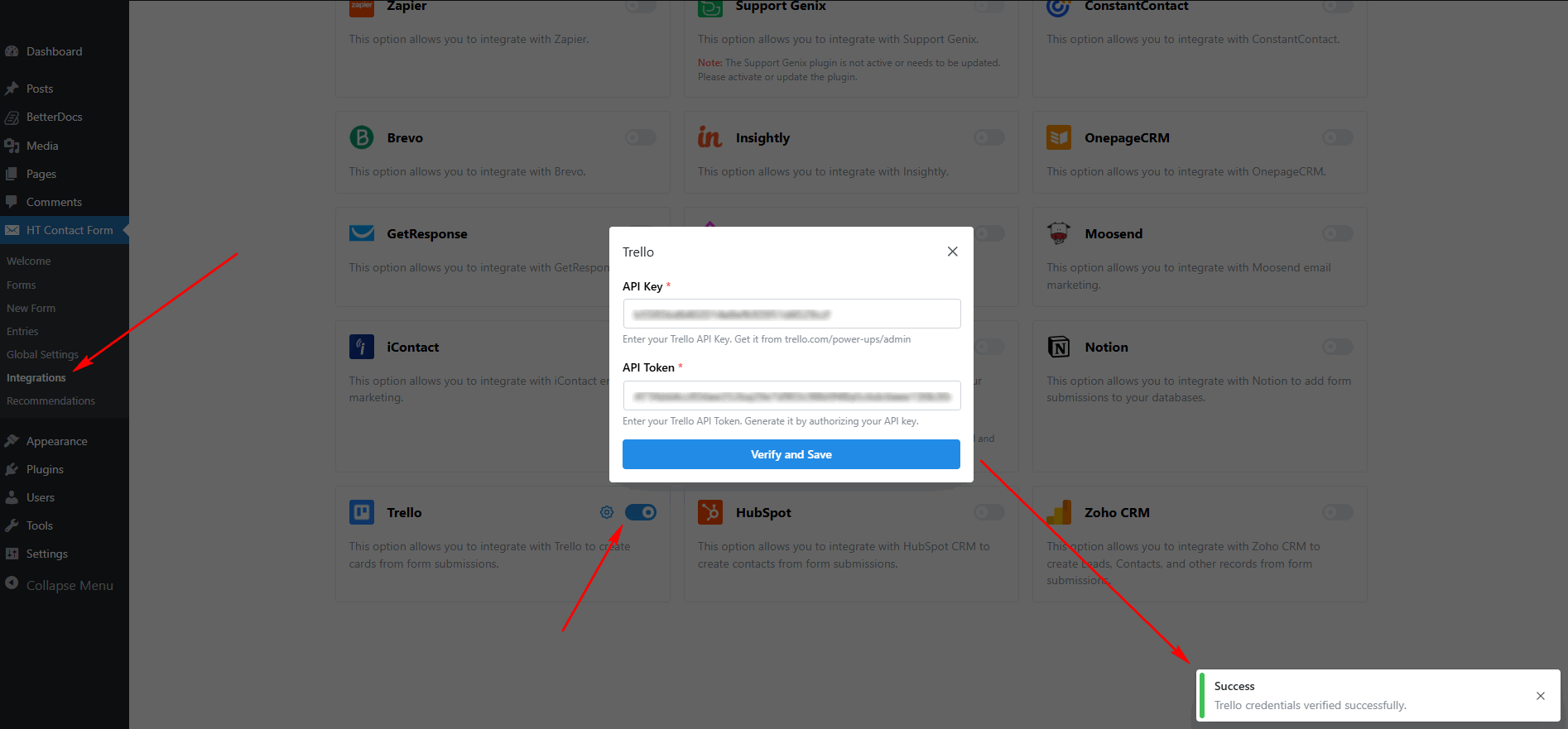
- Go to HT Contact Form → Settings → Integrations
- Find Trello and click Configure
- Enter your API Key
- Enter your API Token
- Click Verify to test the connection
- Click Save Settings
Step 2: Add Trello Integration to Your Form
Once the global settings are configured, you can add the Trello integration to any form.
- Edit your form
- Go to the Integrations tab
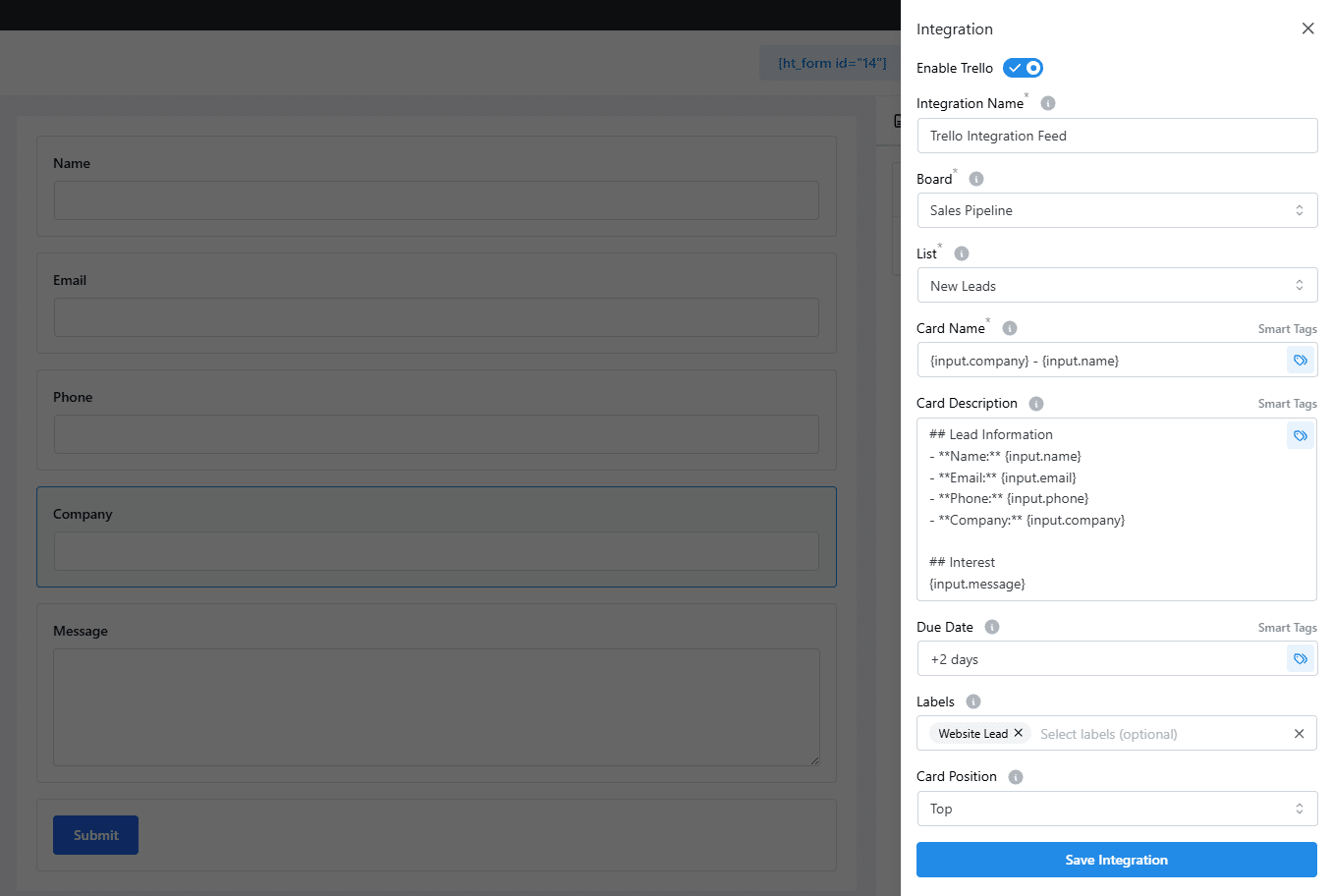
- Click Add New → Trello
- Select a Board
- Select a List within the board
- Configure card settings (name, description, due date, labels)
- Click Save Integration
Integration Settings Overview
| Setting | Required | Description |
|---|---|---|
| Board | Yes | Select the Trello board where cards will be created |
| List | Yes | Select the list within the board |
| Card Name | No | Custom card title (smart tags supported) |
| Card Description | No | Card description content (smart tags supported) |
| Due Date | No | Card due date (flexible format) |
| Labels | No | Apply board labels to the card |
| Position | No | Card position in list (top/bottom) |
Card Name Configuration
Define the card title using static text and smart tags. If left empty, a default title is generated.
Examples
- Simple Lead Card:
New Lead: {input.name}→ Result: New Lead: John Smith - Company-Focused:
{input.company} - {input.name}→ Result: Acme Corp – John Smith - Support Ticket:
Support: {input.subject}→ Result: Support: Login issue - Project Request:
[Request] {input.project_title}→ Result: [Request] Website Redesign
Card Description Configuration
Add detailed content to the card body using smart tags to include form field values. Trello supports Markdown formatting.
Example Description Template
## Contact Information
- **Name:** {input.name}
- **Email:** {input.email}
- **Phone:** {input.phone}
- **Company:** {input.company}

## Request Details
{input.message}

---
Submitted from: {meta.form_url}
Formatting Tips
- Use
##for headers - Use
-for bullet lists - Use
**bold**for emphasis - Include all relevant form fields
Due Date Configuration
Set a due date for the card using various formats. The integration supports multiple date formats for flexibility.
Supported Date Formats
| Format | Example | Description |
|---|---|---|
| ISO | 2024-01-15 | Standard format (YYYY-MM-DD) |
| ISO with time | 2024-01-15 14:30 | Includes time |
| US format | 01/15/2024 | MM/DD/YYYY |
| EU format | 15/01/2024 | DD/MM/YYYY (auto-detected) |
| Relative | +7 days | Via PHP strtotime |
Relative Date Examples
| Input | Result |
|---|---|
+1 day | Tomorrow |
+7 days | One week from now |
+2 weeks | Two weeks from now |
+1 month | One month from now |
next monday | Following Monday |
next friday | Following Friday |
You can pull due date from a form field using {input.deadline} or use a fixed relative date like +3 days.
Labels Configuration
Apply one or more labels to categorize cards. Labels from your selected board appear in the dropdown, and you can select multiple labels as needed.
Label Strategy Examples
- By Priority: Red (Urgent), Orange (High), Yellow (Medium), Green (Low)
- By Source: Blue (Website), Purple (Referral), Green (Organic)
- By Type: Red (Bug), Yellow (Feature Request), Green (Question)
Card Position
Control where new cards appear in the list:
- Top: New cards appear at the top of the list. Use when newest items should be reviewed first (support tickets, urgent requests).
- Bottom: New cards appear at the bottom (default). Use when items should queue chronologically (project backlog, content calendar).
Smart Tags Reference
Use {input.field_name} to include form field values in card name or description.
| Smart Tag | Description |
|---|---|
{input.name} | Name field value |
{input.email} | Email field value |
{input.message} | Message content |
{input.subject} | Subject line |
{input.company} | Company name |
{input.field_name} | Any form field by admin label |
Complete Configuration Example: Sales Lead Pipeline
Here’s an example of setting up Trello integration to capture leads for sales follow-up.
Form Fields: Name, Email, Phone, Company, Message
Integration Configuration
- Board: Sales Pipeline
- List: New Leads
- Card Name:
{input.company} - {input.name} - Due Date:
+2 days - Labels: Website Lead
- Position: Top
Card Description
## Lead Information
- **Name:** {input.name}
- **Email:** {input.email}
- **Phone:** {input.phone}
- **Company:** {input.company}

## Interest
{input.message}
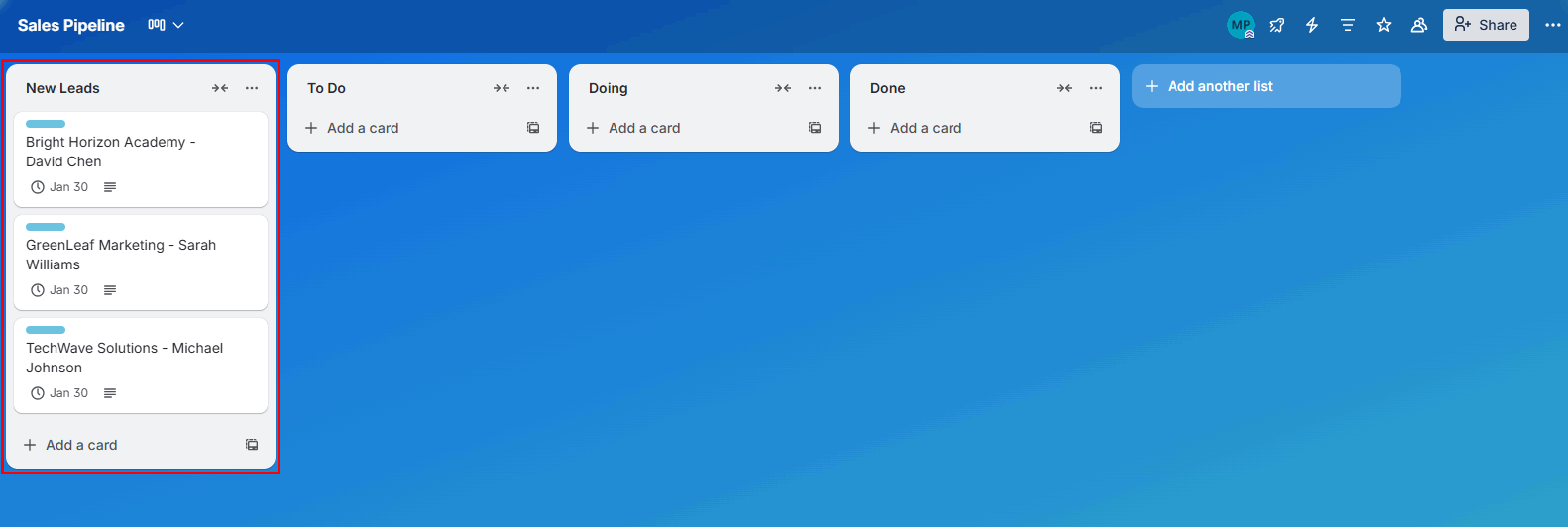
Result: Lead card at top of “New Leads” list with 2-day follow-up deadline.
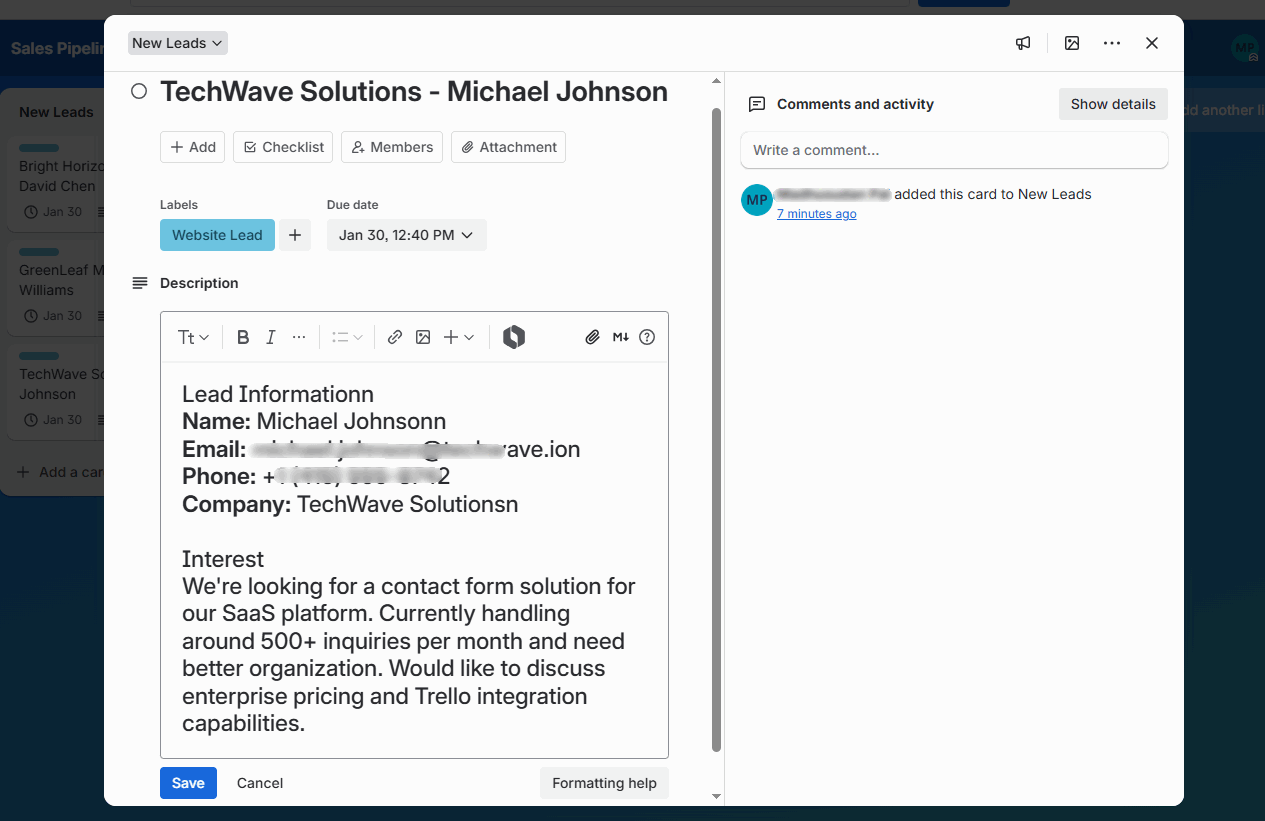
You can also see the details of one lead by clicking the desired card of that lead.
Common Use Cases
- Lead Management Pipeline: Capture leads via a contact form and create cards in your sales pipeline. Use labels to indicate lead source and due dates for follow-up deadlines.
- Support Ticket System: Transform support requests into Trello cards with issue details, customer contact info, and priority labels for your support team.
- Project Request Intake: Accept project requests through a form that creates cards in your project backlog with descriptions, requester info, and deadline dates.
- Content Calendar Management: Let writers submit content ideas that become cards in your editorial calendar with topic, deadline, and category labels.
- Bug Report Tracking: Create bug report cards from a form with reproduction steps, severity labels, and reporter contact info.
- Event Planning Tasks: Convert event inquiries or registrations into actionable cards with event details, dates, and relevant labels.
Troubleshooting
Cards Not Being Created
Problem: Form submits but no card appears in Trello.
Solutions:
- Verify API key and token are correct
- Check board and list selection
- Ensure you have write access to the board
- Look for error messages in form submission logs
- Test with a simple card (just title, no extras)
Due Dates Not Working
Problem: Card created but due date is missing or wrong.
Solutions:
- Check date format matches supported formats
- Try ISO format (YYYY-MM-DD) first
- Verify smart tag is returning a valid date string
- Test with a fixed date before using smart tags
Labels Not Appearing
Problem: Card created but labels aren’t applied.
Solutions:
- Confirm labels exist on the selected board
- Check label selection in integration settings
- Verify board access permissions
- Labels are board-specific—check correct board
Frequently Asked Questions
Q: Can I add cards to multiple lists at once?
A: Yes, add multiple Trello integrations to the same form, each targeting a different list.
Q: Can I update existing cards instead of creating new ones?
A: The integration creates new cards. Use Trello’s own automation (Butler) for updates.
Q: Do I need a paid Trello account?
A: No, the free Trello plan works with this integration. Paid plans offer more features.
Q: Can I attach files to cards?
A: Not directly. File Upload fields are stored in WordPress; share URLs in the description instead.
Q: Can I assign members to cards automatically?
A: Not in the current version. Use Trello Butler rules to auto-assign based on labels or lists.
Q: Can I trigger Trello Butler automations?
A: Yes! Butler rules that trigger on “Card created” will fire when the integration creates cards.
Best Practices
Card Naming
- Include key info: Lead name, ticket subject, project title
- Use prefixes:
[Urgent],[Request],[Bug]for quick scanning - Keep it scannable: 5-10 words maximum
- Be consistent: Use the same format across forms
Card Descriptions
- Structure with headers using
##for sections - Include contact info for follow-up
- Add context: Include form source and submission time
- Use Markdown: Lists, bold, and links for readability
Due Dates
- Set realistic SLAs matching your response time goals
- Use relative dates:
+2 daysadapts to submission time - Consider weekends:
next mondayfor business workflows - Don’t overuse: Not every card needs a deadline
That’s it! Thank you for choosing HT Contact Form to enhance your workflow. If you need additional assistance, feel free to contact our support team. Our dedicated support team would be more than happy to assist you.