
The Recently Viewed Variations feature allows Swatchly to remember and auto-select the last variation a customer chose. When customers revisit a product page, their previously selected variation will still be active, even if they browsed away to another product or page.
How It Works
- Customer selects a product variation (e.g., T-shirt, Color: Off White, Size: M).
- They leave the product page or visit another product.
- When they come back, the same variation is auto-selected.
Enabling the Feature
Step 1: Global Settings
- Go to Swatchly → Settings → Global.
- Enable Recently Viewed Variations by checking Yes.
- Save changes.
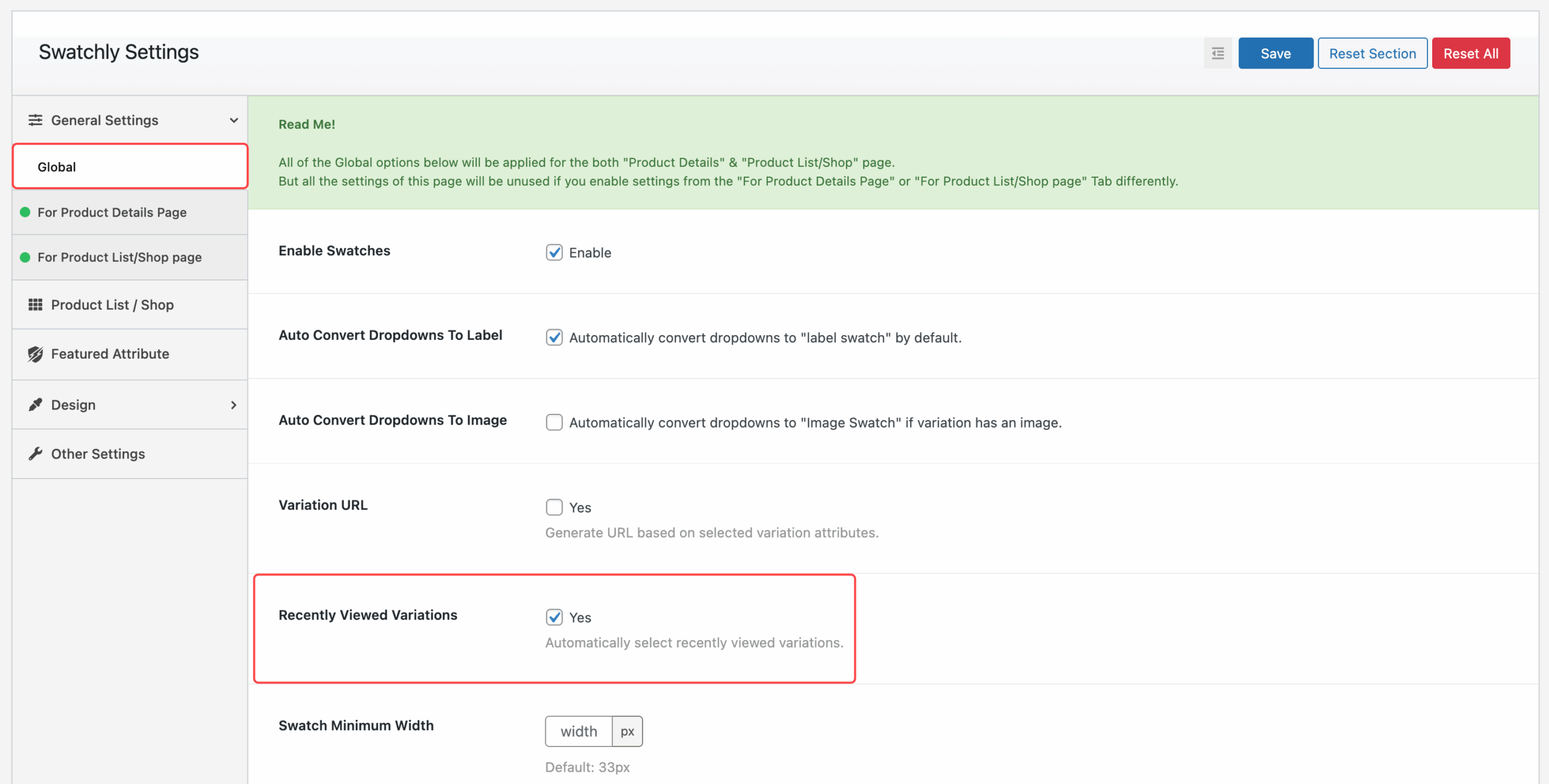
Step 2: Product Details Page (Conditional)
If “Want to control the Global settings for Product Details Page differently?” is enabled, you must also enable the option here:
- Navigate to Swatchly → Settings → For Product Details Page.
- Enable Recently Viewed Variations by checking Yes.
- Save changes.

Step 3: Product List/Shop Page (Conditional)
If “Want to control the Global settings for Shop Page differently?” is enabled, you must also enable the option here:
- Go to Swatchly → Settings → For Product List/Shop Page.
- Enable Recently Viewed Variations by checking Yes.
- Save changes.

Example in Action
- Customer selects Color: Off White, Size: M.
- After browsing away and coming back, the variation M, Off White is still selected automatically.
Last updated on March 10, 2026
Was this article helpful?
Powered by Support Genix