
Disable Plugins on Specific Pages
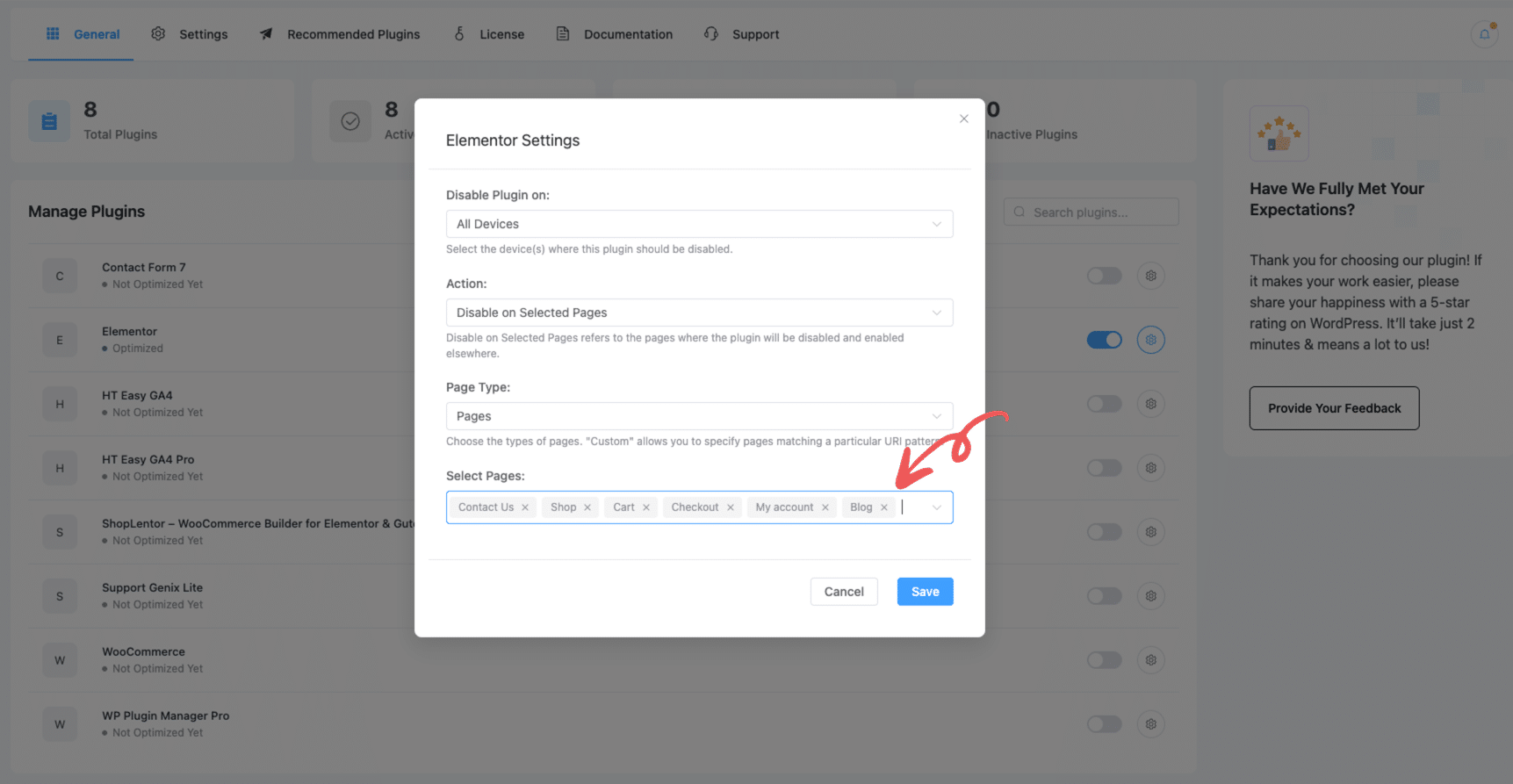
To disable a plugin on selected pages (like Contact, Shop, Blog, etc.), follow these steps:
- In the Manage Plugins screen, click the settings icon (⚙️) next to the plugin you want to configure.
- In the popup settings window:
- Set Disable Plugin on to your preferred devices (e.g., All Devices).
- Set Action to:
Disable on Selected Pages - Under Page Type, choose:
Page, orPost And Pages, orPost And Pages & Custom Post Type
- In the Select Pages field, search and select the pages where you want to disable the plugin (e.g.,
Contact Us,Shop,Blog, etc.).
- Click Save to apply the changes.
Disable Plugins on Specific Posts
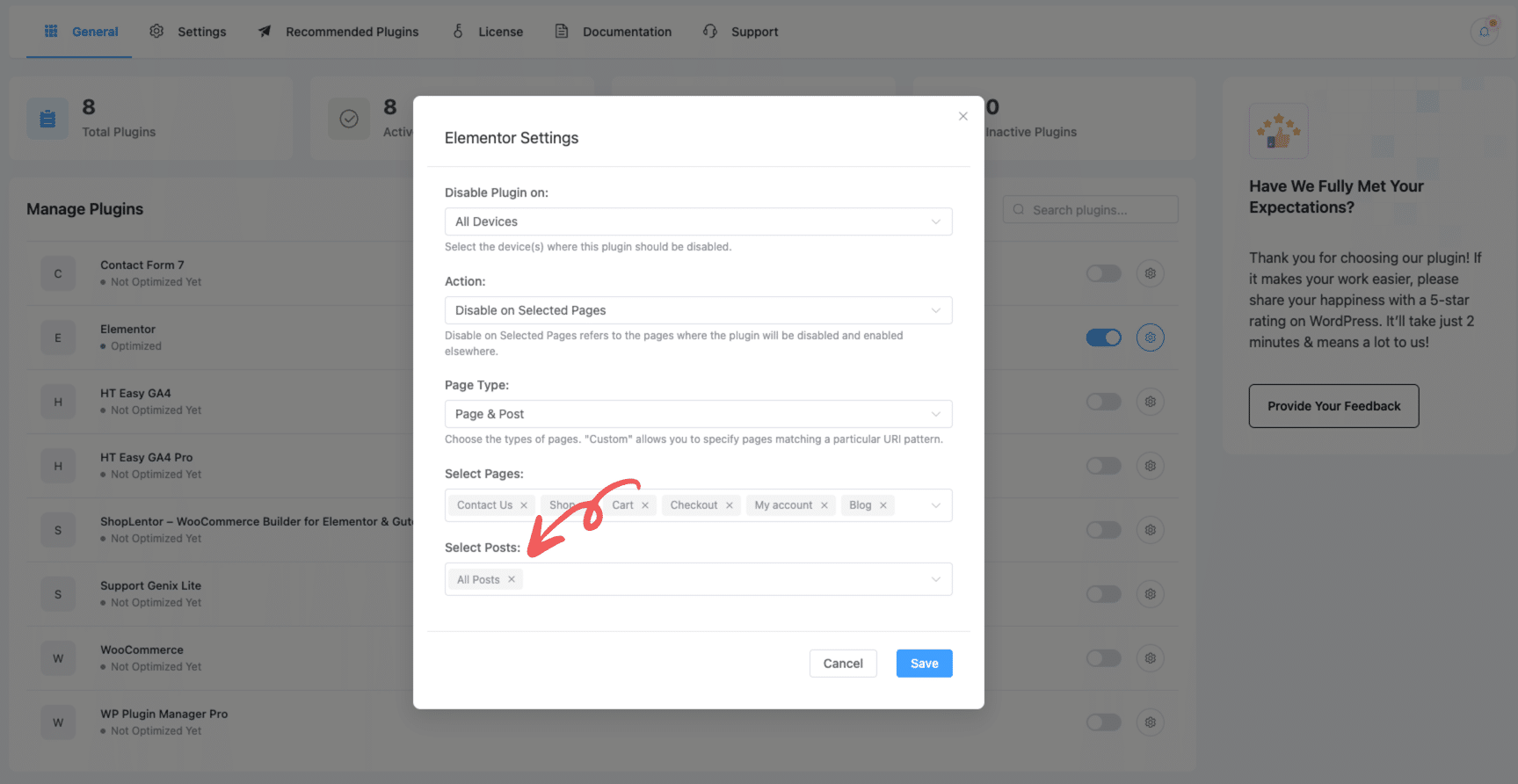
If you want to disable a plugin for selected blog posts or any specific post:
- Follow the same steps as above.
- Under Page Type, select:
Post, orPost And Pages, orPost And Pages & Custom Post Type
- Scroll to the Select Posts section and choose the individual posts you want to target.
- Click Save.
Disable Plugins Based on Custom Post Types
To disable or remove plugins associated with unused custom post types, follow these updated steps using the WP Plugin Manager plugin:
Step 1: Set Page Type to “Post, Pages & Custom Post Type”
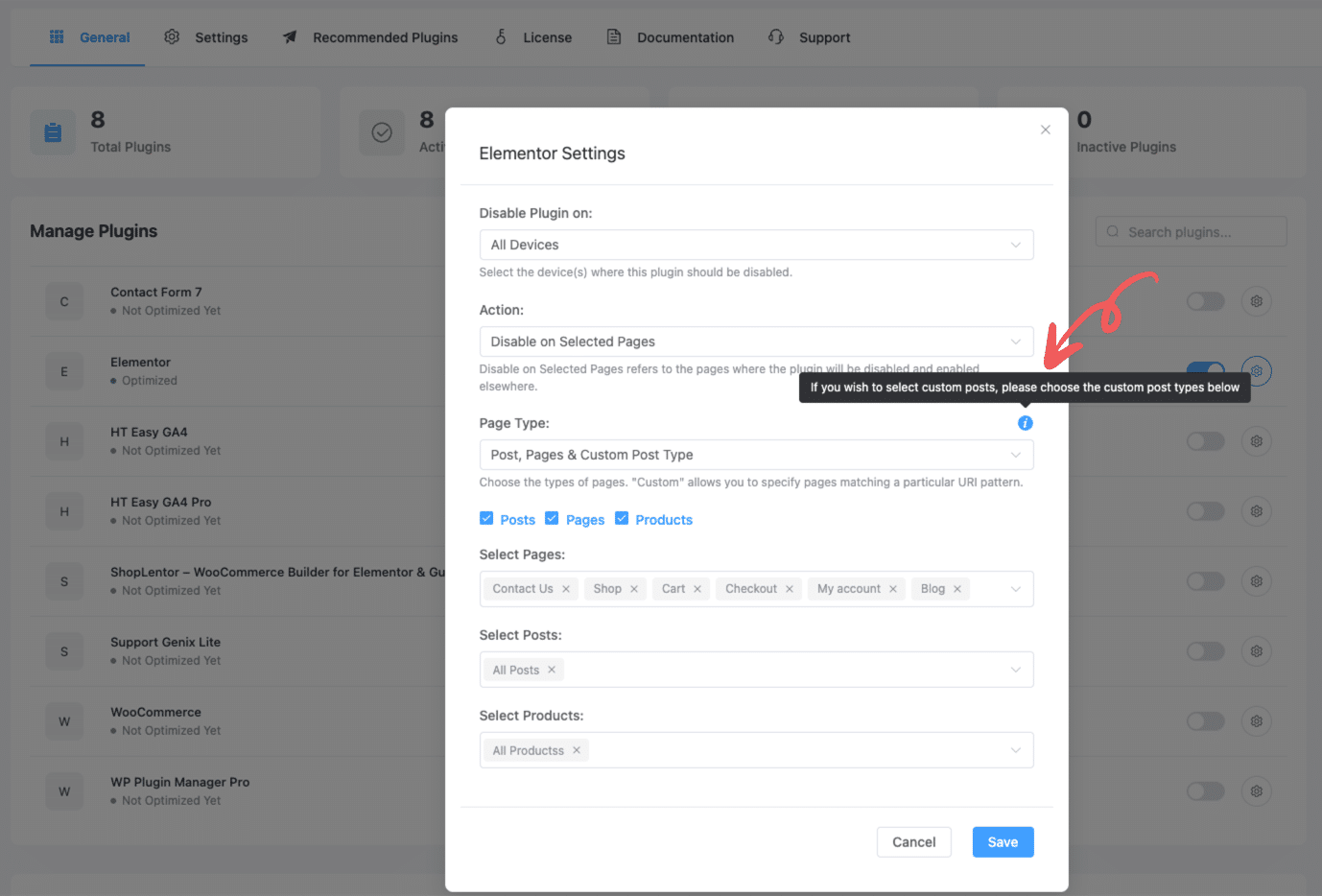
- Go to the plugin settings and open the configuration for the desired plugin (e.g., Elementor).
- In the Elementor Settings modal:
- Set “Disable Plugin on” to your preferred device(s) (e.g., All Devices).
- Set “Action” to Disable on Selected Pages.
- For Page Type, choose:
Post, Pages & Custom Post Type
- Make sure to check the boxes for
Posts,Pages, or other post types as needed. - Click Save to apply this setting.
Step 2: Select Custom Post Types from the Settings Tab
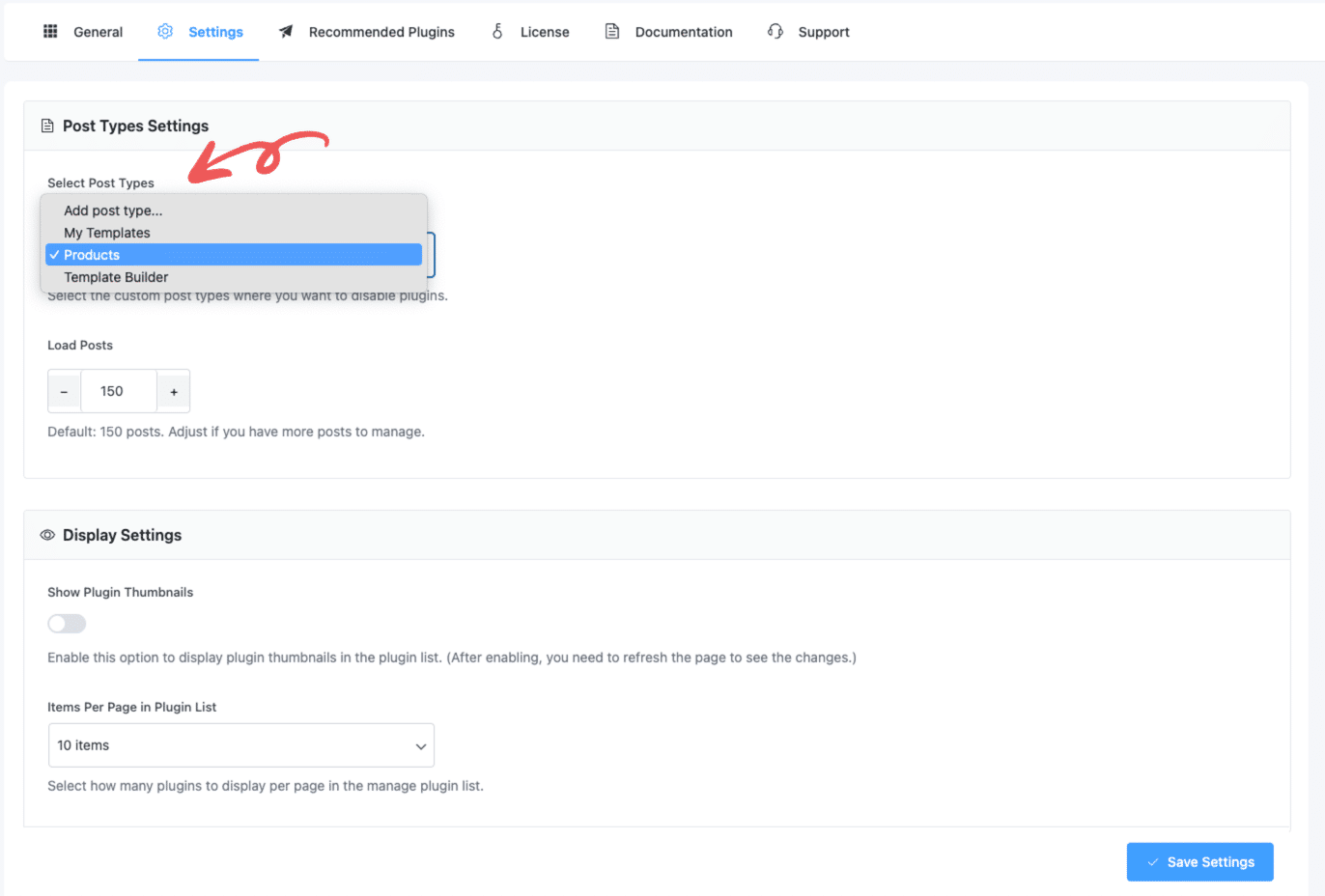
- Now, navigate to the Settings tab at the top.
- Under Select Post Types, choose the specific custom post types you want to include (e.g.,
Products,Template Builder, etc.). - Click Save Settings to finalize your changes.
By completing both steps above, WP Plugin Manager will disable the selected plugin(s) for the specified post types effectively.
Verify Plugin is Disabled
After applying the settings, ensure the plugin’s CSS/JS assets are no longer loading on the disabled pages or posts. This confirms the plugin is successfully deactivated for those targets.
Last updated on March 10, 2026
Was this article helpful?
Powered by Support Genix