
The Mask Input field in HT Contact Forms allows you to enforce a specific input format for users, ensuring that the submitted data matches a predefined structure (e.g., phone numbers, dates).
It helps improve data accuracy and user experience.
Mask Input Field Settings:
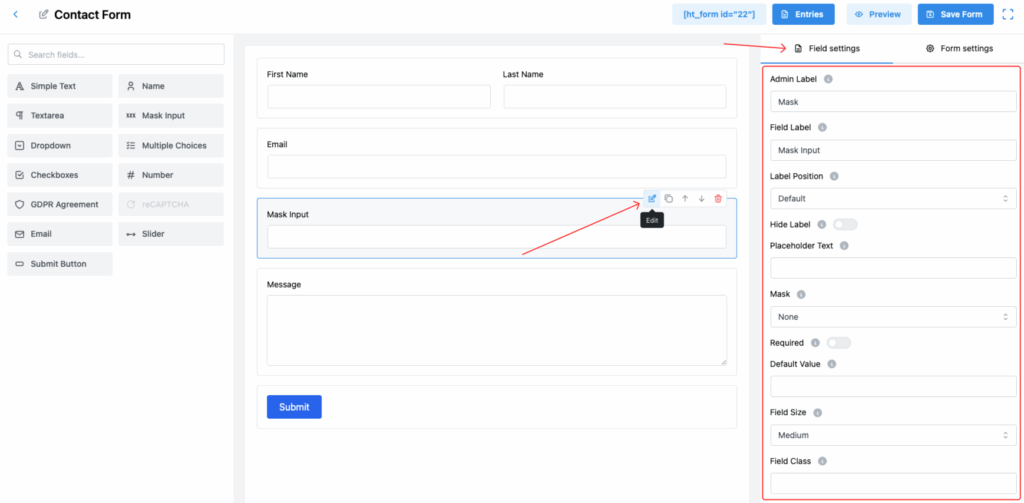
1. Admin Label
Set an internal label for the field, visible only in the form builder and admin entry management.
2. Field Label
This is the label users will see on the front-end form, guiding them on what information to enter.
3. Label Position
Define where the label should appear relative to the input box. Options include:
- Default
- Top
- Right
- Bottom
- Left
Adjust it according to your form’s design and layout.
4. Hide Label
Toggle this setting to hide the field label from the front-end display, useful for a cleaner look.
5. Placeholder Text
Provide example text inside the field to show the expected input format when it is empty.
6. Mask
Select the mask pattern that defines the structure of the input.
✅ Example: Phone number mask (e.g., (999) 999-9999), date mask (e.g., 99/99/9999), etc.
✅ It ensures users follow a specific format while typing.
7. Required
Enable this toggle to make the field mandatory for form submission.
8. Default Value
Set a pre-filled value for the field when the form is loaded, following the mask format if necessary.
9. Field Size
Adjust the visual size of the input field. Available options:
- Small
- Medium (Default)
- Large
Choose based on your overall form layout needs.
10. Field Class
Specify a custom CSS class to apply personalized styles to the field for advanced customization.
11. Help Message
Provide additional instructions or important notes for users regarding the input.
✅ Helps users understand the required format easily.
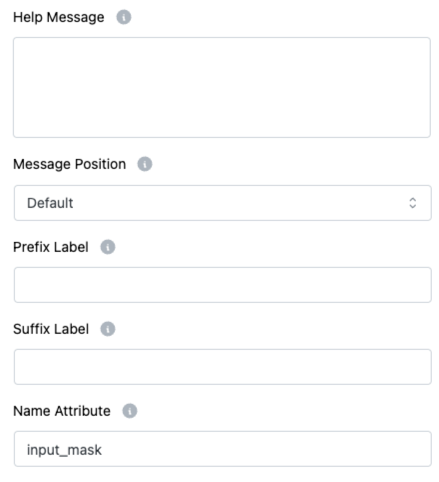
12. Message Position
Decide where the Help Message should appear:
- Default
- Next to Label as Tooltip
- Below Input Element
Choose the position that fits your form’s design.
13. Prefix Label
Add a prefix text before the input box (optional).
✅ Example: +88 before a phone number field.
14. Suffix Label
Add a suffix text after the input box (optional).
✅ Example: .com after an email username input.
15. Name Attribute
Assign a unique name attribute for this field, important for proper form data submission and backend processing.
Tip:
Using the Mask option correctly makes it easier for users to input information accurately, reducing errors during form submission! 🎯