
The Slider Field in HT Contact Forms lets users select a numeric value by dragging a slider instead of typing manually.
This creates a more interactive and user-friendly form experience.
It’s ideal for use cases like setting quantity, rating, budget ranges, and more.
Slider Field Settings:
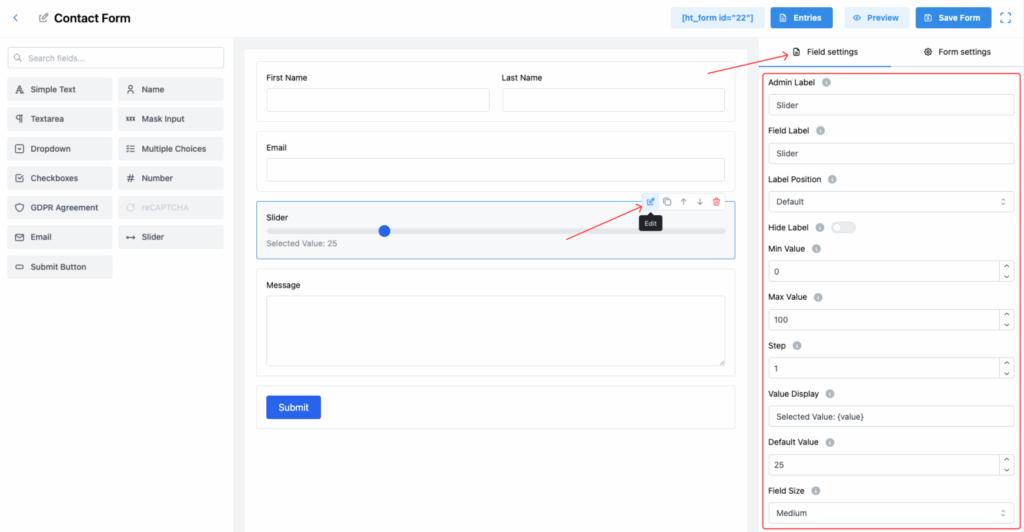
1. Admin Label
Internal label for admin use only. Helps you identify the field easily inside the form editor.
2. Field Label
The label users will see next to or above the slider input in the frontend form.
3. Label Position
Choose where to place the field label relative to the slider input:
- Top
- Right
- Bottom
- Left
- Default
4. Hide Label
Enable this toggle if you want to hide the field label from being displayed on the frontend.
5. Min Value
Set the minimum value that the slider can reach.
✅ Example: 0
6. Max Value
Set the maximum value that the slider can reach.
✅ Example: 100
7. Step
Specify the increment between slider values as the user drags the slider.
✅ Example: 1 (If set to 5, the slider will move 0, 5, 10, 15, etc.)
8. Value Display
Customize how the selected value is displayed next to the slider.
✅ Example format:Selected Value: {value}
The {value} placeholder will dynamically show the selected number.
9. Default Value
Set a default slider position or starting value when the form loads.
✅ Example: 25
10. Field Size
Adjust the slider size to match your form’s design:
- Small
- Medium (Default)
- Large
11. Field Class
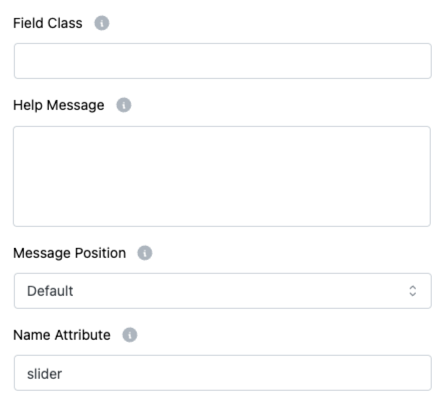
Add a CSS class name to the field if you want to style it differently using custom CSS.
12. Help Message
Provide helpful hints or instructions about how the slider should be used.
Displayed as a tooltip or message near the field.
13. Message Position
Decide where to show the help message:
- Default
- Next to Label as Tooltip
- Below Input Element
14. Name Attribute
Assign a unique HTML name attribute to identify the slider field during form submission.
✅ Example: slider
Important Notes:
- 📌 Sliders improve user experience for numeric input without needing manual typing.
- 📌 Always set a reasonable Min, Max, and Step to ensure better usability.
- 📌 Customize the Value Display text for a more personalized and clear form layout.
Tip:
Use sliders in combination with text descriptions so users understand what the numeric range represents (e.g., “Select your budget”).