
The Phone field in HT Contact Forms is used to collect user phone numbers efficiently.
It supports various customization settings to control the input behavior, validation, and appearance.
Phone Field Settings:
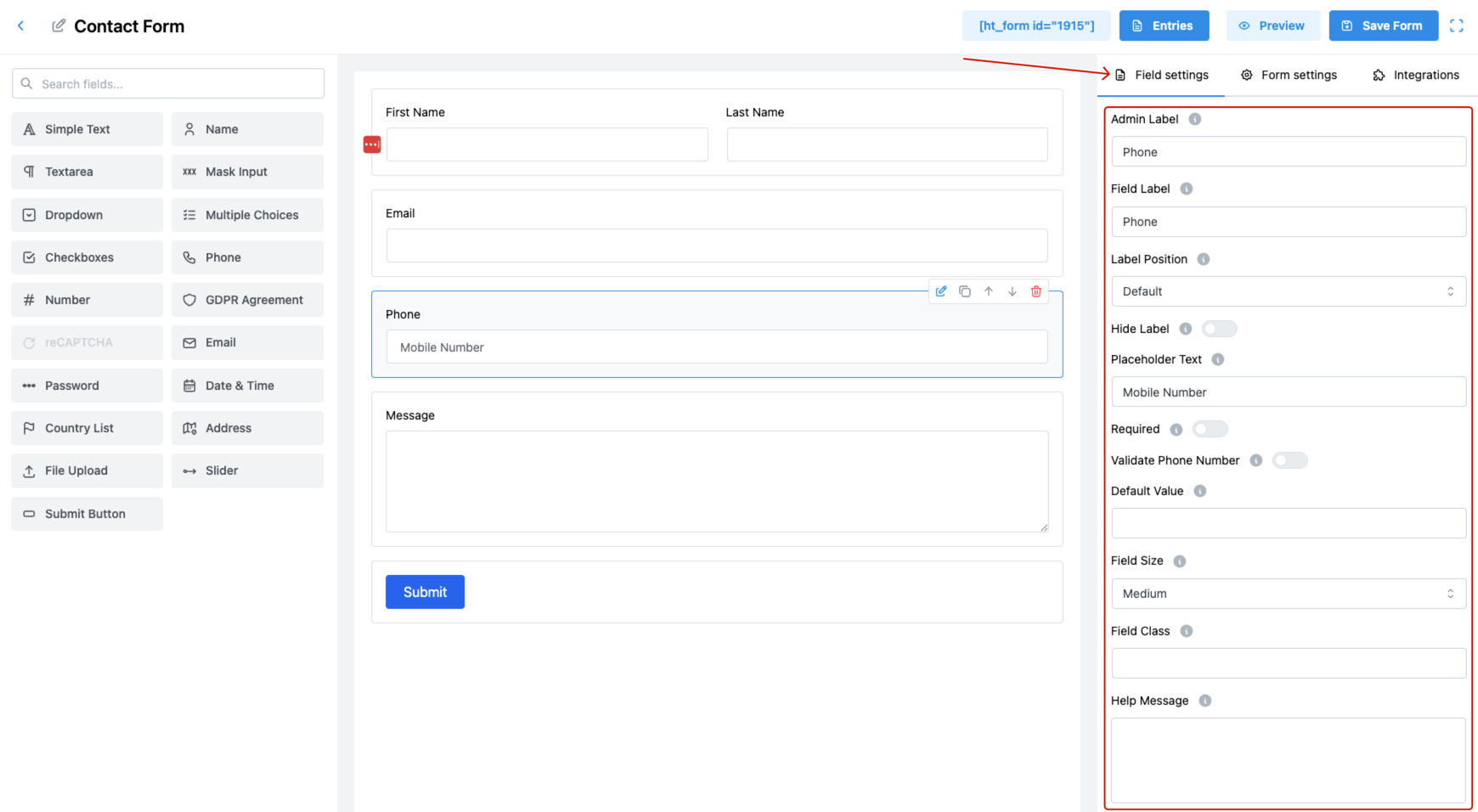
1. Admin Label
Set an internal label for administrative purposes.
This label will not be visible to users but is useful for identifying the field in entries.
2. Field Label
Enter the name of the field that users will see on the front-end form.
✅ It helps guide users to enter their contact number properly.
3. Label Position
Choose where to display the label relative to the field:
- Default
- Top
- Right
- Bottom
- Left
📌 Align the label as needed to match your form’s design.
4. Hide Label
Toggle ON to hide the label from the form UI.
✅ Useful when you rely solely on placeholder text for guidance.
5. Placeholder Text
Display a helpful hint inside the field before the user types anything.
💡 Example: Mobile Number or +1XXXXXXXXX
6. Required
Enable this option to make the phone field mandatory.
✅ Users must fill in this field before submitting the form.
7. Validate Phone Number
Activate this to enforce phone number format validation.
📞 Ensures correct and consistent phone number inputs.
8. Default Value
Set a default phone number that will appear when the form is loaded.
💡 Can be used for country codes like +880 or commonly used inputs.
9. Field Size
Adjust the input field’s display size:
- Small
- Medium (Default)
- Large
🎨 Choose the size that best fits your layout.
10. Field Class
Assign a custom CSS class to the field.
🎨 Helps apply custom styles from your site’s stylesheet.
11. Help Message
Add extra tips or clarification for the user.
✅ Useful for format hints like “Enter only numbers without dashes or spaces”.
12. Message Position
Control where the help message appears:
- Default
- Next to Label as Tooltip
- Below Input Element
🎯 Helps improve user experience with strategic placement.
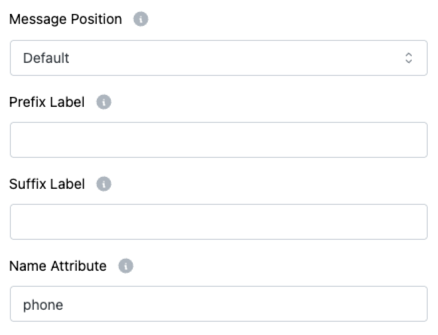
13. Prefix Label
Insert text before the input box.
💡 Example: “+1” for country code display.
13. Suffix Label
Insert text after the input box.
💡 Example: “Ext” if you’re collecting extension numbers.
13. Name Attribute
Assign a name value for this field, used in form data submission.
👉 Essential for backend processing.
Pro Tips:
- Use Placeholder + Help Message + Validation together to ensure high-quality user input.
- Always assign a unique name attribute for proper data capture.