
The Password field is designed to collect sensitive user credentials like passwords or secure codes.
It automatically hides typed characters and supports essential customization to fit various use cases such as account access, gated content, or membership forms.
Password Field Settings:
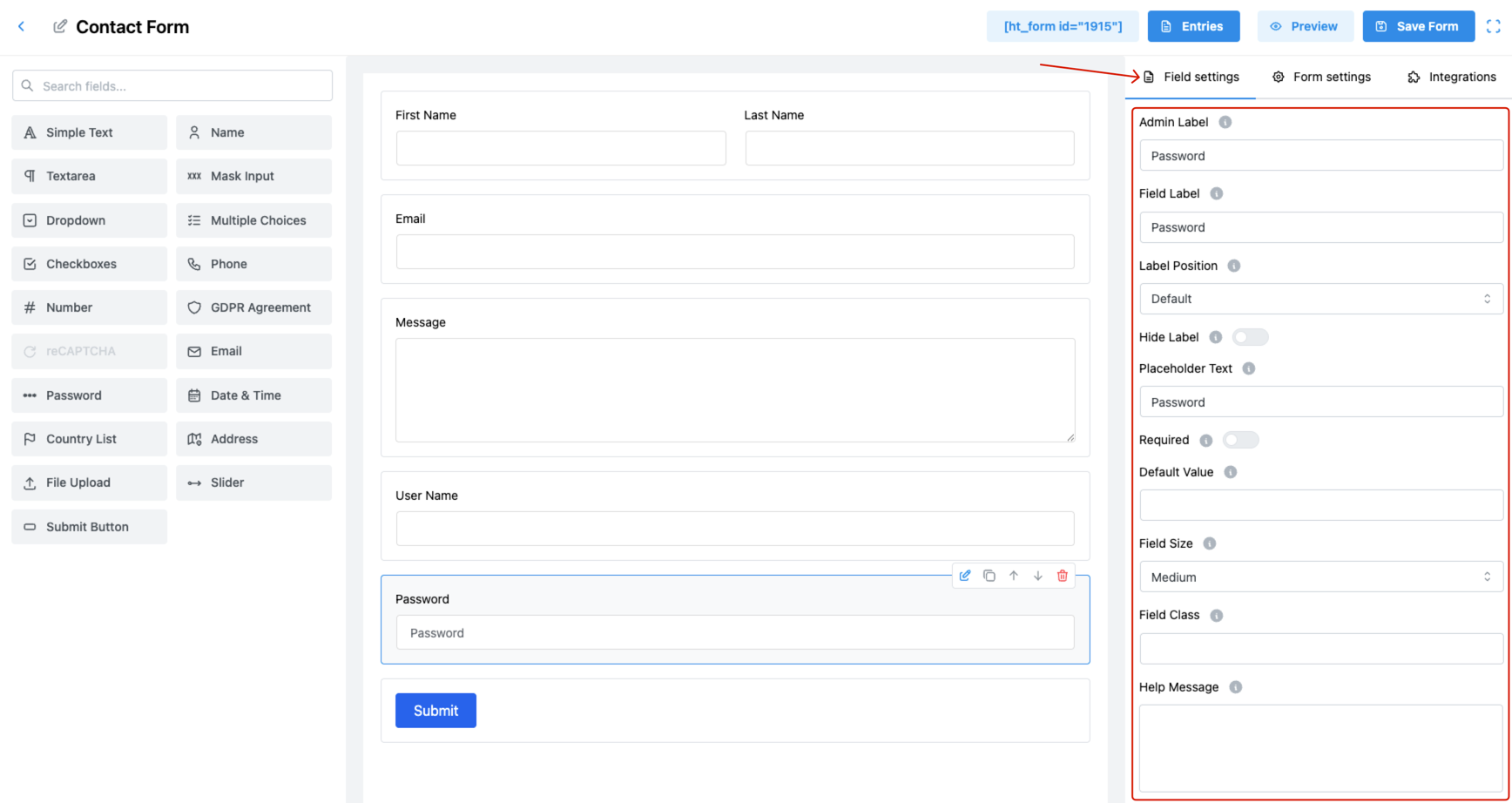
1. Admin Label
Specify an internal label for administrative use.
This is not shown to users and helps you identify the field in form entries.
2. Field Label
Set the label that will appear on the front end.
✅ Informs users to enter a password or secure code.
3. Label Position
Control where the field label appears in relation to the input:
- Default
- Top
- Right
- Bottom
- Left
📌 Useful for aligning with your form’s visual style.
4. Hide Label
Enable this setting to hide the field label on the front-end.
✅ Ideal for cleaner designs where placeholder text is sufficient.
5. Placeholder Text
Provide instructional text that appears inside the field before user input.
💡 Example: Password, Enter your access code
6. Required
Enable this option to make password entry mandatory.
✅ Ensures that users cannot submit the form without providing a value.
7. Default Value
Set a pre-filled password value (not recommended for secure applications).
⚠️ Use only in controlled or private environments.
8. Field Size
Adjust the visual size of the password input box:
- Small
- Medium (Default)
- Large
🎨 Match the size with your form layout for consistency.
9. Field Class
Add a custom CSS class to the field.
🎨 Useful for applying specific styles or layout behaviors via external stylesheets.
10. Help Message
Provide a tooltip or instruction to assist the user.
✅ Example: “Use at least 6 characters with one number.”
11. Message Position
Choose where to display the help message or validation feedback:
- Default
- Next to Label as Tooltip
- Below Input Element
🎯 Improves clarity and guides users during entry.
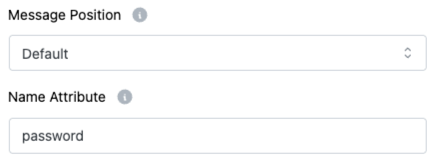
12. Name Attribute
Define the HTML name attribute for the password field.
👉 Important for accessing the value in backend processing.
Pro Tips:
- Use the Required option to ensure no blank passwords.
- Always combine with help messages to instruct users on strong password rules.
- Never pre-fill sensitive data in public-facing forms for security reasons.