

Mailchimp is a popular email marketing tool used for sending newsletters, automations, and email campaigns.
With HT Contact Form, you can seamlessly integrate Mailchimp to grow your audience, sync form submissions to your Mailchimp lists, and manage subscribers effortlessly.
Follow the steps below to connect Mailchimp with HT Contact Form.
Step-by-Step: Connect Mailchimp to Your Form
1. Enable Mailchimp Integration
- Go to the HT Contact Form → Integrations menu from your WordPress admin sidebar.
- Toggle the switch next to Mailchimp to activate it.
- Click the settings (gear) icon to open the API Key input popup.
- Paste your Mailchimp API Key and click Verify and Save.
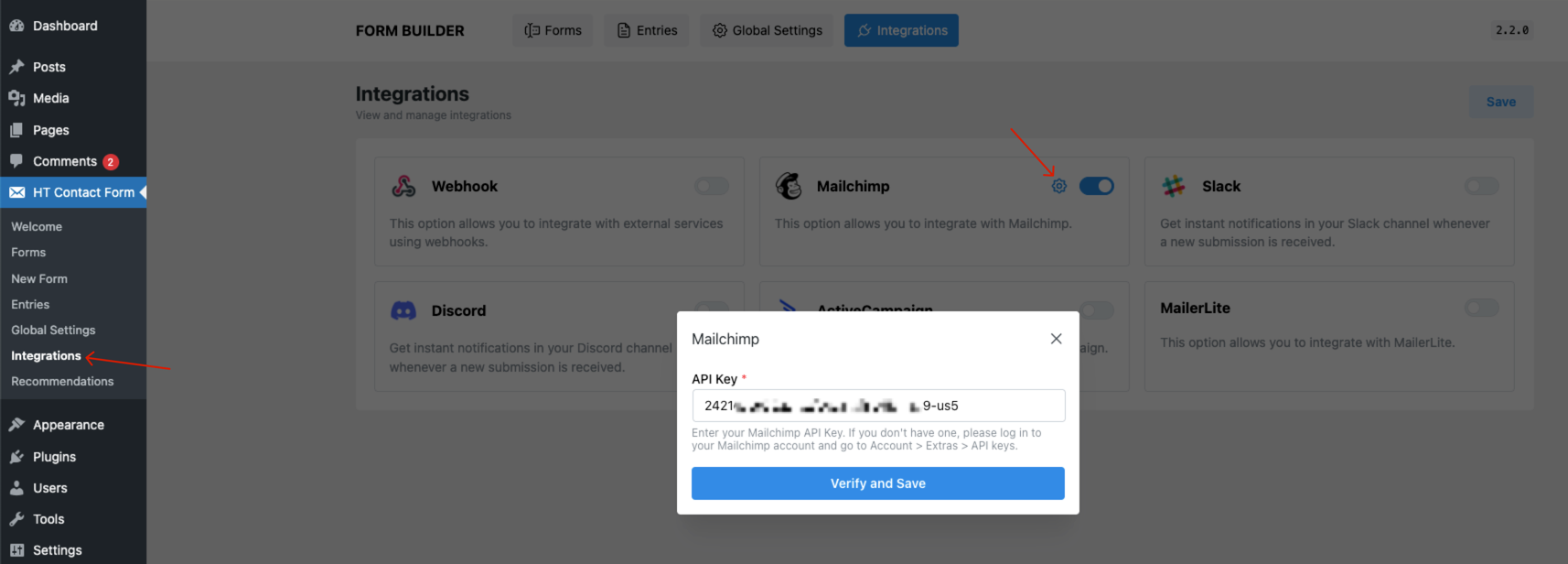
If you don’t have an API key yet, log in to your Mailchimp account and navigate to Account → Extras → API Keys to generate one.
2. Add Mailchimp to a Specific Form
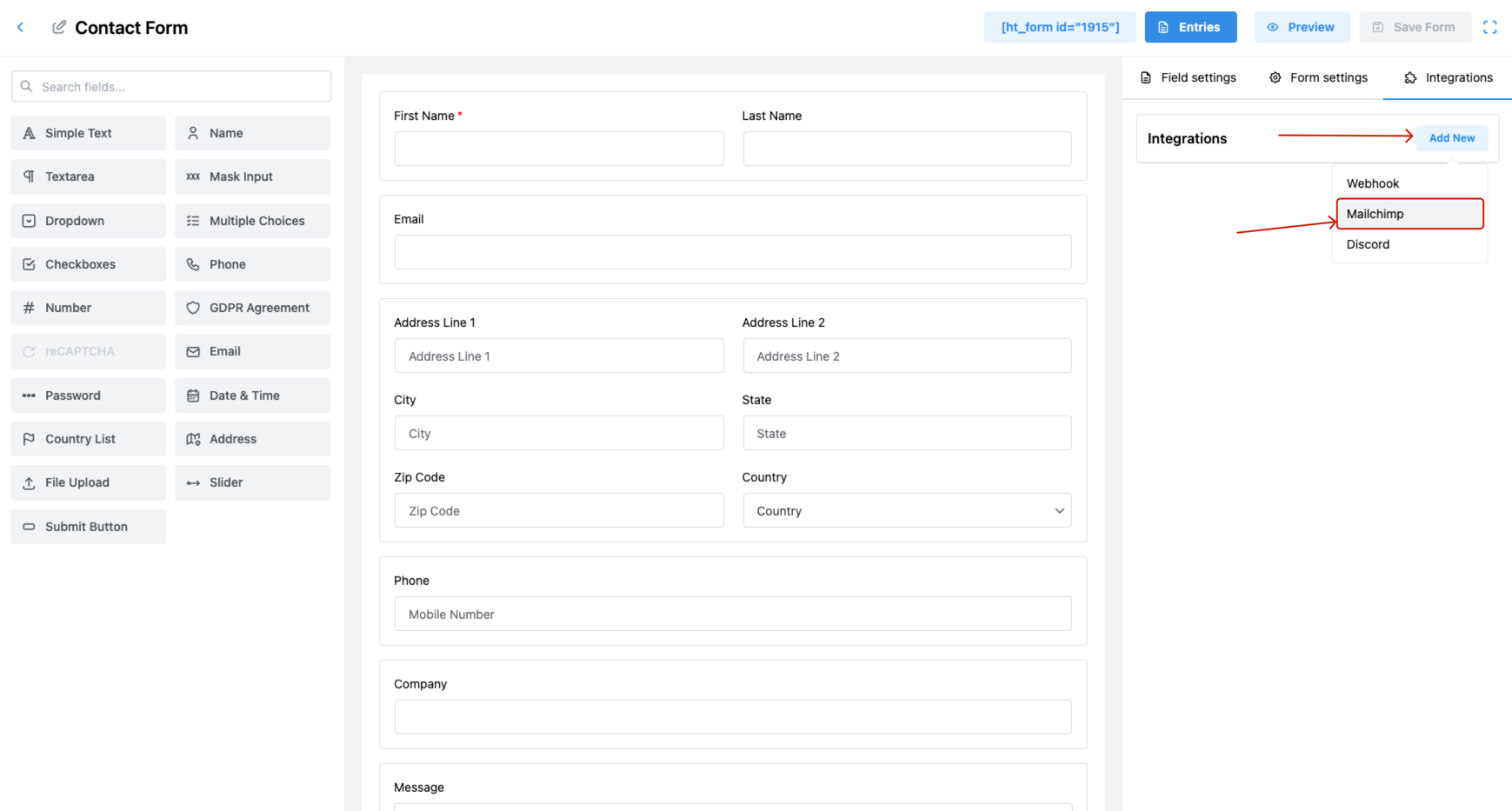
- Open an existing form or create a new one from the Forms menu.
- Click on the Integrations tab.
- Press Add New, then select Mailchimp from the dropdown.
3. Configure Webhook Integration
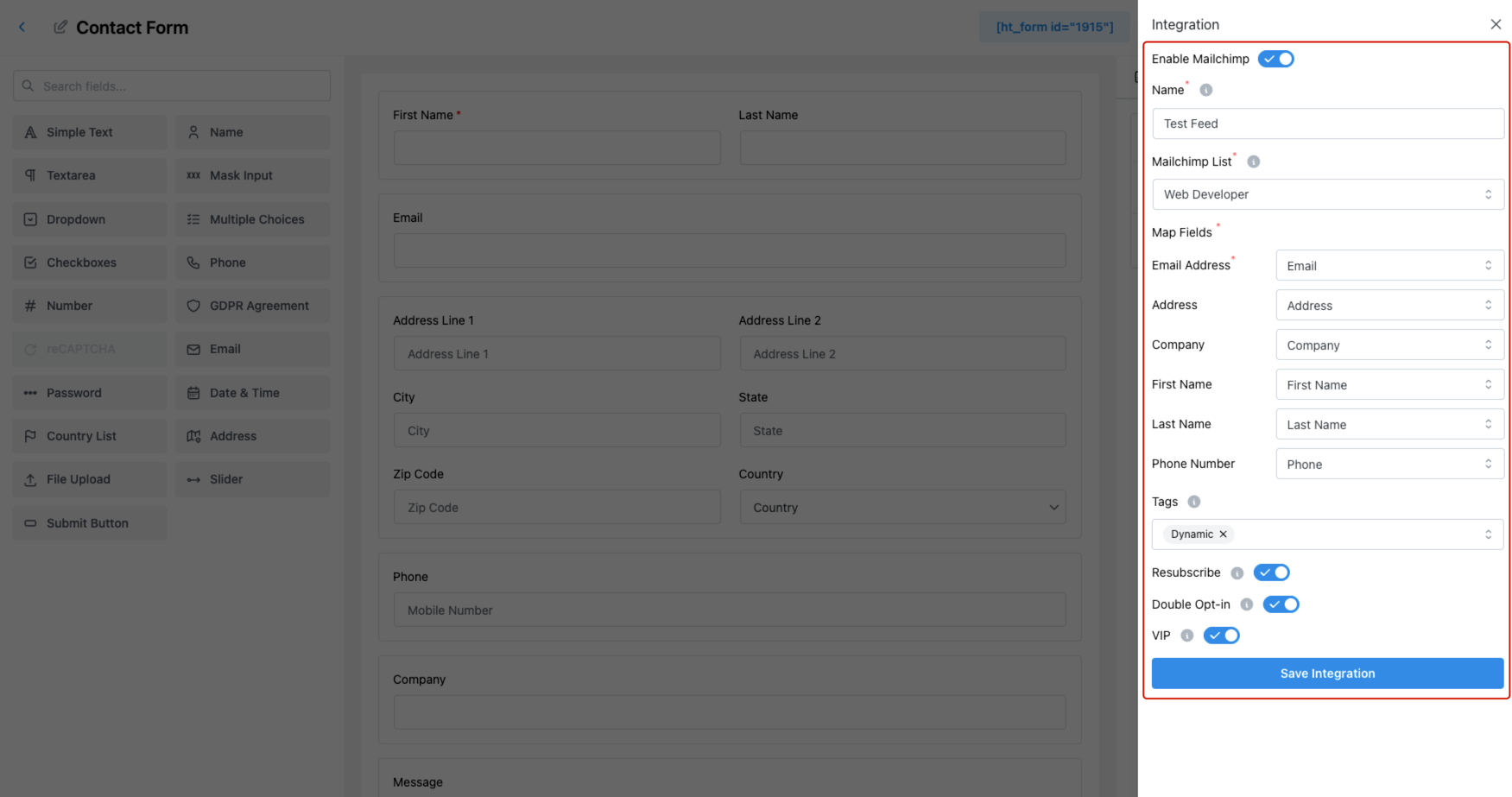
In the popup panel, fill in the following fields to complete the setup:
- Enable Mailchimp – Turn this ON to activate the integration.
- Name – Assign a recognizable name for this feed (e.g., “Newsletter Signup”).
- Mailchimp List – Choose the list where the data will be synced.
- Map Fields – Connect your form fields to Mailchimp fields such as:
- Email Address
- Name
- Site URL or other custom fields
- Tags – Assign tags to organize your audience dynamically.
- Resubscribe – Enable this to re-subscribe users who previously unsubscribed.
- Double Opt-in – Enable for compliance with email consent laws.
- VIP – Enable to mark this contact as VIP within Mailchimp
4. Save the Integration
Once all fields are configured, click the Save Integration button.
That’s it! Your form is now connected to Mailchimp and ready to collect subscribers automatically.
Notes & Best Practices
- Use Double Opt-in if you’re targeting EU/UK users for GDPR compliance.
- Leverage Tags to segment your audience based on form type or campaign source.
- Always verify your Mailchimp list before going live to avoid syncing issues.
Last updated on March 10, 2026
Was this article helpful?
Powered by Support Genix