
With HT Contact Form, you can receive instant notifications in your Discord channel whenever someone submits a form on your website. This allows teams to stay informed and respond faster to new leads, feedback, or support requests — all in real-time.
Follow the steps below to integrate your form with Discord using a webhook.
How to Integrate Discord with HT Contact Form
1. Enable Discord Integration
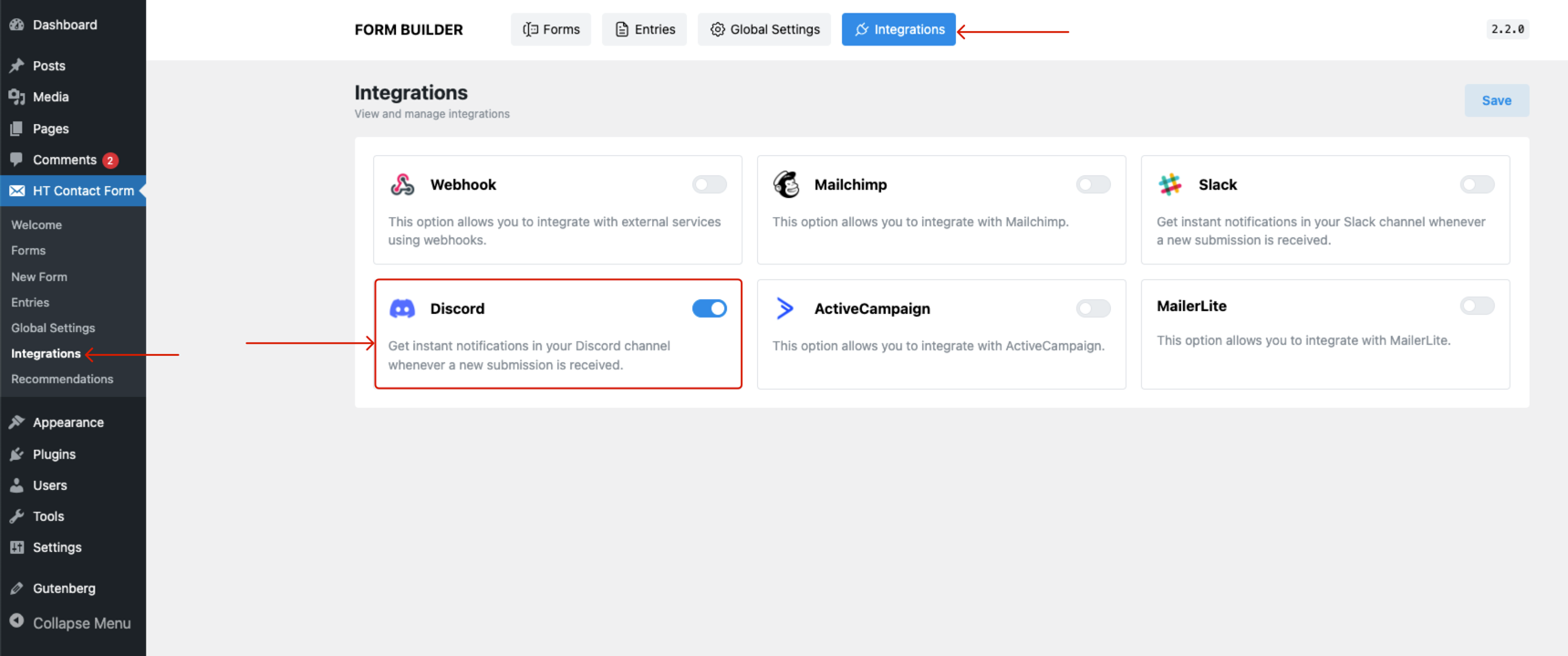
- Navigate to HT Contact Form → Integrations in your WordPress dashboard.
- Locate the Discord option and toggle it ON to activate the integration.
2. Create a Webhook in Discord
- Open your Discord server in a browser or app.
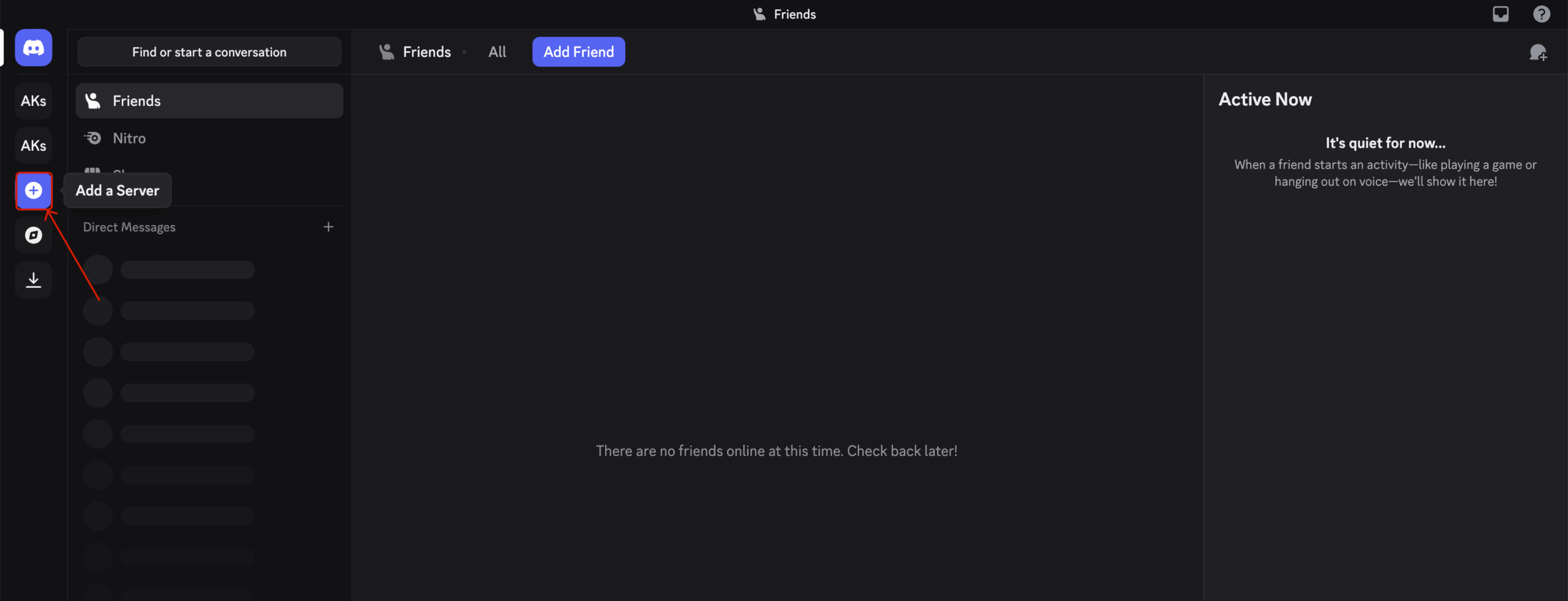
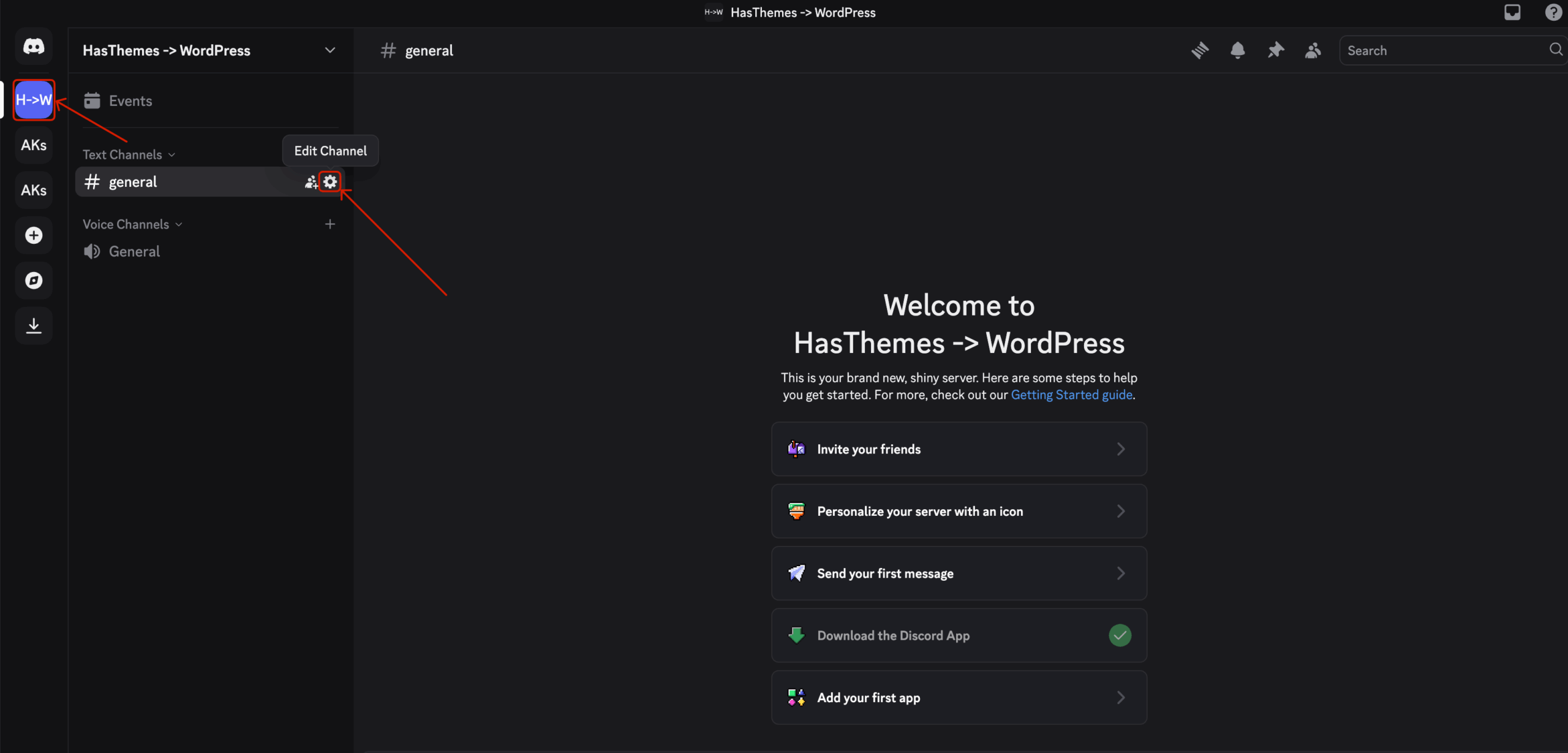
- Select the channel where you want to receive the form notifications.
- Click the gear/settings icon next to the channel name.
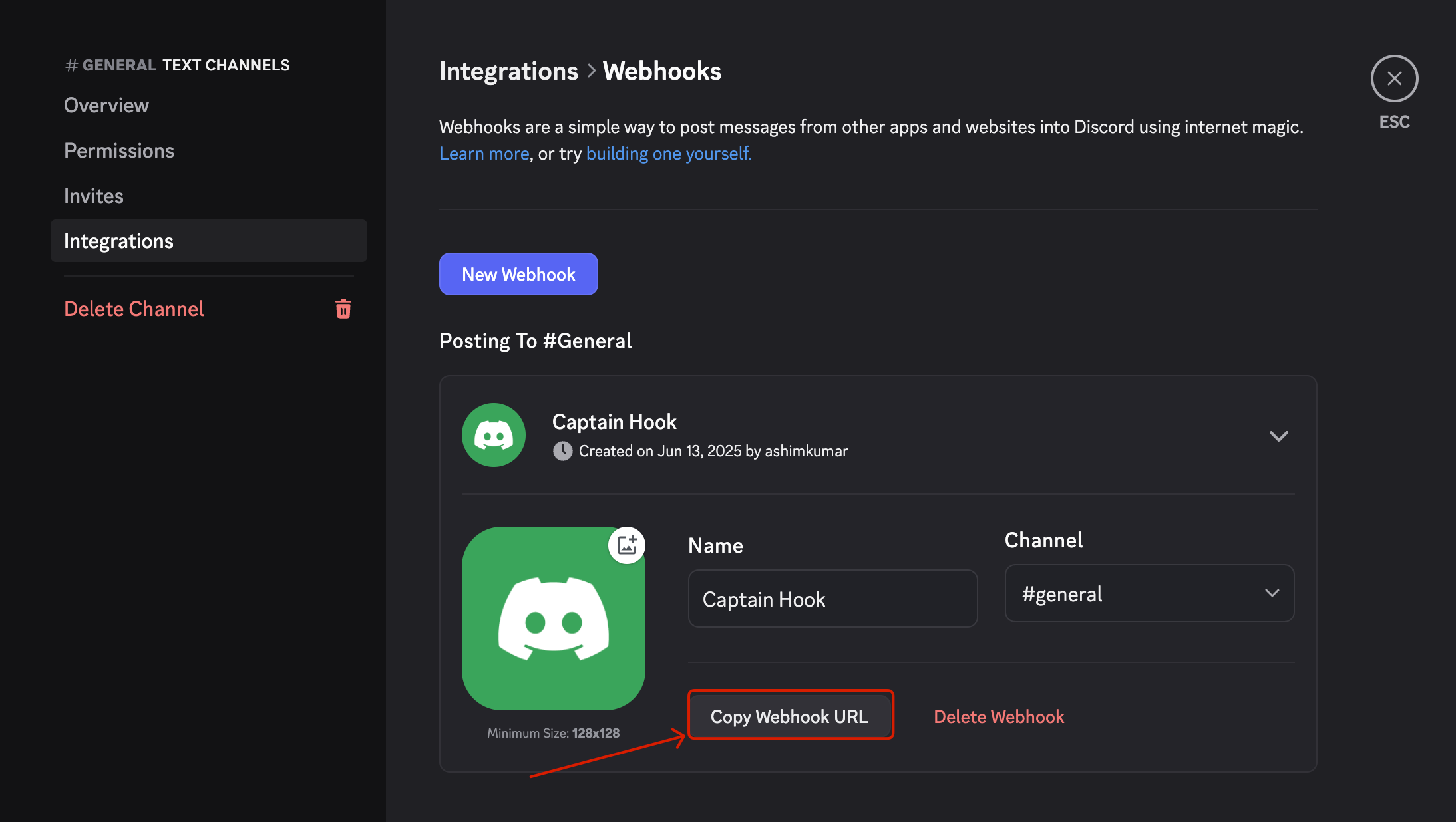
- From the sidebar, go to Integrations → Webhooks and click Create Webhook.
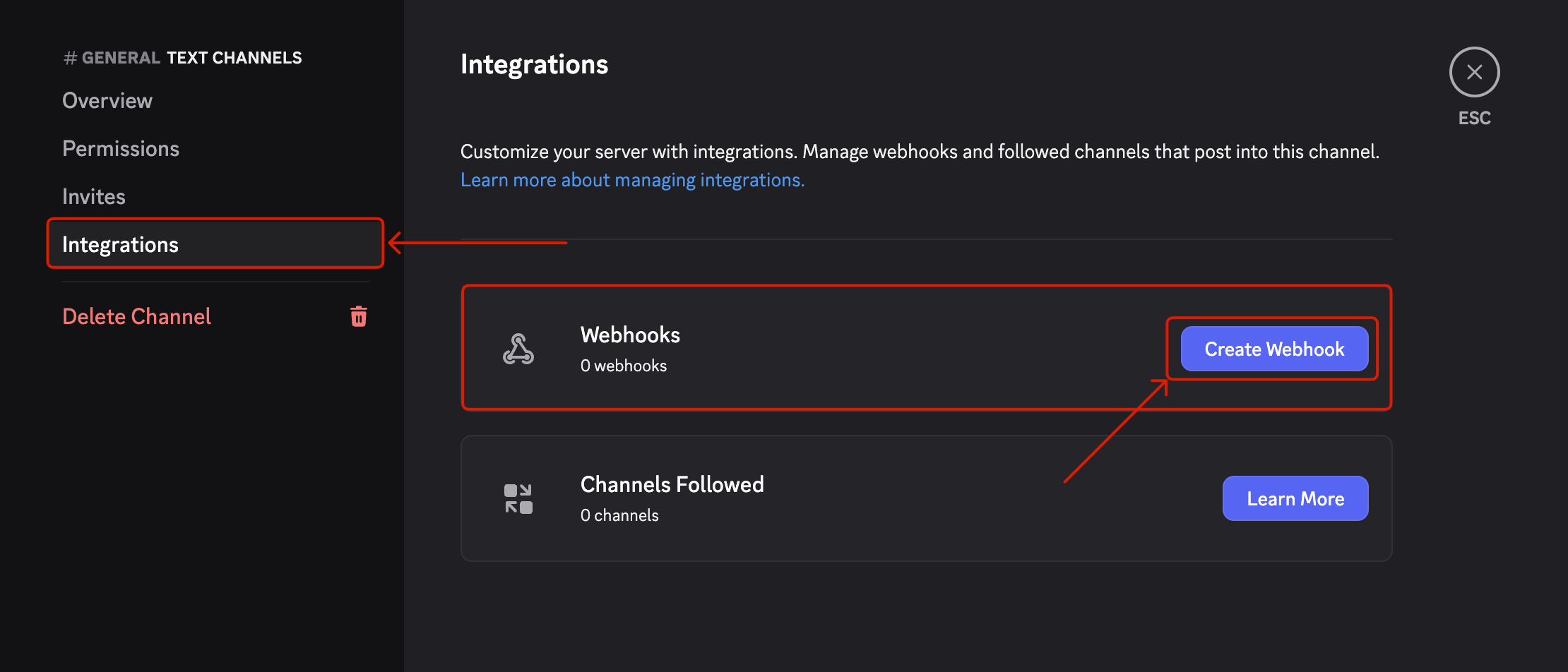
- Give it a name and copy the Webhook URL.
3. Set Up the Integration on a Form
- Open an existing form or create a new one in the HT Contact Form builder.
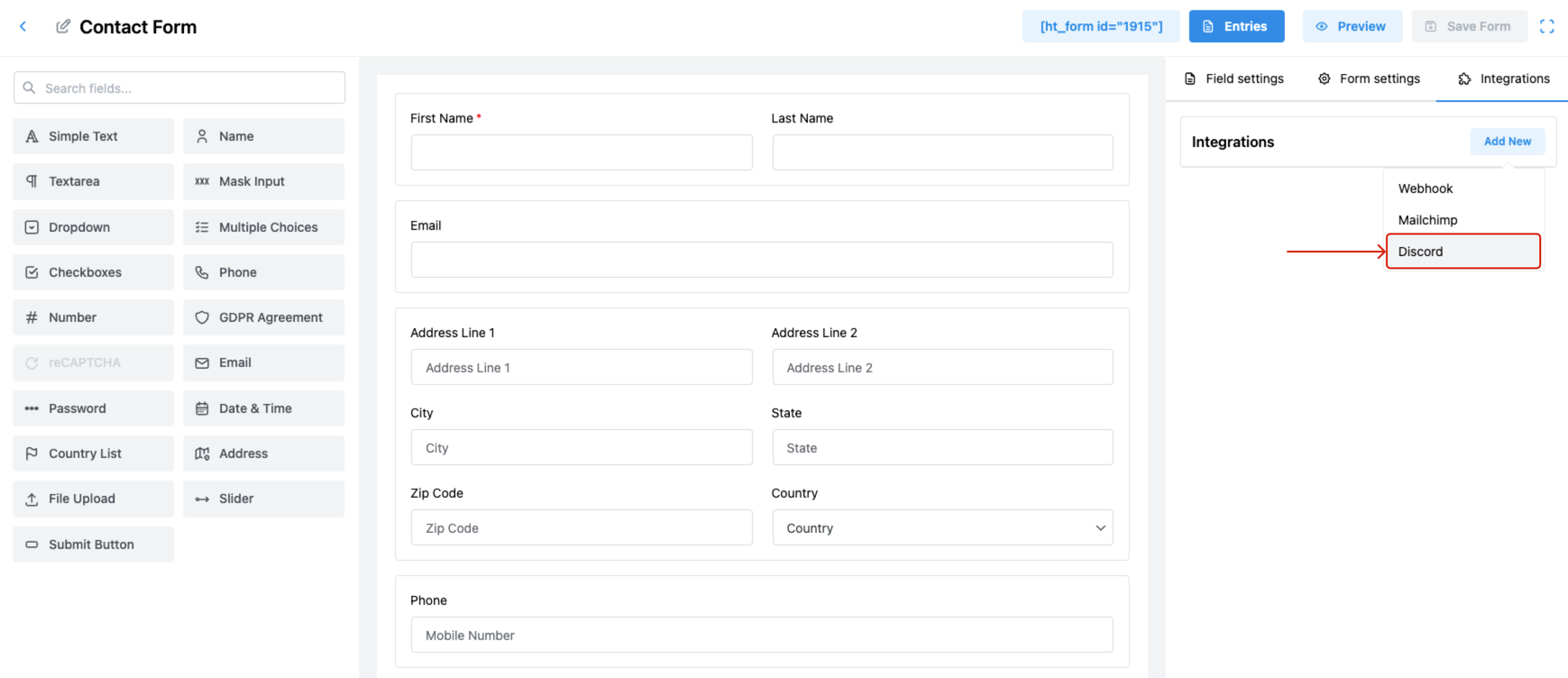
- Click the Integrations tab on the top right.
- Click Add New and choose Discord from the dropdown menu.
4. Configure Discord Feed
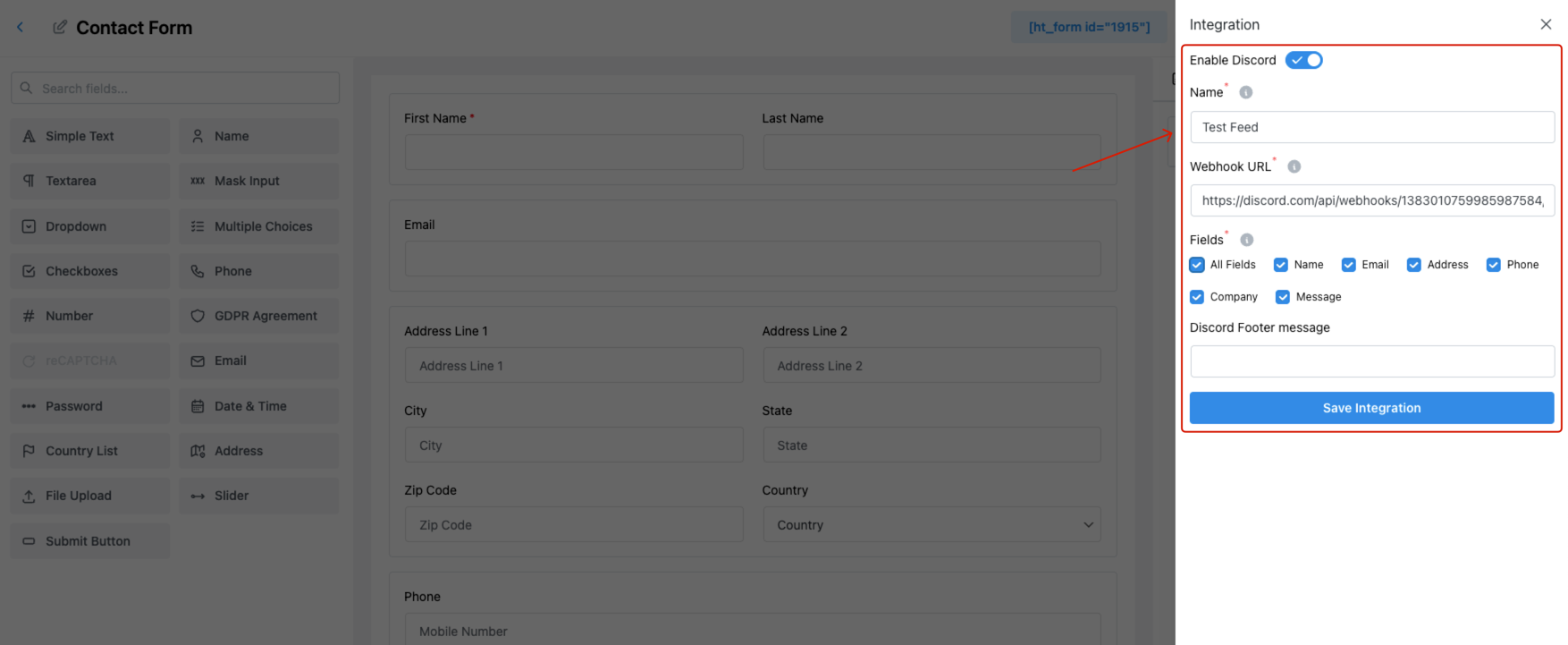
In the integration panel:
- Enable Discord — Toggle this ON.
- Name — Give this integration a name (e.g., “Support Channel Notification”).
- Webhook URL — Paste the URL you copied from Discord.
- Fields — Choose:
- All Fields – to send full form submission data.
- Or selectively check fields such as Name, Email, Phone, etc.
- Discord Footer Message — (Optional) Add a custom footer note for the message.
Tips
- Make sure the Webhook URL is correct to avoid delivery failures.
- Use separate webhooks for different channels or forms if needed.
- Test with a demo submission to ensure the integration is working as expected.
Last updated on March 10, 2026
Was this article helpful?
Powered by Support Genix