
ActiveCampaign is a powerful email marketing and automation platform that helps you grow your business through automated campaigns and CRM features.
With HT Contact Form, you can send contact form data directly into your ActiveCampaign account, sync leads with lists, and trigger automations.
How to Integrate ActiveCampaign
1. Enable ActiveCampaign Integration
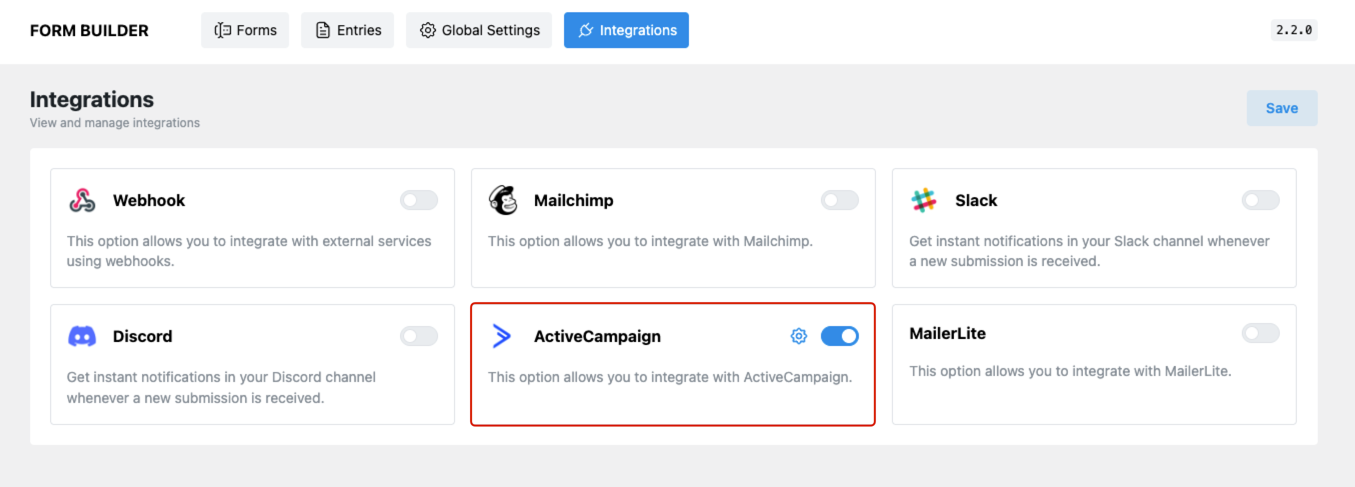
- Navigate to HT Contact Form → Integrations.
- Find ActiveCampaign and toggle it ON.
- Click the gear icon to configure the API settings.
2. Get API URL and API Key from ActiveCampaign
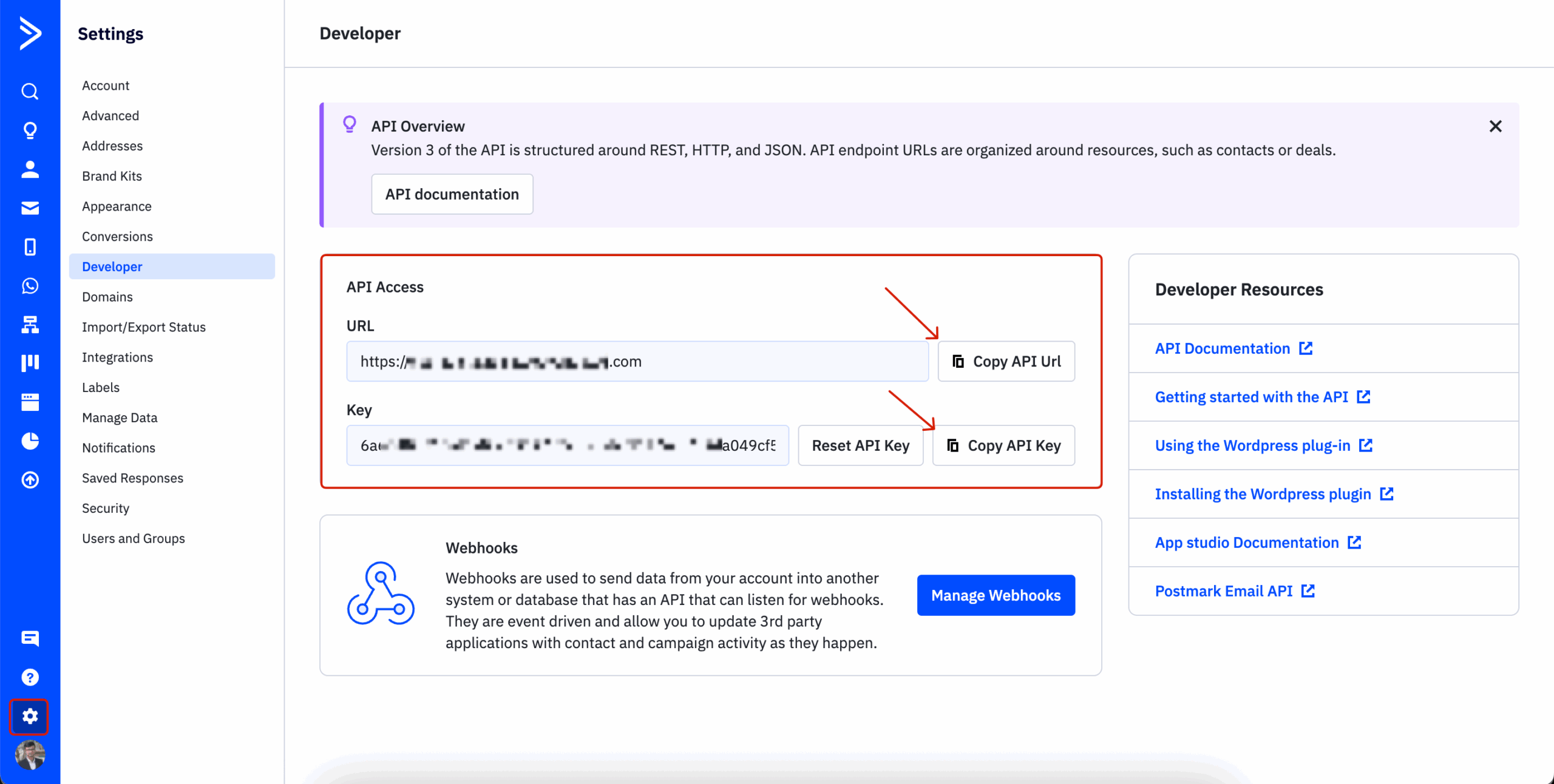
To connect your form to ActiveCampaign, you’ll need your account’s API URL and API Key.
- Log in to your ActiveCampaign account.
- Go to Settings → Developer.
- Copy the API URL and API Key.
3. Add API Details in HT Contact Form
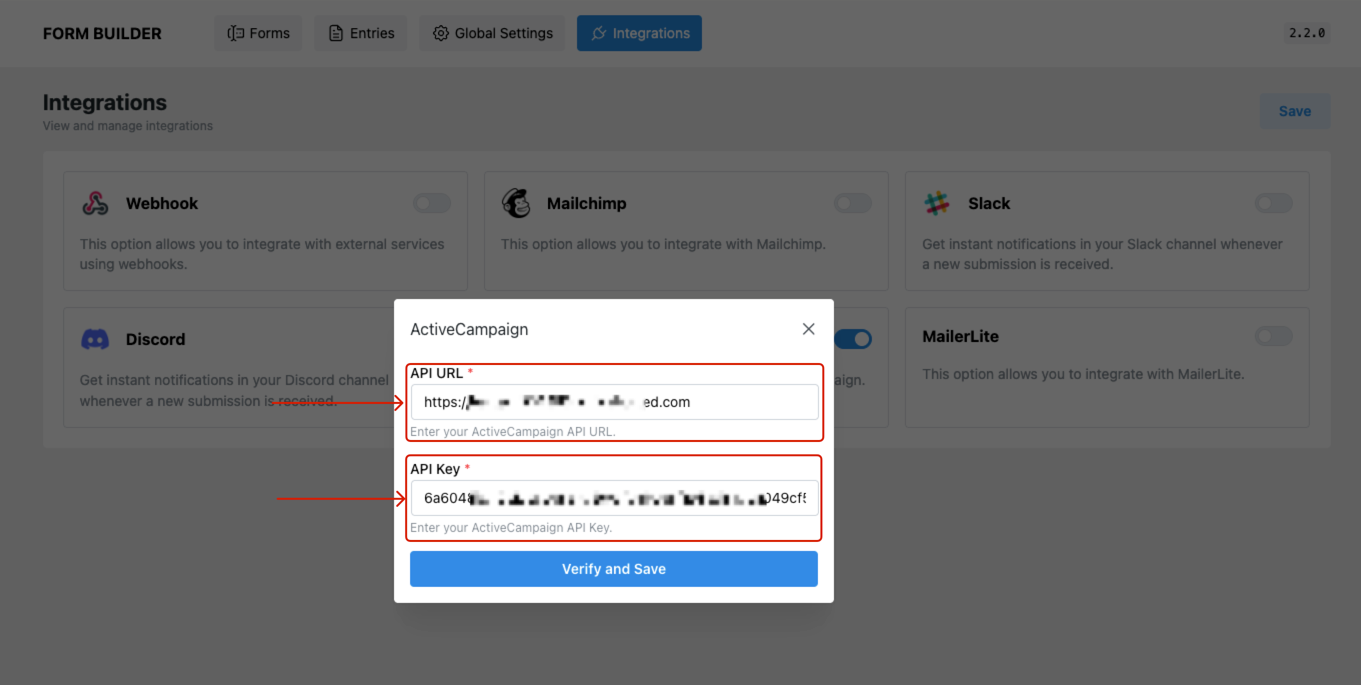
- Paste the API URL and API Key into the popup in HT Contact Form.
- Click Verify and Save to confirm the connection.
4. Connect a Form to ActiveCampaign
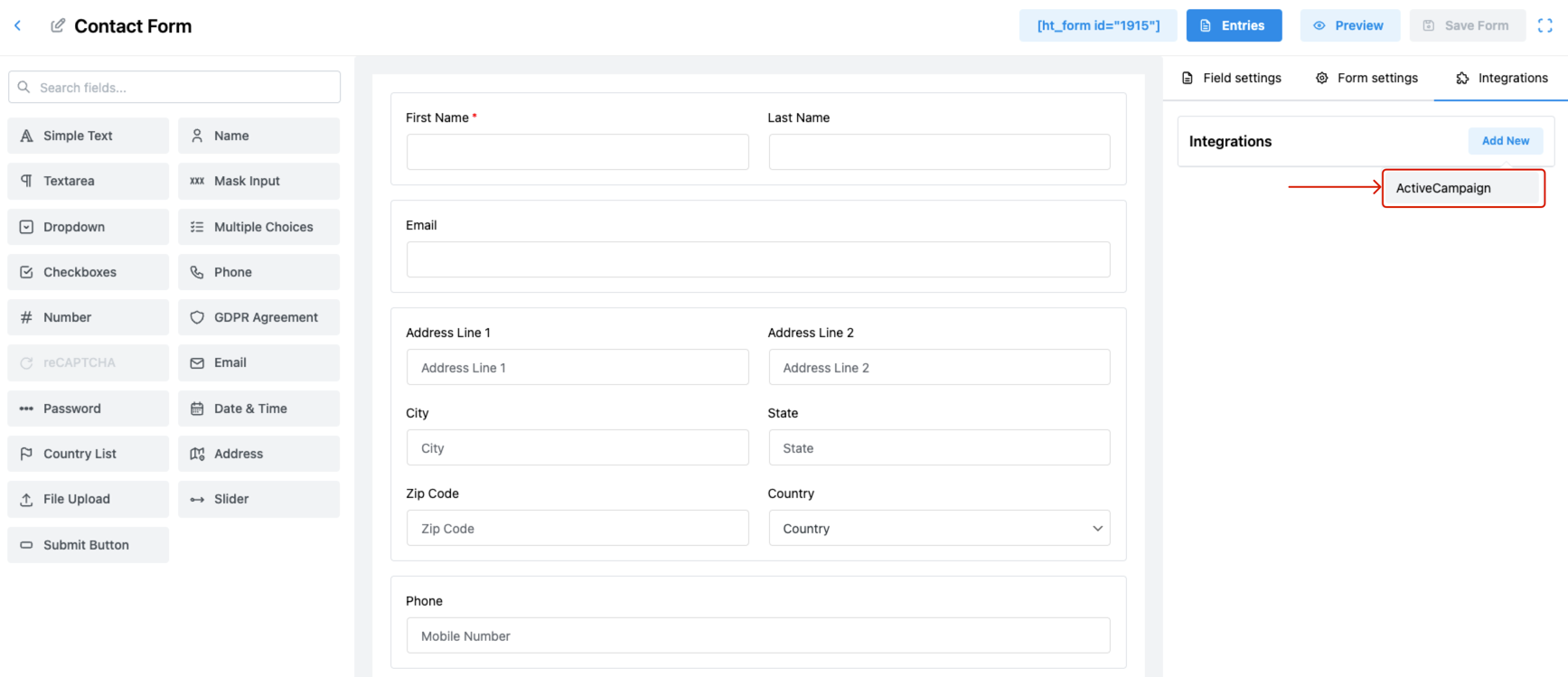
- Go to Forms and open your desired contact form.
- Click on the Integrations tab.
- Click Add New, then select ActiveCampaign from the dropdown.
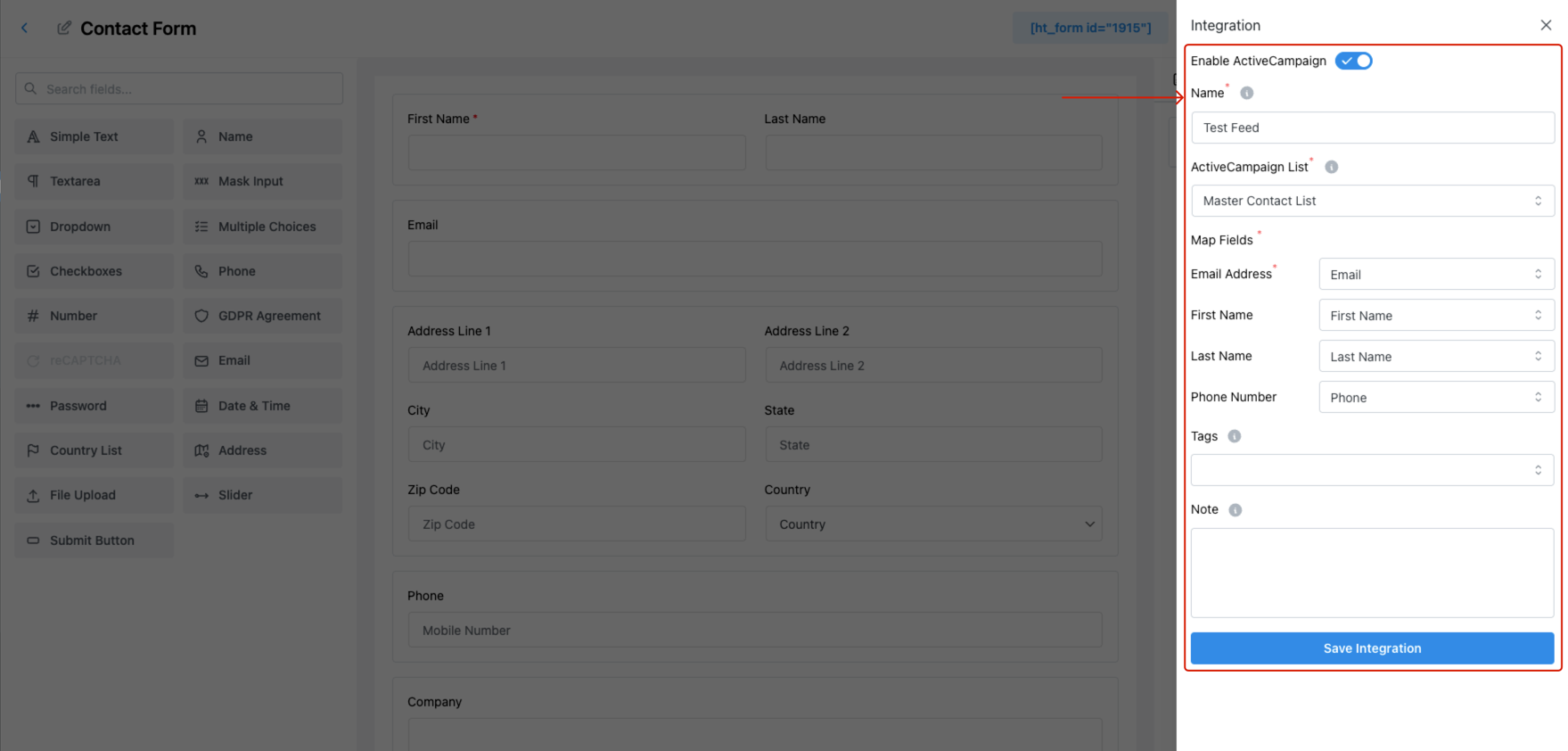
5. Configure the ActiveCampaign Feed
Inside the integration panel:
- Enable ActiveCampaign – Toggle ON.
- Name – Provide a name for this feed.
- ActiveCampaign List – Choose the list you want to sync form data to.
- Map Fields – Match form fields with ActiveCampaign fields like:
- Email Address
- First Name
- Last Name
- Phone Number
- Tags – Optionally assign tags to help segment contacts.
- Note – Add internal notes for tracking pur
5. Save and Test
- Click Save Integration.
- Submit a test entry on the form to ensure contact data is sent successfully to your ActiveCampaign list.
Pro Tips
- Use tags for campaign grouping and automation triggers.
- You can reuse your API credentials across multiple forms.
- Combine with conditional logic (if available) to control when and what data is sent.
Last updated on March 10, 2026
Was this article helpful?
Powered by Support Genix