How to Add Google Analytics to Shopify in 2026: (The Easy Way)

In the eCommerce world, tracking is not optional anymore, it is how you understand your customers, improve your marketing, and grow revenue. Google Analytics 4 (GA4) is now the standard analytics platform from Google, and every serious Shopify store should be using it.
If you are wondering how to add Google Analytics to Shopify without touching any code, the Analyzely – Google Analytics 4 app is one of the easiest solutions. It gives you a quick, no‑code setup plus easy‑to‑read reports right inside your Shopify dashboard. In this guide, you will see exactly how to add Google Analytics to Shopify step by step, how to verify that it works, and what to do if something goes wrong.
We will also briefly cover Shopify’s official Google & YouTube app and a higher‑level look at Google Tag Manager (GTM), so you understand your options without getting lost in technical details.
Let’s dive in and transform your online store with Google Analytics!
Quick answer: How to Add Google Analytics to Shopify
Install the Analyzely – Google Analytics 4 app from the Shopify App Store, enable its app embed, connect your Google account, select your GA4 property, and turn on ecommerce events. This adds Google Analytics 4 to your Shopify store without editing any theme code.
Key Takeaways
- Key Takeaways
- GA4 is the only analytics platform Google currently supports — Universal Analytics is gone.
- The Analyzely app is the easiest way to connect GA4 to Shopify, with built-in reports included.
- The Google & YouTube app and GTM are solid alternatives for specific or advanced needs.
- Always verify your setup using GA4’s Realtime and DebugView after installation.
- Never run two GA4 implementations simultaneously — it duplicates your data.

Bring your ideas to life for $1/month
The future of business is yours to shape. Sign up for a free trial and enjoy 3 months of Shopify for $1/month on select plans.
What Does Google Analytics Do?
Google Analytics 4 tracks how visitors find, browse, and buy from your Shopify store using an event‑based model instead of just counting page views.
With a proper GA4 integration, you can:
- See which traffic sources and campaigns actually generate sales and revenue.
- Understand how visitors move through your funnel—from viewing products to adding to cart, beginning checkout, and completing purchases.
- Compare the performance of new vs returning customers, devices, and locations.
- Identify high‑performing products, collections, and landing pages.
These insights help you make data‑driven decisions about ads, SEO, email campaigns, and on‑site optimization instead of guessing.
Recommended Blogs for You:
👉 Mavon Shopify Theme: The Ultimate Solution for Shopify Store Owners
👉 10 Best Shopify Apps: Drive Your E-commerce Success in 2024
👉 12 Reasons Why Your Shopify Store Needs a Wishlist App to Increase Conversion Rates
👉 Top 6 Best Shopify Theme for Beauty Products in 2024
The main ways to add GA4 to Shopify
There are three common ways to connect GA4 to a Shopify store in 2026 and answer the question how to add Google Analytics to Shopify in practice.Method Difficulty Recommended for Analyzely – Google Analytics 4 app Easy Most store owners who want a fast, no‑code setup plus reports. Google & YouTube app (Shopify native) Easy Stores that want an official, minimal integration maintained by Google/Shopify. Google Tag Manager (GTM) Medium Advanced setups that require custom events, complex funnels, or multi‑site tracking.
In this article, Analyzely is the primary recommended method. The other two are covered as alternatives if you have specific needs.
How to Add Google Analytics to Shopify: Step by Step
Setting up Google Analytics is crucial for tracking visitor actions and improving your store’s online presence. To track GA4 metrics with Google Analytics on your Shopify store, the GA4 Shopify app is an essential tool. Before starting, you must set up a Google Analytics account.
Step-1: Create your Google Analytics 4 property
Before you connect anything inside Shopify, you need a GA4 property for your store.
Short version: Create a GA4 account and property at analytics.google.com, then create a Web data stream and copy your Measurement ID (G‑XXXXXXX).
Go to Google Analytics. and sign in with your Google account.
If this is your first account, click Start measuring. Otherwise, go to Admin → Create account.
Enter an Account name (for example, “YourBrand Analytics”) and click Next.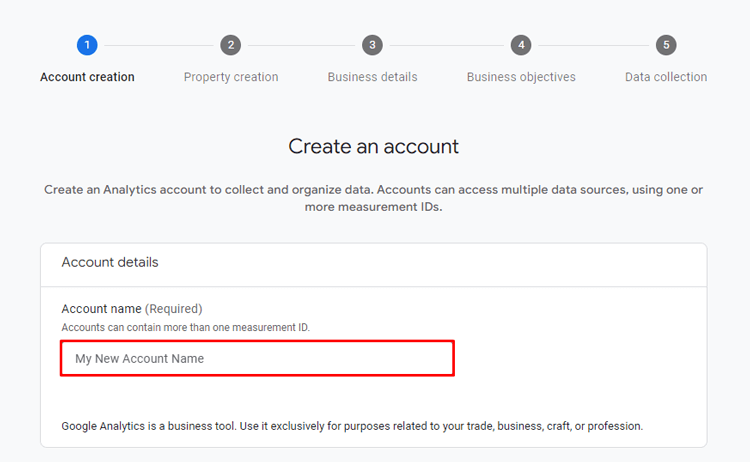
Under Property name, use something like “YourBrand – Shopify Store”. Set the correct time zone and currency, then click Next.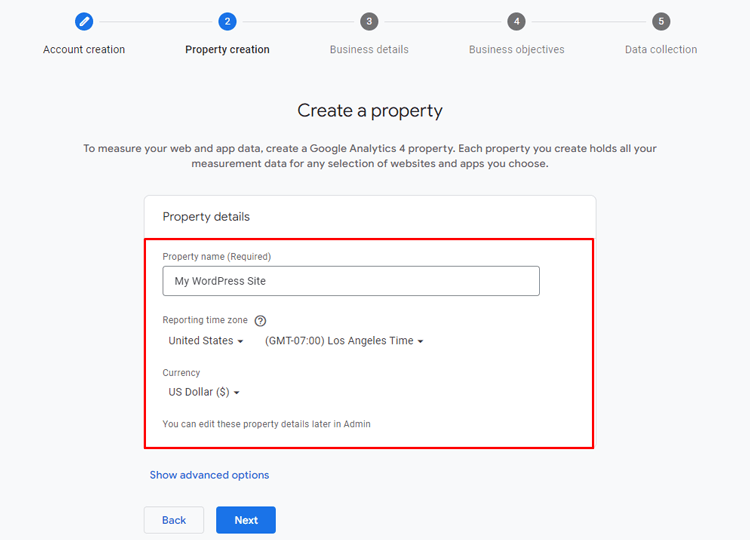
Choose your business category and size, select your business objectives (such as “Generate leads” or “Drive online sales”), then click Create to finish the property setup.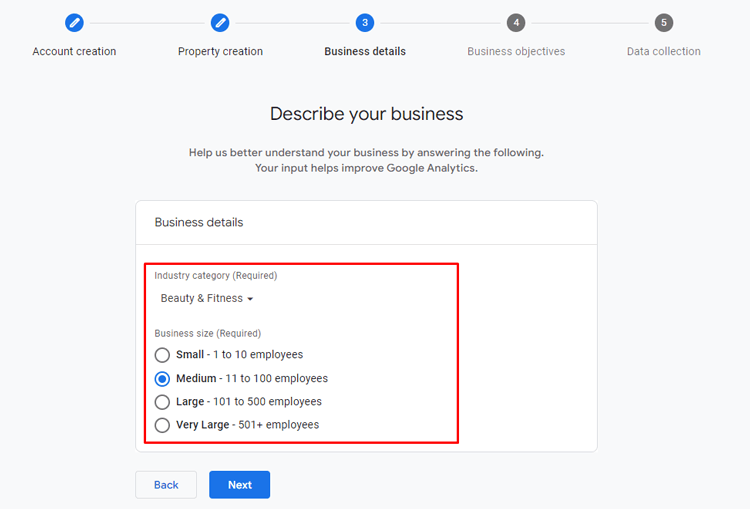
Select your primary goal, such as increasing engagement or generating more leads, and click “Create.”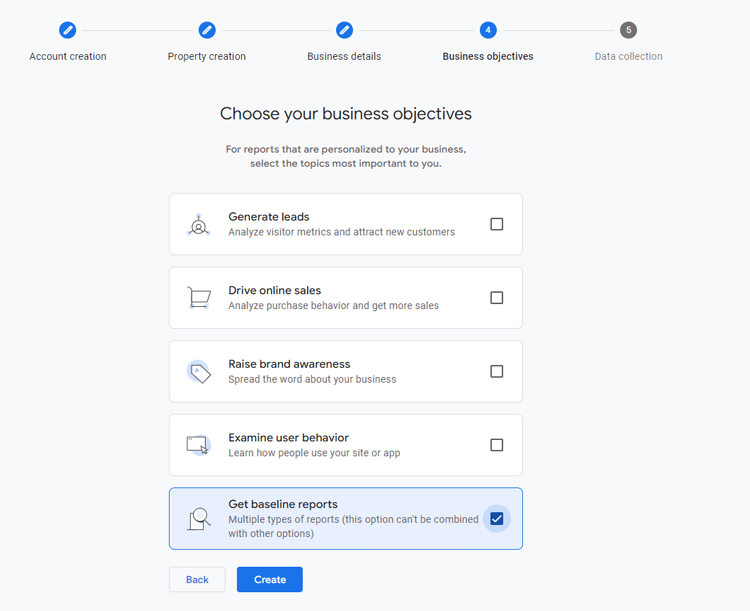
Choose your region, agree to the terms, and then click “I accept.”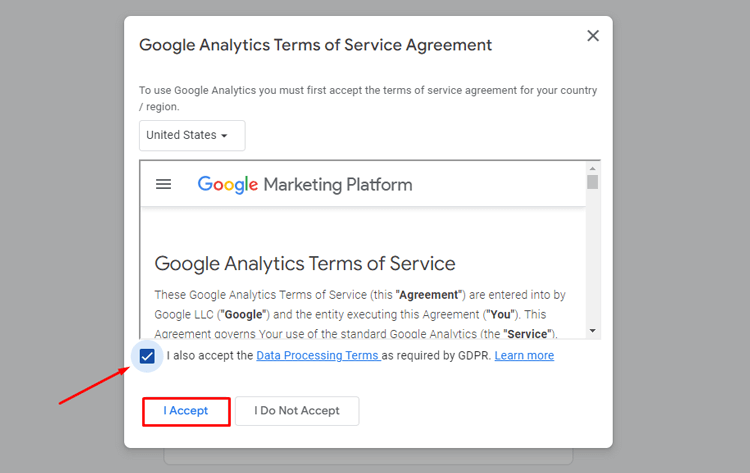
Select “Web” as the platform.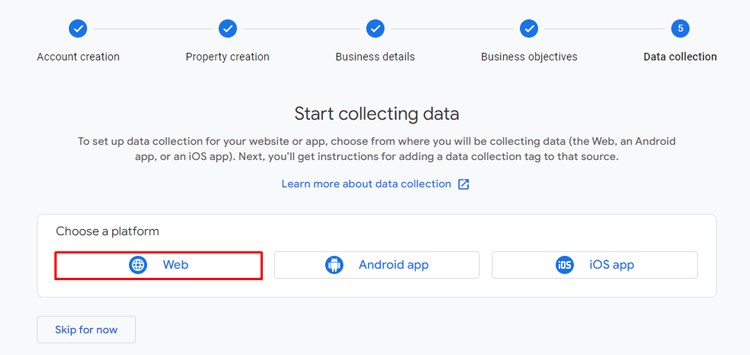
Enter your store URL (for example, https://yourstore.com) and set a stream name like “Shopify Store”.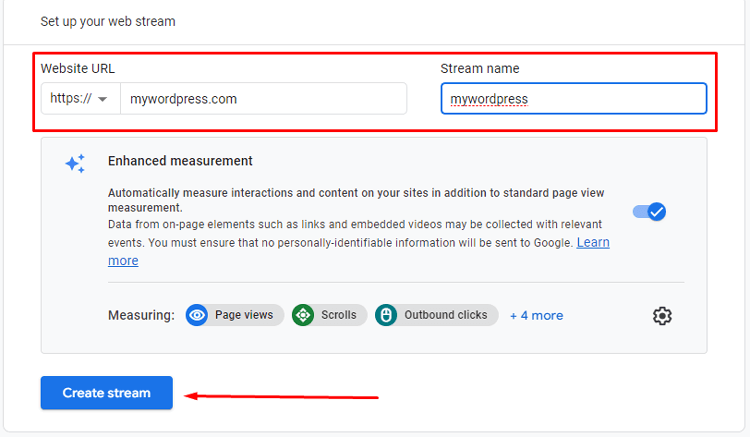
Click Create stream.
On the stream details page, note the Measurement ID starting with G-…. Keep this handy—Analyzely and other methods will use it.
Practical Tip: Store your Measurement ID in a safe document or password manager so your team can easily access it later.
Step-2: Connect GA4 to Shopify using Analyzely (recommended)
Analyzely – Google Analytics 4 is one of the easiest ways to connect GA4 to Shopify. It adds Google Analytics 4 to your store without code and provides user‑friendly analytics dashboards inside your admin. If you want to know how to add Google Analytics to Shopify without touching any theme code, this is the method to follow.
Quick answer: Install Analyzely from the Shopify App Store, enable its app embed, sign in with Google, select your GA4 property, choose which events to track, and you are done.
Go to the Shopify App Store, search for Analyzely – Google Analytics 4, and add it to your store. After installing the app click on the link here on the app wizard.
This will redirect you to the app embed page in your Shopify dashboard. Once there, click the “Save” button to enable the app embed feature.
After installation, Analyzely will show a wizard with a link to enable the app embed. Click the provided link.
You will be redirected to your theme settings, where the Analyzely app embed is listed. Toggle the app embed to On and click Save.
Return to the Analyzely app and click Sign in with Google.
Choose the Google account that owns the GA4 property you created earlier.
Allow the requested permissions so Analyzely can connect to GA4.
Select your Google Analytics account, GA4 property, and Measurement ID from the dropdown options.
Analyzely provides a list of events that can be tracked for your store. Review these event options and select the ones that align with your tracking goals, such as purchase events or page views. Once you’ve chosen your preferred events, click “Next.”
Complete the setup by clicking the “Finish” button.
The Analyzely app offers customizable reports that help you track your business growth. You can easily explore valuable insights into user behavior and sales performance. Once data starts flowing, you can view analytics directly within Analyzely’s dashboards:
Ecommerce reports: For sales performance, Analyzely provides eCommerce reports that include total orders, order value, average order value (AOV), conversion rate, and top-performing products and brands. These insights help you optimize your store and focus on areas that drive growth.
Realtime reports: You can also explore real-time reports in the Analyzely app to monitor your store’s visitors. These reports show the number of active users on your site, highlighting the most popular events based on user activity. They also indicate the countries where your visitors are browsing from and provide insights into the devices users use to access your store.
Standard reports: The standard reports cover key metrics like sessions, page views, bounce rate, and top pages, along with details on user types, device types, and referral sources.
Need Expert Help to Set Up Your Google Analytics 4?
Setting up Google Analytics 4 for your Shopify store is a crucial step, but it doesn’t have to be overwhelming. Our experts will ensure your GA4 is perfectly configured to provide detailed, accurate insights. Hire us today, and get the most out of your Google Analytics 4 setup!
Step 3: Alternative – use the Google & YouTube app
If you prefer an official Google/Shopify integration with fewer moving parts, you can connect GA4 via Shopify’s Google & YouTube app. This is another way to implement how to add Google Analytics to Shopify using tools directly from Google and Shopify.
Short version: Install the Google & YouTube app, connect your Google account, select your GA4 property, and enable measurement events.
Install the Google & YouTube app
- In Shopify, go to Settings → Apps and sales channels.
- Click Shopify App Store and search for “Google & YouTube” by Google.
- Click Add app and follow the prompts to install.
Connect your Google account and GA4 property
- From Settings → Apps and sales channels, open the Google & YouTube app.
- Click Connect Google Account and sign in with the same Google account used for GA4.
- In the analytics section of the app, choose your GA4 property from the list and confirm the connection.
Behind the scenes, Shopify will inject the required GA4 tags for your store.
Enable measurement events
Inside the Google & YouTube app:
- Make sure customer events and relevant measurement options are enabled so the app sends events like page view, add to cart, and purchase.
- If you also advertise with Google Ads, enable the appropriate conversion tracking features.
Note: If you previously used Analyzely or another GA4 app, disable or uninstall it before enabling Google & YouTube to avoid double‑tracking.
Common Issues With Shopify GA4 Integration
Setting up Google Analytics on Shopify is crucial for understanding visitor behavior and optimizing store performance, but common issues can disrupt data tracking. Here are frequent problems and their solutions:
1. No data appearing in GA4
Possible causes and fixes:
- The app embed or customer events are disabled.
- In Analyzely, make sure the app embed is toggled on and saved in your theme.
- In Google & YouTube, verify that analytics/measurement is enabled.
- The wrong GA4 property or Measurement ID is connected. Double‑check property names and confirm that the Measurement ID matches the one from your Web data stream.
- Multiple tracking methods conflict. Disable extra GA apps or older code snippets so that only one GA4 implementation is active at a time.
2. Duplicate or inflated transaction data
If GA4 shows more purchases than Shopify:
- Check if you are using both Analyzely and Google & YouTube at once, or Analyzely and a manual GA4/gtag snippet. Only one method should send purchase events.
- In GTM setups, ensure that the purchase event fires only once per order and not on every thank‑you page view or reload.
3. Missing ecommerce events (add_to_cart, begin_checkout, purchase)
- In Analyzely, open the event settings and confirm that ecommerce events are enabled and that the app embed is active.
- In Google & YouTube, make sure customer events and conversions are turned on.
- In GTM, verify that the relevant tags and triggers are configured correctly and that the data layer implementation is working as expected.
4. Wrong currency or time zone
If revenue or timing looks off:
- Check Admin → Property settings in GA4 to confirm the correct currency and time zone for your store.
- Make sure these match your Shopify store settings for clean reporting.
Frequently Asked Questions
How do I add Google Analytics to my Shopify store?
To set up Google Analytics, log into your Google Analytics account and create a new property for your Shopify store, selecting Google Analytics 4 (GA4). Copy the Measurement ID provided (it starts with “G-”). Then, in Shopify, go to Online Store > Preferences and paste the Measurement ID in the Google Analytics field, or add it manually in the theme code.
Is Google Analytics free for Shopify users?
Yes, Google Analytics is free and valuable for tracking Shopify store performance data.
Can I track eCommerce data with Google Analytics?
Yes, eCommerce tracking in Google Analytics shows key data like purchases, product views, and cart behavior.
How long does it take for Google Analytics to start tracking?
Google Analytics typically starts tracking data within 24 hours after setup.
Can I link multiple Google Analytics accounts to Shopify?
No, Shopify allows only one Google Analytics account to be linked per store.
Bring your ideas to life for $1/month
The future of business is yours to shape. Sign up for a free trial and enjoy 3 months of Shopify for $1/month on select plans.
Conclusion
Now you know how to add Google Analytics to Shopify using the most reliable methods available in 2026. Adding Google Analytics to your Shopify store is crucial for understanding your customers and improving your online presence. You can simplify the setup process by using a tracking Shopify app, even if you’re new to it.
Following the steps above to add Google Analytics to Shopify helps you track visitor behavior, monitor sales, and optimize your ad campaigns. Understanding your data is key to making informed decisions that drive growth.