
Extensions for CF7 plugin enhances Contact Form 7 (CF7) forms by adding advanced features, including Geo Fields Autocomplete. This feature allows users to enter location details such as City, State, Country, and Zip Code with autocomplete functionality, improving accuracy and user experience. This guide will walk you through the process of adding Geo Fields Autocomplete to your CF7 forms.
Live Example
Once you’ve completed the setup, the preview will appear as shown below.
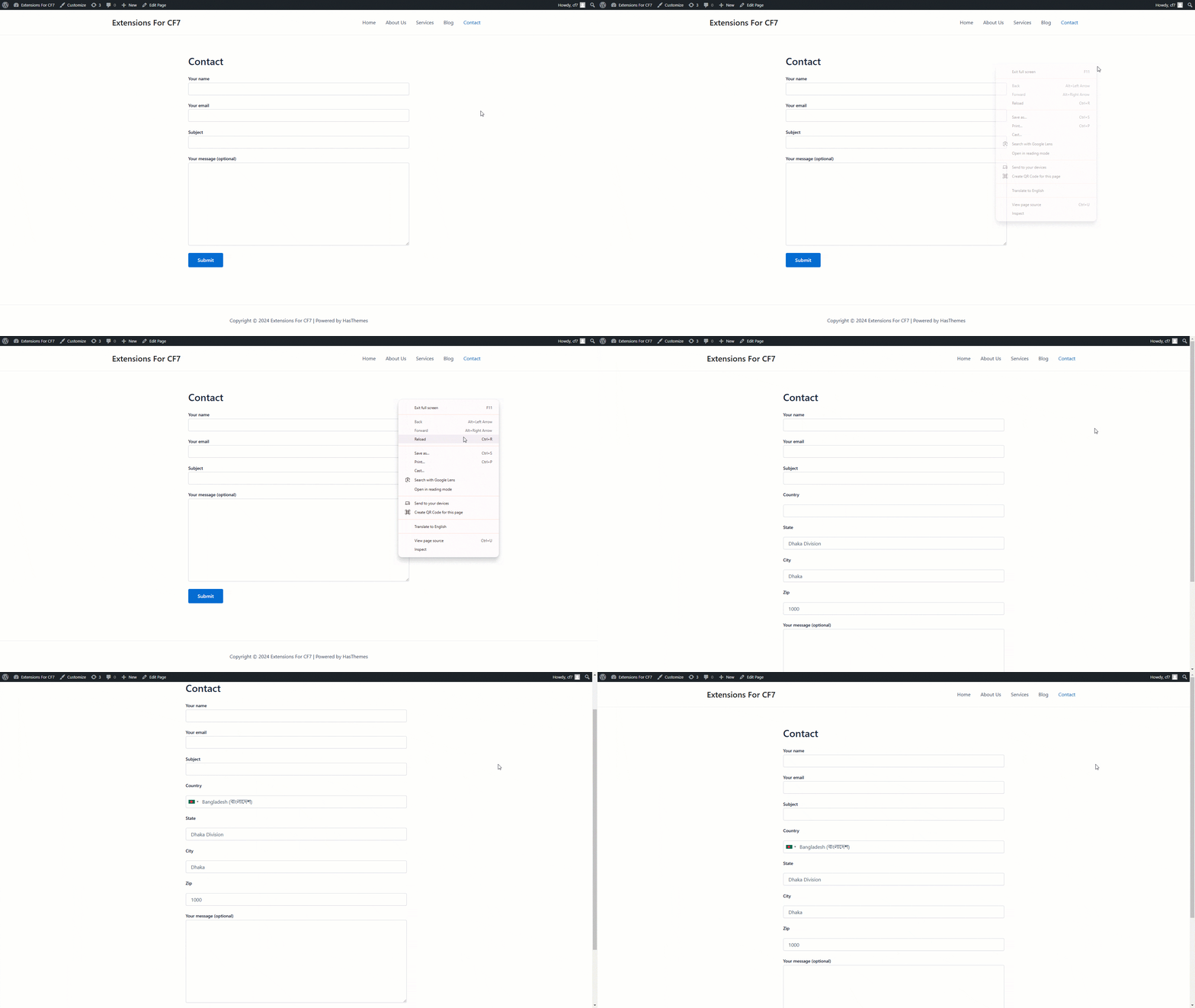
Steps to add Geo Fields Autocomplete
To add the Geo Fields Autocomplete filed to CF7, make sure that both the Contact Form 7 and Extensions for CF7 Pro plugins are activated on your website.

Step 1: Enable the Geo Fields Autocomplete Extension
Go to WordPress Dashboard > HT Cf7 Extension > Extensions. From the list of extension, turn ON the Autocomplete IP Geo Fields (Country, City, State, Zip) extension.

After turning on the Autocomplete IP Geo Fields (Country, City, State, Zip) Switcher, just click the Save Settings button to save this settings.
Step 2: Configure the Autocomplete IP Geo Fields
Once the Autocomplete IP Geo Fields (Country, City, State, Zip) extension is enabled, new tags named HT Country, HT State, HT City, and HT Zip will appear on the form edit screen. These tags become available whenever you edit an existing form or create a new one.

Clicking on each tag, such as HT Country, HT State, HT City, or HT Zip, allows you to enable autocomplete functionality by configuring the respective options. In the HT Country field, you can exclude specific countries, display only selected countries, or set an initial country using predefined country short codes.
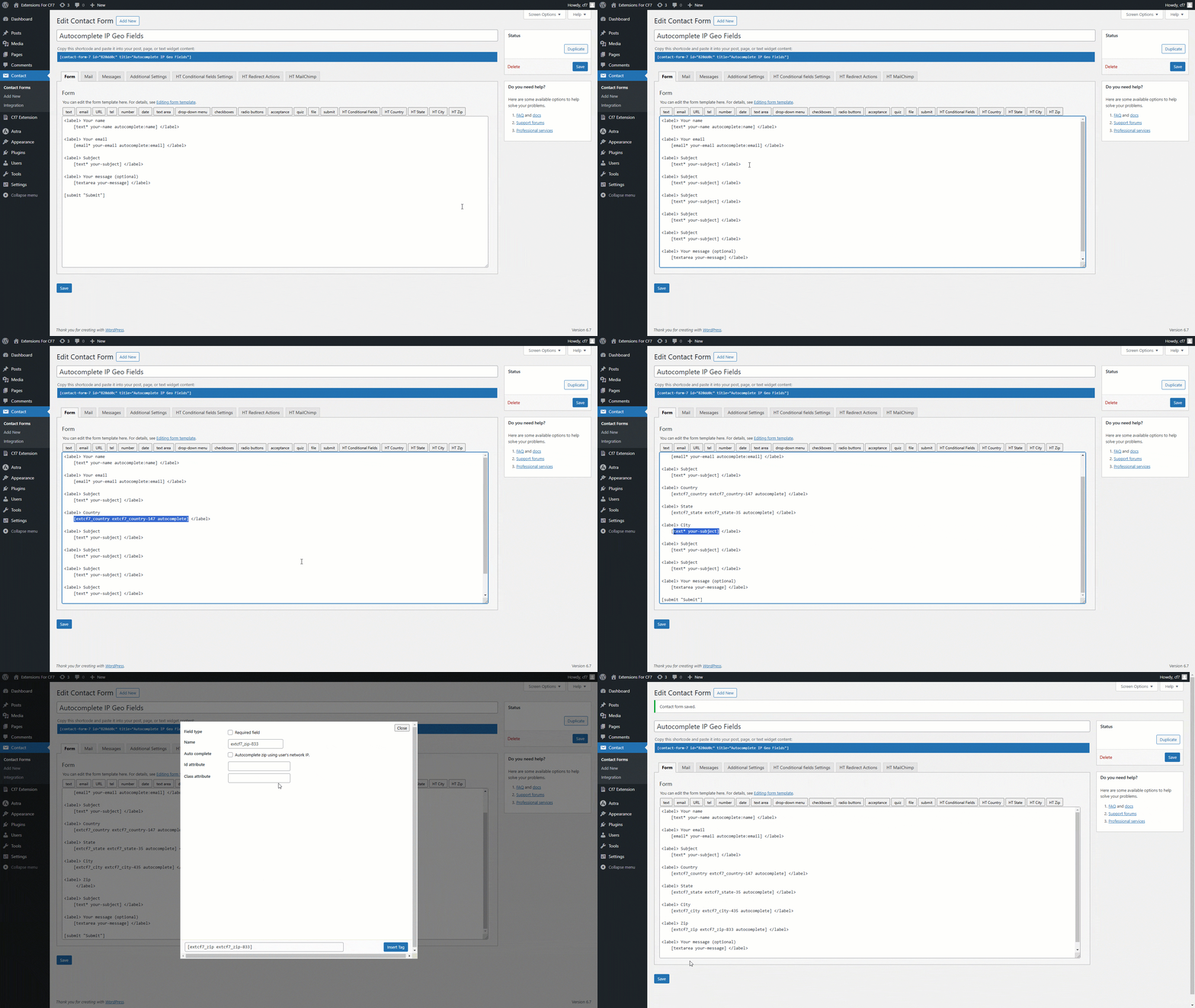
After adding the fields, save the form.
That’s it! Thank you for choosing Extensions for CF7 to enhance your user experience. If you need additional assistance, feel free to contact our support team. Our dedicated support team would be more than happy to assist you.