How to Fix the 403 Forbidden Error in WordPress

Do you get the 403 Forbidden Error in WordPress when you try to access your site? Or maybe you’ve come across the dreaded message:
Access to this resource on the server is denied” in WordPress?This can be a very frustrating error to deal with, especially when you’re locked out of your WordPress admin area with 403 forbidden messages.
The 403 Forbidden Error in WordPress usually means you don’t have permission to access a certain page or resource. It might say things like “WordPress 403 permission denied”, “WP admin 403 forbidden”, or simply “Access denied. WordPress”, but the cause can vary.
Whether it’s a missing index page, incorrect DNS configuration, server-level security rules, or even malware causing a 403 forbidden error in WordPress, we’ve got you covered.
Bbut don’t worry, we are here to help!
In this article, we will show you how to fix the 403 Forbidden Error in WordPress. We will also provide some tips on how to prevent it from happening in the future.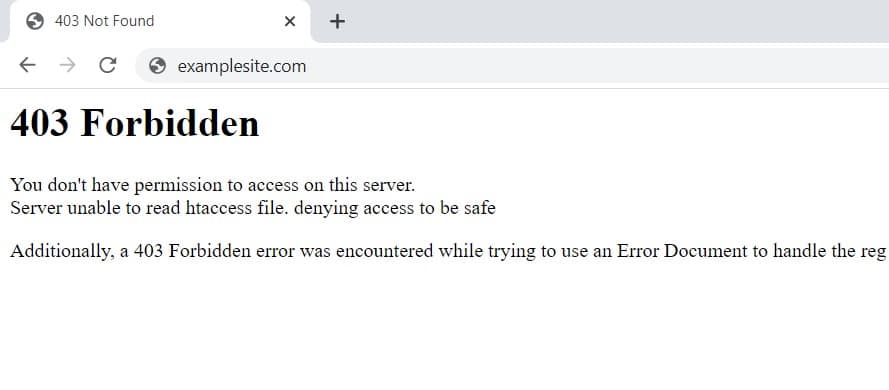
Key Takeaways:
- Understand what triggers 403 Forbidden Errors in WordPress
- Learn to identify incorrect file permissions and corrupted .htaccess files
- Discover step-by-step solutions for different error causes
- Master malware scanning using trusted security plugins
- Recognize CDN, VPN, and ISP issues that cause access problems
- Know when to contact your hosting provider for help
What is a 403 Forbidden Error in WordPress?
The 403 Forbidden Error is an HTTP status code. It appears when your server refuses to fulfill a request. Simply put, you’re not allowed to access a specific page.
This error commonly affects the wp-admin area. It can block access to your entire website or just certain pages. WordPress shows various messages for this error:
- “Access to this resource on the server is denied”
- “WordPress 403 permission denied”
- “Forbidden – You don’t have permission to access this resource”
The server understands your request but won’t fulfill it. Unlike 404 errors, the page exists but access is restricted.
What Causes 403 Forbidden Errors in WordPress?
The 403 Forbidden error can happen when a user tries to access your site, but they don’t have the right permissions to do so. This could be because there was an issue with their browser or internet connection, which caused them to be blocked from seeing anything other than a 403 error message.
Common Causes Include:
- Incorrect file or folder permissions are one of the most frequent causes of 403 errors. WordPress files need specific permission settings to function properly. Folders typically require 755 permissions for proper access, while files usually need 644 permissions to work correctly.
- Missing or corrupted .htaccess file can instantly block access to your entire website. Plugin conflicts can damage this critical file, and manual edits sometimes introduce configuration errors. When malformed rules exist in this file, they block legitimate user requests.
- Plugin conflicts or faulty security plugin settings often trigger unexpected 403 errors. Security plugins may block legitimate access attempts when their settings are too restrictive. Caching plugins can cause unexpected permission issues, and newly installed plugins might conflict with existing ones on your site.
- Malware infections or suspicious activity flagged by your web host create serious access problems. Malicious code can alter file permissions without notice, and infected files may trigger automatic security blocks from your hosting provider. Hackers often modify .htaccess files to restrict access as part of their attack strategy.
- Issues with server-level firewalls or CDN rules (e.g., Cloudflare) can inadvertently block legitimate visitors. Web Application Firewalls can be overly protective, treating normal requests as threats. CDN configurations may restrict legitimate traffic based on geographic location or IP reputation, while server-level security rules might block valid requests due to misconfiguration.ror.
How Does a 403 Error Impact Your WordPress Site?
A 403 error severely affects your website’s accessibility. Users can’t visit blocked pages or sections. This creates a poor user experience.
Search engines also struggle with 403 errors. Google can’t crawl blocked pages effectively. This negatively impacts your SEO rankings.
The error can affect different areas:
- Entire website becomes inaccessible
- Only wp-admin area is blocked
- Specific pages or sections are restricted
- Media files or images won’t load
Quick resolution prevents traffic loss and maintains search rankings.
Fixing 403 Forbidden Error Caused by a WordPress Plugin
If you are using a caching plugin like WPRocket, WP Super Cache, or any other similar plugin installed on your WordPress site then it might cause the 403 forbidden error. This is because some of these plugins can block access to certain parts of your website for security reasons.
To fix this issue, go to the settings page and look for “Don’t cache pages for logged-in users” or “Don’t cache pages with GET parameters”. If you have this setting enabled, then disable it.
Also, you can log in to your file manager using cPanel or FTP, go to the “wp-content” folder and rename the “plugins” folder and check your website.
How To Fix The 403 Forbidden Error in WordPress?
Running into a 403 error on your WordPress site? This error typically means your server is denying access due to permission issues or misconfigurations. Below is a quick guide to common reasons and how to fix each one effectively.
The best approach is to start with the simplest solutions first. Most 403 errors resolve quickly with basic troubleshooting steps. If simple fixes don’t work, we’ll move to more advanced solutions.Cause of 403 Error Recommended Fix Recent changes triggered a glitch Restore your site from a recent backup Damaged or incorrectly configured .htaccess file Delete it and let WordPress regenerate a clean version Improper file or folder permissions Set permissions to 644 for files and 755 for directories Conflict with a security plugin Temporarily disable the plugin and check if the issue resolves Corrupted browser cache or cookies Clear your browser’s cache and cookies Misconfigured CDN settings Pause your CDN and review IP or firewall rules Blocked by Internet Service Provider Switch to a different network or contact your ISP VPN is causing IP restriction Turn off VPN and try accessing your site again Site is infected with malware Use a security plugin like Wordfence or Sucuri to scan and clean the site Missing index file in the root directory Ensure there’s a valid index.html or index.php file with correct permissions Server-side restrictions or errors Reach out to your hosting provider for further diagnosis
Preventing the 403 Forbidden Error in WordPress
There are a few things that you can do to help prevent the 403 forbidden error from happening on your site:
- Make sure all of your plugins are up to date with the latest version of WordPress.
- Use strong passwords for your website.
- Change permissions for files and folders on your site so that only you have access to them, not other users or even yourself from another computer.
- You can change these settings in cPanel under “File Manager”.
Fix Corrupted .htaccess File Issues
The 403 Forbidden error can also be caused by a corrupt .htaccess file. This is the file that controls access to your site and its contents, including plugins, themes, etc.
The .htaccess file controls server access rules. Corruption here commonly causes 403 errors.
Follow these steps to fix it:
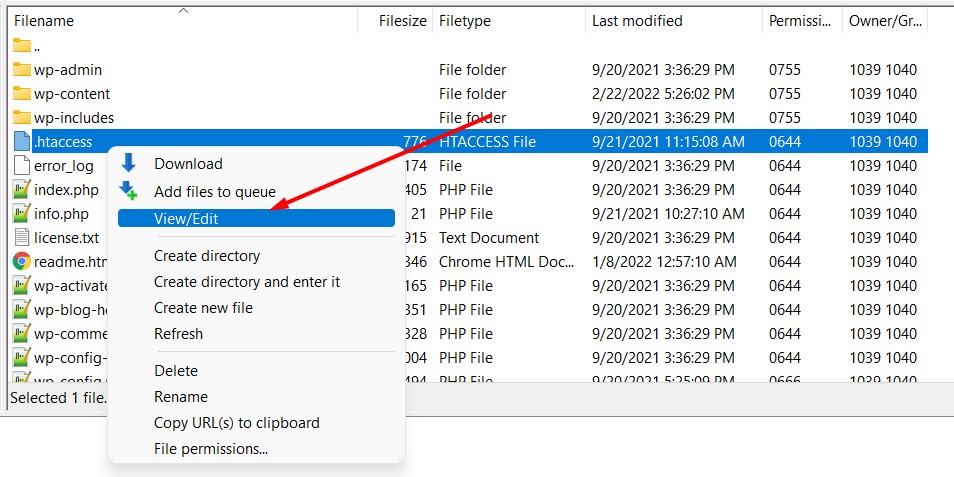
- Access your site via FTP or file manager
- Locate the .htaccess file in your root directory
- Download and save a backup copy
- Delete the current .htaccess file
- Visit your WordPress admin area
- Go to Settings → Permalinks
- Click “Save Changes” to regenerate the file
If you can’t access wp-admin, create a new .htaccess file:
# BEGIN WordPress

RewriteEngine On
RewriteRule .* - [E=HTTP_AUTHORIZATION:%{HTTP:Authorization}]
RewriteBase /
RewriteRule ^index\.php$ - [L]
RewriteCond %{REQUEST_FILENAME} !-f
RewriteCond %{REQUEST_FILENAME} !-d
RewriteRule . /index.php [L]

# END WordPress
Correct File Permission Problems
WordPress requires specific file permissions to function properly. Incorrect permissions trigger 403 errors.
Standard WordPress permissions:
- Files: 644 (readable by everyone, writable by owner)
- Folders: 755 (executable and readable by everyone)
- wp-config.php: 644 or 600 for extra security
To fix permissions via FTP:
- Connect to your site using an FTP client
- Select all files in the root directory
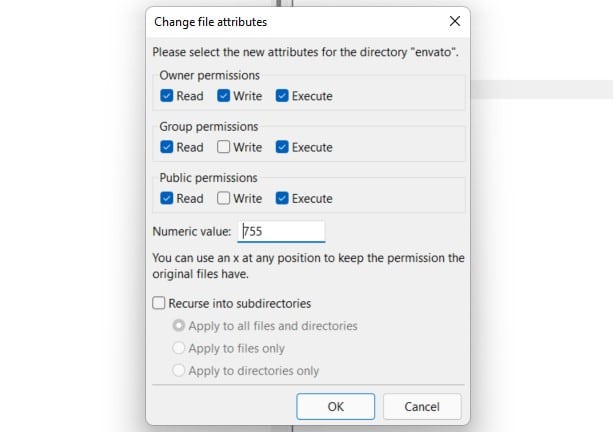
- Right-click and choose “File Permissions”
- Set files to 644 and folders to 755
- Apply changes recursively

Via cPanel File Manager:
- Click “Change Permissions”
- Open File Manager in cPanel
- Select files and folders
- Click “Permissions” button
- Enter 644 for files, 755 for folders
Deactivate Security Plugins
Security plugins sometimes block legitimate access attempts. This creates false positive 403 errors.
To test if plugins cause the issue:
- Access your WordPress admin dashboard
- Go to Plugins → Installed Plugins
- Deactivate all security-related plugins
- Clear your browser cache
- Test site access again
If the error disappears:
- Reactivate plugins one by one
- Test after each activation
- Identify the problematic plugin
- Adjust its settings or find alternatives
Common security plugins that may cause issues:
- All In One WP Security
- Wordfence
- Sucuri
- iThemes Security
Clear Browser Cache and Cookies
Cached data sometimes triggers false 403 errors. Clearing cache often resolves the issue.
Chrome/Edge/Firefox steps:
- Press Ctrl+Shift+Del (Windows) or Cmd+Shift+Delete (Mac)
- Select “Cached images and files“
- Select “Cookies and other site data”
- Choose “All time” for time range
- Click “Clear data”
Alternative method:
- If it works, cache was the problem
- Open browser in incognito/private mode
- Try accessing your site
Review CDN Configuration
Content Delivery Networks can block legitimate traffic. Misconfigured rules often cause 403 errors.
For Cloudflare users:
- Log into your Cloudflare dashboard
- Select your domain
- Check Security → WAF → Custom rules
- Look for overly restrictive rules
- Temporarily pause Cloudflare
- Test site access
If pausing CDN fixes the error:
- Review firewall rules
- Check IP restrictions
- Adjust security settings
- Whitelist your IP address
Check Your Internet Connection
Sometimes the issue isn’t your website. Your IP address might be blocked.
Test with different connections:
- Try mobile data instead of WiFi
- Ask friends to access your site
- Use online website checkers
If others can access your site:
- Contact your Internet Service Provider
- Request an IP address refresh
- Check if your IP is blacklisted
Disable VPN Temporarily
VPNs often use shared IP addresses. These IPs might be blocked by security systems.
To test VPN impact:
- Disconnect your VPN completely
- Clear browser cache and cookies
- Try accessing your site again
- If successful, VPN was the issue
VPN solutions:
- Choose a different VPN server location
- Use a VPN with dedicated IP addresses
- Whitelist your VPN IP in security settings
Perform a Comprehensive Malware Scan
Malware infections can alter file permissions. They also inject malicious code causing access issues.
Using Wordfence (Free Plugin):
- Install and activate Wordfence
- Go to Wordfence → Scan
- Click “Start New Scan”
- Wait for completion (may take 30+ minutes)
- Review and clean identified threats
Using Sucuri (Alternative):
- Install Sucuri Security plugin
- Navigate to malware scan section
- Run full website scan
- Follow cleanup recommendations
Manual checks:
- Examine .htaccess for suspicious code
- Check wp-config.php for modifications
- Review recently modified files
Upload Missing Index Files
Missing index files can trigger 403 errors. Servers need a default file to load.
Check for these files in your root directory:
- index.php (WordPress default)
- index.html
- index.htm
If missing, upload a basic index.php file:
php
<?php
// Silence is golden.
Or create a simple index.html:
html
<!DOCTYPE html>
<html>
<head>
    <title>Coming Soon</title>
</head>
<body>
    <h1>Website Under Maintenance</h1>
</body>
</html>
Set file permissions to 644 after uploading.
Contact Your Hosting Provider
If all solutions fail, contact your web host. Server-level issues require their intervention.
Prepare this information for support:
- Exact error message
- When the error started
- Recent changes made to your site
- Your domain name and account details
- Steps you’ve already tried
Common server-level causes they can fix:
- Server software conflicts
- Apache/Nginx configuration issues
- Server firewall restrictions
- Mod_security false positives
- Resource limit violations
Frequently Asked Questions
What does a 403 Forbidden error mean in WordPress?
It means your website blocks access to a page or file. This happens because of wrong settings or security rules.
Why can’t I access my WordPress admin area?
A 403 error there could be caused by plugins. Wrong file settings or security tools also cause this.
Can a plugin cause this error?
Yes, security plugins may block access unnecessarily. They sometimes think legitimate requests are unsafe.
How can I fix file permission problems?
Use your hosting file manager or FTP tool. Set folders to 755 and files to 644.
Will this error hurt my site’s search ranking?
Yes, search engines can’t see blocked pages properly. This could affect your rankings and traffic.
What’s the difference between 403 and 404 errors?
A 403 error blocks access to existing pages. A 404 error means the page doesn’t exist. 403 is access-related, 404 is location-related.
WordPress 403 – Forbidden Access Is Denied Error Solutions
Final Words
A 403 Forbidden error might seem scary at first. But it’s often caused by simple issues. File permissions, plugin conflicts, or corrupted files usually cause it.
Following this guide helps you fix the error quickly. Understanding the causes prevents future problems. Your WordPress website will stay accessible to users and search engines.
Remember, website accessibility is crucial for success. Don’t let a 403 error disrupt your traffic. Quick action prevents lost visitors and maintains SEO rankings.
Start with the simplest solutions first. Work through each fix systematically. Most 403 errors resolve with these methods.