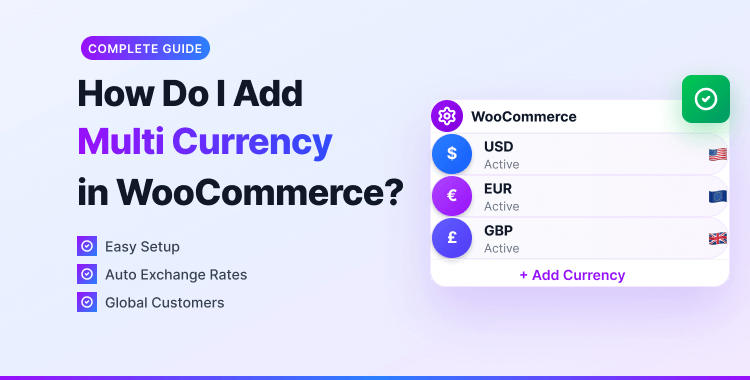
How Do I Add Multi Currency in WooCommerce?: Complete Guide

Are you running an online store using WooCommerce and thinking about expanding globally? One powerful way to do that is by enabling multi-currency support. By offering multiple currencies in WooCommerce, you can connect with international customers. It improves their shopping experience, and increases your conversion rate.
By integrating a WooCommerce multi-currency setup, your customers can shop in their local currency without worrying about real-time exchange rate fluctuations or conversion fees. This not only boosts customer satisfaction but also gives your store a competitive edge in international markets.
From WooCommerce multi-currency plugin options to WooCommerce PayPal multi-currency support, there are tools to help you manage currency settings with ease.
So, you might be wondering, “How do I add multi currency in WooCommerce?” This article will guide you through how to add multi-currency to the WooCommerce store. Let’s delve into the steps you must take to implement multi-currency in WooCommerce.
Key Takeaways:
- Understand the importance of WooCommerce multi-currency for expanding your online store’s global reach.
- Learn how multi-currency WooCommerce improves customer experience by displaying prices in local currencies.
- Discover how to add multiple currency WooCommerce options using the best multi-currency plugin WooCommerce solutions.
- Explore WooCommerce multi-currency settings to customize exchange rates and enable seamless currency switching.
- Find out how WooCommerce PayPal multi-currency integration facilitates smooth transactions across currencies.
- Get practical tips on managing and optimizing multi-currency stores with WooCommerce for better sales and customer satisfaction.
What is Multi-Currency in WooCommerce?
Multi-currency in a WooCommerce online store refers to the ability of a website to offer products and services in different currencies. This means customers can view prices, make purchases, and receive invoices in their local currency instead of manually converting them.
By offering multi-currency options, you provide convenience for your international customers and increase your chances of making sales. It enables the integration of a currency switcher into your website.
The currency switcher is an interactive tool that gives your international customers the freedom to select their preferred currency from a drop-down list or a similar interface.
This feature enhances the user experience, as customers can view prices and complete transactions in a currency they are familiar with, eliminating the need for manual conversion and making the process smoother and more convenient.
According to research, 61% of online shoppers prefer to shop in their local currency, and 92.2% of global consumers have purchased from an international retailer. This shows the importance of implementing a currency switcher in your WooCommerce store to cater to these potential customers.
Why Do I Use Multi-Currency in WooCommerce?
The benefits of using the currency switcher WooCommerce are multifaceted. Besides enhancing the customer’s shopping experience, it significantly expands your business’s reach.
When customers see products priced in their native currency, it eliminates the need for mental calculations to determine the exchange rates, thus increasing their ease of shopping and the likelihood of purchasing.
Here are some reasons why you should add multiple currencies to WooCommerce:
Cater to International Customers:
The WooCommerce multi country approach requires robust multicurrency WooCommerce solutions. These handle different regional preferences effectively.
Implementing WooCommerce multi-currency functionality ensures your store appeals to diverse international audiences. You can cater to customers from different countries and regions. By offering multiple currencies, you can expand your customer base. This increases your chances of making sales globally.
Increase Sales:
As mentioned earlier, research shows most online shoppers prefer shopping in local currency. By providing this option, you can increase sales chances. You can grow your business.
An effective multiple currency WooCommerce implementation directly correlates with improved conversion rates. When customers view prices in their preferred WooCommerce currency, trust increases. Purchase confidence grows significantly.
Avoid Conversion Fees:
When customers convert prices manually, they may face additional charges. These come from their bank or payment provider. By providing multiple currency options, you eliminate this inconvenience for customers. This potentially enhances their inclination to make purchases.
Set Default Currency:
You can set a default currency for your store by adding multi-currency options. This is the primary currency that will be used to display prices, and customers can choose to switch to their preferred currency if they wish. It also ensures consistency in pricing across all products and avoids confusion for your customers.
Stay Competitive:
With the rise of eCommerce, offering multi-currency options has become a norm for online stores. Without multi currency WooCommerce support, you risk falling behind competitors.
Competitors offer better, localized experiences.
To stay ahead, learn how to manage multi-currency stores with WooCommerce. Keep your pricing globally relevant.
ShopLentor – WooCommerce Builder for Elementor & Gutenberg
A versatile page builder to build modern and excellent online stores with more than 100k Active Installations.
How Do I Add Multi Currency in WooCommerce: Step-by-Step Guide
Expanding your online business to cater to a global audience is an exciting endeavor, but dealing with multiple currencies comes with the challenge. Fortunately, WooCommerce provides options to enhance the multi-currency compatibility of your eCommerce website. You can easily accomplish this task by utilizing a reliable currency switcher WooCommerce plugin.
Choose a reliable currency plugin
The first step in adding multi-currency to WooCommerce is choosing a reliable currency plugin. Many options are available, but selecting one that meets your specific needs is essential. You can research and read reviews to find a suitable plugin or consult an expert for recommendations.
The Multi-Currency Pro for WooCommerce is a highly efficient and user-friendly currency switcher plugin offering many features. It provides real-time exchange rates and seamless compatibility with various payment gateways.
This powerful currency switcher WooCommerce plugin enables effortless setup. You can manage multi-currency functionality in your WooCommerce store.
The ability to add unlimited currencies, customize exchange rates, and incorporate a currency switcher on your website provides a seamless and enhanced shopping experience for your customers.
Let’s walk through the process of configuring multi-currency in WooCommerce using this plugin:
Install and activate the plugin
To set up multi-currency in WooCommerce, start by downloading and installing the “Multi-Currency for WooCommerce” plugin.
Access your WordPress dashboard, go to the “Plugins” section, and click “Add New”. Search for “Multi-Currency for WooCommerce” and install it.
Activate the plugin once the installation is complete. Now, you can configure the Multi-Currency for WooCommerce plugin according to your preferences.
Setting up the Plugin
Once the plugin is activated, go to your WordPress dashboard and find the “Multi-Currency Pro” menu. Now, you can configure the settings according to your preference.
Upgrading to the Pro Version of Multi-Currency for WooCommerce
To access the enhanced features and benefits of the Pro version of Multi-Currency for WooCommerce, follow these steps:
- Activate the plugin on your WordPress site to unlock the Pro version’s capabilities.
- Enter your license key, a crucial step to ensure you receive regular updates and top-notch support.
- With the license code in place, you’ll receive important updates through notifications in your WordPress dashboard.
While the free version of Multi-Currency for WooCommerce offers excellent features, upgrading to the Pro version unlocks a host of additional benefits. This process is vital for maximizing the advanced functionality of the Pro version. It makes multi-currency management in your WooCommerce store highly efficient.
Configure Currency
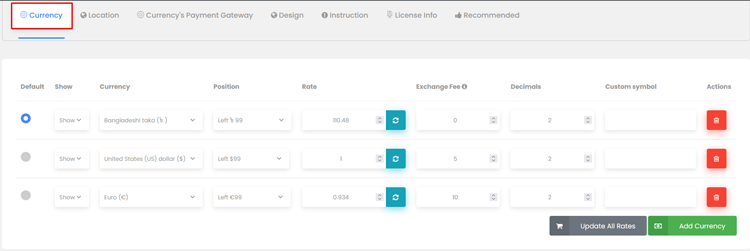
To configure your currency settings, follow these simple steps:
- In the “Currency” section, you have the flexibility to select the currencies you want to activate for your online store.
- Choose your desired currency and specify the currency symbol position.
- Update the currency exchange rates and set the decimal count. You can set currency exchange rates either automatically or manually.
- To remove a currency, click on the red remove icon.
Don’t forget to refresh or reload your browser to see these changes take effect.
Configure location
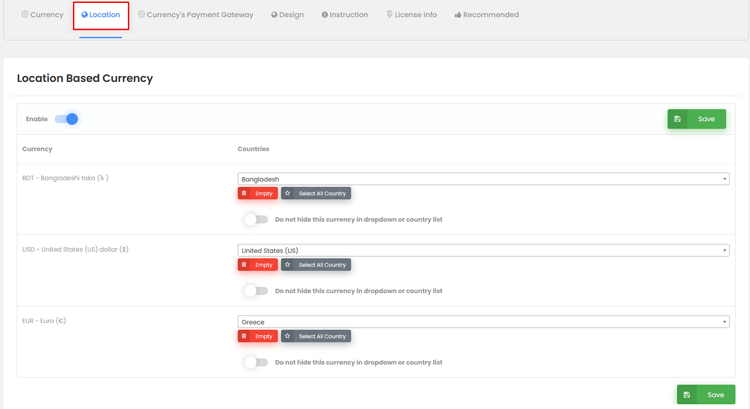
Let’s move on to the “Location” settings, which focus on configuring currencies for specific geographic regions. Here’s how you can set it up:
- In this tab, you can tailor currencies to different regions, ensuring a personalized approach.
- Activate this feature by simply toggling it on.
- Once enabled, you can choose to apply these currencies globally or select specific locations as needed.
- This level of customization ensures that your available currencies align perfectly with the regions you serve, enhancing the regional appeal of your online store.
Currency’s Payment Gateway
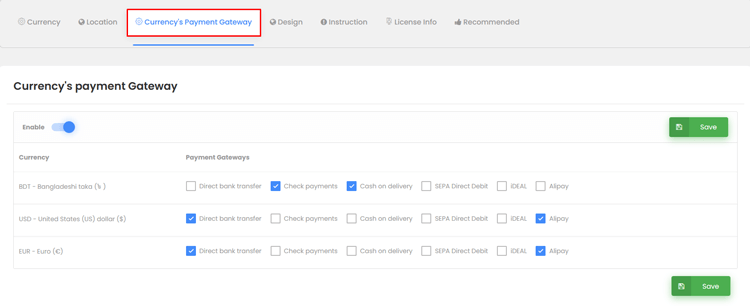
One distinctive feature of this plugin is its ability. It can designate a specific payment gateway or method for each currency. This means you can effortlessly add payment methods. Tailor them to different currencies based on your preferences.
For instance, you can do so if you wish to offer bank transfer and PayPal for USD transactions or exclusively enable PayPal for AUD. This adaptable feature lets you determine which payment methods are accessible for each currency. To include a specific payment method for a particular currency, simply check the corresponding box.
Configure Design to match your theme
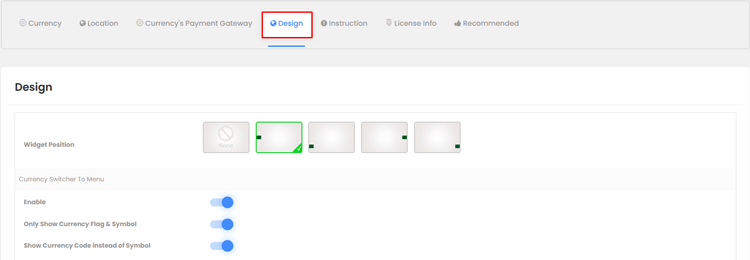
Multi-Currency Pro for WooCommerce provides an array of design customization options, ensuring your currency switcher aligns with your theme.
You have freedom to control the widget’s placement. Decide whether it should appear in the menu. Opt for displaying only the currency flag and symbol.
Moreover, you can select the display of the currency code instead of the symbol.
Within the design settings, you can select your menu, adjust the margin, fine-tune the title and text colors, and customize the dropdown background and hover background. 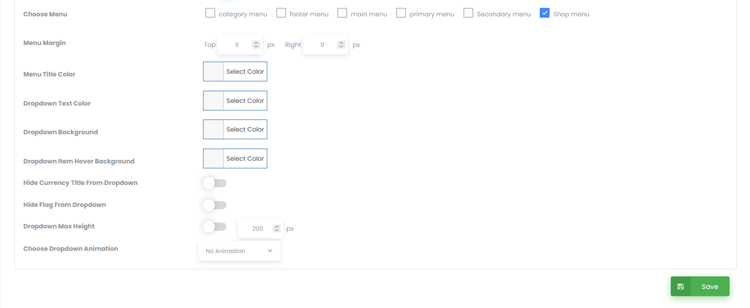
Further design preferences enable you to hide the currency title. Hide the flag within the dropdown, establish the maximum height. Select from various dropdown animation styles.
This versatility allows you to create an aesthetically pleasing currency switcher. It seamlessly integrates into your WooCommerce store.
Setting up multicurrency options using shortcode instructions
The option to add multiple currencies using shortcodes gives greater flexibility. You can easily place the currency switcher anywhere on your WooCommerce site.
This ensures full control over its visibility and placement. It enhances the user experience. You can effortlessly insert these shortcodes into Gutenberg blocks, WordPress widgets, Elementor, or any preferred editor of your choosing.
Check if the currency switcher is working properly
After configuring and setting up your multi-currency plugin in WooCommerce, it’s crucial to test the currency switcher to ensure it works properly and thoroughly.
Test the checkout process with different currencies
To properly set up the currency switcher, it’s important to test the checkout process with different currencies.
Add any products to your cart in different currencies and check the selected currency before payment.
Now, verify that the final amount accurately reflects the exchange rate for each currency and ensure the accuracy of available payment methods.
Frequently Asked Questions on Adding Multi-Currency in WooCommerce
How does multi currency work?
Multi-currency functionality in WooCommerce typically works by integrating a currency switcher or converter plugin into your online store. These plugins allow customers to view product prices and make payments in their preferred currency. The plugin automatically detects the user’s location and allows them to select their preferred currency, then converts prices based on real-time exchange rates or manually set rates.
Can I add any currency of my choice?
You can add any currency to your WooCommerce store using a currency switcher plugin. However, it is essential to note that the availability of certain currencies may depend on the payment gateway you are using.
Can I set a default currency in WooCommerce multi currency?
Yes, most multi currency plugins for WooCommerce allow setting a default currency. They let customers switch to other currencies.
Is multi-currency compatible with WooCommerce multi country stores?
Absolutely, WooCommerce multi currency plugins often support WooCommerce multi country setups. They enable localized pricing and currency display.
How do I manage exchange rates in WooCommerce?
How to manage multi-currency stores with WooCommerce involves setting up automatic updates. Or manual exchange rate updates.
Most multi currency in WooCommerce plugins offer real-time rate synchronization. They also allow custom rate configuration.
Conclusion
In conclusion, incorporating multi-currency options in your WooCommerce store isn’t just an option. It’s a necessity for expanding your business globally. It appeals to a diverse customer base.
The convenience and seamless shopping experience you offer international customers significantly boosts sales. It increases overall revenue.
If you’re operating a WooCommerce store and find yourself pondering the question, “How do I add multi currency in WooCommerce?” you’re certainly not alone.
The step-by-step guide provided in this article offers an easy method. It’s an efficient way to integrate multi-currency functionality into your WooCommerce store.
It’s important to keep your exchange rates up to date. Regularly test the checkout process to ensure accurate pricing for customers.
So, don’t miss the opportunity to expand your online business. Reach a broader audience with flawless multi-currency functionality.
Make the wise choice by considering the Multi-Currency Pro. Use it for WooCommerce plugin to cater to your multicurrency needs. Elevate your WordPress website and provide a feature-rich multicurrency experience. Do this for your valued customers today!