How to Add Google Analytics 4 to Webflow Website

TL;DR: To add Google Analytics 4 to Webflow the easy way, Install Analyzely for GA4 from the Webflow Marketplace, connect your Google account, select your GA4 property, and you’re done — no code, no tag manager, under 2 minutes.
If you are running a Webflow site in 2026, you need Google Analytics 4 (GA4). It is the industry standard for understanding your traffic, user behavior, and conversions.
But let’s be honest: setting it up can be a pain.
The “Old” Way involved:
- Configuring a Google Tag Manager container.
- Hunting down your Measurement ID.
- Manually pasting script tags into your Webflow site settings.
- Publishing and praying you didn’t break anything.
Startups and agencies don’t have time for that. That is why we built Analyzely for GA4, the dedicated Webflow App that automates the entire process in seconds.
Table of Contents
Why Use an App Instead of Manual Code?
The “old” way to add Google Analytics 4 to Webflow usually involves hunting down your GA4 Measurement ID, pasting scripts into the custom code section, or wiring everything through Google Tag Manager. That works, but it is easy to misplace code, duplicate tags, or forget to update things when you change properties.
With Analyzely for GA4, you add Google Analytics 4 to your Webflow site through a guided app interface, and the app handles the technical implementation for you.
Manual GA4 vs Analyzely for GA4
Here is a quick comparison of the old manual method vs using the Analyzely app to add Google Analytics 4 to Webflow:[Header label Manual Setup Analyzely for GA4 Code editing Paste scripts into <head> yourselfNo code required — auto-injected Validation Manually check with Tag Assistant Instant confirmation in-app Viewing reports Switch to Google Analytics tab Dashboard inside Webflow Designer Updating tracking Find and replace code manually Automatic when you change property Setup time 10–30 minutes Under 2 minutes
For most Webflow users, especially agencies and solo founders, the app‑based method is the fastest and safest way to add Google Analytics 4 to Webflow
How to Install GA4 on Webflow with Analyzely
Here is the step-by-step guide to getting up and running in under 2 minutes.
Step 1: Install the Analyzely App
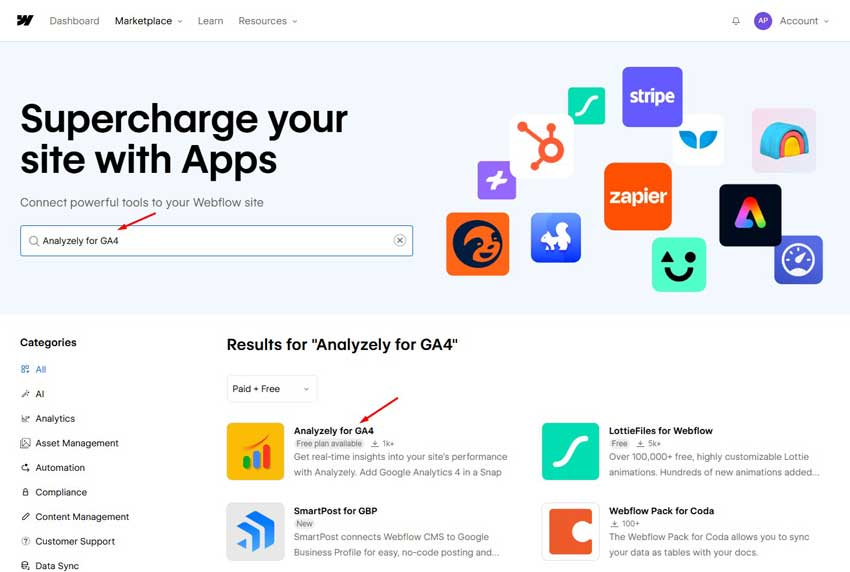
Go to the Webflow Apps Marketplace and search for Analyzely for GA4, or click the link below:
- Install Analyzely for GA4
- Click Add to Site and select the Webflow project you want to track.
Step 2: Connect Your Google Account
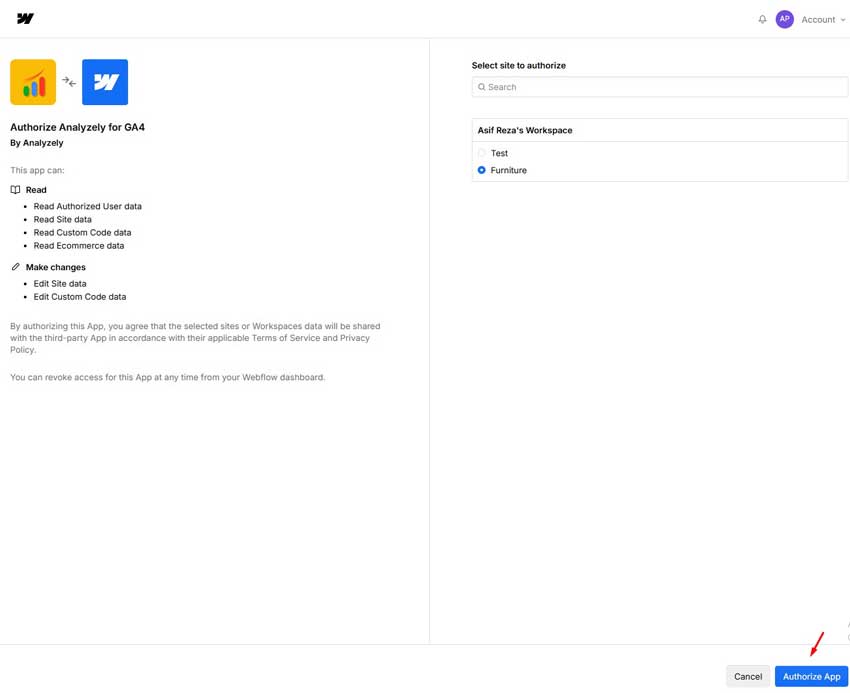
Once the app launches inside your Webflow Designer, you will see a “Connect Google Analytics” button.
- Click it to authorize secure access.
- Analyzely uses official Google OAuth, so your password is never shared, and your raw data is never stored.
Step 3: Select Your Property
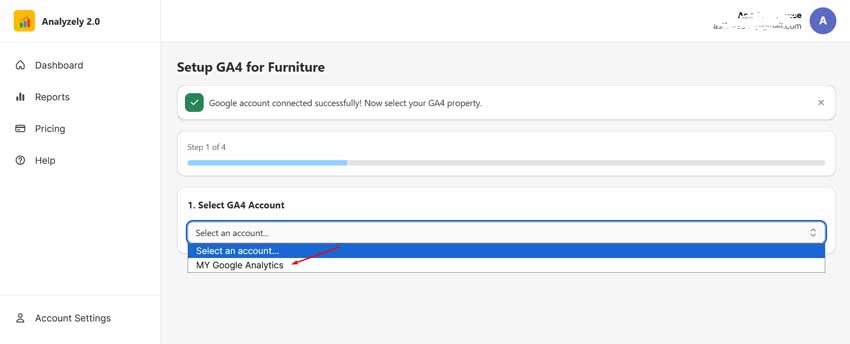
The app will automatically pull in all the GA4 properties associated with your Google Account.
- Simply select the correct Account and Property from the dropdown list.
- If you don’t have a property yet, you can even create one directly through the app interface.
Step 4: You’re Done!
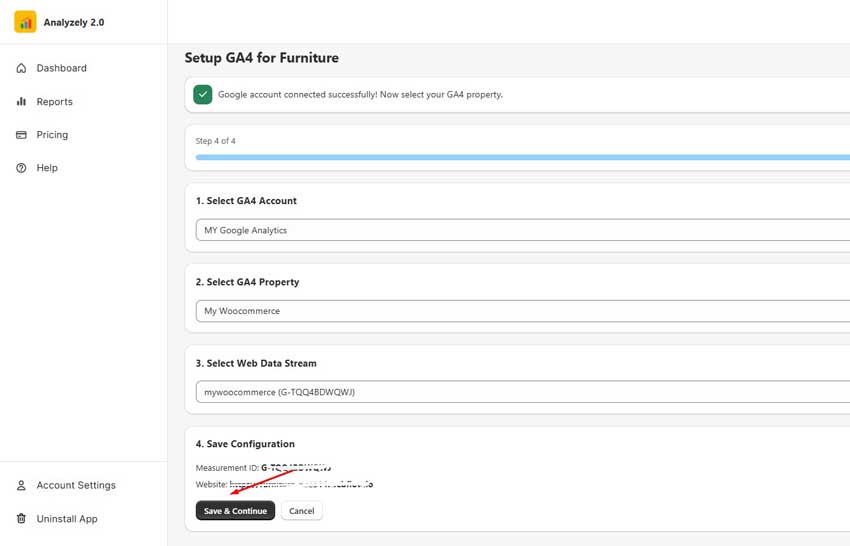
That’s it. Analyzely automatically injects the correct tracking code into your site’s header.
- You do not need to manually publish your site for the code to appear in the settings, but you should publish your site to the live domain to start collecting data from real visitors.
Already convinced? Get Analyzely for GA4 on the Webflow App Store →
Recommended Blogs for You:
👉 What is Webflow?- A Comprehensive Review of Webflow CMS
👉 8 Best Fintech Webflow Templates: Enhancing Your Digital Finance Journey
👉 How to Use Webflow Templates: A Comprehensive Guide
👉 Top Tips for Successful Blogging with Webflow
How to Verify that Google Analytics 4 is Working on Your Webflow Site
After you add Google Analytics 4 to Webflow, it is a good idea to confirm that data is actually being recorded.
Here is a quick way to test your setup:
- Open Google Analytics 4 and select the property you connected in Analyzely.
- Go to Reports → Realtime in GA4.
- In another browser tab, open your live Webflow site and click through a few pages.
- Within a short time, you should see at least one active user (you) and some page_view events appear in the Realtime report.
If you want deeper debugging, you can also use DebugView in GA4 or the Tag Assistant extension to confirm that the GA4 tag is firing correctly on your Webflow pages.
Bonus: View Your Data Without Leaving Webflow
The best part of using Analyzely is the Dashboard.
Instead of getting lost in the complex Google Analytics interface, Analyzely gives you a simplified, beautiful dashboard directly inside Webflow. You can see:
- Active Users (Real-time) — know exactly who is on your site right now.
- Top Pages — see which blog post or landing page is trending this week.
- Traffic Sources — understand where your visitors are coming from.
- Device Breakdown — check how your design performs on mobile vs. desktop.
It is the perfect way to keep an eye on your site’s growth while you design — no more tab-switching just to check if you have traffic.
Build Your Website in Minutes with Webflow AI
Webflow’s AI Site Builder helps you create stunning, responsive websites using simple prompts. Enjoy complete design freedom with professional results, no tech skills needed.
Frequently Asked Questions
Does this slow down my site?
No. Analyzely injects the standard async Google Analytics tag. It loads just as fast as if you added it manually, but ensures it is placed correctly every time.
Is it free?
Yes, there is a Free Plan that includes standard tracking and report views. For agencies managing multiple sites or needing advanced reports, there is a Pro plan.
Can I use this with multiple sites?
Absolutely. You can manage tracking for all your client sites from a single login.
What if I already have GA4 code added manually?
You can safely switch to Analyzely. Simply remove the manual script from your Webflow site settings, install the app, and connect your existing GA4 property. All your historical data stays intact in Google Analytics; nothing is lost.
Does Analyzely support GA4 events and conversions?
Yes. Analyzely injects the standard GA4 tag, which means all default events (page views, scrolls, outbound clicks, etc.) are tracked automatically. You can configure custom events and conversions inside your GA4 property as usual.
Will it work with Webflow’s staging subdomain?
The tracking code is injected into your published site. It will fire on any domain where your site is published, including staging subdomains. You can filter these out in GA4 if needed.
What about GDPR and data privacy?
Analyzely does not collect or store your visitors’ data, it simply delivers the Google Analytics tag. All visitor data flows directly to Google Analytics under your own GA4 property. For GDPR compliance, you can pair it with a consent management tool to control when the tag fires.
Final words
If you want the most painless way to add Google Analytics 4 to Webflow, using the Analyzely for GA4 app is hard to beat: you connect your Google account, choose a property, and let the app handle the tracking code for you.
Once your site is published and you have confirmed visits in GA4 Realtime, you can monitor key metrics right inside Webflow and focus on designing, not debugging scripts.
Ready to upgrade your analytics workflow? Get Analyzely for GA4 on the Webflow App Store