
How to Embed Videos on WordPress: Step-By-Step Guide

Adding videos to your WordPress site is a smart way to boost engagement. Videos capture attention quickly and encourage visitors to stay longer on your pages.
In this blog, we will guide you through the simple steps on how to embed a video in WordPress. You’ll learn how to add content from platforms like YouTube and Vimeo without needing coding skills.
Whether you’re a beginner or an experienced user, embedding a video in WordPress can enhance your site’s visual appeal and user experience. Videos also help deliver your message more clearly and improve SEO performance.
Ready to make your website more dynamic and interactive? Follow this easy guide to learn how to embed video on WordPress and start impressing your audience today.
Key Takeaways
- Multiple embedding methods suit different user needs and preferences.
- Plugin options provide enhanced video presentation and organization capabilities.
- Video content significantly improves user engagement and page metrics.
- Optimizing video content increases sharing potential and visibility.
- WordPress natively supports embedding from numerous popular video platforms.
Benefits of Embedding Videos in WordPress
When you embed a video, viewers don’t have to leave your website to watch the clip. They can click to play the video right from your page. This makes it simple for viewers to watch the clip and explore the rest of your content.
Learning how to add video to WordPress site helps retain visitors longer on your pages. Embedded videos also add an interactive element that is sure to draw attention and keep visitors on your site for longer.
WordPress users can access a variety of benefits by embedding videos, including:
1. Increase Engagement
Adding videos to your WordPress website is a great way to increase engagement with your audience. Videos provide an engaging and easily digestible form of content that can boost reader engagement significantly. When you embed a video on WordPress, visitor time on page often increases dramatically.
2. Increased Traffic
Embedding videos in WordPress enables readers to easily share content on other relevant websites. This increases website traffic and supports long-term growth through wider content distribution.
Mastering how to add video to WordPress often results in better social sharing metrics. The embed video WordPress technique works equally well for blogs, tutorial, and portfolios.
3. Increased SEO
Embedding videos WordPress can help with SEO as well, as search engines are now able to crawl and index multimedia content. This means that you can use videos strategically to boost your rankings on Google and other search engines. Embedding videos in WordPress can significantly enhance your visibility and improve your branding.
4. Improve User Experience
Finally, embedding videos in WordPress can help to improve the user experience on your website. Videos make content more engaging and help users understand information more quickly. This increases time spent on site and boosts further engagement with interested readers.
5. Easy to Embed
Even beginners find add video WordPress methods simple enough to implement immediately. The WordPress Block Editor makes it easy to embed videos into posts or pages. It allows multimedia content to be added without using code or complicated design techniques.
HT Mega Elementor Addons
The ultimate Elementor page builder addons to build stunning websites.
Different Methods for Embedding a Video on WordPress
There are various approaches to integrating a video onto your WordPress website, and we’ll demonstrate four of them here.
Discover the effortless way to add a video to your WordPress site and reap its numerous advantages.
Using WordPress Block Editor
The process to embed a video in WordPress is straightforward using the block editor method. WordPress includes a helpful feature called auto-embeds that simplifies video integration effortlessly.
It automatically detects embed codes from platforms like YouTube and Vimeo without extra effort. You simply paste the video URL into your WordPress editor.
To embed a YouTube video, simply copy the URL and paste the video URL into your WordPress post or page. Instantly, WordPress will acquire the embed code for you to preview in the content editor. With one click of either ‘Update’ or ‘Publish,’ you can now view your embedded YouTube video live on your site!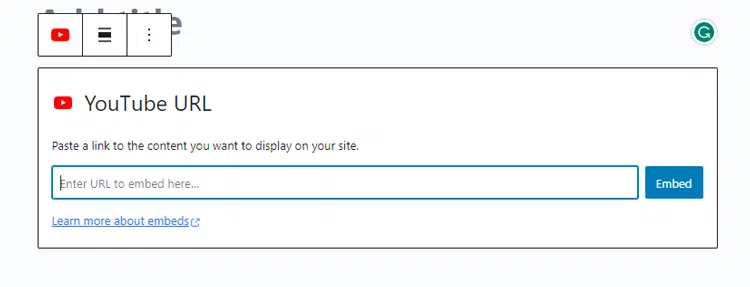
Once you have embedded your video, it’s time to make the necessary modifications. Just click on the clip in your editor, and a pop-up toolbar will appear for easy access!
You can experiment with the width of your video, switch between alignments, and more. To top it off, add captions that fit seamlessly across all mobile devices while keeping their aspect ratio intact.
WordPress is capable of auto-embedding exclusively for a variety of white-listed video services. If your desired website does not appear on the list, you will need to manually copy and paste its embed code into your blog posts. For added convenience, below is a list of approved video services that are available with automatic embeds in WordPress:
- Amazon
- Animoto
- Cloudup
- CollegeHumor
- Crowdsignal
- Dailymotion
- Flickr
- Hulu
- Imgur
- Issuu
- Kickstarter
- Meetup.com
- Mixcloud
- ReverbNation
- Screencast
- Scribd
- SmugMug
- Someecards
- SoundCloud
- Speaker Deck
- Spotify
- TED
- Tumblr
- VideoPress
- Vimeo
- WordPress.tv
- YouTube
If the video you’d like to add is sourced from a website that isn’t included on this list, simply copy and paste its HTML embed code into the ‘HTML’ block in the editor.
Using the Old Classic Editor
If you use the classic WordPress editor, embedding video is still very simple. Just copy your video URL and paste it into the editor to preview it. You can use videos from YouTube or Vimeo and see instant visual previews.
However, you cannot adjust the width or use block editor features. With the visual editor enabled, you will immediately see a preview of your chosen video!
Unfortunately, you won’t be able to enjoy the flexibility of adjusting your width or taking advantage of other options present in the new WordPress block editor. Therefore, don’t forget to click ‘Update’ or ‘Publish’ if you want your alterations to go live!
ShopLentor – WooCommerce Builder for Elementor & Gutenberg
A versatile page builder to build modern and excellent online stores with more than 100k Active Installations.
Using WordPress Sidebar Widgets
The WordPress video widget option provides flexibility for displaying videos in sidebar areas. Just as you can with posts or pages, videos can be easily embedded in WordPress sidebar widgets. To do so, simply head to the Widgets tab under Appearance in your WordPress admin area.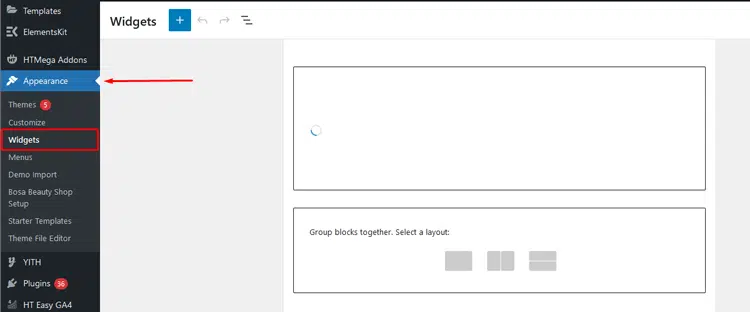
Click the ‘Plus’ add block icon. After that, type ‘Video’ into the search bar.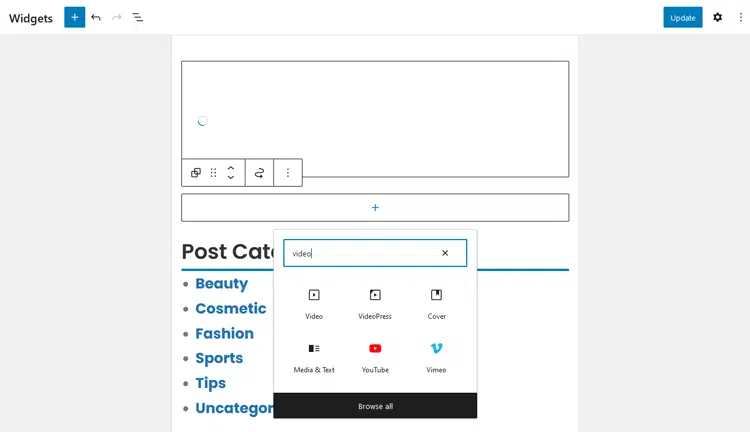
You’ll find tons of video options to choose from, such as YouTube channels, Vimeo videos, TED, and more!
Simply paste your desired video URL in the box provided and click ‘Embed’. Your newly added video widget will be live on your website after you hit ‘Update’. 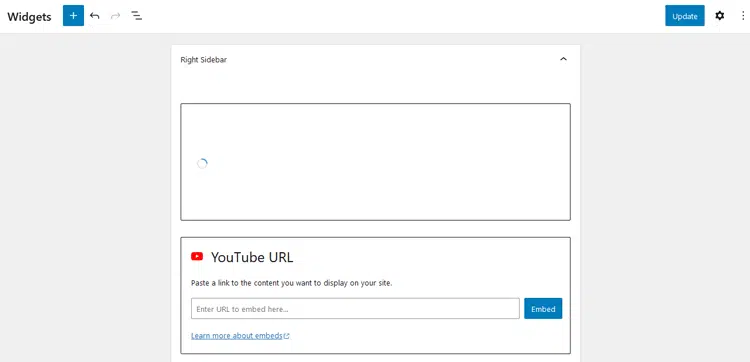
Now, your website visitors can instantly experience the video live. As a bonus, the size of this embedded visual will adjust automatically to fit perfectly with any widget area! 
Using WordPress Plugins
When it comes to embedding videos in WordPress, you don’t need a plugin by default. But if you’re looking to enhance your viewers’ video-watching experience on your website, why not try out one of the top recommended plugins? These plugins are also excellent options for embedding YouTube videos on a WordPress site.
Here are some great options that may be perfect for what you’re aiming for!
Docus Pro
Embedding a YouTube playlist into your website can highlight different content categories. This makes your page more engaging and popular among visitors. WordPress makes embedding channel videos simple and efficient.
Features like Responsive Video Gallery and Popups enhance the user experience. Thumbnails and a Responsive Player improve video accessibility and presentation.
Docus is a great WordPress plugin for seamless YouTube playlist integration. It allows you to showcase video feeds directly on your WordPress pages.
This plugin is ideal for displaying videos from your channel effortlessly. It provides an easy and efficient solution for embedding YouTube playlists.
Pricing: Docus Pro pricing plans start from $19
Videopack

Videopack is a free WordPress plugin that offers various video players like Video.js and JW Player. It automatically resizes videos to fit your website’s design perfectly. This plugin also generates video thumbnails for a polished appearance. With just one click of installation, you can have access to all these features in an instant.
Pricing: Free
ELEX WordPress Embed YouTube Video Gallery

With the ELEXtensions tool, you can easily add YouTube videos to your site. It creates a beautiful and engaging video gallery that will attract visitors. This plugin is ideal for both beginners and experienced developers. Its user-friendly interface and customizable features make integration simple.
You can add various content types, including playlists, channels, and videos. Customize your video gallery to match the look of your website. Adjust play modes, pagination, subscribe button, background, icon animations, and more.
The plugin integrates seamlessly with WooCommerce and won’t slow down your site. It’s a reliable option for embedding YouTube videos on WordPress.
Pricing: ELEXtensions pricing plans start from $79
YouTube Embed

YouTube Embed is an excellent plugin for embedding YouTube videos on your site. It offers features like personalized video playlists and dynamic sizing for responsive themes.
The plugin adjusts video size automatically to fit various screen sizes. It also suggests videos based on the user’s search history. This creates a more customized and engaging experience for your visitors.
Pricing: Free

Performance Optimization for Videos
When embedding videos on WordPress, performance optimization is crucial for a seamless experience. Embedding videos reduces server load compared to direct uploads, helping prevent site slowdowns.
External hosting services further optimize video delivery for faster load times. Modern CDNs efficiently serve video content, ensuring responsiveness on mobile devices. By using these techniques, you ensure that your videos load quickly and seamlessly, providing an enhanced user experience across all devices.
Tips on Using Video Content Effectively
Adding video content to your website is one of the best ways to increase engagement and draw in more viewers. But how to embed videos on WordPress more effectively? Here are some tips on using video content effectively:
Make sure the videos are optimized for sharing
Embedding videos from other sites, such as YouTube, allows you to share content without having to upload it directly. It is important to optimize these videos for sharing by adding a title, description, and tags that are relevant to the content.
Include a link back
Whenever possible, make sure your video contains a link back to your website or blog so viewers can find you more easily. This can be done by including a link in the video’s description or adding an annotation to the video itself.
Make sure your videos are of high quality
Nothing turns visitors away more than poor-quality videos and audio. Investing in good equipment and taking the time to edit your videos will ensure that viewers get the best experience possible.
Utilise embed codes
To make it easier for viewers to watch your videos on other sites, you should make sure the embed code is included in your post or page. This allows other users to easily paste the code into their websites and blogs, helping to promote your content even further.
By following these tips, you can ensure that your video content is used effectively and reaches its intended audience. With the right strategies in place, you can make sure your videos are seen by as many people as possible!
Frequently Asked Questions
Q1. Can I embed videos on WordPress?
Yes, you can easily embed videos from sites like YouTube, Vimeo, and other video-sharing platforms onto your WordPress website. All you need to do is copy the video’s URL into the WordPress block editor – either in the post or page content area – and it will automatically be embedded and displayed on your web page. This is the simplest way how to embed videos on WordPress.
Q2. How do I embed a YouTube video in WordPress?
To embed a YouTube video, copy its URL from YouTube. Then paste the URL into the WordPress block editor. The video will automatically appear in the post or page. It will be visible and functional on your website immediately.
Q3. How can businesses create engaging content without the need for complex coding techniques?
Incorporating quality videos can enhance your content and engage your audience. You can refine these videos using outsource video annotation services. This method helps you create compelling content quickly and efficiently. You won’t need to rely on complicated coding techniques for this process.
Q4. Can I control the size of embedded videos?
Yes, you can easily customize the size and aspect ratio of your embedded videos in WordPress. Just select the video block on your page or post and adjust the sizing controls in the right-hand ‘block settings’ panel. You can also customize the width, height, and other display settings to make the embedded video look great on your website.
Q5. Do I need a plugin to embed videos?
No, you don’t need a plugin to embed videos on WordPress. You can easily embed videos directly from the block editor in WordPress.
Simply paste the URL of any supported video-sharing platform into the editor. The video will automatically be embedded and displayed on your page. No additional setup is required.
Q6. Is it possible to embed MP4 files in WordPress?
Absolutely, you can embed an MP4 video in WordPress! Begin by heading to the Media section of your dashboard and selecting Add New. Then, upload the file onto your media library. To add it to posts or pages on your site, click Insert into a post to acquire a shortcode. It’s that simple!
Q7. Is it Possible to Embed Videos without Cost on WordPress?
Embedding videos in WordPress is completely free and stress-free. Not only does the CMS boast an exhaustive selection of free video hosting platforms, like YouTube, Vimeo, and Dailymotion – but you can also upload your clips right into the dashboard!
How do I troubleshoot video embedding issues?
If your attempt to embed a video in WordPress fails, check the URL format first. Some special characters in video URLs can cause embedding problems. Try disabling plugins temporarily to identify potential conflicts with video embeds.
Final Thoughts
Videos can energize your content, providing additional value to visitors to your website. As opposed to simply uploading them, embedding videos is the preferred method. Understanding how to add video to WordPress website transforms your content strategy entirely.
Embedding a video on WordPress is much simpler than you may think. Following step-by-step instructions makes embedding videos on WordPress a straightforward and efficient process. It ensures your site appears professional and inviting to visitors.
With just a few simple steps, you can successfully embed videos. This enhances the visual experience for your users, making it more engaging and immersive.
So, if you want to up your website game, learn how to embed videos on WordPress today.