How to Find Page ID in WordPress: A Complete Guide

Navigating through the ins and outs of WordPress can be a daunting task for beginners and even experienced users. One key element that often puzzles users is finding the elusive Page ID.
When customizing your WordPress site, knowing how to locate these unique identifiers becomes invaluable. Many developers rely on WordPress page ID information for advanced customization tasks.
These numerical identifiers create the foundation for the database’s organization of content. Understanding how to find page IDs in WordPress and use these IDs opens up powerful customization possibilities for your website.
But fear not! In this article, we will walk you through the step-by-step process of how to find Page ID in WordPress and shed light on why it’s important.
Whether you need to exclude specific pages from search results, create custom templates, or troubleshoot plugin conflicts, mastering Page IDs is an essential WordPress skill. We’ll cover multiple methods suitable for all skill levels, from quick dashboard techniques to advanced programmatic approaches
Understanding the Importance of Page IDs
When creating a WordPress post, you may have noticed that each page and post has its own unique ID number attached to it. This is known as a Page ID or Post ID, and it is an important piece of information that helps to identify your content on the backend of your website.
These unique identifiers work silently behind your beautiful website design. Learning what page IDs are in WordPress helps tremendously when customizing themes or troubleshooting issues. Every piece of content on your site has its own unique identifier.
While this number may seem insignificant at first glance, understanding the importance of post IDs can greatly benefit your WordPress experience.
HT Mega Elementor Addons
The ultimate Elementor page builder addons to build stunning websites.
What is a Page ID?
A Page ID is a unique numerical identifier that WordPress automatically assigns to every piece of content in your database. When you create a new post, page, or custom post type, WordPress generates a unique ID number that serves as the primary key for that content in the wp_posts database table.
These IDs are permanent, sequential numbers that help WordPress:
- Locate specific content in the database
- Maintain relationships between content and metadata
- Process updates and revisions efficiently
- Enable developers to target specific pages programmatically
Note: Page IDs cannot be changed without directly modifying the database, which can cause serious issues if done incorrectly.
Why Do You Need to Know Your Page ID?
Knowing your Page IDs in WordPress can significantly enhance your efficiency and productivity when managing your website. These Page IDs are integral in performing various tasks such as:
- Create Shortcodes or Widgets: Some plugins and themes use Page IDs for creating specific shortcodes or widgets. Knowing your Page ID can help you customize your site more effectively.
- Troubleshooting: If you encounter any issues or anomalies with certain pages, knowing the Page ID can be beneficial in troubleshooting.
- SEO Configurations: Certain SEO plugins may require Page IDs for specific configurations to optimize your site’s visibility.
In essence, knowing your Page IDs can give you more control over your WordPress site, from managing day-to-day operations to optimizing for search engines.
Recommended Blog for You:
👉 How to Edit Menus in WordPress: The Quick and Easy Guide
👉 How to Duplicate a Page in WordPress: A Comprehensive Guide
👉 How to Add Data Table Widget in WordPress with Elementor: Complete Guide
👉 How to Customize blockquote in WordPress : Add Amazing Blockquote in 3 Simple Steps
How to Find Page ID in WordPress
Developers need to check WordPress page ID when creating custom templates. The WordPress admin page ID appears in the edit screen URL. You can find page ID in WordPress without installing any plugins. These methods help you locate identifiers for any content type.
There are a few different ways to find your Page IDs in WordPress, depending on the version of the platform you are using. Here is a breakdown of how to find page ID in WordPress:
Finding Page ID from the WordPress Dashboard
The quickest way to find any Page ID in WordPress is through the admin dashboard. This native method requires no plugins or coding knowledge.
This method of extracting page ID is the simplest and easiest one. You can easily spot the ID in the URL of each post or page when you’re editing content in your WordPress dashboard.
Suppose you want to find the post ID for a particular post; simply click on the “Edit” option for that post. 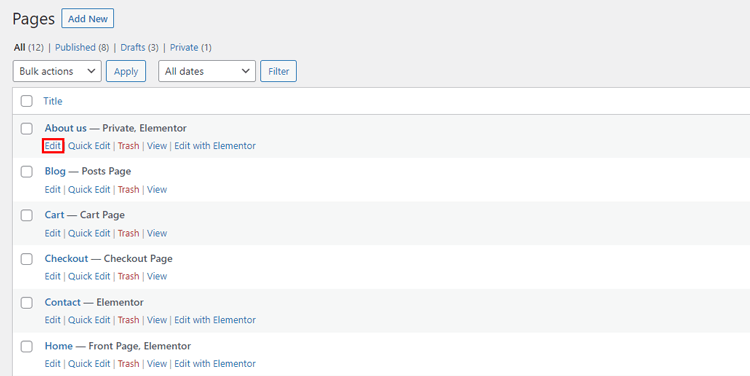
As you enter the WordPress Editor, take a look at the URL displayed in your browser’s address bar.
For both posts and pages, you should observe something like “post=NUMBER” within the URL. This number is the post or page ID you’re seeking.
Using a similar approach, you can WordPress find the category ID number by editing any category. The category edit URL will contain ‘tag_ID=NUMBER’, where NUMBER is the unique identifier for that category.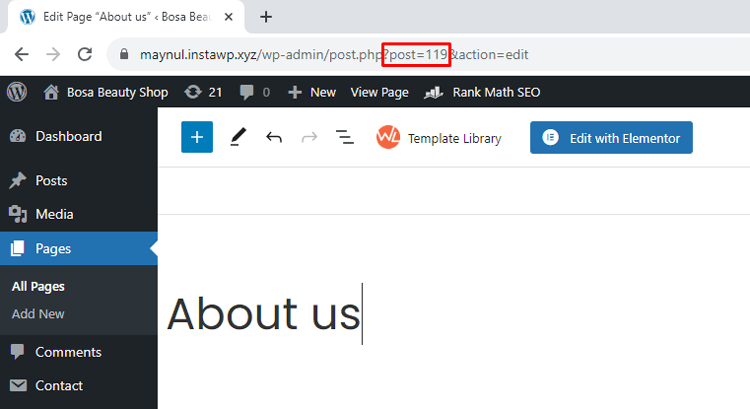
This same process applies even when dealing with pages in WordPress. Despite being pages, WordPress still utilizes “post” in the URL structure.
This method is not limited to standard posts and pages; it can also be used to find the ID for custom post types.
Each WordPress post type ID follows this same pattern, whether examining products, testimonials, or other custom content types. The consistent URL structure makes identifying any content’s unique identifier straightforward.
Using Plugins to Show Page IDs in Admin Lists
If you frequently work with post and page IDs, you may prefer a more user-friendly approach to finding them. Luckily, there are numerous plugins available to assist you in this matter.
One such plugin is the free Show IDs, which can provide the necessary help. It adds an “ID” column to your WordPress dashboard, making it easy to locate post IDs and page IDs.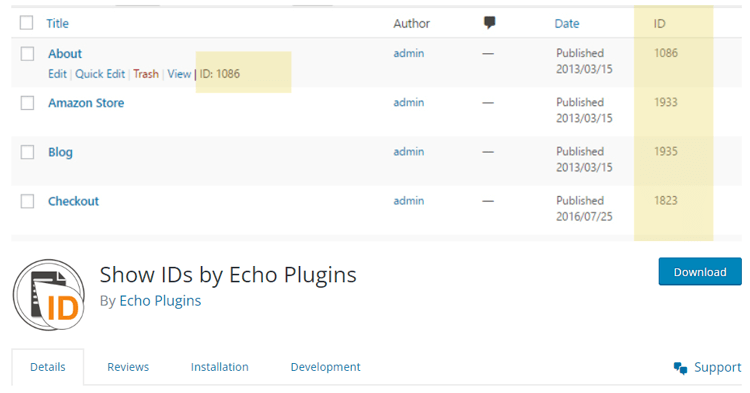
This plugin is incredibly lightweight, consisting of less than 100 lines of code. It won’t slow down your site with any front-end requests. Plus, there’s no need for configuration – simply install and activate the plugin.
Once activated, you’ll see ID columns appear in:
- Pages list (Pages > All Pages)
- Posts list (Posts > All Posts)
- Media Library
- Users list
- Custom Post Types
These plugins also help find the attachment ID WordPress assigns to media files. Media attachment IDs are essential when programmatically displaying specific images or creating custom galleries through code rather than visual editors.
With the Show IDs plugin, managing post and page IDs becomes a breeze, all while maintaining a user-friendly experience.
Alternatively, you have the option to utilize the Reveal ID plugin to achieve the same objective. The Reveal ID plugin is a valuable tool for advanced WordPress users and developers.
It restores the hidden page and post IDs that were removed in newer versions of WordPress, allowing for more efficient work with specific plugins and template tags.
Other Popular ID Display Plugins:
- Simply Show IDs – Adds ID columns with additional features like ID search
- WP Show IDs – Lightweight option with customizable column positions
Pro Tip: If you only need IDs occasionally, you might not need a plugin at all. However, if you’re frequently referencing multiple IDs for development or content management, these plugins can save significant time by eliminating the need to click “Edit” on each item.
ShopLentor – WooCommerce Builder for Elementor & Gutenberg
A versatile page builder to build modern and excellent online stores with more than 100k Active Installations.
Practical Applications of Page IDs
Page IDs are unique numerical identifiers that are assigned to each page on a WordPress website. These identifiers serve as the primary key for database entries related to a specific page and can be used in various ways within the WordPress platform.
WordPress uses similar identifier systems throughout its ecosystem. For instance, you can find the user ID in WordPress by checking the URL when editing user profiles. These user IDs enable author-specific customizations and content restrictions.”
In this section, we will discuss the practical applications of page IDs and how they can be useful in managing your website.
Developers often get the page ID in WordPress using built-in WordPress functions. This function helps display recent posts elsewhere.
Knowing how to change the page ID in WordPress simplifies template conditional statements. These techniques help identify the page ID WordPress programmatically for custom functionality.
Customizing Page Templates
One of the most common uses of page IDs is in customizing page templates. Each page on a WordPress website can have its own unique template, allowing for greater flexibility and customization of your website’s design.
Beyond templates, developers use page ID for custom CSS in WordPress. WordPress automatically adds classes like ‘page-id-42’ to your site’s HTML, allowing you to create page-specific styling without affecting your entire website’s appearance.
For example, you can have a different template for your homepage, contact page, and product pages, all controlled by their respective Page IDs.
Enhancing SEO Optimization
Page IDs indirectly contribute to SEO optimization by helping you identify and manage individual pages effectively. You can use Page IDs in conjunction with SEO plugins or custom SEO strategies to target specific pages for optimization. For example, you can create unique meta titles, descriptions, and keywords for each page based on its ID.
Additionally, when tracking SEO performance and analytics, knowing Page IDs helps you discern the impact of optimization efforts on individual pages, allowing for precise adjustments to improve rankings and user engagement.
HT Easy GA4
#1 📈 Google Analytics Plugin for WordPress
🚀 Supercharge your WordPress website with analytical insights. (Including WooCommerce Report)
Frequently Asked Questions
Can I change the ID of a WordPress page?
No, Page IDs should not be changed directly. They’re auto-incremented primary keys in the database. Changing them can break internal links, menu items, and cause database corruption. If you need a different ID, create a new page instead.
Why are my Page IDs not sequential?
WordPress assigns IDs to all content types from the same sequence, including posts, pages, revisions, attachments, and custom post types. Deleted content also leaves gaps. This is completely normal.
Can I use Page IDs for customizing page templates?
Yes, Page IDs are commonly used for customizing page templates. You can create unique templates for different pages by knowing and utilizing their respective Page IDs.
How do Page IDs enhance SEO optimization?
Page IDs indirectly contribute to SEO optimization by allowing you to create unique meta titles, descriptions, and keywords for each page based on its ID.
Are Page IDs the same as posts or page slugs?
No, Page IDs and post/page slugs are different. Page IDs are numerical identifiers, while slugs are human-readable, SEO-friendly URLs for your pages and posts.
How do I find Page IDs in Gutenberg editor?
In the Gutenberg editor, the Page ID appears in the browser’s address bar when editing, just like the classic editor. Look for “post=NUMBER” in the URL
Can I use Page IDs in CSS?
Yes! WordPress automatically adds a class like “page-id-42” to the body tag of each page. You can use this for page-specific styling:
css
.page-id-42 .header {
background-color: blue;
}
Do Page IDs change when migrating WordPress sites?
Usually yes. When migrating content to a new WordPress installation, pages typically receive new IDs unless you’re doing a complete database migration. Plan accordingly if your code relies on specific IDs.
Conclusion
Knowing how to find page ID in WordPress is an essential skill for website owners, developers, and anyone else working with the platform. Whether you are using the dashboard or a plugin, having access to these IDs can help you troubleshoot issues, create custom code, or simply organize your content more efficiently.
The ability to find and understand the Page ID in WordPress unlocks a world of possibilities for customization, functionality, and optimization. By following the methods outlined in this article on how to find Page ID in WordPress, you can confidently locate your Page ID and leverage their potential to enhance your WordPress experience.