How to Find Referral Traffic in Google Analytics 4 (GA4): Complete WooCommerce Guide

Are you struggling to understand where your WooCommerce store visitors come from? Finding referral traffic in Google Analytics is one of the most powerful ways to identify which websites are sending customers to your online store.
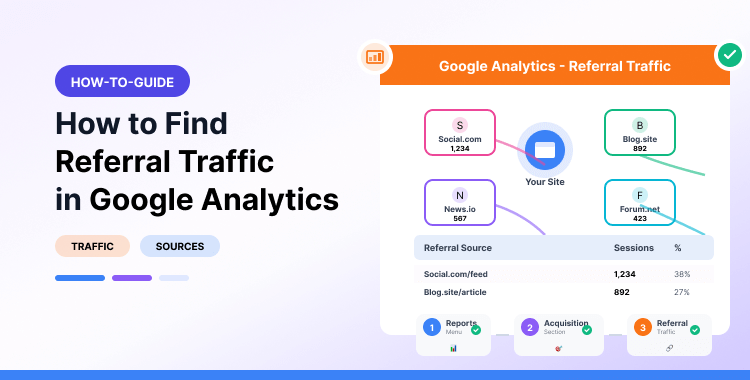
Referral traffic represents visits from external links on other websites—not from search engines, social media, or direct visits. When a popular blog, news site, or product review links to your store, every click becomes measurable referral traffic. For WooCommerce store owners, tracking referral traffic in Google Analytics helps you discover high-value partnerships, measure link-building ROI, and identify unexpected traffic sources you never knew existed.
In this complete guide, you will learn exactly how to find referral traffic in Google Analytics 4 (GA4), why WooCommerce stores must exclude payment gateways from referral tracking, and how to view all your referral data directly inside WordPress using HT Easy GA4. Whether you are a beginner or experienced with Google Analytics, this step-by-step tutorial will help you master referral tracking.
Let’s start!
- Key Takeaway
- What is referral traffic?
- Why is referral traffic important for your website?
- How to Find Referral Traffic in Google Analytics
- Logging into Google Analytics
- Accessing Referral Traffic in Google Analytics
- Navigating to the Referral Traffic Report
- How to View Top Referral Sources in WordPress Website
- Install and Setup HT Easy GA4
- Connect Google Analytics with Your WordPress Website
- Navigating to the HT Easy GA4 Dashboard
- Finding the Referral Traffic Source
- Frequently Asked Questions
- Conclusion
Key Takeaway
- Referral traffic equals visits from external links on other websites, not from search engines or direct visits.
- GA4 has no single dedicated referral report. You find it through the Traffic Acquisition report or Explorations.
- WooCommerce stores must exclude payment gateways (PayPal, Stripe, etc.) from referral tracking to keep data clean.
- Using UTM parameters on external links gives you richer, more granular referral data.
- HT Easy GA4 lets you view referral sources directly from your WordPress dashboard without opening GA4.
What is referral traffic?
Referral traffic is visits to your website that come from a link on another website.
When someone clicks a link on a blog, a news article, a product review, or a forum post and lands on your site, that visit is counted as referral traffic in GA4.
Referral traffic is different from:
- Organic traffic — visitors from Google or Bing search results
- Direct traffic — visitors who typed your URL directly
- Paid traffic — visitors from Google Ads or paid campaigns
- Social traffic — visitors from Facebook, Instagram, Twitter, etc.
Example: A popular WordPress tutorial blog links to your WooCommerce store. Every visitor who clicks that link is a referral visitor.
Why Referral Traffic Matters for WooCommerce Stores
Referral traffic is not just about raw numbers. It tells you which websites are actively promoting your store.
Here is why it matters:
- Helps you spot spam. Not every referral is genuine. Spam bots inflate referral numbers. Identifying and filtering them keeps your data accurate.
- Identifies high-value partnerships. If a niche blog consistently sends buyers to your store, that is a partnership worth deepening through guest posts, affiliate deals, or co-promotions.
- Measures your link-building ROI. If you invest time in digital PR or blogger outreach, referral data directly shows whether those efforts are converting into real visits.
- Reveals unexpected traffic sources. You may discover sites linking to you that you did not know about. These are natural partnership opportunities.
- Improves SEO. High-quality backlinks from referring sites build domain authority and improve your search rankings.
Recommended Blogs for You:
👉 11 Most Important Google Analytics Metrics to Track in 2024
👉 What Is Google Analytics and How Does It Work
👉 How to Track Website Traffic Using Google Analytics
👉 How to Find Keywords for Your Website: Ultimate Guide
👉 The Best Google Analytics Plugins for WordPress: Analyze Your Website Traffic
👉 Similarweb vs Semrush: Which Tool is Best for Your Needs?
How to Find Referral Traffic in GA4: Three Methods
GA4 does not have a standalone referral report. You access referral data in three different ways, depending on how much detail you need.
Method 1: Traffic Acquisition Report (Quickest)
This is the fastest way to check your referral traffic in GA4. First, you must log into your Google Analytics account and select the property you wish to analyze (your online store site).
Steps:
1. Log in to your GA4 account at analytics.google.com.
2. In the left sidebar, click Reports.
3. Go to Acquisition → Traffic Acquisition.
4. Scroll down to the data table. Find the Referral row under the “Session default channel group” column.
6. Set the filter to: Session default channel group → exactly matches → Referral.
To delve deeper into the origins of these referrals, simply enter “referral” in the search bar to exclusively view the referral traffic data. Next, press the blue plus icon.
7. Click Apply.
Now the table shows only referral traffic. You will see each referring domain and key metrics like sessions, engagement rate, and conversions.
Add a secondary dimension to see specific referrers:
1. Click the blue “+” icon next to the column header in the table.
2. Search for and select Traffic source → Session source/medium.
The table now shows you exactly which external websites are sending visitors to your site.
Your table will now display the number of referrals received from each referring site.
This report provides key metrics on your referral traffic, including the volume of referrals and the average visit duration on your site.
HT Easy GA4
#1 📈 Google Analytics Plugin for WordPress
🚀 Supercharge your WordPress website with analytical insights. (Including WooCommerce Report)
Method 2: Find Top Landing Pages Receiving Referral Traffic
Knowing which of your pages receive the most referral traffic helps you optimize content and improve conversion.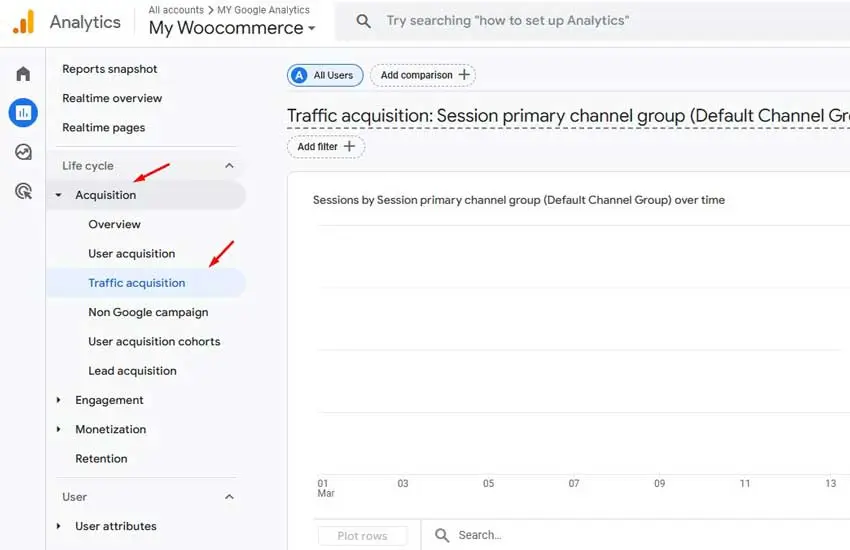
Steps:
- Go to Reports → Acquisition → Traffic Acquisition.
- Apply the Referral filter as shown in Method 1.
- Click the “+” icon next to the column header.
- Select Landing page + query string as the secondary dimension.
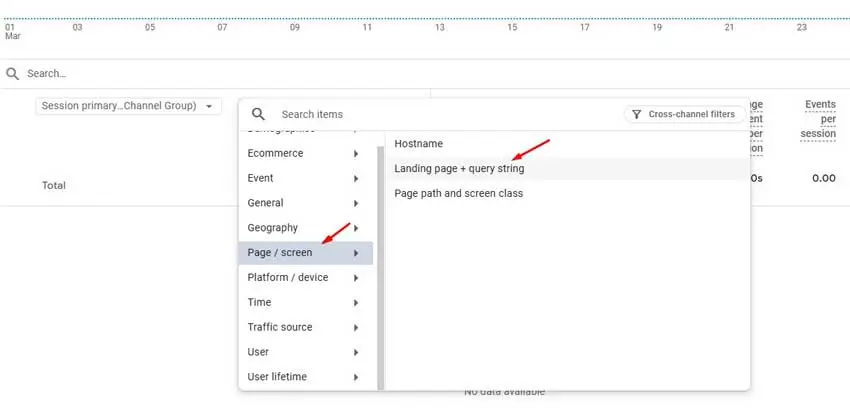
You now see a two-column view: which referring sites sent traffic AND which pages on your site they landed on. This is especially useful for WooCommerce stores to identify which product pages or blog posts get the most referral visits.
Method 3: Explorations (Deepest Analysis)
Use GA4 Explorations when you want a fully custom report, for example, to see which referral sources produce the most purchases.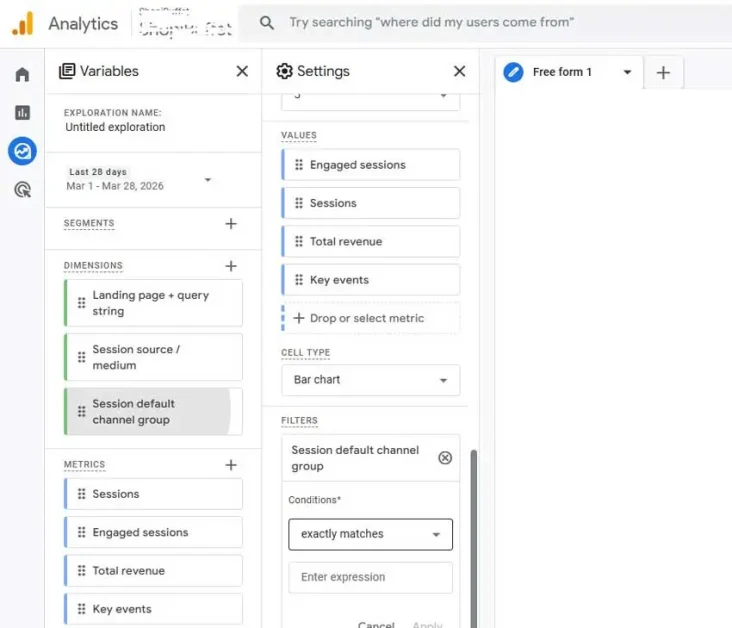
Steps:
- In the left sidebar, click Explore.
- Click “Blank” to start a new exploration.
- Under Dimensions, add: Session source / medium and Landing page + query string.
- Under Metrics, add: Sessions, Engaged sessions, Key events(or Purchases for WooCommerce), and Total revenue (if eCommerce tracking is set up).
- Drag Session source / medium into the Rows section.
- Drag your chosen metrics into the Values section.
- In the Filters section, add: Session default channel group → exactly matches → Referral.
This gives you a custom table showing which referring sites drive the most revenue or conversions. This is critical data for WooCommerce store owners.
Tip: By default, GA4 only stores Exploration data for 2 months. To access longer historical data, go to Admin → Data Settings → Data Retention and change the retention period to 14 months.
WooCommerce-Specific: Fix Referral Attribution with the Exclusion List
This is the most critical step WooCommerce store owners often skip.
When a customer buys from your store, they are often redirected to a payment gateway (PayPal, Stripe, Razorpay) and then brought back to your Thank You page. GA4 treats the payment gateway as the “last referral source” and attributes the conversion to it, not to the actual source (like a blog post or affiliate).
This corrupts your referral data completely.
The fix: Add payment gateways to the “List Unwanted Referrals” in GA4.
Steps: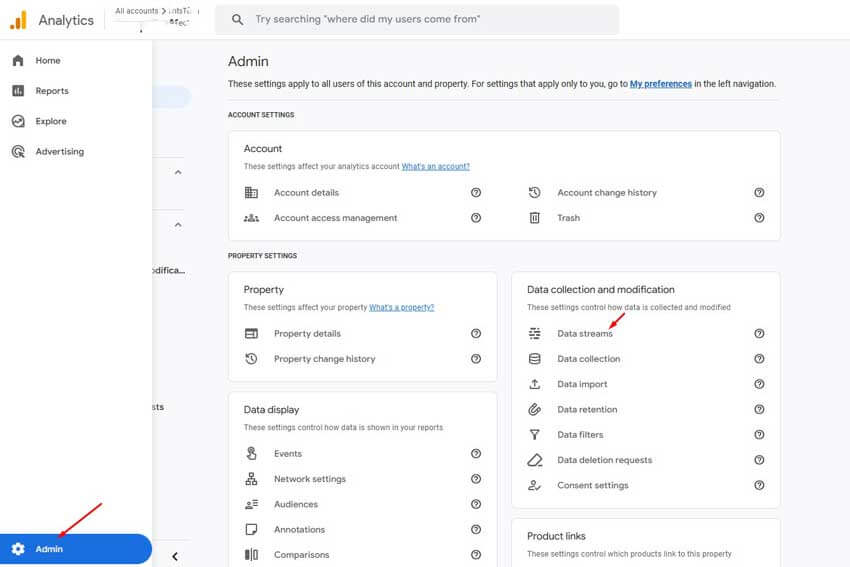
1. In GA4, go to Admin.
2. Under Data Streams, click your website’s data stream.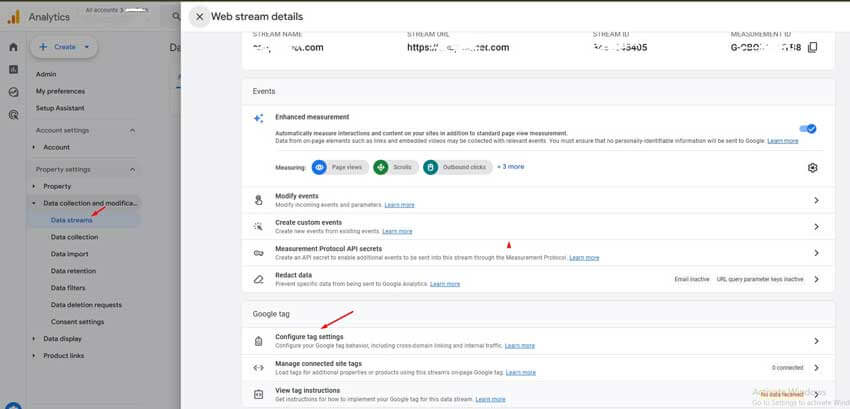
3. Scroll down and click Configure Tag Settings (under the Google Tag section).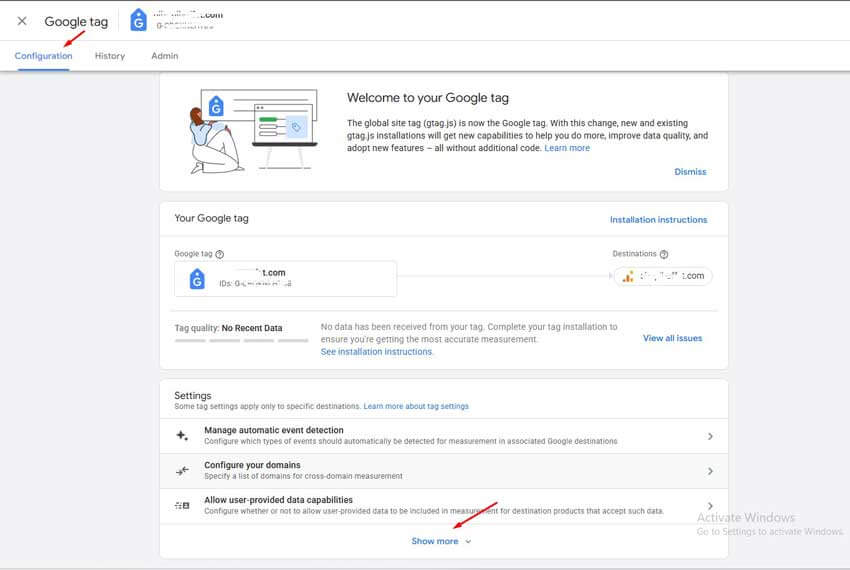
4. Click Show More, then select List Unwanted Referrals.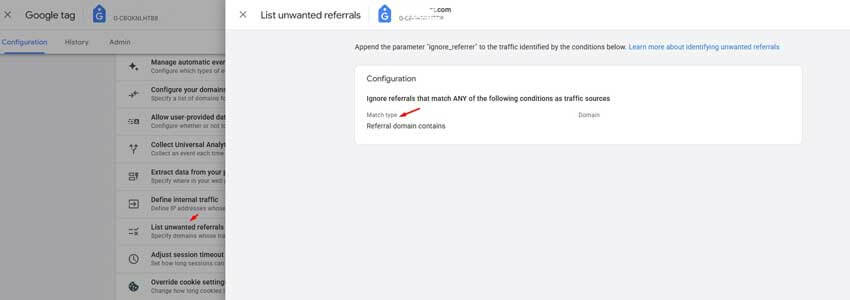
5. Add the domains you want to exclude.
6. Click Save.
Common payment gateway domains for WooCommerce stores to exclude:Payment Gateway Domain to Exclude PayPal paypal.com Stripe stripe.com, hooks.stripe.com Klarna klarna.com Square squareup.com Razorpay razorpay.com Google Pay payments.google.com 2Checkout 2checkout.com Skrill skrill.com
Table 1: Common payment gateways to exclude from referral tracking
Important: This does NOT block traffic from these domains. It only prevents GA4 from starting a new session when a visitor returns from a payment gateway, so your original referral source (the blog, the affiliate, the social post) keeps its attribution.
Use UTM Parameters for More Accurate Referral Tracking
GA4 only records the referring domain by default. It does not tell you which specific link or page on that domain sent the visitor.
UTM parameters solve this by letting you tag your links with custom tracking details.
Example without UTM:
https://yourstore.com/product/blue-shirt
GA4 will only show the source domain (e.g., techblog.com).
Example with UTM:
https://yourstore.com/product/blue-shirt?utm_source=techblog&utm_medium=referral&utm_campaign=spring_review
GA4 will now show the source, medium, and campaign name, giving you full visibility.
When to use UTM parameters:
- Links in guest posts or sponsored articles
- Links shared with affiliate partners
- Links in email newsletters from partner sites
- Links in press releases or PR outreach
You can build UTM-tagged links using Google’s free Campaign URL Builder at ga.web.app/utm/.
How to View Referral Sources in WordPress Website(Without Opening GA4)
If you manage a WordPress or WooCommerce site and want to check referral sources without switching between your dashboard and GA4, use HT Easy GA4.
HT Easy GA4 is a Google Analytics plugin for WordPress that pulls your GA4 data directly into your WordPress dashboard, including top referral sources.
Step1: Install HT Easy GA4
To install and activate the “HT Easy GA4” analytics plugin on your WordPress site, follow these steps:
1. Log in to your WordPress dashboard. Go to “Plugins” > “Add New”.
2. Search for “HT Easy GA4” analytics plugin at the top right search bar and hit Enter. Click “Install Now” next to the plugin’s name. WordPress will download and install it.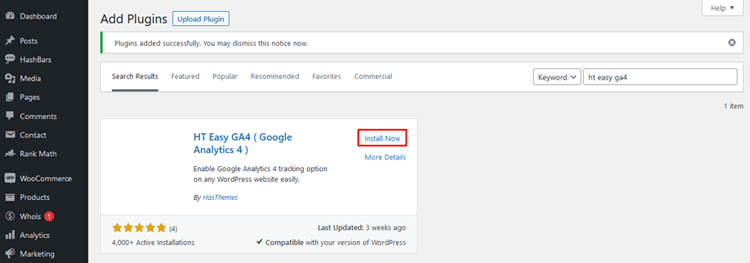
3. Click “Activate” after installation is complete.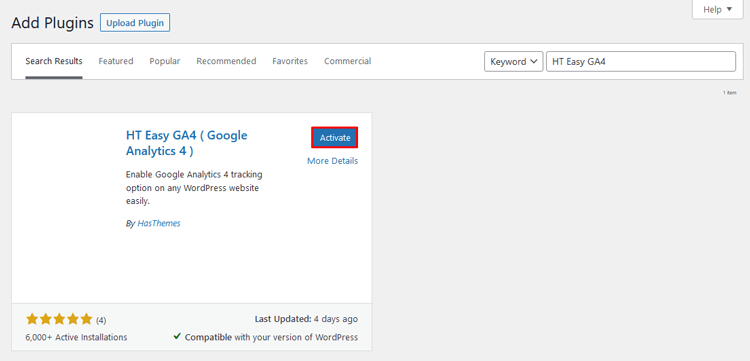
Once activated, “HT Easy GA4” will appear in your dashboard menu. You can access its settings by clicking this menu item.
The plugin is now ready to be configured with your Google Analytics Measurement ID so that you can smoothly track your website’s data with Google Analytics 4 (GA4).
Step 2: Connect Google Analytics with Your WordPress Website
After activating the “HT Easy GA4” plugin, head to the WordPress dashboard and locate the “HT Easy GA4” menu. Follow these simple steps to configure the plugin settings:
Sign in with Google:
Click on the “Sign in with Google” button. A new window will prompt you to log in to your Google account. Select the relevant Google account associated with your Google Analytics.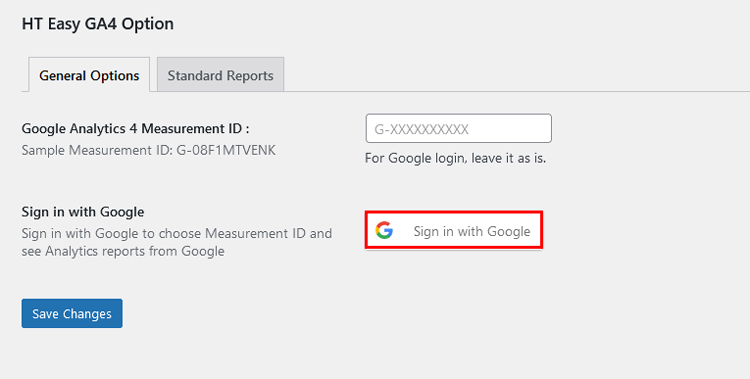
Grant Access:
Once logged in, grant permission for the plugin to connect with Google Analytics. Click “Continue” after granting access.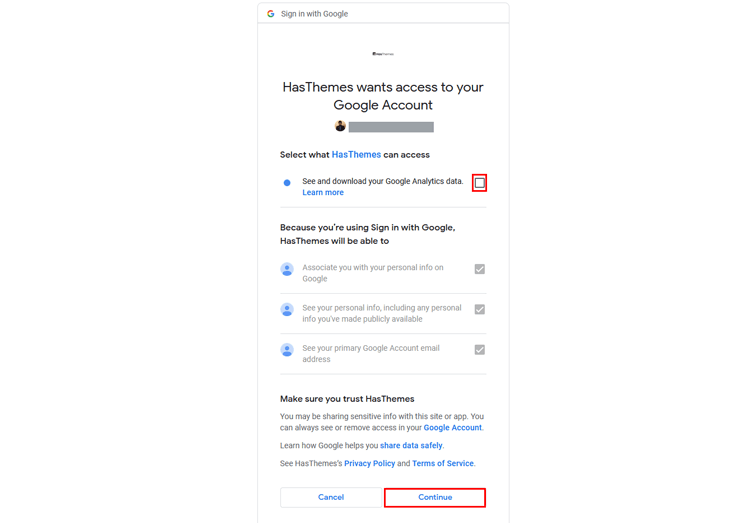
Connected to Google Analytics:
You’ll see a “Logout” button and your logged-in email address upon successful connection. This button lets you disconnect the plugin from the Google Analytics API if needed.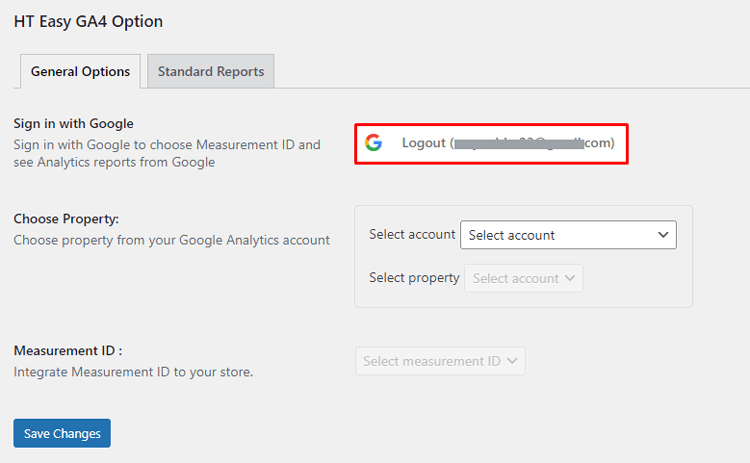
Select Account and Property:
The dropdown menu allows you to select the Google Analytics account linked to your WordPress website. The plugin will then display its associated properties.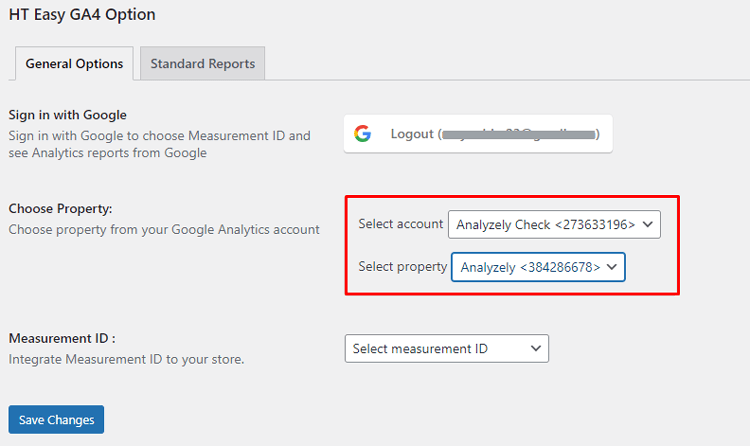
Choose Measurement ID:
Select the appropriate property and pick the corresponding measurement ID from the dropdown list.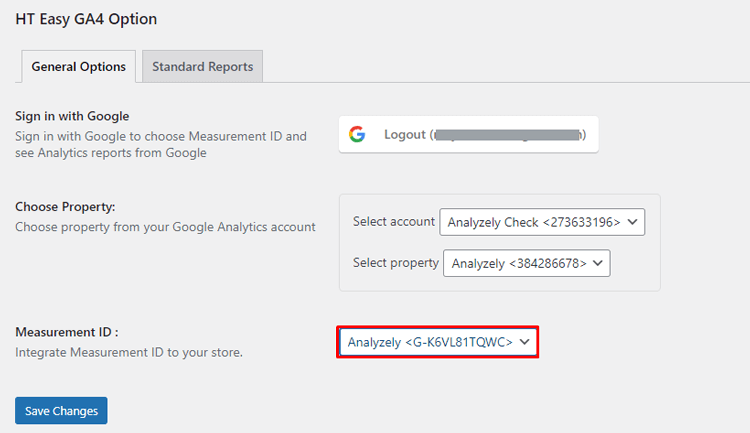
Save Configuration:
After adjusting all settings, save your configuration. The plugin will automatically embed the tracking script into your site’s header, initiating visitor data tracking.
Navigating to the HT Easy GA4 Dashboard
After installing HT Easy GA4, you can check your statistics anytime by going to HT Easy GA4 » Standard Reports” in your WordPress dashboard.
HT Easy GA4 enhances your Google Analytics 4 experience with various features. Standard reports offer insights on sessions, page views, bounce rates, and more, covering top pages, referrers, countries, user types, and devices.
The plugin also includes advanced e-commerce reports (Pro version) for tracking sales data like transactions, revenue, average and total purchase revenue, products viewed, cart interactions, purchase details, and top products, brands, and sources.
Finding the Referral Traffic Source
In the HT Easy GA4 dashboard, navigate to the Standard Reports tab for a comprehensive overview of your top referral sources. 
How to Check for Referral Spam in GA4
Not all referral traffic is real. Spam bots sometimes hit your site and show up as fake referral sources in GA4.
Signs of referral spam:
- Referral sources with 100 percent. bounce rate and 0 seconds session duration.
- Unfamiliar domain names that have nothing to do with your industry.
- Extremely high session counts from a single unknown domain.
How to handle referral spam:
- In your Traffic Acquisition report, identify suspicious domains.
- Cross-reference the domain in a search engine to confirm it is spam.
- Add the spam domain to the List Unwanted Referrals in GA4 (same steps as payment gateways above).
- You can also create an Audience in GA4 to exclude those sessions from your analysis reports.
How to Check for Data Sampling Issues
If your referral report shows unusual or inconsistent numbers, GA4 may be applying data sampling or thresholding, which limits the visibility of some data points.
How to check:
- Open your Traffic Acquisition report.
- Look for a red exclamation mark (!) icon at the top-right of the report.
- If sampling is active, click the icon and select “More detailed results” to improve accuracy.
Using Explorations (Method 3 above) generally gives you unsampled data for more reliable analysis.
Understanding the Two Referral Scopes in GA4
GA4 has two acquisition reports that measure referrals differently. Knowing which one to use matters.Report Scope What It Shows Traffic Acquisition Session The source of the current session — use this to see how often referrals drive visits User Acquisition User (first touch) The source that first brought the user to your site — use this to see how referrals introduce new audiences
For WooCommerce stores analyzing affiliate performance or partnership ROI, Traffic Acquisition is usually more useful because it reflects ongoing referral activity across all sessions.
Frequently Asked Questions
What is referral traffic on GA4?
Referral traffic is visits to your website from clicks on links on other websites. It excludes organic search, direct visits, paid ads, and social media traffic.
Does referral traffic affect SEO?
Yes. Referral traffic from high-quality websites signals authority and relevance to search engines. These backlinks can improve your rankings over time.
How do I get referral traffic to my website?
Focus on guest blogging on niche sites, building affiliate partnerships, getting product reviews from bloggers and YouTubers, and creating content that other sites naturally want to link to.
What is good referral traffic?
Good referral traffic doesn’t just bring numbers; it brings engagement and conversions. Ensure your referral sources match your audience and niche and that their traffic aligns with your business goals.
Is referral traffic organic?
No. Organic traffic comes from search engine results. Referral traffic comes from external links on other websites.
Why does GA4 show data for only 2 months in Explorations?
By default, GA4’s data retention for Explorations is 2 months. You can extend this to 14 months in Admin → Data Settings → Data Retention.
Can HT Easy GA4 show me WooCommerce sales by referral source?
Yes. The Pro version of HT Easy GA4 includes eCommerce reports that show transactions, revenue, and top products broken down by traffic source, including referrals.
HT Easy GA4
#1 📈 Google Analytics Plugin for WordPress
🚀 Supercharge your WordPress website with analytical insights. (Including WooCommerce Report)
Conclusion
Tracking referral traffic in GA4 is essential for every WooCommerce store owner who wants to understand where their buyers come from.
Use the Traffic Acquisition report for a quick overview. Use Explorations for deep analysis tied to revenue. Make sure to exclude payment gateways from your referral list so your data stays clean and attribution is accurate. And if you want everything visible inside WordPress, install HT Easy GA 4 plugin to get referral data in your own dashboard.
Start by checking your top referral sources today. You may discover partnerships you never knew you had.