How to Upload PDF to WordPress: Simple Steps

WordPress powers over 43% of all websites on the internet today. It’s a top choice for bloggers, businesses, and content creators around the world.
One powerful feature is uploading and sharing PDF files with your visitors. This is perfect for menus, guides, brochures, eBooks, or downloadable resources.
In this guide, you’ll learn how to upload PDF to WordPress’s media tools. We’ll also show you how to embed them into posts, pages, or link directly. No plugins or coding are required, just a few simple clicks to get started.
New to WordPress or a seasoned user? This guide makes the process simple. Let’s dive in and make your PDF content easy to access and share!
So grab your mouse, and let’s get started on learning how to upload a PDF to WordPress.
- Key Takeaways
- Methods to Upload a PDF to WordPress
- Method-1: Upload Your PDF Files Through the Media Library
- Method-2: Use a File Block to Display Your PDF Files
- PDF Upload Size Considerations
- How to Manage PDF Files in WordPress Efficiently
- Use categories and tags in a beneficial way
- Set limitations on viewing tables for a particular group of people
- To gain insights, utilize analytics
- Password Protection to WordPress PDFs and Libraries
- Optimize search results by using the sort, filter, and search features
- Frequently Asked Questions
- Wrapping Up
Key Takeaways
- Upload PDFs through the Media Library without additional plugins needed.
- Use File Blocks to display PDFs anywhere in posts.
- Organize PDFs with categories for improved content management.
- Manage file size limitations through compression techniques.
- Protect sensitive PDF content with password protection options.
Methods to Upload a PDF to WordPress
If you’re a beginner, uploading PDF files to WordPress might be challenging. With numerous ways to do it, selecting the right one can be confusing.
Uploading a PDF is just like uploading an image or media file. The WordPress upload PDF to media library process works identically to image uploads. It’s quick and doesn’t require extra tools or complicated steps.
There are, however, easy ways to upload PDF files, such as using the media library or displaying your PDF files using a file block.
These techniques will be demonstrated further down. Uploading PDF files to WordPress has never been easier, no matter which method you choose.
Let’s learn how to upload PDF to WordPress!
Method-1: Upload Your PDF Files Through the Media Library
With this method, you can easily share PDF files on your WordPress website without the hassle of installing any plugins. It’s as simple as uploading an image or other media file.
To begin, access your WordPress admin area and navigate to the Media section. From there, click the “Add New” button.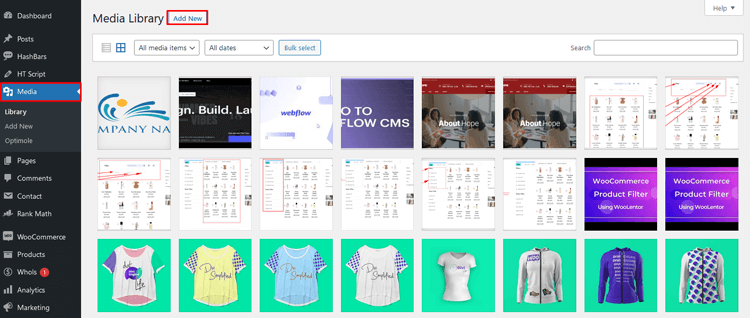
Upload your PDF file by dragging and dropping it into WordPress or using the “Select Files” button. The PDF file will then be available on your website.
After uploading the PDF file, you can include it in your posts or pages. However, please keep in mind that WordPress does not allow the embedding of full PDF documents. You can only attach them to your blog posts as download links.
ShopLentor – WooCommerce Builder for Elementor & Gutenberg
A versatile page builder to build modern and excellent online stores with more than 100k Active Installations.
Method-2: Use a File Block to Display Your PDF Files
You can include a PDF in your post or page by utilizing the File Block feature and positioning it anywhere you desire in the content. This feature is accessible on both posts and pages. You can insert a PDF into WordPress content using customizable file blocks.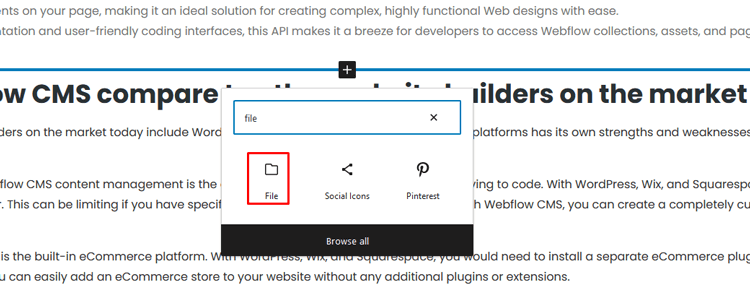
You’ll notice that there are two options here: Upload and Media Library. Both of these will let you skip the initial step where you’d go to the Media Library first. Because we already have the PDF file within WordPress, we can choose it using the Media Library option.
To add a PDF file to your WordPress post or page, first, open the block editor. Then, either create a new post or edit an existing one. Within the editor, add a File block and select the ‘Media Library’ option. From there, choose the desired PDF file to include.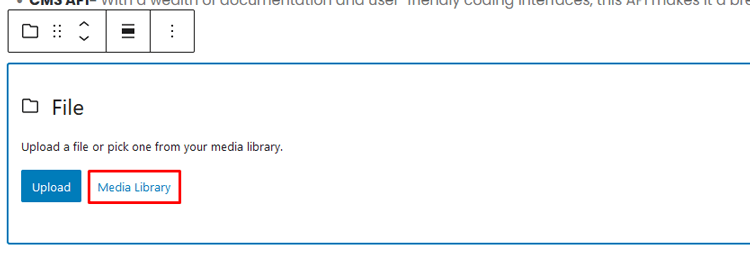
Next, you should type in a title and make changes to the file name. WordPress allows you to display a download button on your website. You can modify the button text easily. It can be linked to a PDF file or an attachment page.
After making the necessary changes, preview the uploaded PDF file to ensure its accuracy before publishing it.
The following method is the fastest and easiest way to display your uploaded PDF files on a WordPress website.
PDF Upload Size Considerations
The process on how to upload pdf to WordPress may face file size limitations. Most hosts limit WordPress uploads of PDF files to between 2 MB and 8 MB.
For larger documents, consider increasing PHP memory limits in wp-config.php. Try splitting large documents into smaller sections before uploading them. Compressing PDFs before uploading can significantly reduce the file size.
How to Manage PDF Files in WordPress Efficiently
Many ask, how do they upload a PDF to WordPress, but management is equally important. When it comes to managing PDF files in WordPress, there are a few tips that can help you make the process easier and more efficient.
Use categories and tags in a beneficial way
To ensure scalable libraries, create a rough grouping structure for your PDF files. Identify what sets files apart and what groups them together.
It’s okay to update categories and tags later. However, having basic ones in place beforehand is ideal. This structure will help you prepare for scalability.
Set limitations on viewing tables for a particular group of people
To limit access to certain categories or PDFs for specific users, you can utilize the Visibility settings in your library. This allows you to create a private WordPress document library with ease.
To gain insights, utilize analytics
Analytics help you understand who views your PDFs and how they find them. It shows which PDFs engage users the most, offering valuable insights.
By using analytics, you can track where visitors spend their time. This knowledge helps you better target them with future content.
Password Protection to WordPress PDFs and Libraries
If you want to ensure that only particular users have access to certain files, you can password-protect them. This is a great way to keep your PDFs and libraries secure, especially if sensitive information is included in the documents.
Optimize search results by using the sort, filter, and search features
To make it easier for users to find certain PDFs, you can use the sorting, filtering, and search features in your library. This will help optimize their search results and enable them to quickly find what they need.
Recommended Blog for You
👉 How to Update a WordPress Theme: An Easy-to-Follow Step-by-Step Guide
👉 How to Change Site Title in WordPress: Few Effective and Simple Ways
👉 How to Showcase Brand Logo in WordPress: A Complete Guide
👉 How to Change Theme on WordPress: A Step-by-Step Guide
👉 How to Fix 502 Bad Gateway Error for a Website: Quick & Easy Ways
Frequently Asked Questions
Q: How to upload PDF to WordPress?
A: The easiest way to add a PDF file to WordPress is by using the Media Library. You can also use plugins like Google Doc Embedder or Adobe Reader for more advanced options. If you want to embed your PDF directly into a post or page, you can use the Block Editor to add a PDF block.
Q: How do I link to a PDF file in WordPress?
A: To link to a PDF file, you can either upload it to the Media Library and copy the URL of the file or add it as an attachment to your page or post.
Q: How to upload PDF to WordPress using the Media Library?
A: To upload a PDF file to your media library, you will need to go to the ‘Media’ tab in the WordPress dashboard. Once there, click on the ‘Add New’ button at the top of the page.
Choose your PDF file from your computer and click ‘Open’. Once the file is uploaded, you can choose which post or page to insert it into.
Q: How do I track data about visitors who download my PDFs?
A: You can use a plugin to track data about visitors who download your PDF files. This will give you valuable insights into which pages are drawing the most interest, and help you optimize your content for success. 
Wrapping Up
Learning how to upload PDF to WordPress is a helpful and straightforward process. With the right support and knowledge, anyone can easily upload PDFs to WordPress.
It’s an incredibly useful feature if you want to insert digital files into your posts or pages that your visitors can download. Mastering how to upload a PDF in WordPress opens up numerous content sharing possibilities.
As long as you follow the simple steps outlined in this post, you’ll have no problems and will be able to complete the process quickly and efficiently.
Whether you’re new to WordPress or an experienced user, uploading PDFs simplifies access for visitors. It ensures they can easily view documents on your site without navigating away.
Learning WordPress PDF upload techniques enhances your overall content management skills. Remember, no matter why you need to upload a PDF to WordPress it can be done easily and hassle-free!
Give it a try today and see just how easy it is!