How to Set Contact Form 7 Redirect After Submit: Expert Tips and Tricks

Do you have a Contact Form on your website? If so, then Contact Form 7 redirect after submit is something that you might want to work with.

Contact forms are crucial for website user engagement, and Contact Form 7 is one of WordPress’s most popular form plugins, trusted by millions of website owners for lead generation. While it excels at form handling, many users want to enhance their forms with post-submission redirects.
Using the Contact Form 7 redirect plugin, you can quickly redirect contacts to a certain page or URL after they submit their information.
Managing user expectations after form submission is essential for a professional website experience. By implementing redirects, you can guide users to thank-you pages or relevant sections of your website, creating a seamless interaction flow.
This comprehensive guide will show you how to set up Contact Form 7 redirects after submit using the Extensions for CF7 plugin. Whether you’re a business owner or website administrator, you’ll learn how to create smooth post-submission experiences that keep your users engaged.
Key Takeaways:
- Learn to set up Contact Form 7 redirect after submission, both plugin-based and custom script methods to redirect users smoothly.
- Understand when and why to redirect.
- Use Contact Form 7 integration with CRM, Google Analytics 4 (GA4), or Facebook Pixel to measure conversions and gather actionable insights.
- Implement conditional redirects for Contact Form 7.
- Maintain seamless form functionality while redirecting, avoiding page reloads or disruptions in user experience.
- Learn to fix redirect conflicts, broken URLs, or multiple form issues to ensure a smooth WordPress redirect after form submission.
What is Contact Form 7 WordPress Plugin?
Contact Form 7 is a contact form plugin for WordPress. It’s a free, lightweight, simple, and easy-to-use contact form solution that will allow you to manage multiple contact forms with ease.
This powerful contact form submissions plugin makes it simple to design and manage forms so you can manage the contact information with ease.
One of the key features of this contact form 7 redirection plugin is the ability to redirect users after form submission. This is one of the most popular WordPress plugins in the WP Repository, actively used by 5 million websites and regularly updated with the latest version 6.1.1 released in June 2025.
Contact Form 7 Extension plugin:
The Extension for CF7 plugin is a contact form 7 addon developed by the HasThemes team. The Redirect Contact Form 7 extension plugin is the perfect tool for managing contact form submissions.
This plugin allow you save contact form submission data and handle it in the dashboard, easily apply conditions to any field to show or hide, quick and easy integration of Contact Form 7 with Mailchimp, and many more features for advanced form customization.
When & Why You Should Redirect in Contact Form 7
Redirecting after form submission isn’t just a design choice; it serves multiple practical purposes that enhance both user experience and marketing performance. Whether you’re following a Contact Form 7 tutorial or optimizing your form for better conversions, adding a redirect is a smart move.
- Provide instant confirmation: Redirecting users to a custom “Thank You” page assures them their message was successfully sent. This works great when paired with personalized Contact Form 7 response messages.
- Guide user journey: After form submission, you can smoothly redirect visitors to a relevant next step like a product demo, lead magnet, or special offer page. This can be easily done using Contact Form 7 redirect after submission without a plugin or by using a dedicated Contact Form 7 redirection plugin for better flexibility.
- Improve tracking & analytics: Redirect pages make it easier to set up Contact Form 7 tracking conversions in tools like Google Analytics 4 (GA4) or Facebook Pixel. It gives you more precise data about form performance. GA4 replaced Universal Analytics which was sunset in July 2023, making GA4 the current standard for website analytics.
- Maintain a clean UI: Instead of reloading the same form or cluttering the screen with validation notices, a redirect ensures a seamless user experience – especially when using Contact Form 7 AJAX submission.
Although Contact Form 7 doesn’t include a built-in redirect option, you can easily set it up using simple plugins or small code snippets. These methods also let you create conditional redirects for Contact Form 7 and handle Contact Form 7 multi-step form submissions smoothly. This helps guide users through a personalized journey based on their responses.
How to Set Up Conditional Redirects
You can redirect users to different pages based on their responses. This is called conditional redirecting. For example, send sales inquiries to your product demo page. Send support requests to your help center. Send partnership inquiries to your business contact page.
Extensions for CF7 makes this easy. Use the plugin’s conditional logic feature. Set rules based on form field values. Users automatically go to the right destination.
Methods to Redirect Contact Form 7 After Submission
Method A: Use the Redirection for Contact Form 7 Plugin
This is generally the easiest, especially for non-coders. The plugin lets you configure redirects, delays, query parameters, and more.
Step 1: Install and activate Redirection for Contact Form 7 via Plugins → Add New. (Ignore if you have already installed it)
Step 2: Install Extension for CF7 Plugin.
Step 3: Go to your contact form list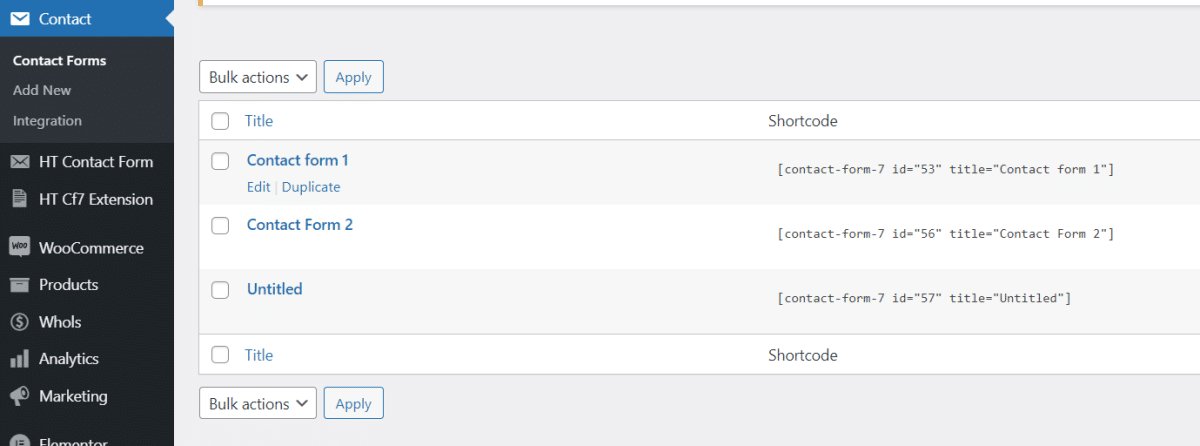
Step 4: Edit the form where you want to add the redirection.
Step 5: From the Redirect Actions tab, enable the redirection.
Step 6: Select the page where you would like to redirect after the form submission.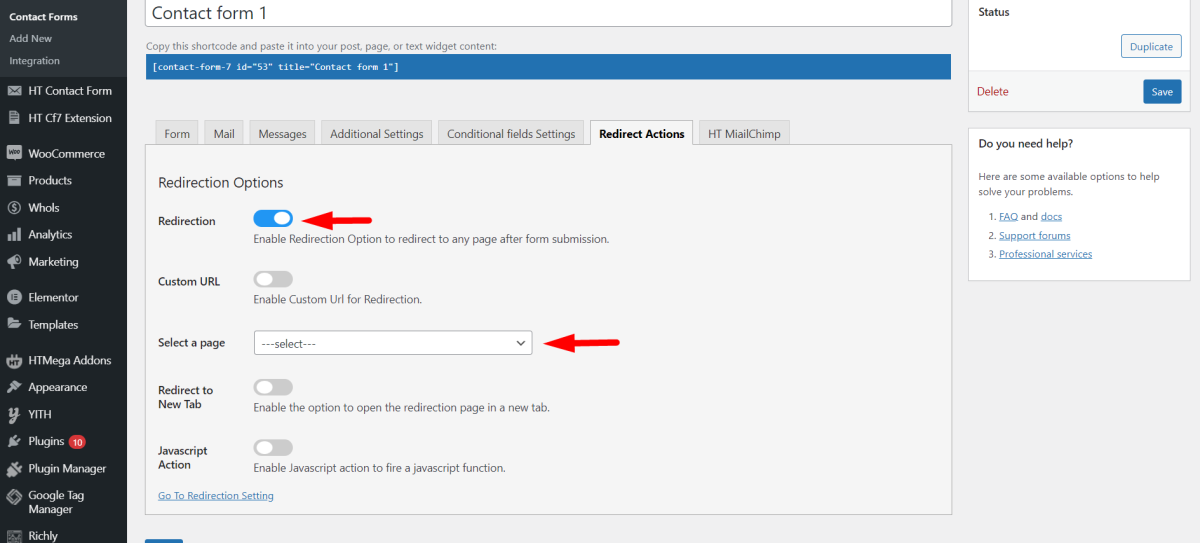
Step 7: Choose the page open in the same tab or a new tab.
Step 8: Enable the Javascript function if you want to add the JS code after form submission. (Ignore if it is not necessary)
You can set the redirection delay from the CF7 extensions setting panel.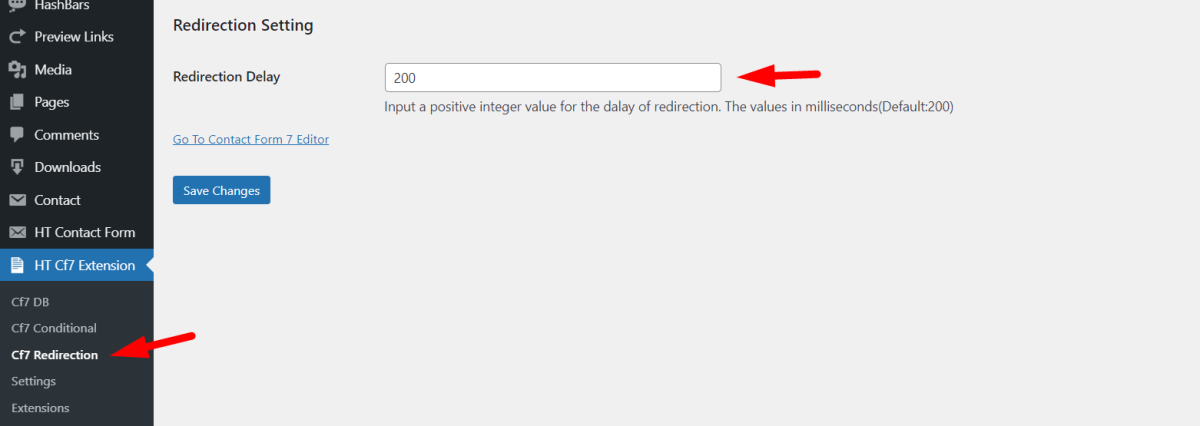
Method 2: Redirect with JavaScript (No Plugin Required)
If you’re comfortable adding a small script, you can redirect by listening for the CF7 event wpcf7mailsent. This works even with Contact Form 7 AJAX submission.
add_action('wp_footer', 'cf7_redirect_script');

function cf7_redirect_script() {
?>
<script>
document.addEventListener('wpcf7mailsent', function(event) {
  setTimeout(function() {
    window.location.href = 'https://yourdomain.com/thank-you';
  }, 2000); // 2 seconds delay, optional
}, false);
</script>
<?php
}
- Replace
'https://yourdomain.com/thank-you'with your actual redirect page. - You can also check
event.detail.contactFormIdto redirect different forms to different destinations. - <u>Note: The old
on_sent_okhook is deprecated (removed in Contact Form 7 5.0 in January 2018) and no longer recommended. Usewpcf7mailsentevent instead for current WordPress installations</u>.
Tracking & Analytics: Make Redirects More Useful
Redirecting after form submission isn’t just about navigation. It’s also powerful for tracking results.
You can set your “Thank You” page as a goal in Google Analytics 4 (GA4) to measure form submissions easily. This helps you understand how many visitors actually completed the form.
If you’re using WordPress, HT Easy GA4 makes connecting your site to Google Analytics 4 a breeze. No complicated setup needed.
If you use tracking tools like Google Tag Manager or Facebook Pixel, you can trigger conversion events when someone lands on that page.
For more advanced tracking, try Contact Form 7 integration with CRM tools or webhooks (available through premium extensions). This allows you to send form data directly to your CRM, email marketing platform, or other external systems.
You can also include query parameters (like name or email) in your redirect URLs to personalize future messages or segment users for marketing.
Troubleshooting: Common Redirect Issues & Solutions
| Problem | Likely Cause | Fix |
| Redirect doesn’t work | Script placed before CF7 JS or in the wrong location | Move the JS snippet to the footer or a proper hook (after CF7 scripts) |
| Multiple forms redirect to the same page | No conditional logic | Use event.detail.contactFormId in JS or the Redirection plugin’s conditional rules |
| Conflicts with other JS | Other JavaScript errors | Check the console and disable conflicting scripts temporarily |
| AJAX form not redirecting | Using old on_sent_ok style | Use the wpcf7mailsent event instead (Contact Form 7) |
| Redirect page triggers 404 or does not load | Wrong URL or missing page | Check the URL and ensure the page exists |
Watch the Video Contact form 7 redirection | Redirect To Thank You Page or any URL after Submission
Frequently Asked Questions
How do I redirect Contact Form 7 after submission?
To redirect CF7 after submission, you have to provide the following steps:
1. Install the Extensions for CF7 plugin and enable the redirection module.
2. Navigate to your form settings and select “HT Redirect Actions.”
3. Choose your target page and save the settings.
4. The redirection will activate automatically after form submission.
Can I add a delay to Contact Form 7 redirect?
Yes, you can set a custom delay in milliseconds through the Extensions for CF7 settings. Open the HT CF7 Extension menu, click the gear icon next to Redirection, and enter your preferred delay time (1000 = 1 second).
Does Contact Form 7 redirect work with custom URLs?
Yes, Contact Form 7 can redirect to any custom URL. Let’s follow the steps:
1. Enable the “Custom URL” option in the HT Redirect Actions tab.
2. Enter your desired URL, and the form will redirect users after successful submission.
How do I create a thank you page for Contact Form 7?
To create a thank you page for CF7 follow these steps. First, create a new WordPress page for your thank you message. Then, in Contact Form 7’s redirect settings, select this page from the dropdown menu. Users will automatically see this page after submitting the form
Does redirect break AJAX submission?
No, these methods preserve Contact Form 7 AJAX submission, only redirecting once the form has been submitted.
Conclusion
Setting up Contact Form 7 redirects enhances your website’s engagement strategy. Form redirects guide users to specific pages after submission. This keeps visitors active and interested in your website content.
The redirection feature helps website owners create better user experiences. You can customize the post-submission journey for your audience. Our easy-to-follow guide makes redirect setup quick and simple. Visitors will smoothly transition to your chosen pages after form submission.
These redirects improve user satisfaction and boost conversion rates. Keeping visitors engaged longer helps achieve your website goals. Contact Form 7’s redirect feature offers a straightforward solution for better user engagement. Try setting up a redirect today and see how it boosts engagement on your website!.