How to Accept Partial Payment in WooCommerce: A Guide for Business Owners

As a business owner, you may sometimes find yourself in a situation where a customer is only able to pay for part of their order at the time of purchase. This can be tricky to handle, but with WooCommerce, it’s actually not too difficult.
By implementing WooCommerce partial payments for premium products, such as laptops and smartphones, the store experienced a 25% increase in sales.
Customers who previously couldn’t afford to pay the full price upfront were able to make purchases, leading to higher revenue and improved cash flow.
In this article, we will show you how to accept partial payment in WooCommerce. We’ll also give you some tips on how to make the process as smooth as possible for both you and your customers. Let’s get started!
Key Takeaways:
- Learn what WooCommerce partial payments are and why they can benefit your business.
- Explore different methods to set up partial payments in WooCommerce.
- Discover how the ShopLentor plugin simplifies accepting partial payments, WooCommerce split payments, and installments.
- Step-by-step guidance on activating partial payment options for individual products directly from your WooCommerce dashboard.
- Understand how offering split payments in WooCommerce can improve cash flow and increase sales.
What is Partial Payment in WooCommerce?
In its simplest form, partial payment is when a customer pays for part of their order at the time of purchase. This can be accomplished in several ways, but the most common method is by using a partial payment plugin or extension.
Why Use Partial Payment?
There are a few reasons why you might want to use partial payment in woocommerce. Here are a few of the most common:
- You want to offer your customers more payment options. Giving customers the ability to split their payments can improve flexibility and boost conversions.
- Your customer doesn’t have the funds to complete the order in full. Partial payment allows them to secure the item now and pay the rest later.
- The order is for a large or expensive item. For high-ticket products, partial payments make it easier for customers to commit without financial strain.
- You want to encourage quicker purchase decisions. Customers may feel more confident placing an order if they don’t need to pay the entire amount upfront.
- You’re selling pre-order or custom-made items. Partial payments are useful for collecting a deposit before the product is ready to ship.
- You want to reduce cart abandonment. Offering a more flexible payment option can prevent buyers from abandoning their carts due to high upfront costs.
- You offer services or projects that involve milestones. For businesses that bill in phases (e.g., design, development, events), partial payments help manage the process.
How Partial Payment Works in WooCommerce
In WooCommerce, partial payments can be made using either the partial payment plugin or extension or by using the built-in functionality of the PayPal Sandbox. We’ll cover using a WooCommerce partial payment plugin in this article.
Using a Partial Payment Plugin/Extension
If you want to use a partial payment plugin or extension, there are a few things you need to know. First, not all plugins and extensions support partial payments. So, be sure to check before you buy.
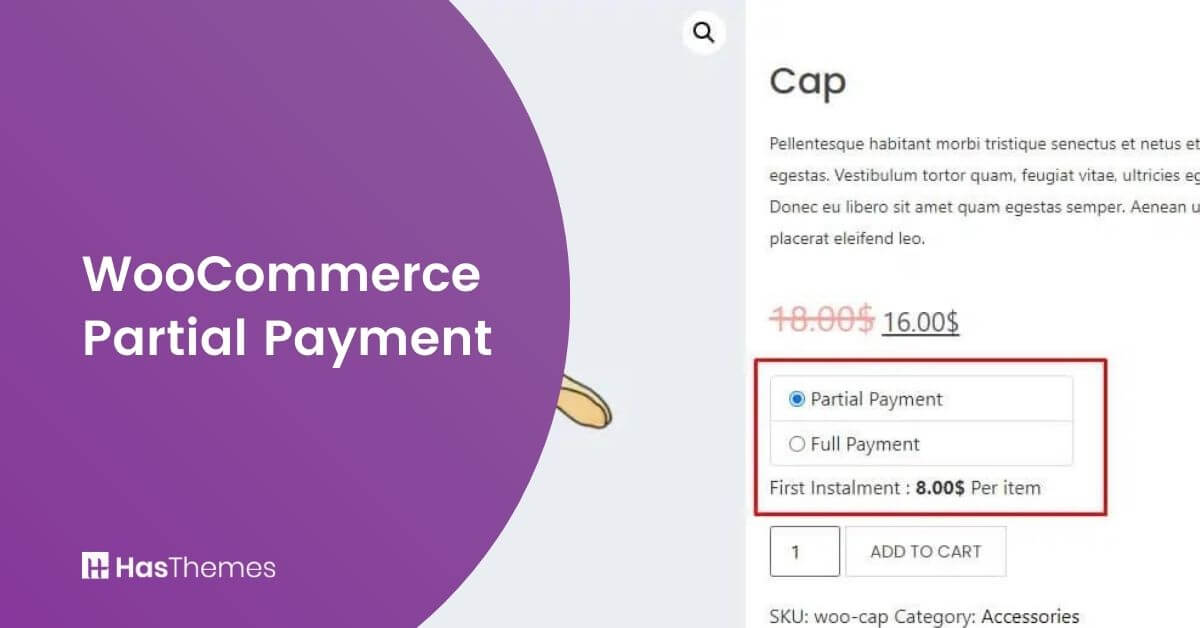
Second, most plugins and extensions work in a similar way. Basically, the customer is given two options: pay the full amount now, or pay part now and the rest later.
If they choose to pay part now and the rest later, they will be sent to a payment page where they can enter their credit card details.
Using PayPal Sandbox
If you want to use the PayPal Sandbox for partial payments, there are a few things you need to know. First, not all PayPal accounts have access to the sandbox. So, be sure to check before you start testing.
Second, the process of setting up partial payments in the PayPal Sandbox is a little more complicated than using a plugin or extension. But, once you have it set up, it’s actually quite simple.
Setting Up Partial Payments in WooCommerce using a plugin
Now that we’ve covered the basics, let’s take a look at how to set up partial payments in WooCommerce. We’ll be using the ShopLentor (Formerly WooLentor.)
Whether you’re planning to offer WooCommerce installments or enable split payments in WooCommerce for larger orders, ShopLentor makes the process smooth and hassle-free.
How Do I Deposit in WooCommerce?
Follow the steps below to add the option to deposit in WooCommerce. Here, we will write in detail the procedure for depositing in WooCommerce.
Step 1: Download and Activate the WooCommerce Partial Payment Plugin
To download the WooLentor plugin, go to WordPress.org or WooLentor.com. If you’re unfamiliar with WooLentor, it’s one of the finest all-in-one WooCommerce plugins with 1,00,000+ active installations.
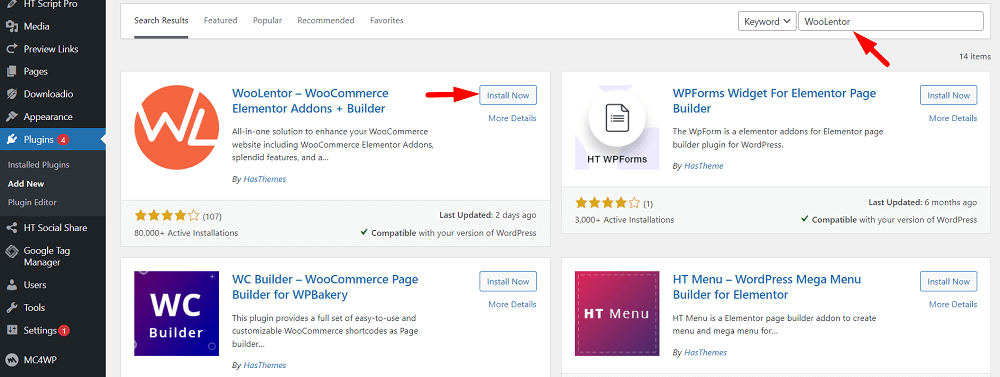
- In your WordPress dashboard, navigate to Plugins > Add New.
- In the search bar, type “ShopLentor.”
- When you find the plugin, click “Install Now.”
- Once the installation is complete, click the “Activate” button, and you’re all set!.
Buy ShopLentor(Formerly WooLentor)
Step 2: Enable Partial Payment Module
From your dashboard, go to ShopLentor settings. the default payment type (partial/full).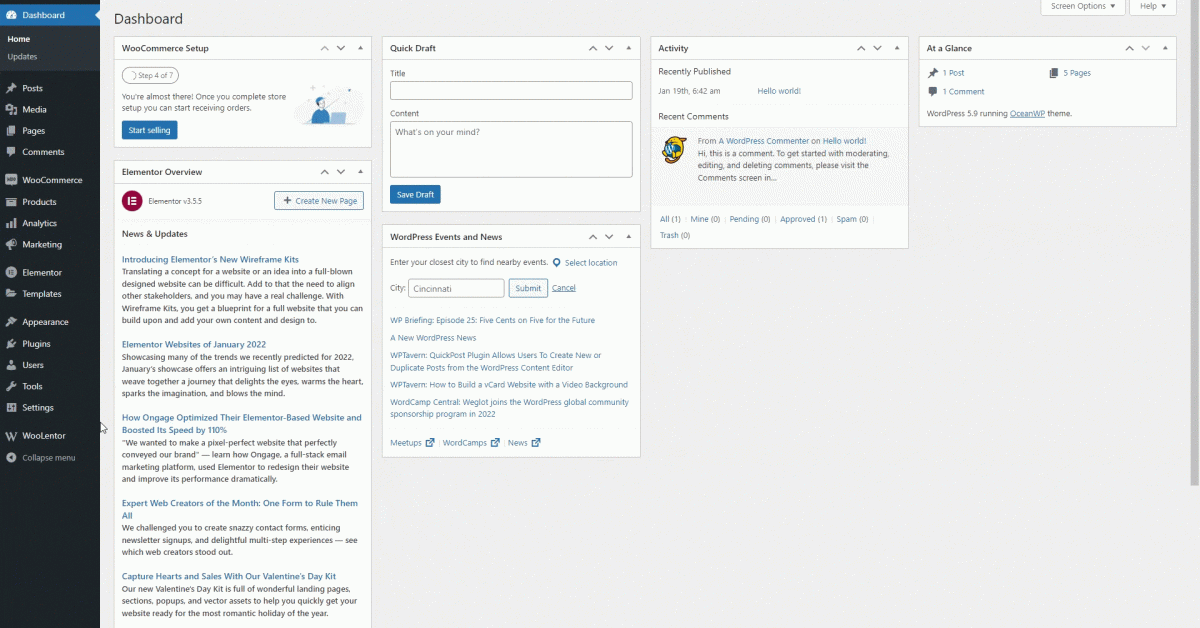
Step 3: Enable Partial Payment for Individual Product
To enable partial payment for an individual product, go to Products > Edit Product. From the product data area, enable partial payment and select the desired percentage of your minimum required amount to receive.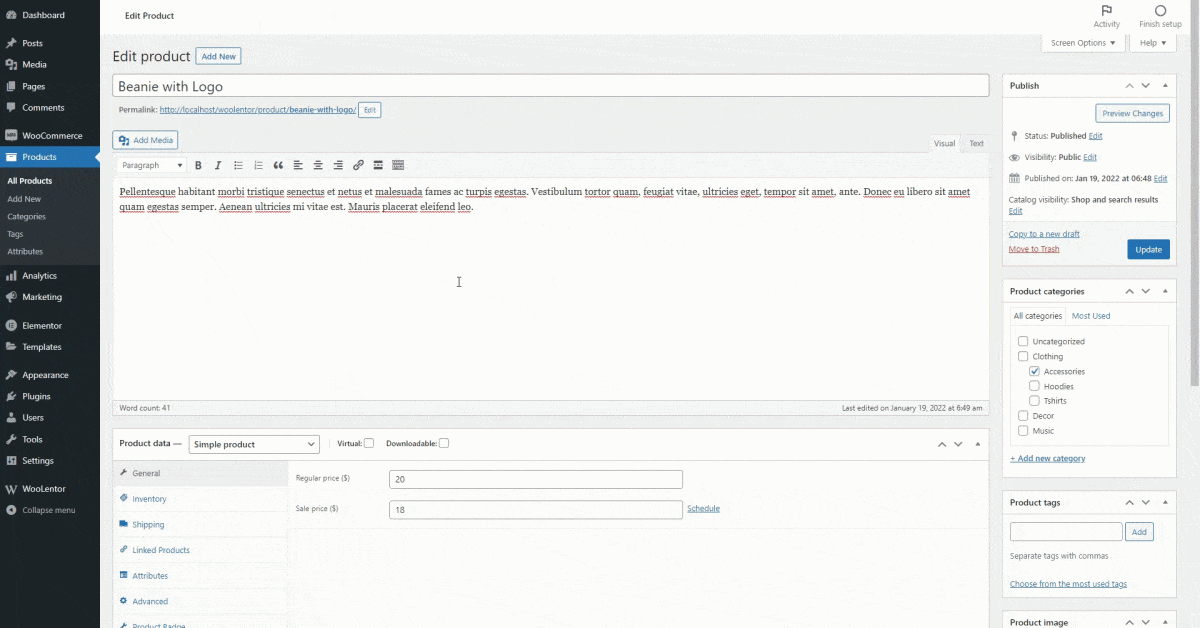
Step 4: Make a Test Purchase to Ensure that Everything is Functioning Correctly.
Now that you’ve configured everything, it’s time to make a test purchase to ensure your WooCommerce partial payment setup is working smoothly.
Here’s what to do:
- Visit your website and navigate to product page.
- Choose the partial payment WooCommerce option (or split payment WooCommerce if you’ve set up multiple installments).
- Click Add to Cart and proceed to checkout.
- Go through the checkout process as a customer would, making sure the WooCommerce split payments option appears correctly and the transaction goes through without a hassle.
Know More about Partial Payment in WooCommerce.
Watch the Video About WooCommerce Partial Payment | Partial Payment in WooCommerce
Frequently Asked Questions:
How do I enable partial payments in WooCommerce?
You can enable partial payments in WooCommerce by using plugins like ShopLentor or configuring PayPal Sandbox for split payments WooCommerce.
Can I accept WooCommerce partial payments without a plugin?
Yes, it is possible to set up partial payments in WooCommerce without a plugin by utilizing PayPal’s built-in functionalities, but it requires more technical knowledge.
What are WooCommerce installments, and how do they work?
WooCommerce installments allow you break down payments into smaller parts over a set period. Customers can pay in multiple installments, making larger purchases more manageable.
Do partial payments affect my order management process?
Not at all! Partial payments integrate seamlessly with WooCommerce, and each installment is recorded as part of the order history, ensuring smooth tracking.
Can I use split payments WooCommerce for specific products only?
Yes! With plugins like ShopLentor, you can enable partial payment WooCommerce for selected products while keeping other products at full payment.
How do I take payments with WooCommerce?
You can take payments with WooCommerce by setting up payment gateways like PayPal, Stripe, or by using plugins to offer additional options such as WooCommerce partial payments or WooCommerce split payments.
Conclusion
In today’s competitive market, offering flexible payment options is more than just a convenience, it’s a game-changer.
Enabling WooCommerce partial payments or setting up WooCommerce split payments empowers your customers to buy on their terms while boosting your conversion rates.
Whether you choose to use a powerful plugin like ShopLentor or explore options for WooCommerce partial payment without a plugin, the setup is simple, and the rewards are worth it.
Now that you know how to accept partial payment in WooCommerce, it’s time to level up your online store. Embrace flexibility, increase sales, and make your checkout process smoother than ever.
Ready to transform your WooCommerce store? Start offering partial payments today and give your customers the freedom to pay their way!