
How to Customize blockquote in WordPress : Add Amazing Blockquote in 3 Simple Steps

Have you ever seen an interesting quote online that caught your attention and made you click on it? That’s exactly what blockquote widgets can do for your WordPress content!”
Blockquotes are powerful tools that transform ordinary quotes into eye-catching design elements. They help readers quickly identify important information and testimonials.
With WordPress blockquote customization, you can increase content engagement by up to 65%.
This guide shows you how to customize blockquote in WordPress using the HT Mega plugin. You’ll learn to create professional quote designs without any coding knowledge. The process takes just three simple steps from start to finish.
Whether you need custom blockquotes for testimonials, expert opinions, or key highlights, you’re in the right place. We’ll cover everything from basic setup to advanced styling options.
Let’s get started!
Key Takeaways
- Follow three simple steps to enable and configure blockquote widgets
- Learn to add blockquotes to WordPress using HT Mega Plugin
- Understand what blockquote widgets are and how they improve readability
- Customize blockquote fonts, colors, backgrounds, icons, and author attribution easily
- Create visually appealing quote sections that enhance storytelling and engagement
What is a Blockquote Widget and How Does it Work
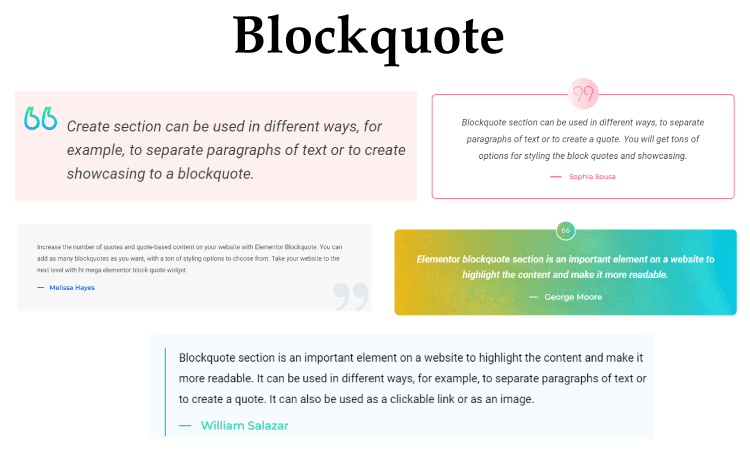
A blockquote widget is an incredibly useful tool for providing website visitors with a clever and compelling quote from a respected source. Its primary purpose is to take the visitor’s attention away from any text-based blockades, broadening horizons and sparking further interest in the site.
Essentially, blockquote widgets let you easily embed quotes from articles, interviews, poetry, or stories. You can use them to create visually appealing quote sections that enhance engagement and support your content.
You can showcase expert insights or user testimonials using custom blockquotes in WordPress to spark conversation and boost readability across your pages.
All website owners have to do is find a blockquote they want to highlight. Simply, find a quote you want to highlight and paste it into the blockquote widget. Select your styling options and preview how it looks. It’s ready to embed on your website.
With blockquote widgets, your content becomes more scannable and engaging for visitors
How to Customize Blockquote in WordPress using the HT Mega Plugin
Adding blockquotes to your WordPress website can be a great way to emphasize a particularly important point or add visual interest. But if you want to take your blockquote customization to the next level, then you should try out the blockquote widget by HT Mega plugin.
This powerful and customizable blockquote widget allows you to create unique blockquotes with distinct styling options and features.
With this blockquote system, your visitors won’t just read the words on the page –they’ll be visually engaged. Whether simple font changes or styling, the blockquote widget helps you quickly customize block quotes and make them stand out from the rest of your content.
Adding a blockquote feature to your WordPress website has never been easier. All you have to do is follow these straightforward steps using the HT Mega Plugin!
Step 1: Enable the Blockquote Widget
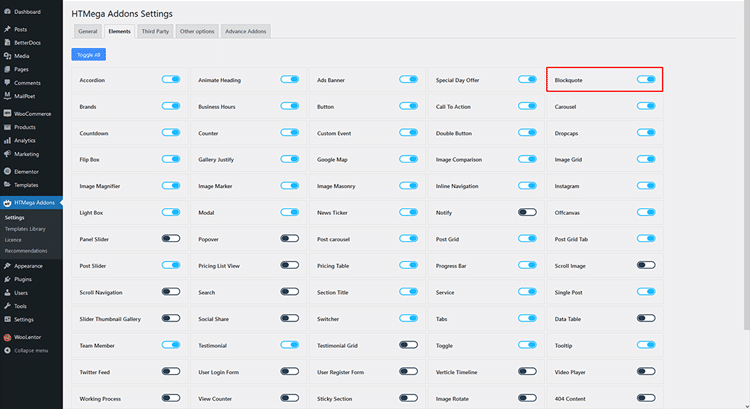
Simply head over to your WordPress Dashboard, locate HT Mega Addons, and navigate to Settings > Elements and enable the Blockquote widget
Step 2: How to Use the Blockquote Widget?
Search by “Blockquote” in the widgets search panel and select one with an “HT Badge”
Once identified simply drag-and-drop onto your Page Template.
Step 3: How to Customize the Blockquote Widget
Blockquote Content:
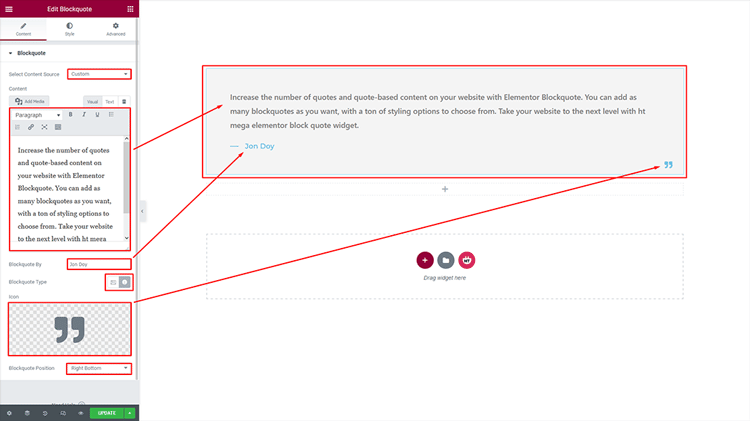
Select Content Source: To swiftly select either a custom or Elementor template, simply choose the “Select Content Source” option from the drop-down list.
Content: You have the power to modify the content in your option field.
Blockquote By: Easily customize the source of your block quotes by specifying their author in this field.
Blockquote Type: With the Blockquote Type, you can choose an image or icon to reflect your message.
Image: You can use attractive, eye-catching visuals to grab attention with the Image option.
Icon: Utilizing the icon option allows you to customize your project with meaningful, visually appealing icons.
Blockquote Position: You can conveniently customize the position of your block quote to fit your tastes and desires with Blockquote Position.
How to customize the Blockquote style
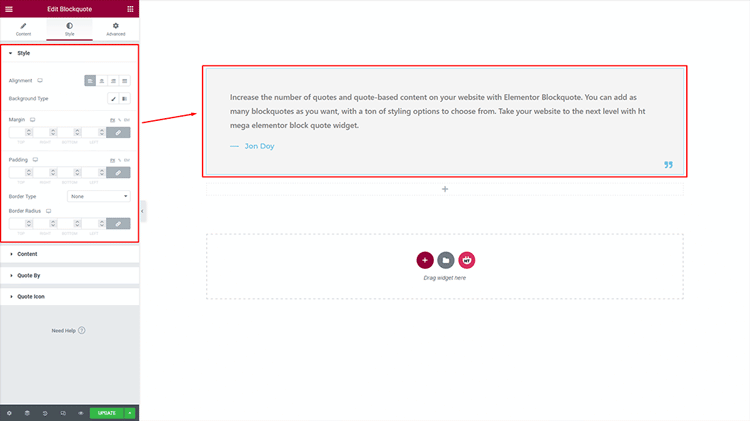
- Blockquote Style: Customize the blockquote style to your preference.
- Blockquote Content: Transform the appearance of your Blockquote Content to reflect your desired style.
- Quote By: With the Quote By feature, you have complete control over the style and design of your quotes.
- Blockquote Icon: You can modify the style of the Blockquote Icon as you like.
For advanced users interested in WordPress blockquote CSS customization, you can add custom CSS classes to further personalize your blockquotes beyond the built-in options.
Frequently Asked Questions
What does the Blockquote Widget do?
The Blockquote Widget is an HT Mega Plugin widget that lets you quickly and easily add quotes to your WordPress site. It has powerful features such as the ability to customize text size, font style, background color, and more. You can also embed quotes from external sources like Twitter, YouTube, or Instagram.
How do I add a Blockquote Widget to my site?
The HT Mega Plugin provides an easy-to-use user interface for adding the Blockquote Widget. Simply go to HT Mega settings in your WordPress Dashboard, and click “Elements”. Then “Enable” the Blockquote option, and you’ll be able to customize the widget with your own quotes or embed external ones.
Can I customize the Blockquote Widget?
Absolutely! The HT Mega Plugin gives you full control over how your Blockquote Widget looks and works. You can tweak fonts, colors, sizes, and more, all without needing to write any code.
Does the HT Mega Plugin provide support for the Blockquote Widget?
Yes, HT Mega offers full documentation and support for its Blockquote Widget. The HT Mega team is available to answer questions or provide assistance if you run into any issues. You can find the HT Mega support link on their website.
Can I use the Blockquote Widget to display customer testimonials on my WordPress site?
Yes! The Blockquote Widget is perfect for showcasing customer testimonials in an attractive, readable format. You can customize each quote to match your site’s branding and layout.

Final Thoughts
With WordPress, customizing blockquote within a website is relatively easy. One of the simplest and most effective ways to do this is with a blockquote widget. It provides users with various customizable options to make their blockquotes come alive.
You can change the font size and color to match your brand’s style effortlessly. The blockquote widget by the HT Mega plugin also lets you customize the background image for added visual appeal. This flexibility helps you create a blockquote style that fits your website’s overall look and feel.
With just a few simple clicks, you can add some flair to your blockquotes and take your WordPress site to the next level. Hopefully, by going through this article, you now have a clear idea of how to customize blockquotes in WordPress.
Using the versatile HT Mega plugin, you can do it in just a few simple steps. Try it today and add an amazing blockquote to your WordPress site with the power of Elementor. Thank you for reading..