
Unlock the Power of Google Analytics Ecommerce Tracking for Your Business

Are you looking to unlock the hidden potential of your online business? You can tap into the power of Google Analytics ecommerce tracking to gain valuable insights and understand customer behavior.
With the right information, you can make more informed decisions, allowing you to maximize your business’s performance and boost profits.
Research shows that the average shopping cart abandonment rate is 70.22% globally, according to a comprehensive analysis of over 50 ecommerce studies conducted by the Baymard Institute. This means the majority of potential customers are leaving without completing their purchases.
By implementing proper Google Analytics 4 ecommerce tracking, you can identify exactly where customers drop off in the sales funnel and take corrective action.
Understanding these metrics is crucial for any online business. With ecommerce conversion tracking in Google Analytics, you can measure the effectiveness of your marketing efforts, identify your best-performing products, and optimize your overall sales strategy.
- Key Takeaways
- The Power of Multilingual Websites
- Benefits of Google Analytics Ecommerce Tracking
- Understanding Customer Behavior
- Tracking Conversions and Sales
- Identifying Successful Campaigns
- Optimizing Product Performance
- Segmenting and Targeting Audiences:
- Common eCommerce Metrics You Should Know
- How to Leverage eCommerce Tracking in Google Analytics
- Track Major KPIs
- Boost Your Sales and Conversion
- Track Your Shopping Cart Abandonment Rate
- Check Individual Product Performance
- How to Set Up Google Analytics Ecommerce Tracking
- Setting Up Google Analytics Ecommerce Tracking using HT Easy Plugin
- Key Features of the HT Easy GA4 plugin
- Frequently Asked Questions
- Conclusion
Key Takeaways
- Set up advanced Google Analytics 4 tracking with the HT Easy GA4 plugin
- Understand the benefits of implementing Google Analytics ecommerce tracking to gain valuable customer insights
- Learn how to track conversion rates, average order value, and shopping cart abandonment
- Discover how to identify successful marketing campaigns driving the most revenue
- Implement proper ecommerce metrics tracking to optimize product performance
- Explore how to leverage WooCommerce Google Analytics integration for comprehensive insights
HT Easy GA4
#1 📈 Google Analytics Plugin for WordPress
🚀 Supercharge your WordPress website with analytical insights. (Including WooCommerce Report)
The Power of Multilingual Websites
In today’s interconnected world, ecommerce businesses must understand their customers at every stage of the buying journey. By implementing Google Analytics ecommerce tracking, you can monitor the entire customer lifecycle, from first product view to final purchase.
Why eCommerce conversion tracking matters:
Global Market Opportunity
The global ecommerce market continues to grow exponentially, creating massive opportunities for online businesses. However, only businesses that understand their customer behavior through proper analytics can capitalize on this growth.
Enhanced Decision Making
With comprehensive eCommerce metrics tracking, you gain the data needed to make informed business decisions. This eliminates guesswork and ensures your marketing budget is spent wisely.
Competitive Advantage
Most ecommerce stores do not fully leverage Google Analytics. By mastering Google Analytics ecommerce tracking, you gain a significant competitive advantage in understanding and optimizing customer behavior.
Revenue Growth
Data-driven optimization directly leads to increased revenue. Businesses tracking their ecommerce metrics see measurable improvements in conversion rates and average order value.
Benefits of Google Analytics Ecommerce Tracking
Google Analytics eCommerce tracking provides a powerful way to measure the performance of your online store. With eCommerce tracking, you can gain insights into how customers interact with your products and services.
You can also track important metrics such as product sales, average order value, conversion rate, customer lifetime value, abandonment rate, and more. This information helps you make important decisions about changes that can increase sales and improve customer satisfaction.
You can also use Google Analytics eCommerce tracking to monitor your competitor’s performance. By comparing customer behavior on your site with theirs, you can identify areas where you may need to adjust your marketing strategies or product offerings.
Google Analytics Ecommerce Tracking offers several benefits to website owners and online businesses. Some of the key advantages include:
Understanding Customer Behavior
E-commerce tracking in Google Analytics provides valuable insights into customer behavior on your website. It allows you to track user interactions, such as product views, add-to-cart actions, and completed purchases.
With this eCommerce data, you can analyze how customers navigate through your eCommerce site, which products are popular, and where potential bottlenecks or drop-offs occur in the sales funnel. Understanding customer behavior helps you make data-driven decisions to improve user experience and increase conversions on eCommerce platforms.
Tracking Conversions and Sales
Ecommerce tracking enables you to measure the effectiveness of your marketing efforts in driving sales and conversions. You can track key eCommerce metrics like revenue, conversion rate, average order value, and total transactions.
This eCommerce data helps you identify successful marketing campaigns, assess the eCommerce performance of different products, and optimize your sales strategies.
Identifying Successful Campaigns
With eCommerce tracking, you can attribute sales and conversions to specific marketing campaigns, channels, or traffic sources. This information allows you to identify which marketing channels or campaigns are driving the most revenue and return on investment (ROI).
By focusing on successful campaigns, you can allocate your marketing budget more efficiently and generate higher returns.
Optimizing Product Performance
E-commerce tracking provides valuable data on individual product performance. You can see which eCommerce products are selling well, which ones are frequently added to carts but not purchased, and which eCommerce products are underperforming. Armed with this eCommerce overview, you can optimize product descriptions, pricing, and promotions to boost sales and customer satisfaction.
Segmenting and Targeting Audiences:
Google Analytics eCommerce tracking allows you to segment your audience based on various criteria, such as geographic location, device type, traffic source, and behavior. These segments provide insights into how different groups of users interact with your eCommerce site and respond to your marketing efforts. You can then tailor your marketing messages and strategies to better target specific audience segments.
HT Easy GA4
#1 📈 Google Analytics Plugin for WordPress
🚀 Supercharge your WordPress website with analytical insights. (Including WooCommerce Report)
Common eCommerce Metrics You Should Know
When it comes to tracking the success of your eCommerce performance, understanding common eCommerce metrics is essential. These eCommerce metrics can provide valuable insights into how customers are behaving and where you may need to adjust your strategies. Some of the most important metrics include:
Product Revenue
This metric reveals the total revenue earned from individual product sales within a specific period. In the Conversions > Ecommerce > Product Performance report, products are sorted by revenue, and you can see the percentage each product contributed to the total revenue. Enhanced Ecommerce can also display revenue by product category.
Unique purchases
The Unique Purchases metric indicates the total number of times a product was part of a transaction. It shows how many transactions included a particular product, rather than the total units sold. For instance, if 100 units of Product A were purchased within 70 separate transactions, the unique purchases would be 70.
Quantity
The Quantity metric reflects the number of units of specific eCommerce products sold in a given period. Following the example above, if Product A had 70 unique purchases and the quantity sold was 100, it means 100 units were sold in total.
Conversion Rate
Ecommerce conversion Rate is the percentage of sessions that resulted in an eCommerce transaction. It is calculated by dividing the number of transactions by the number of sessions and multiplying by 100. For example, if you have 500 sessions and 20 transactions, the eCommerce conversion rate is 4%.
Average Order Value
Average Order Value (AOV) is the average amount spent by customers on each order. It is calculated by dividing the total revenue by the number of orders. Increasing the AOV can boost your overall revenue without relying solely on acquiring new customers.
It is calculated by dividing the total revenue by the total number of transactions. For example, if your total revenue is $5,000 from 100 transactions, your AOV is $5,000/100 = $50.
Time to Purchase
Time to Purchase refers to the time taken by a customer from their first interaction with your website to the moment they complete a purchase. Understanding this metric helps you gauge how long it typically takes for customers to make a buying decision and tailor your marketing strategies accordingly. You can access this report from Conversions > Ecommerce > Time to Purchase.
By monitoring these key metrics, you can gain a better understanding of how your store is performing and identify areas for improvement.
How to Leverage eCommerce Tracking in Google Analytics
E-commerce tracking is crucial for monitoring sales data, including total revenue, transactions, conversion rate, average order value, and cart abandonment rate. Without enabling Ecommerce Tracking in GA, analytics data will be limited, missing vital information on purchase sessions.
Here’s how you can effectively use Google Analytics ecommerce tracking to boost your ecommerce business:
Track Major KPIs
You can set up Google Analytics Ecommerce Tracking to monitor key performance indicators (KPIs), including product revenue, unique purchases, conversion rate, average order value, and total transactions. Regularly analyze these metrics to understand your online store’s overall performance and identify areas for improvement.
Boost Your Sales and Conversion
Use eCommerce tracking data to identify which eCommerce products or categories are performing well and which ones need improvement. Focus on promoting popular eCommerce products, offering discounts or incentives, and optimizing product descriptions and images to enhance conversions and sales.
The Conversions > Ecommerce > Shopping Behavior Analysis report in Google Analytics displays the progression of users through your sales funnel, starting from “All Sessions” on the left side and moving through product views, adding to cart, checking out, and completing transactions.
By analyzing this report, you can identify potential pain points in the customer journey. For example, if you notice a significant number of visitors dropping off at a particular stage, you can investigate further to improve their experience and reduce drop-offs.
For more detailed insights, you can use the ‘Add Segment’ button to select or create specific audience segments to analyze their behavior within the sales funnel. This allows you to gain a deeper understanding of different customer groups and tailor your strategies accordingly.
Track Your Shopping Cart Abandonment Rate
Shopping cart abandonment is a common challenge for eCommerce stores. Implement Google analytics eCommerce tracking to monitor your shopping cart abandonment rate, which is the percentage of users who add items to their cart but don’t complete the purchase.
In the Conversions > Ecommerce > Shopping Behavior report of Google Analytics, you can track your shopping cart abandonment rate. This rate indicates how many users add eCommerce products to their cart but leave your site without completing the purchase.
The cart abandonment rate is presented as a percentage and reflects the number of sessions that involved cart abandonment. Monitoring this metric helps you understand the potential revenue you might be missing out on.
By analyzing this data, you can identify reasons for cart abandonment and implement strategies to improve the checkout process and encourage users to complete their purchases.
Check Individual Product Performance
When you add Google Analytics for eCommerce tracking, you can analyze the performance of individual products. Identify which products have the highest sales, which have the lowest conversion rates, and which have the highest average order value.
The Conversions > Ecommerce > Product Performance report in Google Analytics allows you to analyze sales data for specific products and answer important questions such as:
- Revenue per Product: The Google Analytics reports show how much revenue each product generates for your eCommerce store.
- Quantity Sold: You can see whether customers tend to purchase more than one unit of the same product in a single transaction.
- Add-to-Cart Rate: The Google Analytics reports reveal how many people who view a specific product page proceed to add that product to their shopping cart.
- Conversion Rate: It provides insights into how many people complete their purchase and make it through the entire funnel in one session.
You can view and analyze product performance by product name or SKU, gaining a comprehensive understanding of how each product contributes to your overall sales and customer behavior. This information can help you optimize product offerings, promotions, and user experience to drive better results and revenue for your eCommerce site.
How to Set Up Google Analytics Ecommerce Tracking
Setting up Google Analytics eCommerce tracking is straightforward and can be done through a few simple steps.
Setting up Google Analytics Ecommerce Tracking involves the following five steps:
Go to Google Analytics Dashboard:
Open your web browser and go to Google Analytics. Once logged in, locate the “Admin” button at the bottom left corner of the dashboard and click on it.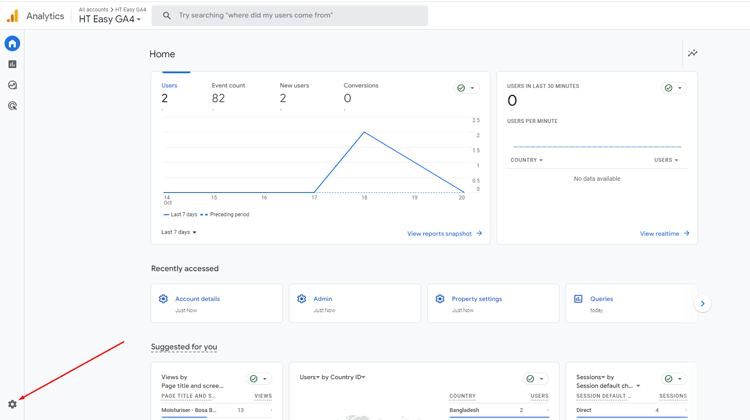
Access Event Settings:
In the Admin section, find the “Property” column. Click on the “Events” option within the Property column. This will take you to the Event Settings tab.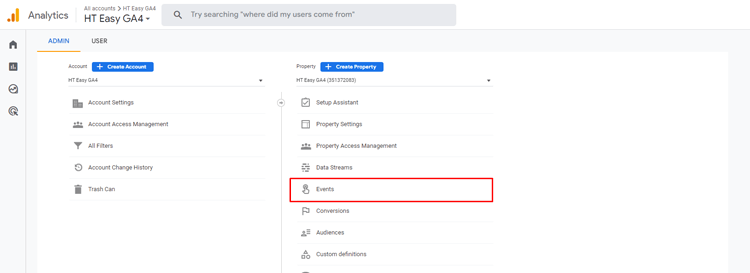
Navigate to the “Create Event” Button:
Within the Event Settings tab, look for the “Create Event” button. Click on it, and a new tab will open.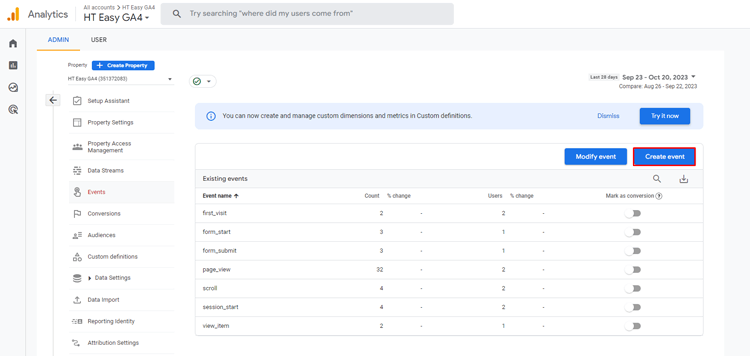
Create a New Event:
In this new tab, you will find the event list if you’ve already created events. To create a new event, click on the “Create” button.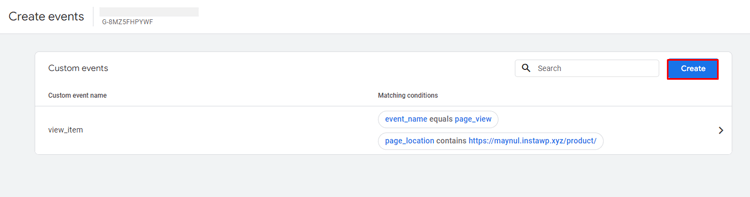
Configure Your Event:
In the event creation tab, you can configure your event according to your requirements. Specify the event details, such as the Custom event name, Parameter, Operator, and Value.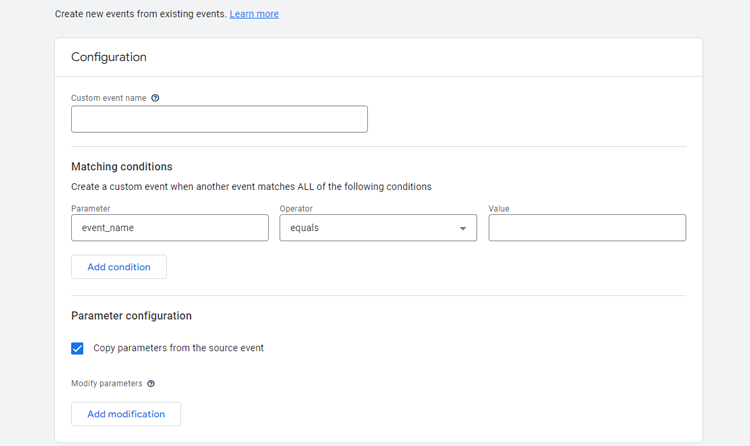
Create Your Event:
After configuring your event, click on the “Create” button to finalize the event creation.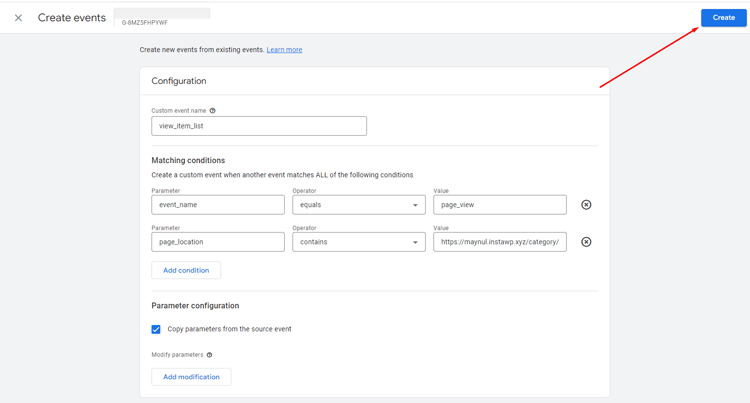
By following these easy steps, you can manually create your desired eCommerce event in Google Analytics.
Setting Up Google Analytics Ecommerce Tracking using HT Easy Plugin
For WordPress websites using WooCommerce as the eCommerce platform, you can easily add Google Analytics code using a plugin like HT Easy GA4. By using the HT Easy GA4 plugin for WordPress and WooCommerce, users can enjoy enhanced analytics, seamless integration, and valuable insights to optimize their eCommerce store’s performance and drive business growth.
By following the steps outlined here, you can effortlessly install Google Analytics on WordPress and unlock its features to enhance your website’s performance.
Installing the Plugin:
Log in to your WordPress dashboard. Navigate to the “Plugins” from the Dashboard and select “Add New.”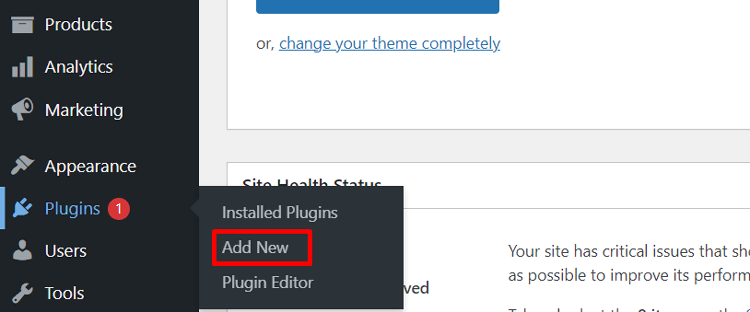
In the search bar at the top right, type “HT Easy GA4” analytics plugin and click “Enter.” Click “Install Now” next to the plugin’s name.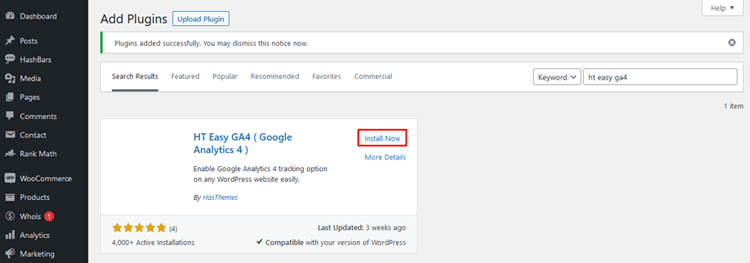
Once the installation is complete, click “Activate.”
Once activated, a new menu item called “HT Easy GA4” will appear in the WordPress dashboard. To access the settings and features of the “HT Easy GA4” analytics plugin, simply click on the “HT Easy GA4” menu.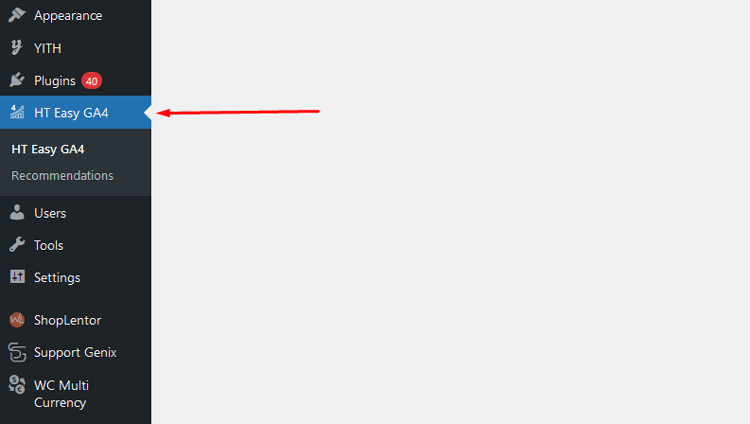
Now, you can effortlessly configure the “HT Easy GA4” plugin with your Google Analytics Measurement ID and begin seamlessly tracking your website’s data with Google Analytics 4 (GA4).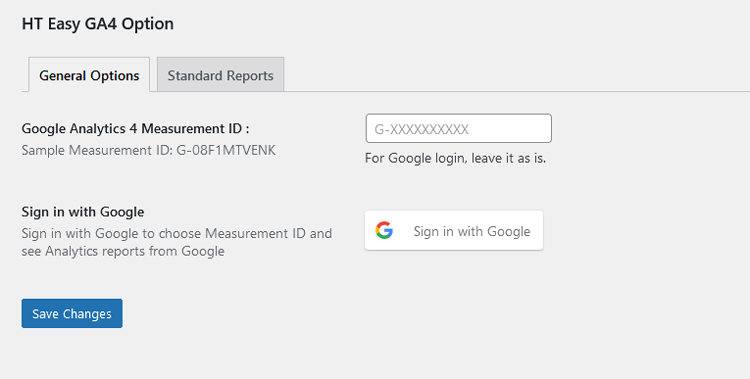
Configuring the Plugin:
After activating the plugin, you’ll find the “HT Easy GA4” menu in your WordPress dashboard. Follow these steps to configure the settings:
Directly Add Measurement ID (Basic Method):
You can easily insert your Google Analytics Measurement ID in the designated field. This action will automatically include the tracking script (gtag.js) in your site’s header, enabling website tracking.
However, to fully leverage all the features of the plugin, we recommend signing in with your Google account and configuring the Measurement ID. By doing so, you’ll gain access to insightful Google Analytics reports and the ability to select from multiple Measurement IDs within your Google Analytics account, all without leaving the WordPress dashboard.
Sign in with Google:
Click “Sign in with Google.” A new window will open, allowing you to log in to your Google account.
Grant access:
Grant access to the plugin to connect with Google Analytics. After granting access, you’ll be connected to Google Analytics.
Connected to Google Analytics:
Once you have successfully linked the plugin to Google Analytics, you will notice a “Logout” button next to the email address you used to sign in. This button serves the purpose of disconnecting the plugin from the Google Analytics API.
Select Account and Property:
Choose the Google Analytics account that is associated with your WordPress website from the dropdown list. After selecting the account, the plugin will show the properties that are linked to it.
Choose Measurement ID:
To view a list of measurement IDs linked to an analytics property, simply choose the property from the dropdown menu. Then, select the most suitable measurement ID for your website.
Save the Configuration:
Once you have configured all the options, remember to save your settings. The plugin will automatically insert the tracking script into your site’s header, enabling effortless monitoring of visitor data. You no longer need to rely on additional third-party plugins or custom code snippets for tracking purposes. If you have manually added a tracking code or utilized any other third-party plugin, feel free to remove them.
Enable eCommerce Events (Pro):
By activating the Pro version of the “HT Easy GA4” and “WooCommerce” plugins, you gain the ability to enable eCommerce Events. These events play a crucial role in tracking user behavior on eCommerce websites, encompassing activities like checkout visits, product views, cart additions, and purchases. Utilizing these events allows for comprehensive monitoring and analysis of your eCommerce performance.
Event Tracking:
The plugin offers a wide range of event tracking options, including “View Product,” “View Category,” “Add to Cart,” “Initiate Checkout,” and “Purchase.” These events play a crucial role in monitoring user interactions with your products and website, empowering you to enhance your online store for improved conversions and revenue generation.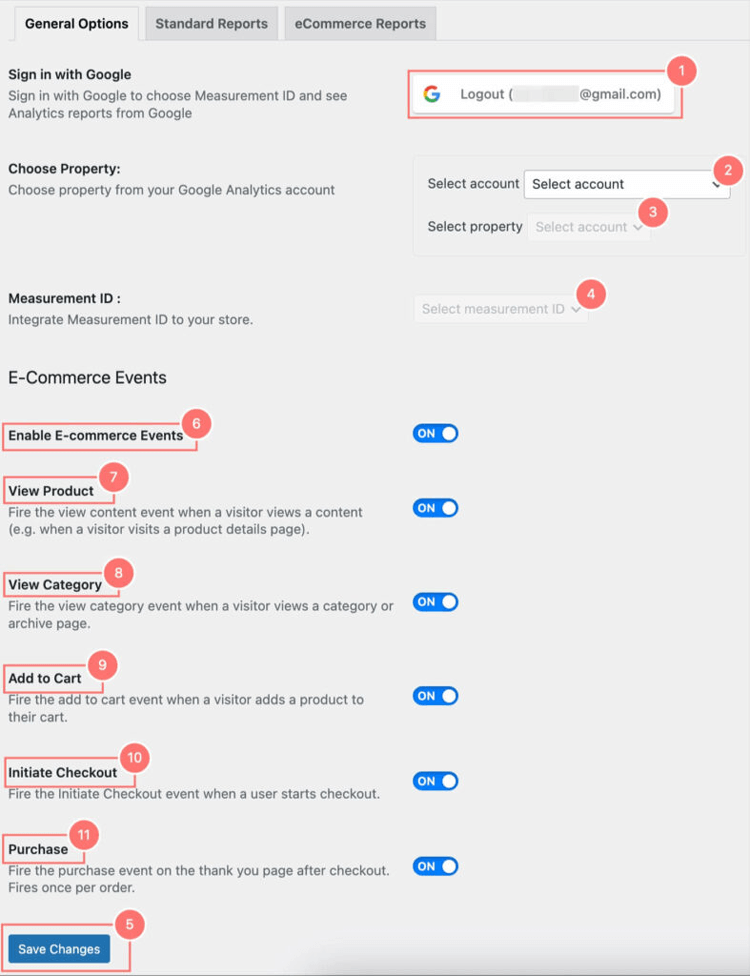
Directly Placing the Measurement ID in GA4 Plugin Settings:
For full access to the plugin’s features, we highly recommend signing in with your Google account and configuring the Measurement ID. This will enable you to view and choose from your Analytics account’s Measurement IDs directly within the plugin, eliminating the need to visit the Google Analytics website. In addition, it grants you access to the most valuable Reports features.
Key Features of the HT Easy GA4 plugin
Some key features of the HT Easy GA4 plugin include:
- Some key features of the HT Easy GA4 plugin include:
- Manual Tracking: Manually track your visitors’ behavior with GA4 measurement ID.
- Automatic Tracking: Automatically track visitors and view reports with Google Login.
- Standard Reports: Access sessions, page views, bounce rate, top pages, top referrers, top countries, user types, and device types.
- Custom Time Period Reports: Generate and view reports for any custom period.
- Period Comparison: Compare chart reports with previous time periods.
- WooCommerce Integration: Pro version includes WooCommerce ecommerce tracking.
- Admin Exclusion: Exclude administrators from being tracked.
- Custom User Roles: Exclude custom user roles from tracking (Pro).
- GA4 Inspector Tool: Debug and verify your Google Analytics 4 implementation in real-time.
- Custom Events: Create custom events with dynamic parameters.
- Purchase Event Tracking: Track WooCommerce purchase transactions automatically.
- Google Ads Conversion Tracking: Track WooCommerce conversions in Google Ads.
- Ecommerce Reports (Pro): Transactions, revenue, average purchase revenue, products viewed, top products.
- Video & Audio Tracking: Vimeo and self-hosted video/audio engagement.
- Real-time Reports: Page views per minute, active users, top pages, top events.
HT Easy GA4
#1 📈 Google Analytics Plugin for WordPress
🚀 Supercharge your WordPress website with analytical insights. (Including WooCommerce Report)
Frequently Asked Questions
Q: What is Google Analytics Ecommerce Tracking, and why is it important?
A: Google Analytics eCommerce tracking is a feature of Google Analytics that allows website owners to track and analyze user interactions related to online sales and transactions. It helps identify traffic sources driving the most valuable customers and optimize your sales strategies.
Q: How do I track the shopping cart abandonment rate in Google Analytics?
A: You can track your shopping cart abandonment rate in the Conversions > Ecommerce > Shopping Behavior report. The average abandonment rate is around 70.22%, with mobile devices showing the highest rates at 78.74%.
Q: What is Average Order Value, and how do I calculate it in GA4?
A: Average Order Value (AOV) is calculated by dividing total revenue by the number of transactions. In GA4, this metric is called “Average Purchase Revenue” and shows the average amount spent per order.
Q: Can I track multiple eCommerce events with Google Analytics 4?
A: Yes, GA4 allows you to track various ecommerce events such as product views, adding items to the cart, removing items, completing purchases, and more. The HT Easy GA4 plugin makes this easy through WooCommerce integration.
Q: What is the best way to set up Google Analytics for my WooCommerce store?
A: The recommended approach is to use the HT Easy GA4 plugin, which provides seamless WooCommerce integration with no coding required. Sign in with your Google account and configure your Measurement ID for full access to ecommerce reports.
Q: How can I improve my conversion rate using Google Analytics data?
A: Analyze your Shopping Behavior Analysis report to identify drop-off points in your sales funnel. Focus on optimizing the checkout process, improving product pages, and targeting high-intent keywords to boost conversions.
Conclusion
Google Analytics eCommerce tracking is an essential tool for any online business looking to understand customer behavior and optimize sales performance. By implementing proper tracking and monitoring key metrics like conversion rate, average order value, and shopping cart abandonment rate, you can make data-driven decisions that directly impact your bottom line.
The combination of Google Analytics 4 with the HT Easy GA4 plugin provides WordPress and WooCommerce store owners with powerful, accessible analytics capabilities. You no longer need advanced technical knowledge to track your ecommerce performance effectively.
By following the setup steps outlined in this guide and regularly analyzing your ecommerce metrics, you’ll be equipped to identify opportunities for improvement, optimize your product offerings, and ultimately increase your revenue. Start implementing Google Analytics eCommerce tracking today and unlock the hidden potential of your online business.