How to Change Theme on WordPress: A Step-by-Step Guide

If you’re looking to change up the look and feel of your WordPress site, then you’ll need to know how to change theme on WordPress. Luckily, it’s a pretty simple process. Many website owners wonder exactly how to change theme on WordPress Website.
Learning proper methods for changing themes in WordPress prevents losing customizations. Beginners need simple guides explaining how to change themes in WordPress.
In this step-by-step guide, we will walk you through the entire process of changing the theme in WordPress. Plus, we’ll give you a few tips on choosing WordPress theme perfect for your website. Let’s get started!
- Key Takeaways
- Overview of Changing Theme on WordPress
- Things to Look for in an Ideal WordPress Theme
- What to Consider Before You Switch Themes in WordPress
- How difficult will it be to make the switch?
- How familiar are you with coding?
- How will your content look on the new theme?
- How to Change Theme on WordPress: Step by Step
- Log in to Your WordPress Dashboard
- Navigate to Appearance > Themes
- Select the Theme You Want and Install It
- Activate the New Theme
- Tips for Choosing the Right WordPress Theme for Your Site
- Frequently Asked Questions
- Final Thoughts
Key Takeaways
- Prepare website content to ensure a smooth transition between themes.
- Back up website content before changing WordPress themes.
- Compare themes effectively using WordPress Theme Directory features.
- Evaluate theme compatibility with existing plugins before making the switch.
- Identify potential coding requirements for customizing new themes.
Overview of Changing Theme on WordPress
Have you ever wanted to completely change how your WordPress site looks? One of the best features of WordPress is how easy it is to do just that – changing a theme. WordPress Themes are packages of design and functionality that you can install on your site.
When it comes to how to change theme on WordPress, there are two main ways to do it. You can change your WordPress theme manually by visiting the theme directory. Search for the type of theme you need and manually upload it.
Alternatively, you can change your theme directly through the WordPress dashboard for a quicker installation process. The process of changing WordPress themes affects your website’s appearance immediately.
Most users prefer to change theme in WordPress through the admin dashboard. The WP change theme process preserves most content automatically.
Whether you choose to upload or install the theme directly from WordPress, the process is very straightforward and easy. Once done, you’ll be able to customize how your site looks and how it functions.
Things to Look for in an Ideal WordPress Theme
When choosing an ideal theme, there are certain criteria that should be taken into consideration to ensure you pick one that will best suit your needs.
Before you change WordPress theme, consider mobile responsiveness and loading speed. Professional designers recommend testing how to change a WordPress theme in staging environments. Understanding how to select a theme in WordPress requires evaluating its features.
To start, take a look at the WordPress Theme Directory to get an idea of how many different options are available. Consider factors like theme customization ease, and compatibility with popular WordPress plugins and widgets.
Additionally, how user-friendly the navigation and design are should be taken into account when choosing a theme that works for you.
Finally, how responsive the theme is should also be considered. That means how well it works and looks across different types of devices, such as a laptop or mobile devices.
Choosing an ideal WordPress theme that meets all of your needs can be quite overwhelming. Comparing different themes helps you choose one that fits your specific needs. It’s worth exploring options to ensure you select the best theme for your website’s requirements.
Once you’ve identified the ideal theme for your WordPress site, how to change it is relatively easy.
ShopLentor – WooCommerce Builder for Elementor & Gutenberg
A versatile page builder to build modern and excellent online stores with more than 100k Active Installations.
What to Consider Before You Switch Themes in WordPress
Making a change to how your WordPress website looks and functions can breathe new life into your content. Experienced developers recommend backing up before changing a WordPress theme.
The WordPress theme change process might affect custom code. But before you jump into changing the theme of your website, there are some important things to consider.
How difficult will it be to make the switch?
Switching to a new theme can be difficult if your current theme has many customizations. The new theme may not support the same customizations, leading to potential compatibility issues.
It’s essential to verify whether the new theme can accommodate your specific customizations before making the switch. You’ll need to go through each customization and see how you can apply them to the new theme.
How familiar are you with coding?
Those with experience in editing HTML, CSS, and PHP files will likely find the switch straightforward. If you’re not familiar with coding, focus on choosing a theme that’s user-friendly. It should offer easy customization without requiring any technical skills.
How will your content look on the new theme?
Before making any major changes it’s important to take a look at how your content will look on the new theme. You can find theme demos in the WordPress Theme Directory. Alternatively, use the Customizer feature to try different themes in WordPress.
Switching themes can boost engagement and enhance your website’s visual appeal. However, without considering key factors, the transition may become challenging. It’s essential to plan ahead and make informed decisions for a seamless and successful theme change.
So take your time and do your research to ensure that you get the most out of your theme change!
How to Change Theme on WordPress: Step by Step
Changing a theme on WordPress is an easy task, and in just a few minutes you can give your website or blog a whole new look.
To change theme on WordPress, the process works similarly across all versions. Modern WordPress dashboards simplify how to change the theme in WordPress. Here are the simple steps to follow:
Log in to Your WordPress Dashboard
Access WordPress Dashboard.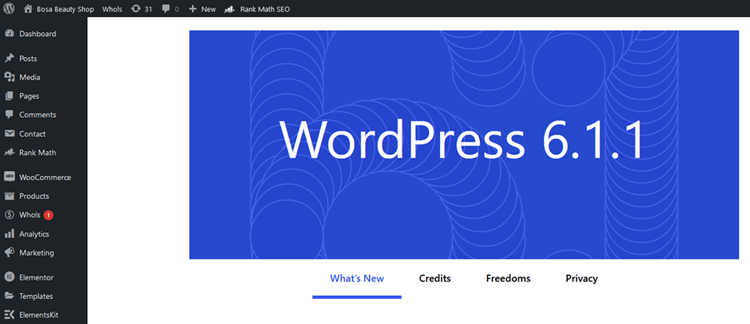
Navigate to Appearance > Themes
Open the “Appearance” tab located in the left-side menu bar. Select “Themes” in the list of options.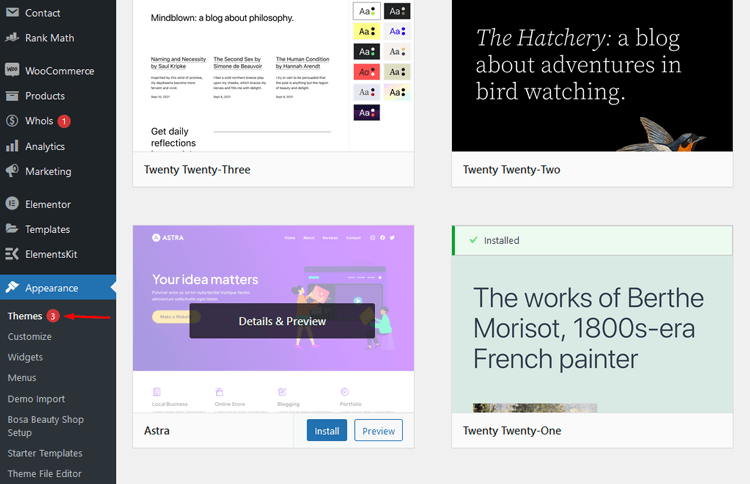
Below, you’ll find a list of all the themes installed on your website. Your active theme will be clearly highlighted for you to see.
To begin, select the “Add New” button, depending on whether your theme is from the WordPress Theme Directory or purchased externally. This will enable you to proceed with adding your new theme to WordPress.
Select the Theme You Want and Install It
To find the perfect free theme among thousands of options, head to the Add Themes page and use its drop-down menus. 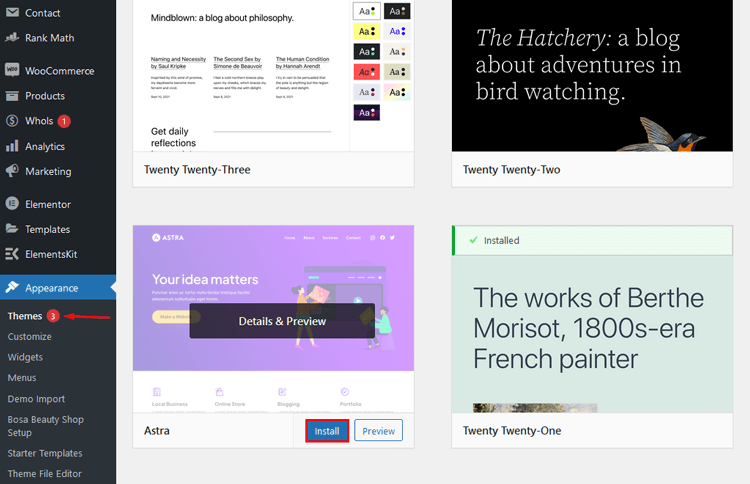
If you’ve purchased a premium theme, unzip the file first. Then, click on “Upload Theme” and select the “Choose File” dialog. Locate your theme file and upload it to your WordPress site to get started.
Finally, click the Install button – WordPress will take care of everything else! You’re almost done!
Activate the New Theme
After you’ve finished the installation of your premium theme, the last step is to activate it. Usually, an activation link will appear on a confirmation page after completion. If not, navigate back to Appearance > Themes and view all your installed themes; then simply hover over it and click Activate!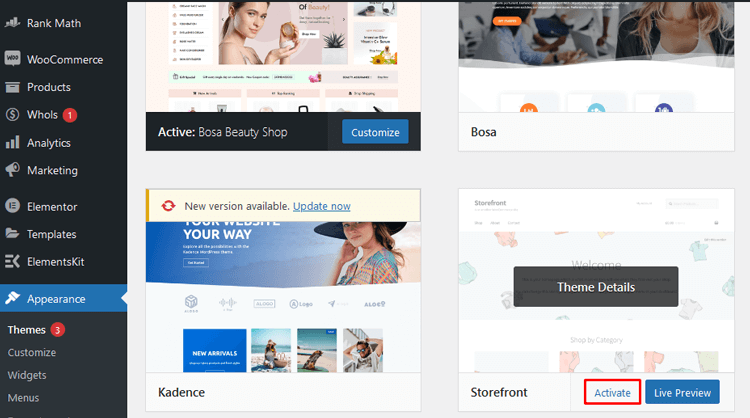
After completing the steps above, you can now take a look at your new theme in action. It should be working without any issues.
👉 Check 50+ Best Free WooCommerce Themes 2024
Tips for Choosing the Right WordPress Theme for Your Site
When you are setting up your WordPress site, choosing the right theme can make all the difference. A good theme will be able to provide a good user experience and help create an engaging website that visitors will appreciate.
Here are some tips to help you find the best WordPress theme for your website.
Consider how easy it is to change the theme.
How easy is it for you to change the theme on WordPress? Some themes allow for a simple, one-click switch from the admin panel. If you’re looking to make frequent changes or customize your site down the line, a theme with this feature can be invaluable.
Look at how well-optimized the theme is.
Poorly optimized themes can lead to slow loading times and a bad user experience. Look for themes that are optimized for speed and have good code structure.
Browse the WordPress theme directory.
The WordPress Theme Directory offers thousands of free and paid themes. It is a valuable resource for finding a theme that suits your site’s needs.
Check how easy it is to customize the theme.
Some themes are built to be highly customizable and can be manipulated to meet your needs with minimal effort. Others may require significant changes or coding knowledge in order to make any modifications at all.
By following these tips, you’ll be able to find the perfect WordPress theme for your website. Taking time to choose the right theme will make your site more effective. It will also help you create a more engaging user experience for visitors.
👉 Learn: How to Design a WordPress Site That Will Impress Your Visitors: A Comprehensive Guideline
Frequently Asked Questions
How to Change Theme on WordPress?
Change WordPress theme on your WordPress site is easy and can be done in a few simple steps.
First, you’ll need to access WordPress dashboard and click on the “Appearance” tab. Next, click on the “Themes” option which will open up a directory of available themes that you can choose from.
Once you choose the theme that suits your needs, click the Activate button. Your new theme will be instantly applied to your site. It’s that simple and easy to change your theme in WordPress.
How do I know if the theme is compatible with my WordPress version?
When browsing themes in the directory, check the ‘Compatibility’ section for compatibility. This ensures the theme works well with your current version of WordPress. If a theme is not compatible, it may cause issues on your site.
Can I use a free theme?
Yes, there are many free themes available in the WordPress Theme Directory. You can browse for a theme that meets your needs and activate it on your site.
How do I go back to my previous theme?
To switch back to your previous theme, go to the Appearance tab in WordPress. Click on themes in the dashboard, then select the theme you want to revert to. It’s a simple process to return to your old theme without losing any settings.
Do I need coding skills to change my theme?
No, it is not necessary to have any coding knowledge in order to change your WordPress theme. All you need is access to your WordPress dashboard and the ability to follow the steps outlined above.
HT Mega Elementor Addons
The ultimate Elementor page builder addons to build stunning websites.
Final Thoughts
How to Change Theme on WordPress is a great way to freshen up how it looks and works. The WordPress theme directory offers a large selection of themes for your site.
You can easily find a theme that fits your site’s style and purpose. With just a few clicks, you can change your website’s look and enhance user interaction.
Experts recommend taking screenshots before changing WordPress themes for reference. The process of changing theme of WordPress website typically takes minutes.
The themes significantly impact your website’s performance, so take the time to research your options. Once you choose a theme, changing it on WordPress is easy.
Simply follow the steps, and your site will have a fresh look quickly. Proper research ensures a smooth theme change process.