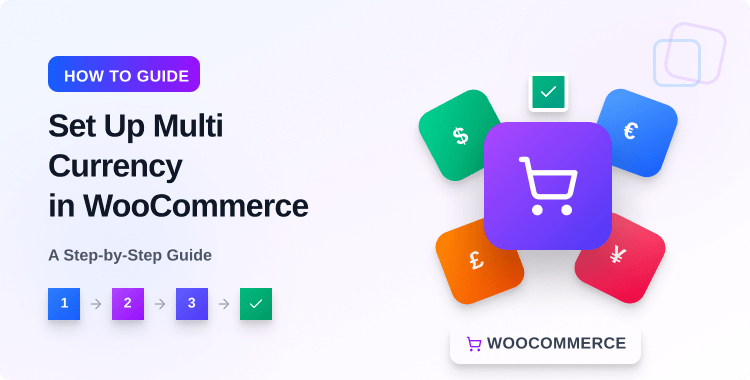
How to Set Up Multi Currency in WooCommerce: A Step-by-Step Guide

Are currency limitations holding your online store back from reaching global customers? In this step-by-step guide, you’ll learn how to set up multi-currency in WooCommerce using a powerful and reliable solution, Multi Currency for WooCommerce.
Say goodbye to lost sales and hello to a broader, global audience. In today’s eCommerce world, supporting multiple currencies is more than a convenience, it’s a competitive advantage.
This guide will walk you through everything you need to know to implement a seamless WooCommerce multi-currency experience for international customers.
A proper WooCommerce multi-currency setup benefits both merchants and shoppers by making transactions smoother and more accessible.
Many successful online stores rely on a trusted WooCommerce multiple currencies plugin to handle pricing, conversions, and checkout logic across markets.
With this guide, you’ll be equipped to implement WooCommerce multi-currency functionality with confidence and precision.
- Key Takeaways
- Understanding Multi-Currency in WooCommerce
- Setting Up Multi-Currency in WooCommerce with Multi-Currency Plugin
- Why You Should Use Multi-Currency for WooCommerce Plugin
- Downloading and Installing the Multi-Currency for WooCommerce Plugin
- Upgrading to the Pro Version of Multi-Currency for WooCommerce
- Setting up the Currency
- Setting up the Location
- Setting Payment Gateway
- Setting up the Design
- Setting up Multicurrency Options using Shortcode
- Frequently Asked Questions on How to Set Up Multi Currency in WooCommerce
- Final Thoughts
ShopLentor – WooCommerce Builder for Elementor & Gutenberg
A versatile page builder to build modern and excellent online stores with more than 100k Active Installations.
Key Takeaways
- Expand global reach by implementing multiple currencies in WooCommerce.
- Configure automatic currency switching based on customer location.
- Customize currency switcher’s appearance to match your site design.
- Assign specific payment gateways to different currency options.
- Place currency switchers strategically using shortcodes and widgets.
Understanding Multi-Currency in WooCommerce
Before we dive into the setup process, let’s first understand what multi-currency means in the context of WooCommerce. Multi-currency allows your online store to display and accept payments in multiple currencies rather than just one default currency.
WooCommerce Multi-Currency plugins and features help to convert and display prices dynamically, ensuring a seamless and user-friendly shopping experience for international customers. This gives your customers the freedom to shop in their preferred currency, making it easier for them to make purchases without having to worry about exchange rates or conversion fees.
Advanced currency options WooCommerce settings affect product pricing display formats. Proper configuration ensures accurate display of product prices in different currencies. Most plugins support major global currencies and regional payment methods.
What is Multi-Currency?
Multi-currency refers to the capability of the e-commerce platform to handle multiple currencies for online transactions. It allows customers from different regions or countries to view product prices and make purchases in their local currencies.
If you’re wondering how to add multiple currencies to WooCommerce, the process typically involves installing a reliable WooCommerce currency switcher plugin. This tool enables shoppers to switch between currencies on your site with ease.
Once you enable multi-currency in WooCommerce, your store can handle pricing conversions and checkout processes in various currencies, often integrating seamlessly with most popular payment gateways.
Why Implement Multi-Currency in WooCommerce?
Expanding your business to a global audience has never been easier with multi-currency options. Here are some reasons why you should consider setting it up on your WooCommerce store:
- Increased global reach and potential customer base;
- Improved user experience with a currency switcher option;
- Higher conversions due to transparency in pricing and reduced cart abandonment rates;
- Custom pricing options for different currencies;
- Diversification of payment methods to cater to different regions;
- Automatic updates of exchange rates for hassle-free management.
Robust WooCommerce foreign currency support reduces abandoned carts significantly. Switch currencies automatically in WooCommerce to improve the user experience. Customers appreciate transparent pricing without manual conversion calculations.
Setting Up Multi-Currency in WooCommerce with Multi-Currency Plugin
Multi-Currency for WooCommerce is a powerful plugin that allows you to set up and manage multi-currency in your WooCommerce store. With this plugin, you can add unlimited currencies, customize exchange rates, and have a currency switcher on your website.
The best multi-currency plugin WooCommerce offers different feature combinations. Each WooCommerce multiple currencies plugin has unique strengths and limitations.
Why You Should Use Multi-Currency for WooCommerce Plugin
The Multi-Currency for WooCommerce Plugin is a revolutionary tool in the eCommerce industry. First and foremost, it offers flexibility by allowing your customers to shop and pay in the currency they are most comfortable with. Here are some remarkable features:
- Currency Switching Capability: Allows website visitors to switch to their preferred or local currency.
- Currency Selection: Offers the option to choose which currencies to enable on your online store.
- Automatic Currency Rates: Provides the functionality to set currency rates automatically.
- Manual Currency Rates: Also supports manually setting currency rates for more control.
Multi-Currency for WooCommerce also automatically updates exchange rates, making it a hassle-free process for you.
Here’s the process of how to set up multi currency in WooCommerce with this plugin:
Downloading and Installing the Multi-Currency for WooCommerce Plugin
The first step towards setting up multi-currency in WooCommerce involves downloading and installing the right plugin. You’ll want to choose ‘Multi-Currency for WooCommerce.’
To do this, log into your WordPress dashboard and navigate to the ‘Plugins’ section. Click ‘Add New’ and use the search bar to find ‘Multi-Currency for WooCommerce’.
Once you’ve located the plugin, click ‘Install Now’. After the installation completes, click ‘Activate.’
Now, the Multi-Currency for WooCommerce plugin is successfully installed and activated on your WordPress site, and you’re ready to configure it according to your needs.
The Multi currency WooCommerce tutorial continues in subsequent sections below. Professional WooCommerce currency management includes regular testing of currency switching functions.
Upgrading to the Pro Version of Multi-Currency for WooCommerce
To upgrade to the Pro version of Multi-Currency for WooCommerce, activate the plugin on your WordPress site. Then, navigate to the license section, where you can conveniently input your purchase code. This step ensures that you receive regular updates and support for the plugin.
By adding the license code, you’ll stay informed about important updates through notifications in your WordPress dashboard.
This step helps you unlock the advanced features available in the Pro version. It also allows you to manage multi-currency settings in your WooCommerce store.
While the free version of Multi-Currency for WooCommerce offers great features, upgrading to the pro version unlocks even more benefits. Here are some reasons why you should consider purchasing the pro version:
- Location-based currency: The pro version allows you to add currencies for different regions. You have the flexibility to either apply the currency changes to all countries or selectively choose specific locations based on your specific needs.
- More Currencies: The pro version allows you to add an unlimited number of currencies, giving your customers even more options.
- Customization Options: With the pro version, you can customize the currency switcher to match your website’s design and branding. You can also choose which currencies to display and in what order.
- Payment Method Restrictions: With the pro version, you can limit payment methods for specific currencies, giving you more control over your store’s options. This feature allows you to set up unique payment gateways or methods for each currency.
For example, you can choose to use only bank transfer and PayPal for USD and enable only PayPal for AUD. Make sure to enable this setting and the Payment methods in WooCommerce Settings. - Priority Support: Upgrading to the pro version gives you access to priority support from the plugin developers in case of any issues or queries.
Setting up the Currency
After activating the plugin, locate the “Multi-Currency Pro” menu in your WordPress dashboard. Navigate to the “Currency” tab. In this section, you have the flexibility to choose which currencies you’d like to enable for your online store.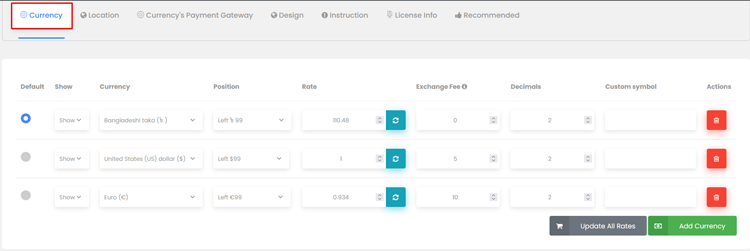
Follow these simple steps to set up and customize currencies for your store:
- Within the “Currency” tab, you can add as many currencies as needed.
- You can set currency exchange rates either automatically or manually.
- To remove a currency, simply click on the red remove icon.
- To view the changes, refresh or reload your browser.
Setting up the Location
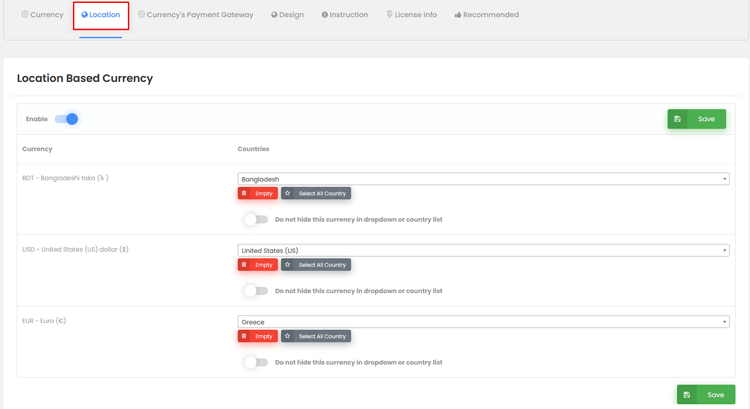
The next tab is dedicated to configuring the location settings. By activating this feature, you can add currencies tailored to different geographic regions.
To enable the feature of adding currency for different locations, simply toggle it on. You have the option to either select all countries or choose specific locations based on your requirements.
The WooCommerce feature automatically switches currencies using geolocation technology. Visitors see prices in their local currency automatically.
The WooCommerce foreign currency support works best with location detection. This means you can customize the currencies available to match the regions you serve, making your online store more region-friendly.
Setting Payment Gateway
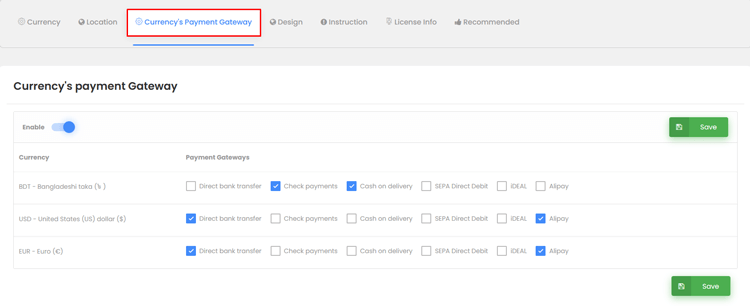
This plugin offers a unique feature – the ability to set a specific payment gateway or method for each currency. With this feature, you can easily add payment methods for different currencies based on your preferences.
Comprehensive WooCommerce international payments integration varies by payment processor. Each currency option in WooCommerce settings affects the availability of checkout payment methods.
For example, if you only want to use bank transfer and PayPal for USD or enable only PayPal for AUD, you can easily do so. This flexible option allows you to choose which payment methods are available for each currency.
To include a specific payment method for a particular currency, simply check the corresponding box.
Setting up the Design
Multi-Currency Pro for WooCommerce offers a wide range of design options to ensure your currency switcher looks and feels just the way you want it.
You can control the widget’s position, decide whether it should be displayed in the menu, and choose to show only the currency flag and symbol. Additionally, you have the option to display the currency code instead of the symbol.
The WooCommerce currency switcher appearance significantly impacts user experience. A well-designed add currency switcher WooCommerce implementation boosts conversion rates.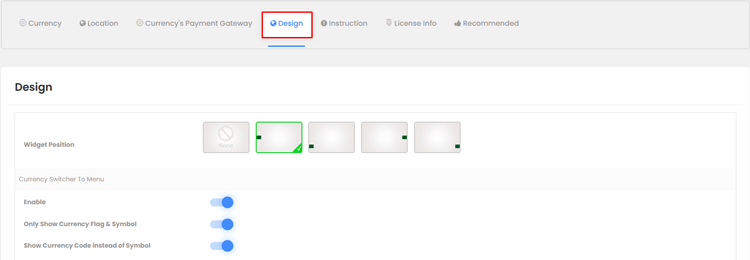
The design tab settings help you control the look of your currency switcher. You can select your menu and set margins easily. Adjust the title and text colors to match your brand. Customize the dropdown background and hover background for a better style.
You can also hide the currency title and flag from the dropdown. Set a maximum height to control the dropdown size. Choose from different animation styles to enhance visual appeal. These options help you create a smooth and professional look that fits your WooCommerce store perfectly. 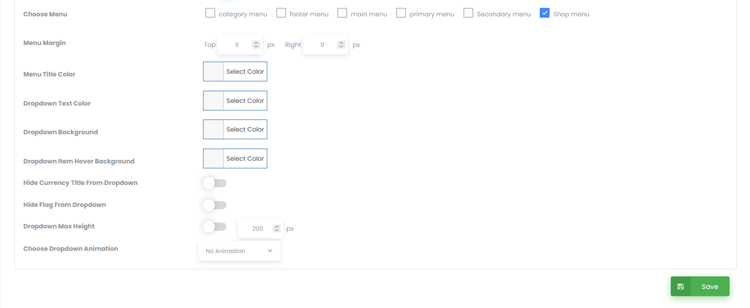
Setting up Multicurrency Options using Shortcode
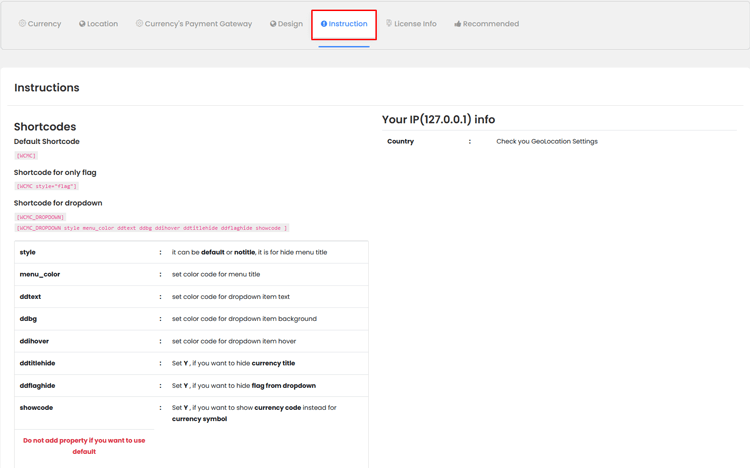
The feature to add multiple currencies using shortcodes is very helpful. It allows you to place the currency switcher anywhere on your website. You get full control over where it appears and how it’s shown.
You can effortlessly insert these shortcodes into various elements such as Gutenberg blocks, WordPress widgets, Elementor, or any other editor of your choice.
Advanced techniques to add a currency switcher in WooCommerce include custom shortcode placement. This multi-currency WooCommerce tutorial also provides detailed examples of implementing those shortcodes effectively.
Frequently Asked Questions on How to Set Up Multi Currency in WooCommerce
Why should I implement Multi-Currency in WooCommerce?
Implementing Multi-Currency in WooCommerce can expand your customer base by making your online store more accessible to international buyers. It improves user experience, increases trust, and helps in boosting sales by reducing currency conversion confusion.
Can I add any currency I want?
Yes, you can add any currency of your choice or even add multiple currencies to WooCommerce using the Multi Currency for WooCommerce plugin.
Do I need to update the exchange rates manually?
No, the plugin offers automatic currency rate updates. However, if needed, you can also set them manually.
Is it possible to assign different payment methods for each currency?
Yes, the currency switcher WooCommerce plugin allows you to set up payment methods for each currency separately.
Can I show the currency symbol next to the prices?
Yes, the Multi-Currency plugin allows you to display currency symbols next to product prices, helping customers quickly identify the preferred currency they are dealing with.
Can I have a different payment gateway for each currency?
Obviously, the Multi-Currency plugin allows you to set specific payment gateways for different currencies. For instance, you can offer PayPal for USD and a different gateway for Euros.
How do I add the currency switcher to specific parts of my website?
This currency switcher WooCommerce plugin is easy to use on your website. It usually includes shortcodes or widgets that simplify the process. You can place them in the header, footer, or sidebar of your site.
Final Thoughts
Implementing multi-currency options on your WooCommerce site is a great way to expand your customer base and increase sales.
Transforming your WooCommerce store with multi-currency support is a smart business move. It removes barriers that stop global customers from making purchases on your site. Shoppers feel more confident when prices appear in their local currency.
Without this feature, you risk losing international sales every single day. The good news is that setting it up is easier than you think. Plugins and tools are available to make the process smooth and effective.
Do not wait while your competitors attract global buyers. Add a currency switcher WooCommerce plugin now and unlock your WooCommerce store’s full potential for international growth.