What Is Google Analytics 4 (GA4)?: Beginner’s Guide

Quick Answer: What is Google Analytics? Google Analytics 4 (GA4) is Google’s free analytics platform that tracks user actions on your website or app with an event‑based model. It replaced Universal Analytics and helps you understand traffic, engagement, and conversions so you can make better data‑driven decisions.
Have you ever wondered how many people visit your website? Or which of your blog posts is the most popular among readers?
As a website owner, it’s crucial to understand these details for your site’s success. This is where Google Analytics comes into play.
But what exactly is Google Analytics?
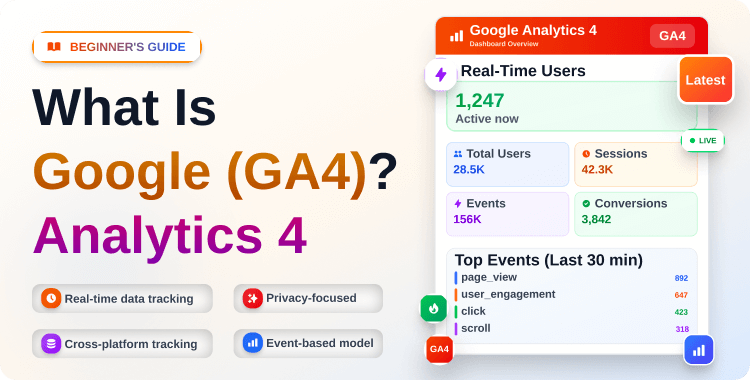
Google Analytics 4 (GA4) is Google’s free analytics platform that tracks how people interact with your website or app. It uses an event-based data model to measure every action — page views, clicks, scrolls, purchases, and more — giving you a clear picture of what visitors do and why. GA4 replaced the older Universal Analytics (which ended in 2023) and is now the only version of Google Analytics available.
Whether you run a blog, a WooCommerce store, a Shopify shop, or a SaaS product, GA4 helps you make smarter decisions based on real data instead of guesswork.
Key Takeaways
- Learn what Google Analytics is and how it helps track and analyze website traffic and user behavior.
- Discover Google Analytics 4 (GA4) ‘s advanced features.
- Understand why tracking user interactions, conversions, and website traffic is crucial for optimizing online performance.
- Get step-by-step guidance on setting up a Google Analytics account and implementing the tracking code on your website.
- Learn how to configure and monitor conversions to measure the effectiveness of your marketing strategies and sales funnel.
- Familiarize yourself with the different types of reports available in Google Analytics.
- Discover how the HT Easy GA4 plugin streamlines Google Analytics integration and utilization in WordPress.
- Gain insights into how Google Analytics can help improve your website’s SEO.
What is Google Analytics?
Google Analytics 4 is a free web and app analytics tool by Google. It collects data about your visitors, who they are, how they found you, and what they do on your site, and organizes it into easy-to-read reports.
Unlike the previous Universal Analytics, GA4 tracks events rather than sessions. This means every user action, a button click, a video play, a purchase is recorded as a separate event, giving you much more detailed and flexible data.
GA4 works on both websites and mobile apps, so if your business has both, you can see all user behavior in one place.
Key Features of GA4 in 2026
Event‑Based Data Model
Everything in GA4 is an event. A page view is an event. A scroll is an event. A purchase is an event. This is different from the old session‑based model, where data was grouped into time‑bound “sessions.”
This lets you track exactly the actions that matter to your business — like “added to cart”, “watched video to 50%”, or “submitted contact form” — without complex custom setups.
Cross‑Platform Tracking (Web + App)
GA4 lets you track users across your website and mobile app in one property. If a customer browses products on your app and buys on your website, GA4 connects those interactions into a single user journey.
This is especially useful for businesses with both a WooCommerce/Shopify store and a companion mobile app.
Enhanced Measurement (scrolls, outbound clicks, files, video)
GA4 automatically tracks common interactions without extra code:
- Scrolls (when users reach 90% of a page)
- Outbound clicks (links that leave your site)
- Site search terms
- File downloads (PDFs, docs, media)
- Video engagement (play, progress, complete)
- Form interactions (start, submit)
You just turn these on under Admin → Data Streams → Web → Enhanced Measurement.
AI‑Powered Insights and Predictive Metrics
GA4 uses Google’s machine learning to surface patterns you might miss. It can alert you to sudden traffic spikes, conversion drops, or new trends.
It also includes predictive metrics like:
- Purchase probability
- Churn probability
- Predicted revenue
These help you build smarter remarketing audiences and focus on high‑value users.
Privacy, Consent, and Cookieless Future
GA4 was built for a privacy‑first, cookieless world:
- Consent Mode adjusts data collection based on user cookie consent.
- IP anonymization is enabled by default.
- You can combine GA4 with server‑side tracking for more control.
- Machine learning models fill some gaps when cookies are limited.
This makes GA4 better aligned with GDPR, CCPA, and other privacy rules than Universal Analytics.
What Is GA4 Used For? (Real‑World Use Cases)
Here’s how different businesses use GA4 in practice:
- Blog or content site
- See which articles attract the most readers.
- Measure how far visitors scroll and which posts lead to sign‑ups.
- Find traffic sources (Google, social, referral).
- WooCommerce store
- Track product views, add‑to‑carts, checkout steps, and purchases.
- Measure revenue by product, category, or traffic source.
- See which campaigns bring actual buyers, not just visitors.
- Shopify store
- Monitor store sessions, product interest, and checkout performance.
- Compare mobile vs desktop behavior.
- Attribute sales to SEO, social media, email, or ads.
- SaaS or online tools
- Track sign‑ups, free trial activations, and subscription upgrades.
- See which features users actually use.
- Measure retention, churn, and lifetime value.
In short, GA4 answers: “What are people doing on my site, and is it helping the business?”
Recommended Blogs for You:
👉 How to Track Website Traffic Using Google Analytics
👉 How to Install Google Analytics on WordPress: A Step-By-Step Guide
👉 Unlock the Power of Google Analytics Ecommerce Tracking for Your Business
👉 5 Best WooCommerce Google Analytics Plugins: Unlock the Power of WooCommerce Analytics
The Most Important GA4 Metrics to Know
If you are new to GA4, focus on these metrics first:Metric What It Means Users Unique visitors to your site or app. Sessions Total visits; one user can start multiple sessions. Views Number of pages or screens viewed (similar to pageviews). Engagement rate Percentage of sessions with meaningful activity (10+ seconds, multiple views, or a conversion). Average engagement time Average time users actively interact with your content. Conversions (key events) Actions you mark as important, such as purchases, sign‑ups, or form submissions. Revenue Total revenue tracked from ecommerce events.
GA4 still has “bounce rate,” but engagement rate is more useful. Instead of asking “who bounced?”, GA4 helps you ask “who actually engaged?”
How Does Google Analytics Work?
Google Analytics is a powerful tool that helps you understand your website’s traffic by providing valuable insights into how visitors interact with your content. But how does it work?
The Google Analytics explanation of its functionality reveals how Google Analytics collects data from every visitor interaction on your site.
Google Analytics operates through a combination of JavaScript code, data collection, and processing on Google’s servers. Here’s a simplified breakdown of its functionality:
- Tracking Code: Each webpage you want to monitor has a small JavaScript snippet, known as the tracking code, added to the HTML. This code collects data about visitors to your site.
- Data Processing: On Google’s servers, the received data is processed and compiled. The processing engine organizes the data into reports, which are then made available for you to review in your Google Analytics account.
How to Use Google Analytics
Google Analytics can initially seem overwhelming, but with this tutorial and some practice, you’ll quickly learn how to interpret your website’s data effectively.
Read the steps and follow them according to the heading.
Step 1: Set Up a Google Analytics Account and Implement the Tracking Code
Begin by creating a Google Analytics account. Once your account is ready, you must implement the tracking code on your website. This code is essential because it enables Google Analytics to collect data on your site visitors and their interactions. The initial step is to set up a Google Analytics account and integrate a tracking code into your website.
If you need assistance with these steps, follow our easy guide on configuring your Google Analytics account.
So, what exactly is a tracking code?
Your Google Analytics tracking code is a powerful snippet of code that lets Google Analytics monitor your website’s visits and visitors’ actions. It’s written in JavaScript.
Google Analytics uses a JavaScript snippet embedded on each webpage to track visitor activity. This data is sent to Google’s servers, where a processing engine generates comprehensive reports.
You don’t need to understand the code, but knowing how it works might be helpful. When someone visits your website, Google Analytics drops a cookie on their browser. These small files contain information about the user’s activities.
Using cookies, Google Analytics tracks user behavior on your site and gathers this data to show you in various reports.
Step 2: Configure Conversions
Conversions track visitors’ actions on your site, like signing up for a newsletter, submitting a form, watching a video, or making a purchase. Setting up WooCommerce conversion tracking in Google Analytics helps online stores measure their sales funnel effectiveness and optimize for better results.
Enhanced Measurement Tracking: GA4’s Enhanced Measurement feature automatically tracks key events, such as video views, form submissions, and more.
Limitations:
- Video tracking only works with YouTube videos.
- Form tracking may conflict with Facebook Pixel.
- Scroll tracking only triggers when users scroll to the bottom of the page.
Enable Enhanced Measurement:
- Go to Admin > Data Streams.
- Select your data stream.
- Toggle on Enhanced Measurement.
- Click the cog icon to choose the events you want to be tracked.
Mark Events as Conversions:
- Mark events (like file downloads or form submissions) as key events. These will now be counted as conversions in Google Analytics.
Once you’ve created an account and added the tracking code, it’s time to explore what Google Analytics can do.
Upon logging in, you’ll arrive at the Google Analytics home dashboard. This provides a quick overview of your website’s performance, including user count, new users, average engagement time, and event count.
Reports on Google Analytics:

Once set up, explore various reports to gain insights into your website’s performance. To access detailed reports, navigate to the “Reports” tab on the left sidebar. Here’s a breakdown of the key reports and what they offer:
- Real-time Report: This report displays real-time user activity and device usage on your site, perfect for tracking the immediate impact of marketing campaigns.
- Engagement Report: This report offers insights into user activity on your site, covering events, conversions, and page visits. The “Pages and screens” and “Landing page” reports show detailed data for specific pages.
- Monetization Report: This report tracks eCommerce product sales and revenue, enabling you to monitor key metrics such as total revenue, product performance, and transaction data to optimize sales strategies.
- Demographics Report: This report provides insights into your audience’s location, gender, age, and language, helping you tailor content and marketing efforts to their characteristics.
- Tech Report: This report shows the technology used by your visitors, including device type (desktop, mobile, tablet), operating system, browser, and screen resolution. Understanding these details helps optimize your site for various devices and platforms.
Reading GA4 Reports (Quick Tour)
Open GA4 and click Reports in the left menu. Here’s what the main reports tell you:
- Reports snapshot – “How is my site performing overall?”
A quick overview of users, sessions, revenue, and top pages. - Realtime – “Is my new campaign or post bringing live traffic?”
Shows who is on your site right now, what pages they are viewing, and which events are firing. - Acquisition – “Which channels drive traffic and conversions?”
Breaks down where visitors come from: organic search, direct, social, referral, paid ads, email, etc. - Engagement – “What content keeps users engaged?”
Shows top pages and screens, events, engagement rate, and conversions. - Monetization – “How much money am I making, and which products perform best?”
For ecommerce sites, shows revenue, transactions, and product performance. - Demographics – “Who is my audience?”
Provides data about user locations, languages, ages, and genders. - Tech – “Which devices and platforms do I need to optimize for?”
Lists device types, operating systems, and browsers.
Google Analytics may initially seem daunting, but with this tutorial and practice, you’ll quickly learn to interpret your website’s data. To make things even easier, consider using a handy plugin like HT Easy GA4.
Google Analytics Plugins

HT Easy GA4 is the most intuitive Google Analytics plugin for WordPress. It allows anyone, even beginners, to install, configure, and utilize Google Analytics in WordPress without coding.
This plugin provides various standard and e-commerce reports, offering valuable insights and additional features to streamline your analytics efforts.
When to Use a Plugin Like HT Easy GA4 (Keep It Short)
If you use WordPress or WooCommerce, connecting GA4 manually can be confusing. A plugin like HT Easy GA4 makes the process much easier.
With HT Easy GA4, you can:
- Connect your WordPress site to GA4 without editing code.
- View key GA4 reports directly inside your WordPress dashboard.
- Track WooCommerce ecommerce events (product views, add‑to‑cart, purchases) automatically with the Pro version.
Use a plugin when you:
- Don’t want to manually paste tracking code or use Google Tag Manager.
- Prefer seeing important stats inside WordPress instead of switching tabs.
- Run a WooCommerce store and need reliable ecommerce tracking.
For full feature details and pricing, link to the official HT Easy GA4 product page.
Frequently Asked Questions
Is Google Analytics 4 free?
Yes. Google Analytics 4 is free for websites and apps. Larger enterprises can upgrade to Google Analytics 360, but most small and medium businesses only need the free version.
What replaced Universal Analytics?
Google Analytics 4 (GA4) replaced Universal Analytics. Universal Analytics stopped processing new data in 2023, so GA4 is now the standard version of Google Analytics.
Is GA4 GDPR friendly?
GA4 includes privacy features like IP anonymization, Consent Mode, and data controls. However, you still need a proper cookie banner and a clear privacy policy to fully comply with GDPR and other regulations.
Do I need both GA4 and Google Search Console?
Yes. GA4 tells you what people do on your site; Google Search Console tells you how your site performs in Google Search (queries, impressions, clicks, and indexing). Together they give a complete SEO picture.
Can GA4 track both website and app?
Yes. GA4 was designed for cross‑platform tracking and can combine web and app data inside a single property.
How is GA4 different from the old Google Analytics?
GA4 uses an event‑based model, has more flexible reporting, better cross‑device tracking, and built‑in machine learning. It also focuses on engagement instead of simple pageviews and bounce rate.
How long does it take for GA4 to start showing data?
Realtime reports work almost immediately after setup. Other reports typically start filling with data within a few hours and stabilize within 24–48 hours.
Can I use GA4 without cookies?
Yes, with Consent Mode, GA4 can model some data even when users decline cookies. This helps you keep measuring performance in a privacy‑friendly way.
Final Thoughts
By understanding Google Analytics and its functionality, you gain the power to track and analyze vital data. This information is crucial for making informed decisions and driving growth on your website or eCommerce store.
Google Analytics provides invaluable insights into user behavior, traffic sources, and overall website performance, enabling you to make data-driven decisions to grow your business.
With features ranging from real-time tracking to detailed eCommerce reports, Google Analytics offers a comprehensive toolkit for monitoring and improving your website.
Additionally, GA4 is the new standard for understanding what happens on your website or app. It gives you deeper insights into user behavior, more accurate tracking across devices, and better tools for a privacy‑first world.
Next steps:
- Install GA4 on your site using your WordPress or Shopify setup guides.
- Learn how to track your website traffic in GA4.
- Set up keyword and conversion tracking to see which pages and campaigns actually grow your business.