How to Duplicate a Page in WordPress: A Comprehensive Guide

The WordPress duplicate page functionality becomes particularly valuable during website redesigns. Rather than rebuilding complex layouts, you can preserve the structure while updating visual elements.
Web professionals frequently streamline their process by duplicating a page in WordPress. The ability to copy a page in WordPress layouts is especially valuable for creating consistent designs.
In this step-by-step guide, we will show you how to duplicate a page in WordPress. It is a great way to create a copy of an existing page, so that you can make changes without affecting the original.
Duplicating a page is also helpful when you want to create multiple versions of a pages for testing purposes. Follow the steps below to learn how to duplicate a page in WordPress.
- Key Takeaways
- Why You May Need to Duplicate a Page in WordPress
- Benefits of duplicating a page
- Methods to Duplicate a Page
- How to Duplicate a Page in WordPress Manually
- How to Copy Content Using Code
- How to Copy Content Using Gutenberg Editor
- Bonus: Duplicating a Page or Post with Elementor
- Bonus: Duplicate WooCommerce Products Using ShopLentor Post Duplicator Module
- Tips for Using the Content Duplication Functionality Effectively
- Troubleshooting Common Issues with Duplicated Pages
- Frequently Asked Questions
- Final Thoughts
Key Takeaways
- Preserve formatting and design elements when duplicating pages.
- Choose appropriate duplication techniques based on specific requirements.
- Maintain SEO integrity when working with duplicated content.
- Streamline content creation workflows with standardized duplication processes.
- Troubleshoot common duplication issues through effective planning techniques.
Why You May Need to Duplicate a Page in WordPress
Knowing how to duplicate a page in WordPress is essential for saving time. It helps you avoid rebuilding pages from the beginning. You can quickly create copies without starting from scratch.
Duplicating a page or post in WordPress can be incredibly useful for various reasons. For instance:
- Create a new version of a page or post so you can test out different designs and layouts without disrupting the original content.
- You should use the same layout for multiple pages and posts, such as posts in a blog series or portfolio pieces.
- Create an exact copy of a page or post and make minor edits to each version.
- You may need to duplicate a page to use as a template for future projects.
- Create an exact copy of a page or post for backup purposes.
Newcomers often wonder can you duplicate a page in WordPress without technical expertise. The platform makes duplicate WordPress page operations accessible even to beginners.
Professionals regularly clone a page in WordPress when developing multilingual websites
As a website owner or content creator, it’s essential to know how to duplicate a page in WordPress.
Benefits of duplicating a page
Duplicating a page creates an exact copy of the existing one. You can modify the copy with different settings or content. It is helpful for making templates or small content changes easily.
Here are some benefits of duplicating a page:
- It provides a convenient and efficient way to create multiple pages or posts with similar content.
- It saves time by allowing you to duplicate an existing page without starting from scratch.
- It allows for quick modifications of the original content without a complete rewrite.
- It makes easy to create multiple variations of a single item, such as templates.
- It automates the process of creating multiple pages or posts with similar content.
- It also provides a backup. In case, this changes to the original page cause issues.
Methods to Duplicate a Page
Duplicating a page in WordPress is a smart way to save time and effort. Whether you’re reusing layouts or streamlining content production, it’s a helpful trick for beginners and experts alike. These techniques of duplicating a wordpress page help maintain design consistency and support efficient workflows across your website. Below, you’ll find simple ways on how to duplicate WP page easily.
How to Duplicate a Page in WordPress Manually
To manually duplicate a page in WordPress, you need to copy the content from the original page and paste it into a newly created page. To get started, go to “All Pages” and then follow these steps.
To edit a page, hover over the page from the list of pages.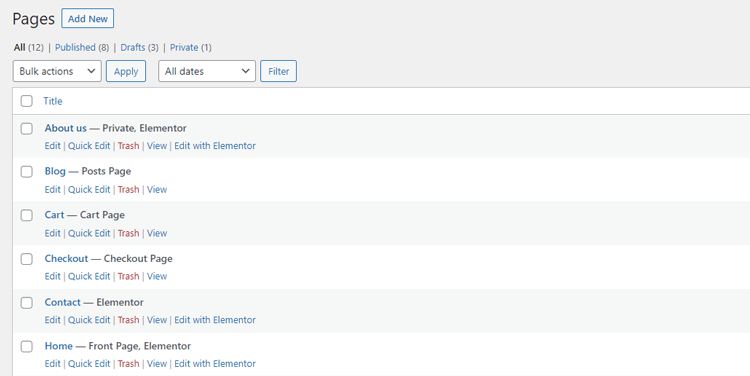
Now select Edit under the specific page that you want to duplicate.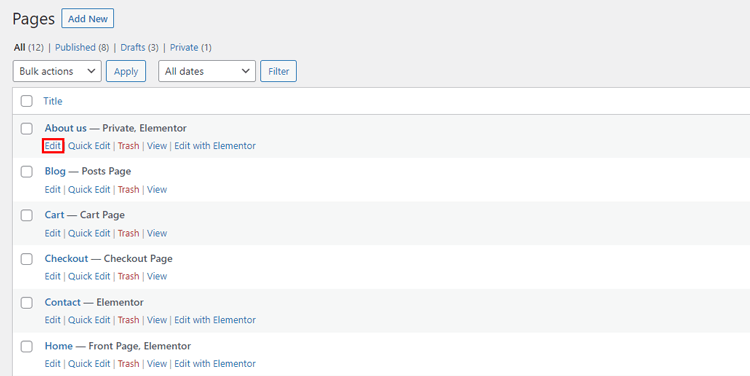
Once you have accessed the page editor, follow these steps:
Highlight all the content in the main content area. To copy the highlighted content, right-click on it using your mouse and select “Copy” from the system menu.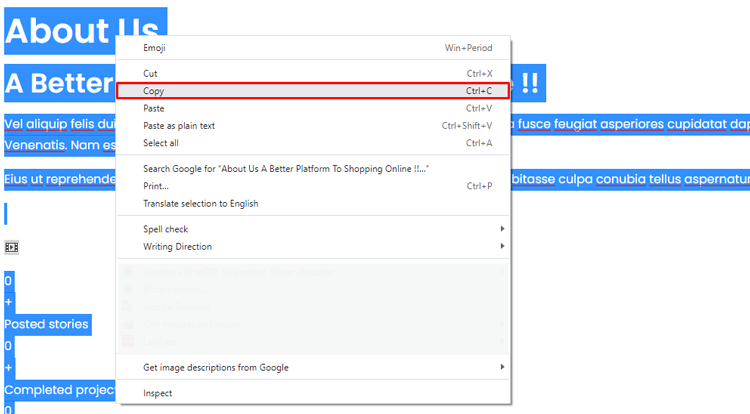
To return to the All Pages screen, click on the WordPress icon at the top of the page.
To create a new page,
Click on the Add New button. 
After opening the new, blank page, right-click and choose Paste to transfer the content from the old page. 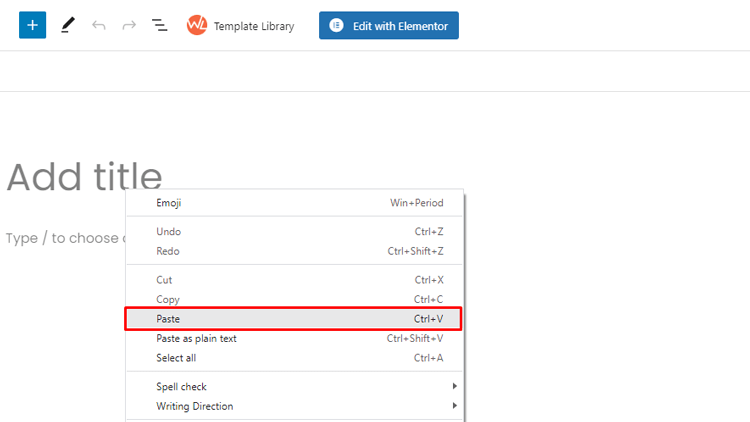
Edit the content as needed before clicking Publish from the Publish box at the top right-hand side of the page.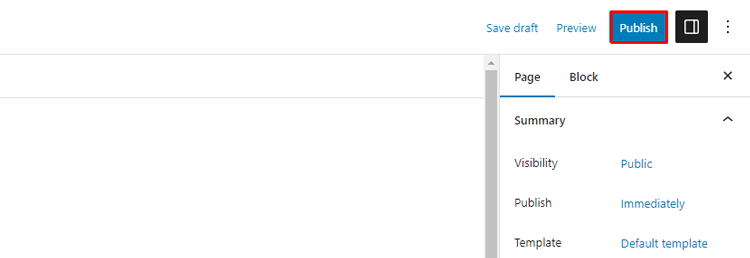
TIP: To make sure you copy both the written content and any special code on the page, it’s best to switch to the text/HTML tab editor.
HT Mega Elementor Addons
The ultimate Elementor page builder addons to build stunning websites.
How to Copy Content Using Code
If you prefer the DIY approach, you can create your duplicate page function using custom code. It doesn’t include any additional benefits compared to using a plugin, but it eliminates the need to install another plugin on your site.
When you duplicate a page on WordPress, you preserve all shortcode implementations and custom HTML elements. If you want to avoid plugins, this is a viable option and will work with both the regular editor content and Elementor.
To use this code, add it to your theme’s functions.php file, or use a code management plugin like Code Snippets.
If you want to add it to functions.php, be sure to use a child theme.
$current_user = wp_get_current_user();

$new_post_author = $current_user->ID;

/*

* if post data exists, create the post duplicate

*/

if (isset( $post ) && $post != null) {

/*

* new post data array

*/

$args = array(

'comment_status' => $post->comment_status,

'ping_status' => $post->ping_status,

'post_author' => $new_post_author,

'post_content' => $post->post_content,

'post_excerpt' => $post->post_excerpt,

'post_name' => $post->post_name,

'post_parent' => $post->post_parent,

'post_password' => $post->post_password,

''post_status' ' => ''draft'',

'post_title' => $post->post_title,

'post_type' => $post->post_type,

'to_ping' => $post->to_ping,

'menu_order' => $post->menu_order

);

 /*

* insert the post by wp_insert_post() function

*/

$new_post_id = wp_insert_post( $args );

/*

* get all current post terms ad set them to the new post draft

*/

$taxonomies = get_object_taxonomies($post->post_type); // returns array of taxonomy names for post type, ex array("category", "post_tag");

foreach ($taxonomies as $taxonomy) {

$post_terms = wp_get_object_terms($post_id, $taxonomy, array('fields' => 'slugs'));

wp_set_object_terms($new_post_id, $post_terms, $taxonomy, false);

}

/*

* duplicate all post meta just in two SQL queries

*/

$post_meta_infos = $wpdb->get_results("SELECT meta_key, meta_value FROM $wpdb->postmeta WHERE post_id=$post_id");

if (count($post_meta_infos)!=0) {

$sql_query = "INSERT INTO $wpdb->postmeta (post_id, meta_key, meta_value) ";

foreach ($post_meta_infos as $meta_info) {

$meta_key = $meta_info->meta_key;

if( $meta_key == '_wp_old_slug' ) continue;

$meta_value = addslashes($meta_info->meta_value);

$sql_query_sel[]= "SELECT $new_post_id, '$meta_key', '$meta_value'";

}

$sql_query.= implode(" UNION ALL ", $sql_query_sel);

$wpdb->query($sql_query);

}

/*

* Finally, redirect to the edit post screen for the new draft

*/

wp_redirect( admin_url( 'post.php?action=edit&post=' . $new_post_id ) );

exit;

} else {

wp_die('Post creation failed, could not find original post: ' . $post_id);

}

}

add_action( 'admin_action_rd_duplicate_post_as_draft', 'rd_duplicate_post_as_draft' );

/*

 * Add the duplicate link to the action list for post_row_actions

 */

function rd_duplicate_post_link( $actions, $post ) {

if (current_user_can('edit_posts')) {

$actions['duplicate'] = '<a>ID, basename(__FILE__), 'duplicate_nonce' ) . '" title="Duplicate this item" rel="permalink">Duplicate</a>';

}

return $actions;

}

add_filter( 'post_row_actions', 'rd_duplicate_post_link', 10, 2 );
The code snippet has duplication enabled for both posts and pages as a default setting. However, if you want to enable it for only one of them, you can remove either the “page_row_actions” or “post_row_actions” filter mentioned at the bottom of the snippet.
How to Copy Content Using Gutenberg Editor
To duplicate content from the Gutenberg block editor quickly, first, open the Gutenberg editor for the post or page you want to duplicate.
Next, expand the menu by clicking the three-dot icon at the top-right corner. Choose the option to Copy all content.
Now, create a new post or page, click on the editor, and paste the content. There are two ways to paste:
- Use a keyboard shortcut such as Ctrl + V or Cmd + V.
- Right-click your mouse and select “Paste.”
In the Gutenberg editor, you will find an accurate replica of the original content, but manually include the title, categories, tags, etc.
Bonus: Duplicating a Page or Post with Elementor
Note – If you want to create a copy of an Elementor page or post, you can use a plugin with the Elementor editor.
However, if your main goal is to replicate the design of an Elementor page or post, you can do this by utilizing Elementor’s template system. Please note that this method won’t duplicate other metadata, such as categories and authors.
To save your design as a template in Elementor, you need to use the Elementor editor interface. Later, you can insert this template from the Elementor template library into a new post or page.
Note that the output language code is EN-US.
Elementor’s website kits feature allows you to export/import exclusive website designs if you want to duplicate more than just one page.
With Elementor’s import/export feature, you can quickly create a new website by importing your own designs or using our library of designer-made website kits.
To efficiently utilize your favorite web design, create a blueprint that can be utilized for various projects. Then, export the complete website and implement it in your other projects. Once the design is applied, personalize it by adding your own content.
Bonus: Duplicate WooCommerce Products Using ShopLentor Post Duplicator Module
ShopLentor is a plugin for WooCommerce that helps build professional online stores. It offers an easy-to-use interface that requires no coding skills. It provides multiple widgets, pre-built page templates, and additional modules, including Post Duplicator.
The ShopLentor Post Duplicator can duplicate any type of post, including custom post types. This widget makes it simple to create multiple copies of Post in WooCommerce, which can save you time and prevent mistakes.
To quickly and easily duplicate WooCommerce Posts with ShopLentor, follow these steps:
Go to ShopLentor from your WordPress Dashboard. Access the Settings menu.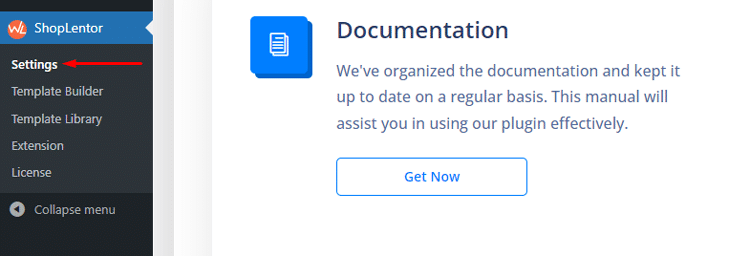
Go to Modules and select Post Duplicator.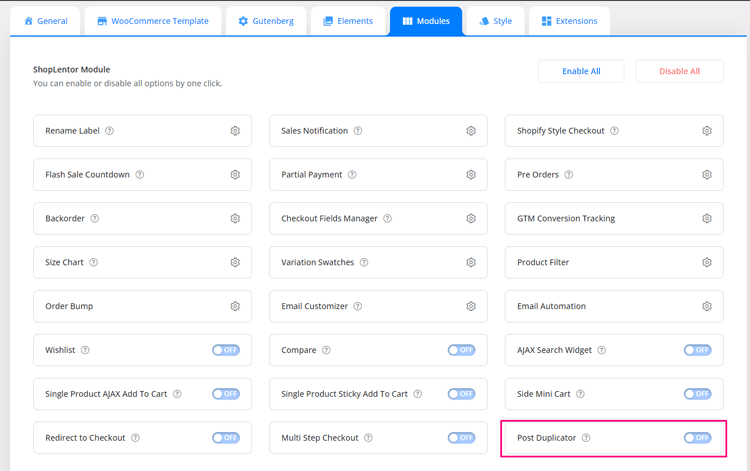
Enable the Post Duplicator module.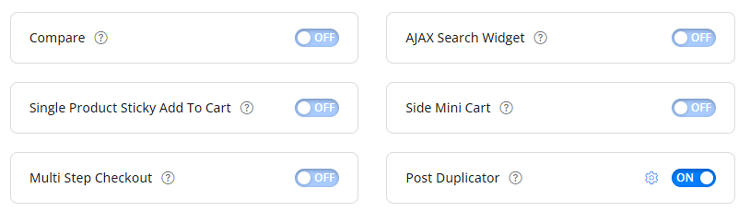
If you need an uncomplicated way to duplicate posts or products in WooCommerce, the ShopLentor Post Duplicator is an excellent choice.
ShopLentor – WooCommerce Builder for Elementor & Gutenberg
A versatile page builder to build modern and excellent online stores with more than 100k Active Installations.
Tips for Using the Content Duplication Functionality Effectively
WordPress lets you duplicate posts or pages with just a few clicks. This includes all content settings and images from the original post. It helps when creating similar posts for different languages or audiences.
Here are some tips for making the most of WordPress duplication functionality:
- Determine the best method for duplicating a post or page. Depending on your needs, you can duplicate an entire post or just a portion of it. If you need to create multiple versions of the same post using different content, settings, and images, it is best to duplicate the entire post.
- Familiarize yourself with the content duplication option in WordPress. This feature can be accessed from the page or post editor under “Tools”> “Duplicate Post.” Here, you can select which elements of the post or page to duplicate and choose a title for the duplicate post or page.
- Choose an appropriate title for the duplicate post or page. When selecting a title, it is crucial to ensure that it accurately reflects the content you are copying. This will make it easier to identify each version of your post so you don’t end up with duplicate posts.
- Make any necessary changes to the duplicated post or page. Once you have created a duplicate post or page, be sure to make any edits required to ensure that the content is accurate and up-to-date.
By following these tips, you can ensure that your duplicate posts and pages are optimized for the best results.
Troubleshooting Common Issues with Duplicated Pages
In some cases, duplicate posts or pages can cause problems in WordPress. This is especially true when creating multiple pages with similar content.
Here are some common issues and solutions to consider when troubleshooting duplicated posts or pages in WordPress:
Content Duplication
If you have duplicated content on multiple pages or posts, Google may consider this a form of content duplication and penalize your website in search engine rankings. To avoid this issue, use the rel= “canonical” tag to indicate that one page is the original source for the content.
Broken Links
If you have created a duplicate post or page, any links included in the original post may no longer be valid. To avoid this issue, update all internal links to point to the correct destination.
Slow Load Times
Duplicate WordPress posts or pages can cause your website to run slower due to the extra data that is being loaded and processed. To reduce the load time, delete any duplicate posts or pages that are not necessary.
Poor User Experience
To ensure a smooth and efficient website experience, it is iessential to prevent multiple versions of the same post or page from being accessible.
When encountering issues with duplicate posts or pages in WordPress, utilize the solutions mentioned above to troubleshoot and resolve the problem. By implementing careful planning and investing time, you can guarantee a well-functioning website.
Frequently Asked Questions
Q: What does it mean to duplicate a page in WordPress?
A: Duplicating a page in WordPress means creating an exact copy of a post or page. It includes all content, settings, and metadata, making it easy to build multiple versions quickly.
Q: Is it possible to duplicate an entire WordPress website?
A: Yes, it is possible to duplicate an entire WordPress website. This can be done by cloning the site files and database or using a WordPress migration plugin.
Q: What is the best way to duplicate a page in WordPress?
A: The best way to duplicate a page in WordPress is by using a plugin such as ShopLentor Post Duplicator Module. This method is quick and easy and ensures that all content, any type of post, including custom post types, are copied over to the new page.
Q: Which plugins can I use to duplicate a page in WordPress?
A: There are several WordPress plugins available that you can use to duplicate pages in WordPress. Examples include ShopLentor, Duplicator Pro, WP Clone by WP Time Capsule, and BlogVault. These plugins are designed to be easy to use, so you can quickly and easily duplicate your posts or pages in WordPress.
Q: What should I be aware of when duplicating a page in WordPress?
A: When you duplicate a page in WordPress, it gets a unique slug or URL. Publishing it may create two pages with the same content. Images and media from the original page might also get duplicated.
Always check the new page before publishing. Ensure everything appears correct and functions correctly. For extra safety, back up your website before duplicating any WordPress posts.
Final Thoughts
Content duplication in WordPress offers several advantages that can help optimize your website’s performance.
With just a few clicks, you can now easily duplicate WordPress posts on your site quickly and efficiently. This saves time in the long run. It also reduces the chance of costly errors from manual coding.
The WordPress duplicate a page feature works seamlessly with most modern themes and page builders.
eCommerce sites often duplicate a page in WordPress to create product comparison layouts and specialized category landing pages.
Identifying duplicate pages in WordPress helps reduce bottlenecks in content production pipelines across teams.
To complete the task, use the Duplicate Post plugin or manually duplicate the post from the WordPress dashboard. It offers great flexibility to optimize your pages for better SEO.
You can create different versions to test experiments without changing the original content. Content duplication in WordPress helps you work smarter and faster with less effort