How to Add Product Badges in WooCommerce to Increase Sales

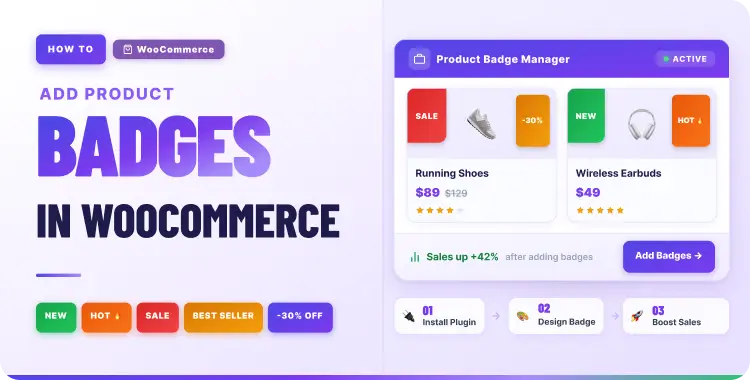
Product badges in WooCommerce are small labels like “Sale,” “Best Seller,” or “Limited Stock” that appear on product images to highlight value at a glance.
If you want to add them properly, the easiest method is to use a badge plugin such as ShopLentor, create targeted badges for your key products, and apply them with clear rules so shoppers can spot offers faster and make decisions sooner.
Quick Answer: To add product badges in WooCommerce, use a badge plugin like ShopLentor, enable the Product Badges module, create a text or image badge, choose its position, and set display conditions for selected products, categories, sale items, or stock status. WooCommerce includes a basic sale badge by default, but a dedicated badge tool gives you more control over design, targeting, and campaign messaging.
Table of Contents
What are product badges in WooCommerce?
Product badges are short text or graphic labels placed over product thumbnails or product images to highlight a key selling point, promotion, or product status. They act as visual cues that help shoppers understand why a product deserves attention before they open the full product page.
Common examples include:
- “Sale” or “-30%”
- “New Arrival”
- “Best Seller”
- “Limited Stock”
- “Free Shipping”
- “Back in Stock”
- “Trending Now”
WooCommerce shows a basic sale badge for discounted products, but it does not give store owners a full custom badge system by default. If you want to create different badge styles, set custom positions, or show badges only on selected products or categories, you usually need a dedicated WooCommerce product badge plugin.
That is where a tool like ShopLentor can help. Its Product Badges module lets you create custom text or image badges and control where they appear without writing code.
Why product badges matter for WooCommerce stores
Shoppers often scan product grids before they click. On a busy shop or category page, many products can look similar at first glance. Product badges make important information easier to notice.
A clear badge can help a shopper understand why a product deserves attention before opening the single product page.
For example:
- A Sale badge highlights a price advantage.
- A Best Seller badge adds a popularity signal.
- A New Arrival badge helps repeat visitors spot fresh products.
- A Limited Stock badge communicates urgency when stock is actually low.
- A Free Shipping badge reduces friction for price-sensitive shoppers.
Product badges do not guarantee higher sales by themselves. They work best when the badge message is accurate, useful, and connected to a real buying reason.
How product badges can support better shopping decisions
Product badges are useful because they reduce the amount of work shoppers need to do while browsing.
Instead of reading every product title, price, and short description, shoppers can use badge cues to understand product status faster. This is especially helpful on mobile devices, where product cards have limited space.
Badges can support your store in five practical ways:Benefit How it helps shoppers Faster scanning Shoppers can identify offers, new products, or popular items quickly. Better product discovery Important products stand out in category and shop pages. Stronger promotion visibility Campaign messages become visible before users click into products. More trust signals Badges like Free Shipping or Money-Back Guarantee can reduce hesitation. Cleaner merchandising Store owners can guide attention without changing the full product layout.
The key is moderation. If every product has a badge, none of the badges feel important.
Product badges vs default WooCommerce sale badge vs custom code
There are several ways to show product badges in WooCommerce. The right method depends on how much control you need.Method Best for Coding needed? Flexibility Main limitation Default WooCommerce sale badge Basic discounted products No Low Usually limited to sale products only Custom code Developers or custom stores Yes High Requires technical knowledge and ongoing maintenance Product badge plugin Store owners and marketers No High Depends on the plugin’s available features ShopLentor Product Badges module WooCommerce users who want visual controls and targeting No High Requires installing and enabling ShopLentor
For most non-technical store owners, a plugin-based method is the easiest and safest option. It gives you more control than the default WooCommerce sale badge without requiring theme edits or custom WooCommerce hooks.
Types of product badges you should use
The best badges depend on your products, audience, and campaign goals. Instead of adding badges everywhere, focus on the few badge types that support real buying decisions.
Sale and discount badges
These badges highlight price-driven offers and are usually the easiest for shoppers to understand.
Examples:
- “30% OFF”
- “Deal of the Day”
- “Clearance”
They work well during launches, seasonal promotions, and limited-time campaigns.
Urgency and scarcity badges
These badges encourage quicker action when the message is accurate and genuinely time-sensitive.
Examples:
- “Limited Stock”
- “Ends Tonight”
- “Flash Sale”
Use them carefully because fake urgency can hurt trust and make the store feel manipulative.
Newness and trend badges
These badges help repeat visitors spot fresh inventory or current interest quickly.
Examples:
- “New Arrival”
- “Just In”
- “Trending Now”
They are especially effective in fashion, beauty, gadgets, accessories, and seasonal product categories.
Social proof badges
These badges signal that other shoppers already trust the product, which can be helpful on category pages with many similar options.
Examples:
- “Best Seller”
- “Top Rated”
- “Customer Favorite”
Trust and benefit badges
These badges reduce buyer friction by highlighting policies or product-level advantages.
Examples:
- “Free Shipping”
- “Money-Back Guarantee”
- “Eco-Friendly”
Seasonal and campaign badges
These badges support promotional calendars and event-based merchandising.
Examples:
- “Black Friday Deal”
- “Holiday Special”
- “Back to School”
Best practices for product badges in WooCommerce
A good badge strategy improves clarity. A bad one creates noise. Before you create badges, decide what message matters most for each product group.
- Keep badge text short and easy to scan.
- Use consistent colors and shapes so badges feel intentional.
- Do not overload every product with labels.
- Avoid stacking multiple badges unless each one adds real value.
- Keep urgency honest and current.
- Check badge size and placement on mobile devices.
- Review product CTR, add-to-cart behavior, and conversions after launch to refine your badge strategy over time.
ShopLentor- WooCommerce Builder for Elementor & Gutenberg
A versatile page builder to build modern and excellent online stores with more than 100k+ Active Installations.
How to add product badges in WooCommerce with ShopLentor
If your goal is to add custom product badges without editing code, ShopLentor is a practical option because it includes a dedicated Product Badges module for badge design, placement, and display rules. The workflow is simple enough for non-technical WooCommerce users and flexible enough for campaign-based merchandising.
Step 1: Install and activate ShopLentor
- Go to Plugins → Add New in your WordPress dashboard.
- Search for ShopLentor.
- Click Install Now, then Activate.
After activation, ShopLentor will add its settings area to your WordPress dashboard.
Step 2: Enable the Product Badges module
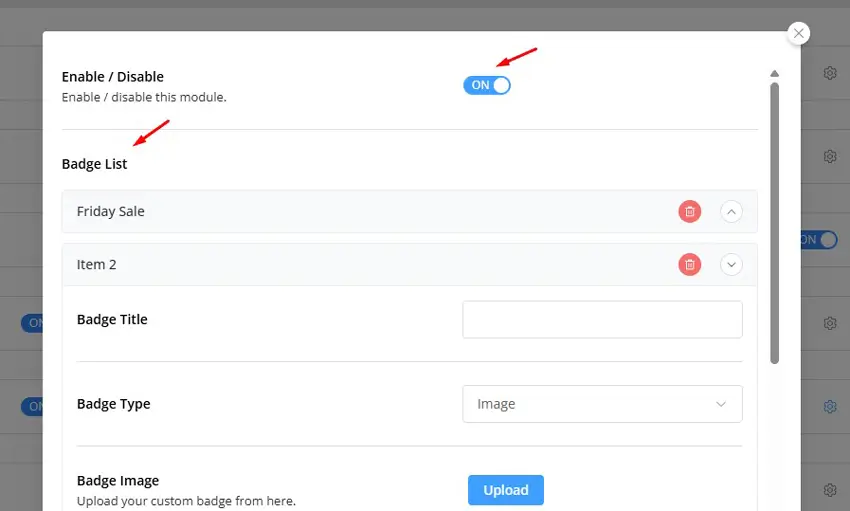
After activation:
- Go to ShopLentor → Settings → Modules.
- Find Product Badges in the module list.
- Turn it on.
- Save your settings.
This activates the badge controls without requiring changes to theme files or custom WooCommerce hooks.
Step 3: Create your first badge
Once the module is enabled:
- Open the Product Badges area inside ShopLentor.
- Click Add New Badge.
- Choose a text badge or image badge.
- Add badge text such as “Best Seller,” “New,” or “20% Off,” or upload a custom badge graphic.
- Adjust badge colors, font, size, shape, and spacing so it stays clear on product thumbnails.
For most stores, text badges are easier to update during promotions, while image badges can work well for fixed branded campaigns.
Step 4: Set the badge position
Badge placement affects visibility and design balance. Common positions include:
- Top Left
- Top Right
- Bottom Left
- Bottom Right
- Custom Position
Choose one position style and keep it consistent across the store so shoppers can recognize badges quickly.
Step 5: Set display conditions
Display conditions are what make custom badges useful at scale. Instead of adding labels manually to every product, you can apply badges only where they are relevant.
Typical display rules include:
- All products
- Selected products
- Product categories
- On-sale products only
- Out-of-stock products
Example uses:
- Add “Best Seller” to your top-converting products.
- Add “New Arrival” to recently launched items.
- Add “Limited Stock” to selected products with low inventory.
- Add “Holiday Deal” to products inside a seasonal campaign category.
Targeted rules keep the interface cleaner and make each badge more believable.
Step 6: Preview and test the badge
After saving the badge, check how it looks on shop pages, category pages, and single product pages. Make sure the badge is readable, does not cover important image details, and only appears where your display rules allow it.
If the badge feels distracting, reduce the size, simplify the wording, or narrow the targeting.
Video Presentation
Practical example: badge setup for a fashion store
Imagine you run a WooCommerce fashion store with seasonal collections, discount campaigns, and a few hero products. A clean badge setup could look like this:Product group Badge Display rule Latest seasonal collection New Arrival Products in the new collection category Top-selling products Best Seller Selected products only Discount campaign items 20% Off On-sale products in campaign category Low inventory products Limited Stock Selected low-stock items Products with delivery advantage Free Shipping Products that qualify for free shipping
This setup helps shoppers scan the category page faster. It also keeps the badge strategy focused instead of overwhelming every product card.
Common mistakes to avoid
Product badges can lose their impact when they are overused or misleading. Avoid these common mistakes:
- Using badges on almost every product: If nearly every product has a badge, the labels stop standing out. Use badges for products that need attention or have a real selling point.
- Using vague badge text: Badges like Hot, Special, or Featured may not explain enough. Clear badges like Best Seller, New Arrival, or Free Shipping are usually more useful.
- Creating fake urgency: Do not use Limited Stock or Ends Tonight unless the claim is true. False urgency may create short-term clicks, but it can hurt long-term trust.
- Ignoring mobile design: A badge that looks good on desktop may cover too much of the product image on mobile. Always test badge size and placement on smaller screens.
- Leaving old campaign badges live: Seasonal badges should be removed or updated after the campaign ends. An outdated Black Friday badge in January makes the store look neglected.
Product badges and broader WooCommerce optimization
Product badges work best as part of a larger WooCommerce conversion strategy. Badges can attract attention, but the rest of the buying journey also matters. For example:
- Product filters help shoppers narrow choices.
- Quick View can reduce unnecessary page loads.
- Sticky add-to-cart buttons can keep the purchase action visible.
- Product comparison tools can help shoppers evaluate similar items.
- Clear product images and concise copy can improve trust.
When these elements work together, your WooCommerce store becomes easier to browse, compare, and buy from.
Product badge checklist before publishing
Use this checklist before making product badges live across your store:
- Is the badge message accurate?
- Does the badge help the shopper make a decision?
- Is the badge readable on mobile?
- Does the badge match your store design?
- Is the badge applied only to relevant products?
- Does the badge avoid covering important image details?
- Have you checked the badge on shop, category, and single product pages?
- Have you removed old seasonal or campaign badges?
- Will you track clicks, add-to-cart rate, and conversion changes?
If the answer is yes to most of these questions, your badge is ready to publish.
Frequently Asked Questions
What are product badges in WooCommerce?
Product badges are small text or image labels shown on product images or product pages to highlight useful product information quickly, such as discounts, popularity, or shipping benefits.
Does WooCommerce have product badges by default?
WooCommerce includes a basic “Sale” badge for discounted products, but it does not include a full custom badge system for advanced styles, rules, and targeting.
How do I add product badges in WooCommerce without code?
The easiest method is to use a plugin like ShopLentor. You enable the Product Badges module, create a badge, choose its position, and set display rules from the dashboard.
Can product badges increase sales?
They can help by improving product visibility, highlighting value faster, and supporting quicker decisions, especially when paired with other UX improvements such as Quick View and sticky add-to-cart features.
What badge types work best in WooCommerce?
The most useful badge types are usually sale badges, best seller badges, new arrival badges, urgency badges, and trust-focused badges such as free shipping.
How many badges should I use on one product?
In most cases, one strong badge is better than several weak ones because too many labels reduce clarity and make the product card look busy.
Can I show different badges on different products?
Yes. ShopLentor supports badge conditions that let you apply badges to selected products, categories, sale items, and other targeted product groups.
Conclusion
Product badges in WooCommerce help shoppers notice important product information faster. They can highlight discounts, new arrivals, best sellers, limited stock, free shipping, and other buying signals directly on product cards.
WooCommerce includes a basic sale badge, but a custom badge setup gives you much more control. With ShopLentor’s Product Badges module, you can create text or image badges, choose positions, and apply badges to specific products or categories without custom code.
For the best results, keep your badge strategy simple. Use clear messages, target badges carefully, test the mobile layout, and remove outdated campaign labels. Done well, product badges can make your WooCommerce store easier to scan and help shoppers move toward the right products faster.