WooCommerce Subscription Troubleshooting: 7 Proven Fixes for Failed Payments

Your WooCommerce subscription store is live, but something is clearly wrong. Payments fail silently, renewals do not run, or customers never receive confirmation emails. You open WooCommerce, see failed renewals piling up, and have no clear idea whether the cause is a gateway issue, cron failure, webhook error, or email problem.
This is how most WooCommerce subscription incidents begin: not with a dramatic crash, but with small silent failures in payment processing, renewal scheduling, or email delivery that nobody notices until revenue is already affected.
In reality, most WooCommerce subscription problems come from the same small group of root causes: misconfigured payment gateways, broken WP-Cron jobs, missed webhooks, invalid payment tokens, or disabled email triggers. Whether your WooCommerce subscription is not working after an update or it has been failing quietly for weeks, the fix usually starts by identifying which layer broke first.
In this guide, you will get a complete WooCommerce subscription troubleshooting checklist organized by symptom: payments, renewals, failed renewal states, and emails. Instead of guessing, you can match the symptom to the right checklist and fix the actual root cause faster.
Quick Answer: Most WooCommerce subscription failures trace back to one of five issues: invalid payment tokens, recurring-payment gateway limitations, broken WP-Cron or Scheduled Actions, webhook delivery failures, or email trigger and deliverability problems. Start with the symptom you see first, then work through the matching checklist below.
Table of Contents
Key Takeaways
- Most WooCommerce subscription issues are configuration problems, not core WooCommerce bugs.
- A successful renewal depends on a chain of systems: payment token, gateway, WP-Cron, Scheduled Actions, webhook callback, and email trigger.
- If WooCommerce subscription payments fail, the first place to check is the renewal order note and the saved payment token.
- If a WooCommerce subscription renewal is not triggering, WP-Cron and Action Scheduler are the first systems to inspect.
- If the WooCommerce subscription email is not sending, the problem may be either trigger logic or email deliverability.
- Silent failures are the most expensive: a subscription can look active while the customer was never charged.

What Does a Renewal Depend On?
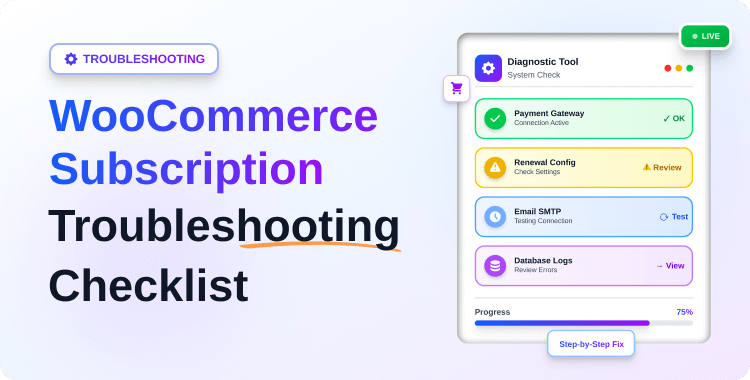
Before you debug anything, it helps to know what has to work correctly for a subscription renewal to succeed.Component What it does What breaks when it fails Payment gateway + token Stores the customer’s saved payment method and processes recurring charges Renewal charge is never attempted, or payment fails immediately WP-Cron / Scheduled Actions Queues and runs renewal jobs in the background Renewals never fire, or they stay pending Webhook callback Sends the payment result back from Stripe/PayPal to WooCommerce Subscription status and payment status go out of sync Email triggers Sends renewal, failed payment, and status update emails Customers are not informed about important subscription events Plugin/theme compatibility Prevents checkout, token, and renewal logic from breaking Random or hard-to-reproduce subscription failures
A reliable subscription setup depends on every layer in this chain working together. If one layer breaks, everything downstream can fail silently.
WooCommerce Subscription Payments Fail: Tokens & Gateway Issues
Use this checklist when you see failed subscription payments or recurring payments not working. If WooCommerce subscription payments fail or a customer’s card is charged but the subscription still shows failed, the root cause is almost always one of the four issues below.
1. Read the renewal order notes first
Open the failed renewal order in WooCommerce and review the order notes carefully. Gateway messages like expired card, authentication required, insufficient funds, invalid token, or connection error often tell you the real cause immediately.
This should always be the first diagnostic step because it helps separate customer-side payment issues from technical problems.
2. Verify gateway support for recurring payments
Not every gateway supports tokenized recurring billing properly. Make sure you are using a gateway that explicitly supports WooCommerce subscriptions, saved payment methods, and automatic renewals.
Avoid generic one-time payment gateways for subscription stores. They often appear to work at checkout but fail when renewals run automatically later.
3. Check token creation and validity
Automatic renewals depend on a valid saved payment token. Go to the subscription record, confirm a payment method is linked, then verify in Stripe or PayPal that the saved payment method still exists and is active.
If the token is missing or invalid, ask the customer to update their payment method. With Recurio, customers can update saved cards through a self-service portal instead of contacting support.
4. Look for 3D Secure or SCA failures
If you serve EU, UK, or similar regions, Strong Customer Authentication can block off-session renewals when the original payment setup was incomplete. A payment may fail because the customer never completed the authentication step correctly during signup.
Check your gateway settings to confirm off-session recurring payment support is enabled and your checkout flow is not blocking 3DS popups or redirects.
5. Check webhook confirmation from the gateway
Sometimes the gateway charges the customer, but WooCommerce never receives the success callback. In that case, the order may still show failed or pending even though money was collected.
Review your gateway webhook delivery logs and compare the configured endpoint with your live site URL. A WooCommerce subscription webhook issue is a common reason payments and statuses do not match.
6. Use retry logic for failed payments
Temporary card issues should not instantly become lost revenue. Smart retry logic, spaced over a few days, can recover many failed payments automatically.
For deeper recovery workflows, link this section to your payment-recovery article: WooCommerce Subscription Renewal Failed Fix.
WooCommerce Subscription Renewal Not Triggering or Running Late
Use this when WooCommerce subscription renewal is not triggering at all, subscriptions show past-due dates with no orders created, or renewal issues appear after a plugin update or server change.
1. Check if WP-Cron is Enabled
- Go to WooCommerce → Status → System Status and verify that WP-Cron is enabled; if DISABLE_WP_CRON is set to true in wp-config.php, scheduled renewals will not run.
- If you rely on a real server cron instead, ensure it calls wp-cron.php frequently (every 5–15 minutes).
2. Inspect Scheduled Actions for Subscription Events
- Go to WooCommerce → Status → Scheduled Actions and filter by Subscription or woocommerce_scheduled_subscription_payment hooks.
- Look for pending actions stuck for long periods or repeated failures; run a pending action manually to see if it completes or errors.
If possible, manually run a pending action on a test subscription. The result often reveals whether the problem is cron, timeout, or plugin conflict.
3. Check Server Performance and Timeouts
- A slow server can cause renewal jobs to start but fail before they finish. If you see many scheduled actions failing with memory or timeout errors, increase PHP memory and execution limits.
- Subscription stores are more sensitive to background job failures than standard WooCommerce stores, so hosting quality matters.
4. Verify Timezone and Site Time
- Timezone mismatches can make renewals appear late or skipped when they actually ran at an unexpected time. Check Settings → General and confirm the site timezone matches your billing logic.
- Also compare the expected renewal time in the subscription record against the actual action schedule.
5. How Recurio Simplifies Renewal Monitoring?
- Recurio uses intelligent automated billing that leverages WooCommerce’s scheduling system but adds clearer status and error reporting for subscription events.
- Its dashboard lets you see which renewals are due, completed, failed, or pending so you can spot cron issues early instead of after a full billing cycle.
To learn how to handle failed payment automation automatically, read our guide on WooCommerce Subscription Dunning.”
WooCommerce Subscription Renewal Failed: Order Created but Payment Incomplete
Follow these when WooCommerce does create a renewal order, but the order ends in failed, on-hold, or another incomplete payment state.
1. Check Renewal Order Statuses
- When a renewal runs, WooCommerce creates a renewal order; if it stays in “pending payment” or “failed,” the subscription may not update properly.
- Open the renewal order and review the order notes for gateway messages or plugin errors.
2. Validate Product Pricing and Stock
- For physical goods, ensure product stock is available; out-of-stock settings can block successful renewals.
- Confirm subscription product prices and taxes align with gateway rules; sudden price changes may cause bank declines.
3. Manual Renewal Edge Cases
- If you allow manual renewals, some customers might not complete payment even though the subscription appears active; this creates “skipped renewal” scenarios.
- Use reports or a plugin dashboard to identify overdue renewals and follow up. Recurio surfaces overdue subscriptions and payment overdue warnings directly in its admin interface.
4. Recurio’s Retry and Status Handling Strategy
- Recurio can automatically retry failed renewals using configurable retry attempts and intervals, reducing involuntary churn.
- It keeps subscription status and renewal orders in sync, so you don’t end up with “active but unpaid” subscriptions after repeated failures.
Customer Not Charged but Subscription Active
This is one of the most dangerous WooCommerce subscription problems because it creates revenue leakage without obvious admin errors
1. Compare Subscription Record vs Payment Records
- In WooCommerce → Subscriptions, open the subscription and compare its renewal schedule with the actual renewal orders and payments.
- In Stripe/PayPal, verify whether a charge was attempted for the same period; if not, you have a scheduling issue rather than a gateway issue.
2. Look for Silent Failures in Logs
- Enable WooCommerce and gateway debug logging, then check for errors that did not surface as order notes, like webhook validation failures or signature mismatches.
- Some gateways will show a “payment created” in their dashboard, but never call back your site if the webhook configuration is wrong.
3. Review Webhooks for Recurring Payments
- A WooCommerce subscription webhook misconfiguration is one of the most common reasons a customer appears active but was never charged. Check that your payment gateway webhooks are correctly configured and not blocked by firewalls, maintenance modes, or security plugins.
- Look for recent webhook delivery failures and fix the endpoint URL or authentication settings.
4. Use analytics to detect revenue mismatch
- A good subscription dashboard should help you compare active subscribers with actual collected revenue. Recurio makes this easier by surfacing overdue payments, failed renewals, and revenue signals in one reporting view.
WooCommerce Subscription Email Not Sending: Enable, Trigger & SMTP Fix
Use this when WooCommerce subscription emails are not sending for renewals, new subscriptions, or failed payments, including when emails appear sent in WooCommerce logs, but customers never receive them.
1. Confirm emails are enabled
- Go to WooCommerce → Settings → Emails and verify that renewal, new subscription, and failed payment emails are enabled and assigned to the correct recipients.
- Make sure you didn’t accidentally disable a specific email type while customizing templates.
2. Check email triggers and order statuses
- Many subscription emails only send when orders transition to specific statuses (e.g., “completed,” “failed,” “on-hold”).
- If your theme or plugins override order status behavior, the trigger may never fire.
Test this with a staging order or a manual status change.
3. Replace PHP mail with SMTP
- If you still rely on PHP mail, email delivery will be unreliable. Use an SMTP plugin and connect it to a transactional email provider such as SendGrid, Mailgun, Postmark, or Amazon SES. This is the most common fix when the store appears to send emails, but customers do not receive them.
4. Use a consistent sender identity
- Set a clear From name and a domain-based From email like
billing@yourstore.com. Avoid free email addresses like Gmail or Yahoo for transactional subscription emails. Inconsistent sender identity makes deliverability worse and increases spam-folder placement.
5. Use purpose-built subscription email flows
- Recurio includes automated email notifications for subscription events such as renewals, failures, trials, and status changes. That reduces the chance of missing critical customer communication when compared with improvised email setups.
Emails Sent, but Customers not Receive Them
If WooCommerce shows emails as sent but customers say they never arrive, the problem is usually deliverability, not WooCommerce.
The issue is significant: nearly 1 in 6 marketing emails (16.9%) never reach the inbox. Across 15 major email service providers, the average email deliverability rate stands at just 83.1%, meaning legitimate subscription emails are getting lost to spam filters, inbox misclassification, or delivery failures.
1. Check Spam and Promotions Folders
Ask customers to search their inbox for your domain and check spam, junk, and promotions folders. Many legitimate transactional emails are filtered incorrectly.
2. Add SPF and DKIM records
SPF and DKIM are DNS records that prove your domain is authorized to send email. Without them, your messages look suspicious to inbox providers.
Your SMTP provider will usually give you the exact DNS records to add. Once added, test them with tools like Mail-Tester or MXToolbox.
3. Monitor bounce and Complaint rates
High bounce or complaint rates damage domain reputation and make future emails less likely to reach the inbox. Check your email provider dashboard regularly and clean invalid recipient lists.
4. Keep message design trustworthy
Make sure your sender name, sender domain, subject lines, and email formatting look consistent and professional. Even technically valid emails can land in spam if they look suspicious.
Plugin Conflicts & Theme Issues
Sometimes a WooCommerce subscription is not working because of surrounding customizations, not because of the subscription logic itself.
1. Identify Checkout Overrides and Customizations
Custom checkout fields, custom gateways, or page builders that heavily modify the checkout can interfere with token creation or subscription setup.
Temporarily switch to a default theme (Storefront) and disable all non-essential plugins to see if renewals work correctly in a “clean” environment.
2. Caching Strategy: Excluding Critical Subscription Pages
Full-page caching on checkout, cart, or My Account pages can break nonce validation, token creation, or dynamic subscription content.
Exclude checkout, cart, and account pages from page caching and review object cache rules that might cache subscription queries too aggressively.
3. Object Cache Pitfalls (Redis/Memcached)
If you use Redis/Memcached with aggressive caching, subscription and order status updates may not appear immediately or may be inconsistent.
Work with your host to ensure WooCommerce sessions and dynamic queries are not cached incorrectly.
4. Recurio’s Architecture Advantages for Compatibility
Recurio uses a modern Vue.js-based admin interface and leans on standard WooCommerce integration patterns, which improves compatibility with well-built themes and plugins.
Its logic is optimized to stay lightweight and focused on subscription events, reducing the risk of slow admin screens and timeouts that can interfere with scheduled actions at scale.
How Subscription Plugins (Recurio) Prevent These Problems
Instead of fighting fires every billing cycle, you can reduce subscription issues by using a plugin that handles renewals, retries, and emails predictably.
- Stable renewal handling: Recurio uses WooCommerce’s scheduling system but adds clear status tracking, analytics, and warnings for overdue payments and failed renewals, so you see problems early.
- Cleaner payment retry logic: Its built-in intelligent retry system lets you configure 2–5 retry attempts with custom intervals and emails, significantly improving recovery from failed subscription payments WooCommerce would otherwise mark as lost.
- Better compatibility with modern gateways: Recurio works with major gateways like Stripe and PayPal and is built around tokenized payments and webhooks, reducing odd edge cases where subscriptions look active, but no money is collected.
- Predictable email triggers: With 8 automated subscription emails plus additional Pro campaigns, Recurio ensures customers are informed about renewals, failures, and status changes, reducing support tickets and confusion.
- Analytics to catch silent failures: The analytics dashboard highlights revenue, churn, and overdue renewals so you can spot patterns where WooCommerce recurring payments are not working even though no obvious error appears.
Advanced Prevention Strategies (Most Stores Miss These)
Once you’ve stabilized things, focus on prevention, not just repair.
1. Monitor failed renewals like a KPI
Track failed renewals by cause every billing cycle. This helps you see whether problems come from card declines, cron failures, gateway issues, or deliverability.
2. Keep logging enabled
Enable WooCommerce and gateway debug logs, especially after plugin updates, gateway changes, server migrations, or checkout customization work.
3. Test in staging before big changes
Any change to theme, checkout, caching, or gateway settings can affect subscriptions. Test renewals in staging before deploying to production.
4. Audit deliverability quarterly
Send real renewal and failed-payment emails to test inboxes across Gmail, Outlook, and Yahoo. This helps detect problems before customers complain.
Common Mistakes That Break WooCommerce Subscriptions
Most WooCommerce subscription issues, from silent payment failures to cron-skipped renewals, trace back to a handful of avoidable setup mistakes. Avoid these patterns if you want reliable recurring revenue.
- Relying only on WP-Cron without real server cron on low-traffic stores.
- Using gateways that do not fully support recurring billing.
- Over-customizing checkout and breaking token creation or SCA flow.
- Ignoring failed payment notifications and overdue renewals.
- Looking only at total sales instead of subscription-specific metrics.
ShopLentor- WooCommerce Builder for Elementor & Gutenberg
A versatile page builder to build modern and excellent online stores with more than 100k+ Active Installations.
Frequently Asked Questions
1. Why are WooCommerce subscription renewals failing?
They usually fail because of invalid payment methods, gateway configuration issues, token problems, cron failures, or webhook errors. Start with the renewal order notes and Scheduled Actions.
2. Why are customers not charged automatically for subscriptions?
Automatic charges require a valid token, a gateway that supports recurring billing, and a functioning renewal schedule. If any of those fail, the subscription may stay active without collecting money.
3. How do I fix WooCommerce subscription emails?
Enable the right email notifications, verify order-status triggers, switch to SMTP, and fix sender authentication with SPF and DKIM.
4. Do subscription plugins affect performance?
Yes. Heavy plugins, excessive customizations, and poor hosting can slow Scheduled Actions and increase renewal failures.
5. Is Recurio compatible with modern gateways?
It is designed to work with major WooCommerce-compatible recurring-payment gateways such as Stripe and PayPal, with support for retry logic, tokens, and subscription email workflows.
Conclusion
WooCommerce subscription troubleshooting becomes much easier once you understand the system behind each renewal: payment token, gateway, WP-Cron, Scheduled Actions, webhook callback, and email trigger.
If you follow the checklist based on the symptom you see first, most issues become easier to isolate and fix. For long-term stability, combine proper server setup, reliable email delivery, and a subscription plugin that gives you better visibility into renewals, retries, and customer communication.
Related Resources