How to Disable WooCommerce Payment Methods by Country, Product, or Cart Total

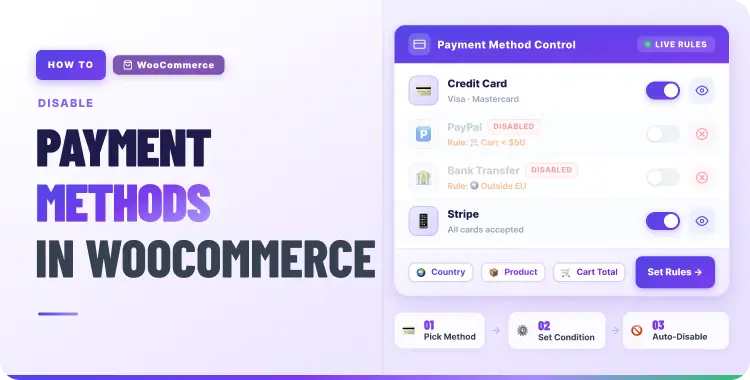
If you want to disable WooCommerce payment methods, the short answer is simple: you can turn gateways off globally in WooCommerce, but for rules based on country, product, or cart total, you usually need a plugin built for conditional payment logic.
That matters because showing the wrong payment option can confuse shoppers, create compliance issues, or produce failed orders. A cleaner checkout shows only the payment methods that make sense for the customer, the items in the cart, and the order value.
Quick Answer: WooCommerce lets you disable payment methods globally from the Payments settings. For conditional rules like hiding a gateway by country, product, or cart total, you need a dedicated conditional payment plugin. WooCommerce has no native way to handle those cases.
Table of Contents
Why This Matters for Your Store
Showing the wrong payment option at checkout is a quiet problem that costs real conversions. A customer in a country where bank transfer is not supported sees it anyway. A shopper buying a digital download is offered cash on delivery. A high-value order is allowed to pay manually, creating collection risk.

These are not edge cases. They happen every day in stores that have not set up proper payment rules. The good news is that fixing it does not require custom code or a developer. You just need to know which tool handles which job.
What WooCommerce Can Do by Default
Go to WooCommerce > Settings > Payments. Every payment gateway you have installed appears here with a simple toggle. Turn one off, and it disappears from the checkout for every single order, for every customer.
That is the only built-in control WooCommerce offers. It is useful when you want to fully remove a payment method from your store — but it cannot apply rules. It does not know whether the customer is from a specific country, what is in their cart, or how much the order is worth.
For that level of control, you need a conditional payment plugin.
How to Disable WooCommerce Payment Methods by Country
Country-based rules are the most common reason store owners look for a payment restriction solution. A gateway may be legally unavailable in certain markets. Your business may have regional payment policies. Or you simply want cash on delivery available only where you can reliably fulfill it.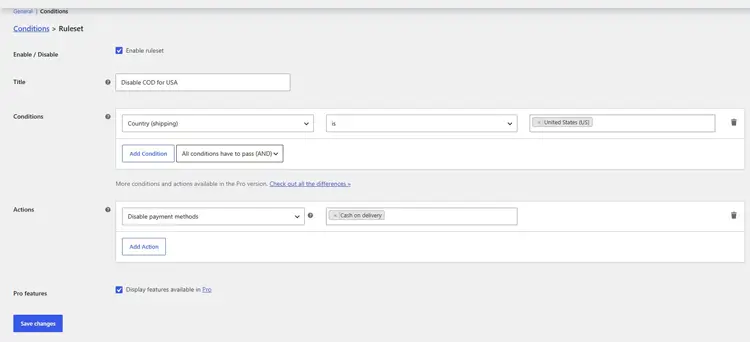
A plugin like Conditional Payment Methods for WooCommerce (available from WooCommerce.com) adds a conditions layer on top of your existing gateways. You create a rule, choose the gateway, and set the condition to billing or shipping country.
Practical example: You sell across Southeast Asia but only want to offer cash on delivery in Bangladesh and India. You create one rule that disables COD for every country except those two. Customers in other countries see your other payment options, just not the one that does not apply to them.
How to Disable WooCommerce Payment Methods by Product
Not every product in your store works with every payment method. Digital products delivered instantly cannot be collected on delivery. Subscription products may need to be paired with gateways that support recurring charges.
With a conditional payment plugin, you create a rule that checks what is in the cart. If a product from a specific category is present, the plugin hides or shows gateways accordingly.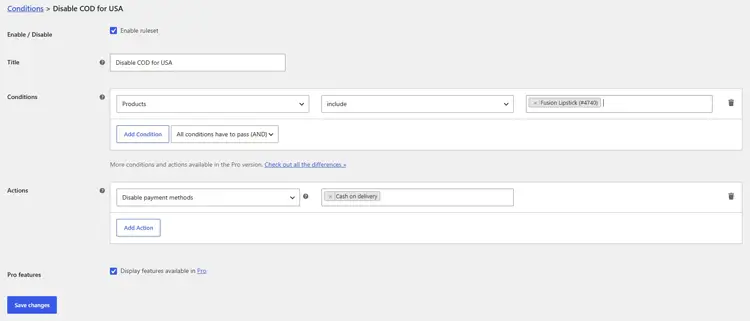
Practical example: Your store sells both physical clothing and digital design assets. You want to allow cash on delivery for clothing but hide it completely when any digital product is in the cart. The plugin checks the cart on load and applies the rule automatically — no custom code needed.
ShopLentor- WooCommerce Builder for Elementor & Gutenberg
A versatile page builder to build modern and excellent online stores with more than 100k+ Active Installations.
How to Disable WooCommerce Payment Methods by Cart Total
Cart-total rules are especially useful for reducing operational risk on large orders and for guiding customers toward certain payment methods based on order size.
Most conditional payment plugins let you set a minimum or maximum cart subtotal as the trigger condition. If the cart goes above a threshold, a gateway is hidden. If it stays below, different rules can apply.
Practical example: You want to disable cash on delivery for any order above $150. Orders below that threshold can use COD as usual, but larger orders are guided toward card or online payment. This reduces the risk of non-payment on high-value shipments.
Which Plugin to Use
You do not need a separate plugin for each rule type. One good conditional payment plugin handles country rules, product rules, and cart-total rules from a single interface. Here are the most reliable options:Plugin Key strengths Conditional Payment Methods for WooCommerce (WooCommerce.com) Native WooCommerce extension, supports country and cart conditions WooCommerce Conditional Shipping and Payments Covers product, category, shipping, and location conditions in one plugin Conditional Payments for WooCommerce (WordPress.org free) Good free option for basic cart-total and country rules
Install one. Create your rules one at a time. Test each one before adding the next.
Step-by-Step Setup Guide
- Go to WooCommerce > Settings > Payments and disable any gateway you are not using at all.
- Install a conditional payment plugin that matches your rule types.
- Open the plugin’s conditions screen and create your first rule — start with the most impactful one.
- Set the condition (country, product category, or cart total), choose the gateway, and save.
- Test the checkout with a real browser session. Use different billing addresses, cart contents, and order values to confirm each rule works correctly.
- Repeat for any additional rules, keeping each one focused on a single condition.
Once your payment rules are working correctly, the next step is making sure the checkout experience itself is as smooth and professional as possible. A well-configured payment setup is only effective if customers can navigate the checkout confidently.
If your checkout page needs a design upgrade, ShopLentor lets you customize the WooCommerce checkout, cart, and product pages visually — without writing any code. It works alongside your payment rules, not instead of them.
Two Stats Worth Knowing
According to BuiltWith, WooCommerce is used by over 6.7 million websites worldwide — making it the most widely deployed eCommerce platform on WordPress. That scale is one reason why the plugin ecosystem around WooCommerce payment customization is so mature and well-maintained.
WordPress powers 41.5% of all websites as of July 2026, according to W3Techs. For WooCommerce store owners, that means plugin support is not going anywhere, and the tools available for checkout customization continue to improve.
Frequently Asked Questions
Can WooCommerce disable payment methods without a plugin?
Yes, but only globally. You can toggle any gateway off from WooCommerce > Settings > Payments, which removes it from checkout for every order. For conditional rules, a plugin is required.
Do I need a separate plugin for each rule type?
No. One conditional payment plugin handles country, product, and cart-total rules from the same settings screen.
How do you restrict payment methods by country in WooCommerce?
Install a conditional payment plugin, create a new rule, select the gateway you want to restrict, and set the condition to billing or shipping country.
Can you hide cash on delivery for digital products?
Yes. Set a product or category condition in your conditional payment plugin. When a digital product is in the cart, the plugin hides COD automatically.
How do you disable a payment method above a certain cart total?
Create a cart subtotal rule in your conditional payment plugin. Set the threshold amount and choose which gateway to hide when the total exceeds it.
What is the safest setup for non-technical store owners?
Install one conditional payment plugin, configure rules one at a time, and test each one before publishing. Avoid stacking multiple plugins for overlapping rule types; it creates conflicts and makes debugging harder.
Conclusion
Disabling WooCommerce payment methods globally is easy. One toggle in the native settings handles it. Conditional rules based on country, product, or cart total need a plugin, but one well-chosen plugin covers all three.
Set up your rules carefully, test them properly, and once the payment logic is solid, use a checkout builder like ShopLentor to make the experience look and feel as good as it functions.
💡 Want a cleaner, better-converting checkout to match your payment setup? ShopLentor lets you redesign your WooCommerce checkout and cart pages without touching any code. Explore ShopLentor →