
How to Create a WordPress Knowledge Base That Reduces Support Tickets

Quick Answer
A WordPress knowledge base reduces support tickets by centralizing searchable answers to common questions before customers contact your team. To build an effective self-service system, identify repetitive support questions, organize articles into clear categories, configure instant search, surface relevant documentation near your support ticket form, and continuously monitor search analytics to fill content gaps.
If you manage a WordPress website or an e-commerce store, you know the daily challenge of opening your queue to find repetitive support requests. Questions about shipping policies, plugin installation, or password resets quickly swallow your workday.
The most effective way to protect your team’s time while improving customer satisfaction is simple: build a WordPress knowledge base.
In this guide, we will cover how to structure your documentation, set it up step-by-step in WordPress, integrate ticket deflection workflows, and measure your success over time while aligning with broader customer support best practices for e-commerce.
Table of Contents
What Is a WordPress Knowledge Base?
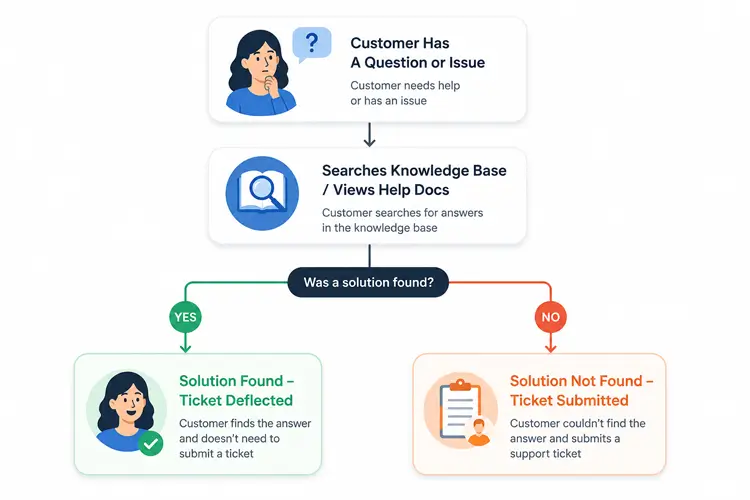
A WordPress knowledge base is a centralized, searchable self-service library hosted directly on your website. It contains documentation, step-by-step guides, troubleshooting articles, and answers to frequently asked questions (FAQs).
Unlike standard blog posts designed for marketing or news, knowledge base documentation is structured specifically for quick problem-solving and immediate task completion. It acts as an automated 24/7 help desk, guiding visitors to instant answers without human intervention.
+---------------------------------------------+
|      CUSTOMER HAS A QUESTION OR ISSUE       |
+---------------------------------------------+
                      |
                      v
+---------------------------------------------+
|   Searches Knowledge Base / Views Help Docs |
+---------------------------------------------+
                      |
                      v
              Was a solution found?
                 /           \
               YES            NO
                |              |
                v              v
+--------------------+   +--------------------+
| Ticket Deflected   |   | Submits Ticket     |
| No Wait Time       |   | for Support        |
+--------------------+   +--------------------+
Why Your WordPress Site Needs a Knowledge Base
When visitors cannot find immediate answers, they abandon checkouts, drop subscriptions, or flood your support desk. Offering a self-service option provides four primary operational advantages:
- Lower Ticket Volume: Deflect repetitive “how-to” questions before they turn into support tickets.
- Instant Customer Resolution: Provide answers 24/7 without making users wait for email response queues.
- Reduced Pre-Purchase Friction: Help potential buyers clear doubts regarding shipping, compatibility, or return policies before making a purchase.
- Increased Team Focus: Free your support team from answering boilerplate questions so they can focus on resolving complex technical issues.
Essential Features of a High-Deflection Knowledge Base
Not all documentation portals are effective. A cluttered archive of unorganized text documents can confuse users and increase support frustration. To effectively cut ticket volume, your knowledge base requires these essential features:
- Instant Live Search: A prominent, fast search bar with auto-suggestions that helps users find articles as they type.
- Clear Category Hierarchy: Logical grouping of content into distinct parent categories and subcategories matching the customer journey.
- Scannable Formatting: Clean typography using short paragraphs, bold UI labels, numbered steps, bullet points, and screenshots.
- Ticket Deflection Hooks: Smart integration that suggests relevant knowledge base articles directly on support pages or ticket submission forms before a ticket is created.
- Article Feedback Loops: Simple “Was this article helpful? (Yes / No)” voting options to identify outdated or unclear documentation.
- Knowledge Base Analytics: Detailed tracking of popular search terms, high-traffic articles, and queries that return zero search results.
How to Create a WordPress Knowledge Base (Step-by-Step)
Setting up a functional self-service documentation system does not require writing custom code. Follow this 9-step implementation process to launch an effective knowledge base on your WordPress site.
1. Audit Tickets
        |
        v
2. Select Plugin
        |
        v
3. Install & Enable
        |
        v
4. Set Categories
        |
        v
5. Publish Content
        |
        v
6. Set Search
        |
        v
7. Connect Workflow
        |
        v
8. Track & Refine
Step 1: Identify Your Most Repetitive Support Questions
Review your email inbox, live chat logs, and helpdesk tickets over the past three to six months. List the top 15 to 20 questions your support team answers repeatedly. These topics represent your highest-priority documentation tasks.
Step 2: Choose an Integrated WordPress Support Solution
Instead of installing separate plugins for tickets and documentation, choose an all-in-one plugin. Evaluating top WordPress helpdesk plugins shows that unified tools perform best. For instance, the Support Genix WordPress ticket plugin combines ticket management with built-in knowledge base features in a single WordPress dashboard, keeping your support data consolidated in one environment.
Step 3: Install and Enable the Knowledge Base
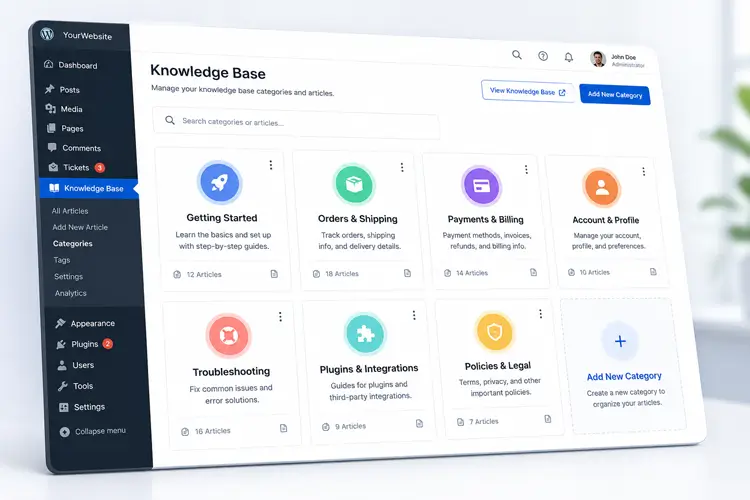
After installing your chosen plugin:
- Navigate to your WordPress admin dashboard.
- Enable the Knowledge Base module in the settings menu.
- Configure your core documentation page URL slug (e.g.,
[yourdomain.com/docs](https://yourdomain.com/docs)or[yourdomain.com/knowledge-base](https://yourdomain.com/knowledge-base)).
Step 4: Create Main Knowledge Base Categories
Organize your documentation into intuitive, topic-based categories. For a WooCommerce store, a logical structure includes:
- Getting Started: Account creation, initial setup, order placement.
- Orders & Shipping: Tracking packages, changing addresses, shipping times.
- Returns & Refunds: Return policies, exchange workflows, processing times.
- Troubleshooting: Payment failures, account login issues, error codes.
Step 5: Publish High-Priority Support Articles
Draft direct, action-oriented articles addressing the common questions identified in Step 1.
- Use clear, task-focused titles (e.g., “How to Change Your Shipping Address” instead of “Address Policies”).
- Bold interface buttons, links, and key settings.
- Break steps down into clean numbered lists.
Step 6: Configure Search and Navigation
Ensure visitors can locate your documentation easily:
- Place a prominent search bar on your main knowledge base landing page.
- Add direct links to your WordPress Knowledge Base in your main header menu and site footer.
- Enable live search suggestions so matching articles appear dynamically as users type.
Step 7: Connect the Knowledge Base to Your Ticket Workflow
To maximize ticket deflection, surface relevant WordPress knowledge base articles right where users go to request support. If you are building or configuring a help desk, refer to our guide on creating a support ticketing system in WordPress. Advanced plugins like Support Genix offer article suggestion capabilities that automatically recommend relevant guides as customers fill out a support ticket or interact with support widgets.
Step 8: Test Common Customer Search Journeys
Before announcing your new help center, test it manually:
- Search common keywords and intentional typos (e.g., “shiping”, “refund”, “reset password”).
- Ensure search results present the most relevant articles at the top.
- Confirm that images, links, and feedback buttons render properly on mobile devices.
Step 9: Track Search Analytics and Identify Content Gaps
Review your WordPress knowledge base analytics weekly to evaluate user activity. Identify search queries that return zero results and write new articles to fill those coverage gaps promptly.
Practical Example: Turning WooCommerce Tickets Into Documentation
To see how this works in practice, consider a growing WooCommerce store dealing with frequent order management questions.
The Problem
The store receives repeated tickets asking:
- “Where is my package?”
- “Can I change my shipping address after placing an order?”
- “How long do refunds take to process?”
The Knowledge Base Solution
Instead of handling these individually, the store creates two dedicated categories with clean, structured articles:Category Article Title Key Content Included Orders & Shipping How to Track Your Package Order Step-by-step guide on finding tracking numbers in account dashboards and email notifications. Orders & Shipping How to Update Shipping Addresses Instructions on editing addresses before fulfillment begins, plus contact rules. Returns & Refunds Refund Processing Times & Policies Overview explaining expected refund processing timelines across standard payment methods.
The Result
When customers visit the support page and start typing “Where is my order”, the dynamic search bar instantly highlights “How to Track Your Package Order”. The customer finds their answer immediately, resolving the issue without submitting a support ticket.
How to Measure Whether Your Knowledge Base Is Reducing Support Tickets
To evaluate whether your self-service portal is effectively reducing ticket volume, track these core metrics:
KEY DEFLECTION METRICS

1. Repetitive Ticket Volume
   Track the percentage change in specific ticket categories.

2. Ticket-to-View Ratio
   Compare knowledge base page views with submitted tickets.

3. Zero-Result Search Queries
   Identify searches that return no relevant documentation.

4. Article Helpfulness Scores
   Monitor "Yes / No" feedback ratios for each article.
- Category-Specific Ticket Volume: Compare the number of tickets submitted in specific categories (e.g., “Shipping Questions”) before and after publishing relevant articles.
- Ticket-to-View Ratio: Compare total WordPress knowledge base article page views against total submitted tickets. Use this as a directional indicator alongside category-specific ticket trends, search behavior, and article helpfulness—not as proof of ticket deflection on its own.
- Zero-Result Search Rate: Monitor queries that yield no results. A high volume of zero-result searches indicates missing documentation that needs to be written.
- Helpfulness Rating Ratios: Calculate the percentage of “Yes” vs. “No” votes on article feedback widgets. Articles with low helpfulness scores should be rewritten or updated with clearer steps and visuals.
How to Keep Reducing Support Tickets After Launch
Building a WordPress knowledge base is an ongoing operational workflow rather than a one-time project. Implement these maintenance habits to keep ticket deflection high:
- Turn Incoming Tickets Into Documentation: Whenever an agent answers a new question twice in one week, create a draft knowledge base article covering that topic.
- Audit Low-Performing Articles Monthly: Review articles with high “Unhelpful” ratings or high exit rates. Clarify complex steps, update outdated screenshots, or add video walk-throughs.
- Synchronize Docs With Product Updates: Update documentation simultaneously whenever you roll out software updates, policy changes, or site redesigns.
Frequently Asked Questions
What is the best way to create a knowledge base in WordPress?
The most efficient approach is using a dedicated helpdesk plugin like Support Genix that combines ticketing and documentation within WordPress. This lets you build searchable articles, group them into clear categories, and surface them directly near support ticket submission forms.
Can a WordPress knowledge base really reduce support tickets?
Yes. A knowledge base reduces tickets by providing immediate self-service answers to repetitive questions about shipping, billing, or technical configuration. When customers find answers on their own, they no eyes need to submit support tickets.
What should I include in a knowledge base?
Combining your knowledge base and helpdesk in a single system is generally more effective. An integrated setup allows your support system to suggest relevant articles automatically as users fill out ticket forms, increasing ticket deflection.
How often should knowledge base articles be updated?
Review your knowledge base articles quarterly, or immediately whenever you update your products, change store policies, or release software updates. Outdated documentation leads to user confusion and generates new support tickets.
Conclusion
Building an effective self-service portal comes down to a clear framework:
identify repeated questions → document them clearly → organize logically → surface answers before ticket submission → measure coverage gaps → improve continuouslyBy shifting routine inquiries into a searchable knowledge base, you give customers instant solutions while keeping your support queue manageable.
Ready to streamline your customer support and reduce ticket volume? Explore Support Genix to see how integrated ticket management and documentation tools work together seamlessly.